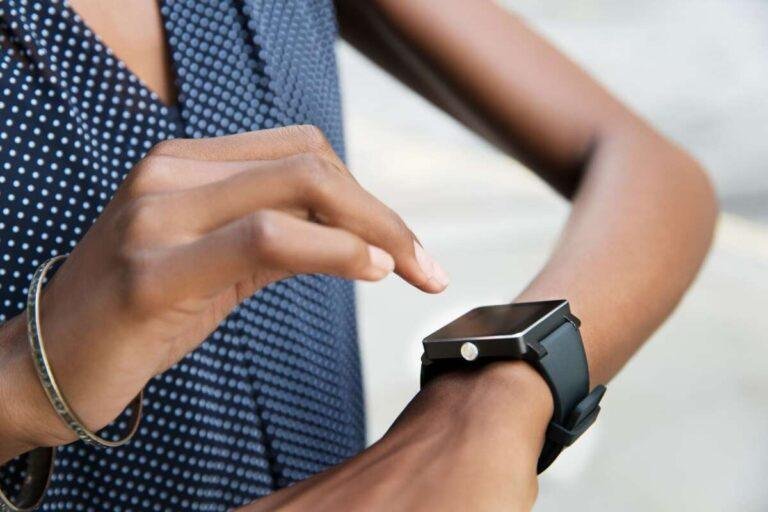
Learn how to use a smartwatch by pairing it with your phone, setting goals, and learning its key controls.
Learning how to use a smart watch is easier than it first seems. Think of it as a small control center on your wrist. It can show calls, track workouts, monitor sleep, provide directions, and send reminders without making you reach for your phone.
The best way to learn how to use a smart watch is to set it up in a calm, simple order. This guide explains setup, controls, health tools, notifications, apps, battery care, privacy, and common mistakes. It also shares practical tips that help a smartwatch become useful instead of distracting.
What Is a Smartwatch?
A smartwatch is a wearable computer that sits on your wrist. It connects to a smartphone through Bluetooth, Wi-Fi, or cellular service. Most models use a touch screen, side buttons, or a rotating crown for control.
Smartwatches can do many jobs, including:
• Showing the time and date
• Displaying calls, texts, and app alerts
• Tracking steps, heart rate, workouts, and sleep
• Playing music and controlling phone media
• Providing directions and weather updates
• Making contactless payments on supported models
• Setting alarms, timers, and reminders
Some watches work best with a specific phone system. For example, an Apple Watch is designed mainly for an iPhone. Wear OS watches often work with Android phones, although some features may vary by model and phone brand.

How to Set Up a Smartwatch
The first step in learning how to use a smart watch is proper setup. Most setup problems come from skipping updates, using the wrong app, or pairing the watch before charging it.


Follow these steps:
-
Charge the watch
Charge the watch to at least 50 percent. A full charge is better for a first setup because updates and data transfers may use extra power.
-
Turn on Bluetooth
Open the Bluetooth settings on your phone. Keep the phone and watch close together during pairing.
-
Install the official app
Use the watch maker’s official app. Examples include Apple Watch, Google Pixel Watch, Garmin Connect, Fitbit, and Samsung Galaxy Wearable.
-
Create or sign in to an account
The app may ask for an account. This account stores settings, workouts, health data, and backups.
-
Pair the devices
Select your watch in the app. Confirm the matching code shown on both screens.
-
Install updates
Update the watch and its phone app. Updates can improve security, battery life, accuracy, and compatibility.
-
Choose your basic settings
Select your language, wrist, watch face, units, notifications, and privacy choices.
-
Add emergency information
If the watch supports it, add emergency contacts and medical details. These details may help responders, but they are not a substitute for professional medical care.


A common lesson from setting up many types of wearable devices is to avoid enabling every feature at once. Start with calls, messages, alarms, and activity tracking. Add other tools after you understand the basics.

How to Use Smart Watch controls
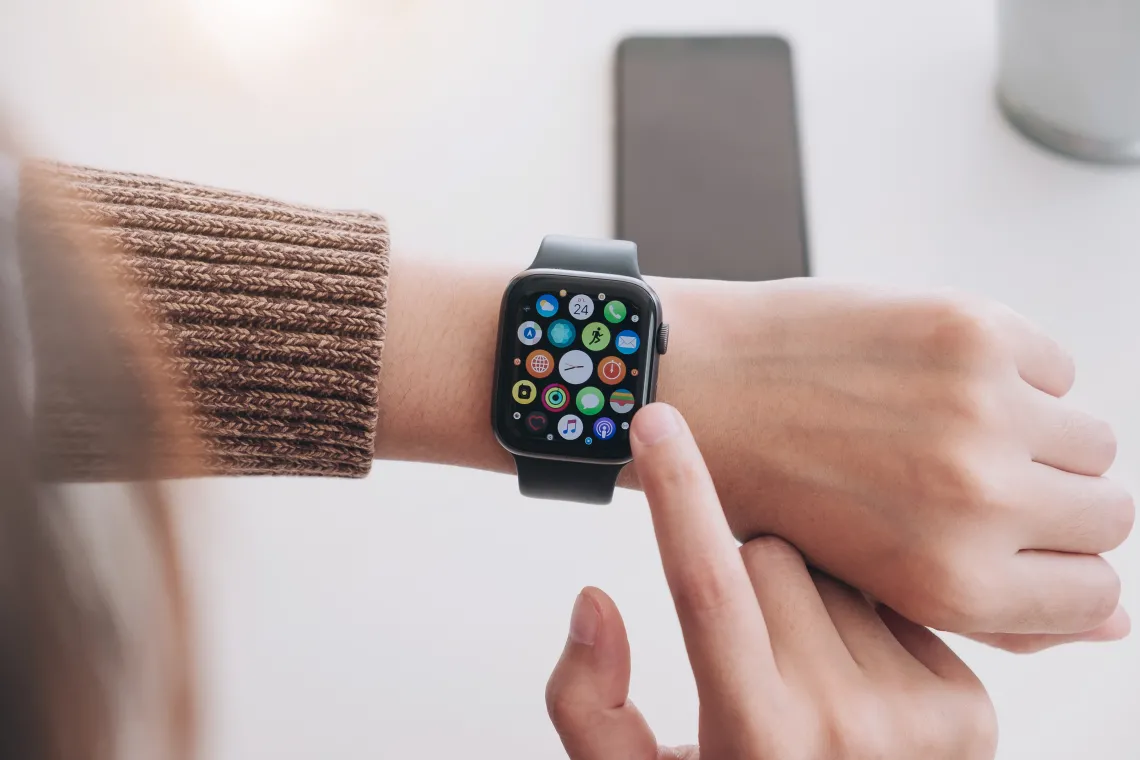
every model has its own layout, but most smartwatches use similar controls. Learning these controls makes daily use much faster.
Touchscreen gestures
• Tap an icon to open it.
• Swipe up or down to view notifications or settings.
• Swipe left or right to change screens or watch faces.
• Press and hold to customize certain screens.
• Use two fingers or a pinch gesture only if the model supports it.
Physical buttons
A side button often opens recent apps or the main menu. Another button may open workouts, activate voice control, or return to the watch face.
Some watches have a rotating crown or bezel. Turn it to scroll through lists, and press it to select an item. This can be useful when your hands are wet or when the screen is hard to touch during exercise.
Voice control
Many watches support a voice assistant. You can say commands such as:
• “Set a timer for 10 minutes.”
• “Start a walking workout.”


• “Remind me to call Mom at 6 p.m.”
• “What is the weather?”
Voice tools work best in a quiet place. They may misunderstand names, accents, or background noise, so check important commands before relying on them.
 controls”
style=”max-width: 100%; height: auto; border: 2px solid black; border-radius: 10px; display: block; margin: 0 auto;”
loading=”lazy”
/>
How to Customize Your Smartwatch
Customization helps you see useful information at a glance. A busy watch face can create clutter, while a simple face may hide tools you use often.
Start by choosing a watch face that matches your routine. A work face might show your calendar, weather, and battery. A fitness face may show heart rate, steps, and workout access.
You can often change:
• Colors and styles
• Time format
• Complications or widgets
• App layout
• Text size
• Screen brightness
• Wake and sleep settings
• Vibration strength
Use only the widgets you need. A helpful setup might include weather, calendar, battery, and activity. Too many widgets can make the display hard to read and may use more power.


Accessibility settings also matter. Larger text, stronger contrast, spoken feedback, and reduced motion can make the watch easier to use. These options benefit many people, not just those with a disability.

How to Manage Notifications
Notifications are one of the main reasons people want to know how to use a smart watch. They can save time, but too many alerts can become stressful.
Open the watch app on your phone and review each notification permission. Keep alerts that need quick action, such as calls, calendar events, family messages, and delivery updates. Turn off alerts that can wait.
A simple notification plan may include:
• Calls from important contacts
• Direct messages
• Calendar reminders
• Weather warnings
• Medication reminders
• Fitness goals
Avoid sending social media, shopping, and promotional alerts to your wrist unless they are truly useful. Your watch should reduce phone checks, not create more of them.
You can also use silent mode, theater mode, bedtime mode, or do-not-disturb settings. These modes are useful during meetings, sleep, school, movies, and quiet family time.
How to Track Fitness and Health
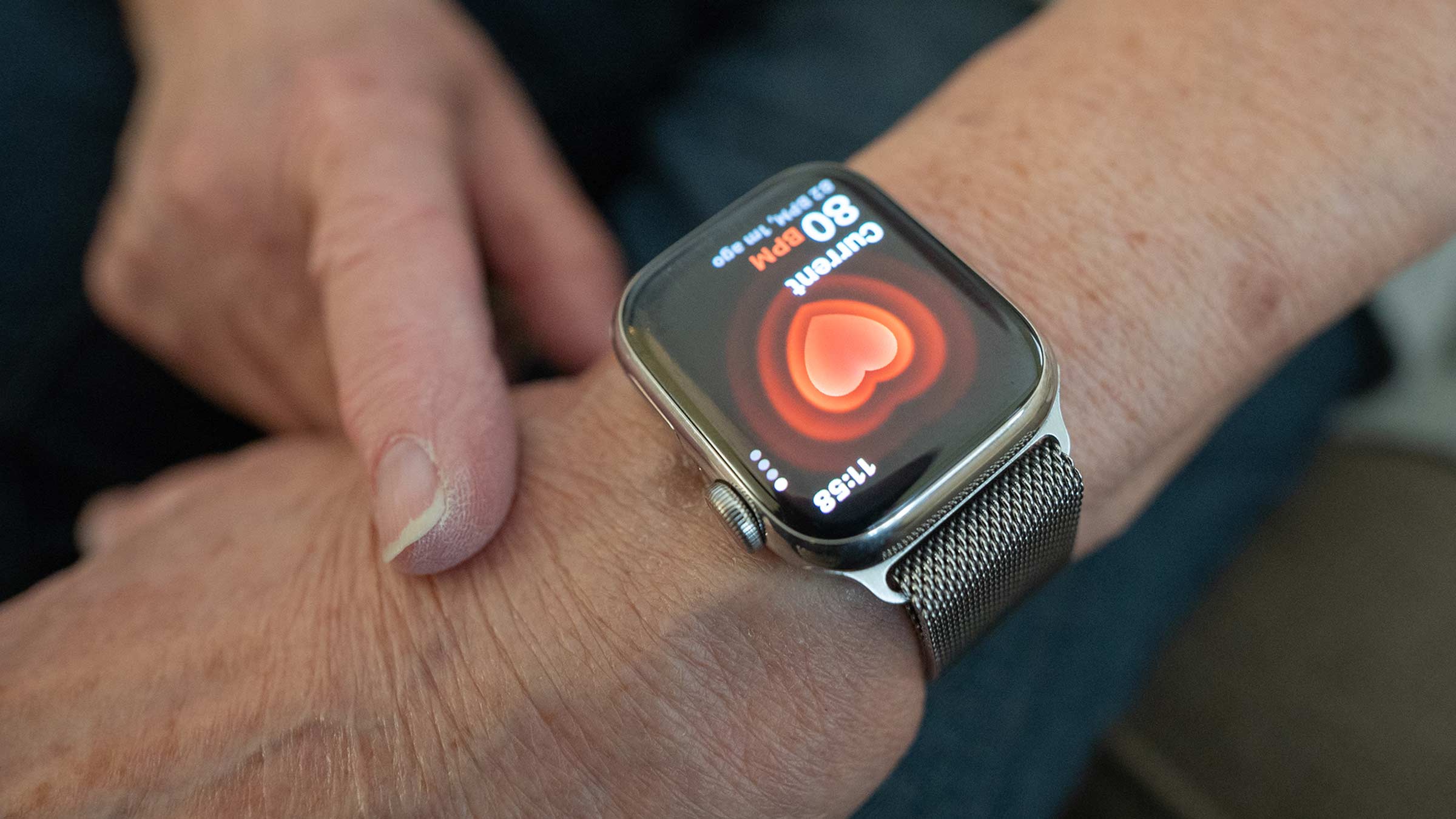
Fitness tracking is a major part of how to use a smart watch. Most watches can count steps, measure movement, record workouts, and estimate heart rate. Some models also offer blood oxygen readings, electrocardiogram features, skin temperature data, or fall detection.
To start a workout:
-
Open the workout app.
-
Choose an activity such as walking, running, cycling, or swimming.
-
Wait for location or heart rate sensors to connect if needed.
-
Tap start.
-
Pause or end the workout when finished.
-
Review the results in the watch app.
Wear the watch firmly above the wrist bone. It should touch the skin, but it should not feel tight or painful. A loose fit can reduce heart rate accuracy during exercise.
Health features have limits. A smartwatch is not a medical diagnosis tool, and readings can be affected by movement, skin contact, tattoos, cold weather, sweat, and device design. If you notice symptoms such as chest pain, fainting, or severe shortness of breath, seek medical help rather than relying on a watch reading.
Health agencies and device makers commonly advise users to treat wearable data as general information. Use trends to guide healthy habits, and discuss unusual results with a qualified health professional.

How to Use GPS, Maps, and Location Tools
Many smartwatches use GPS to track outdoor workouts and provide directions. GPS may work through the watch itself or through a connected phone.
For better results:
• Turn on location access when the app requests it.
• Start the workout outdoors with a clear view of the sky.
• Wait for the GPS signal before moving.
• Keep the watch firmware updated.
• Download offline maps if your model supports them.
GPS can drain the battery faster than normal timekeeping. If you are hiking or traveling, carry a phone, charger, water, and other safety supplies. A smartwatch should support your plan, not be your only safety tool.
Map directions are helpful for short trips, but the small screen may not show every detail. Check the route before you start and stop in a safe place if you need to study the map.
How to Use Calls, Texts, Music, and Payments
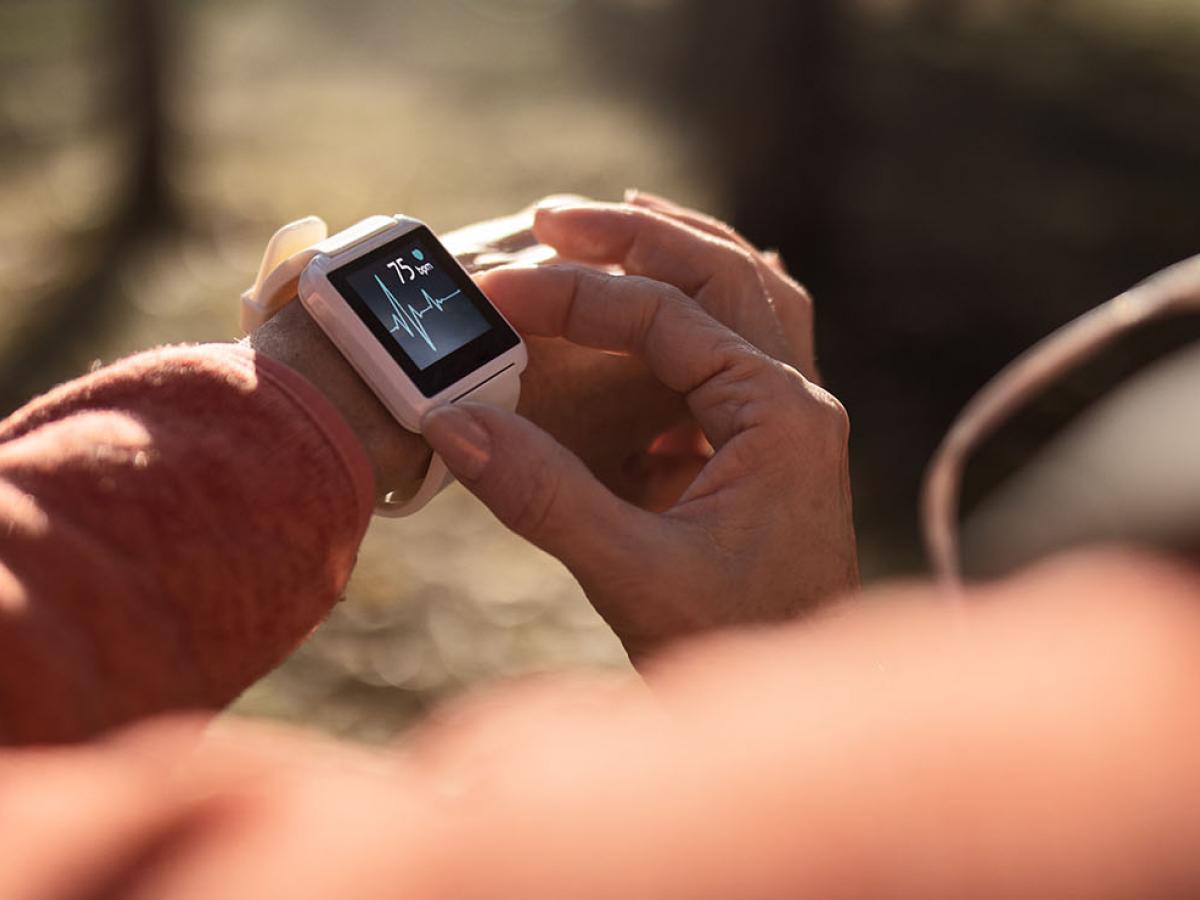
A smartwatch can handle simple phone tasks. If it has a microphone and speaker, you may be able to answer calls from your wrist. Some models need the phone nearby, while cellular models may work independently with a compatible plan.
You can often:
• Read and reply to messages
• Use preset replies or voice dictation
• Control music on your phone
• Store songs for offline listening
• Set alarms and timers
• View calendar events
• Pay at supported terminals
For payments, add a card through the official wallet app. Set a secure passcode on the watch and avoid sharing it. Contactless payment availability depends on the country, bank, card network, and watch model.
A useful habit is to test important features before you need them. Make a short call, send a test message, and check music playback at home. This prevents surprises when you are traveling or exercising.
How to Save Smartwatch Battery Life
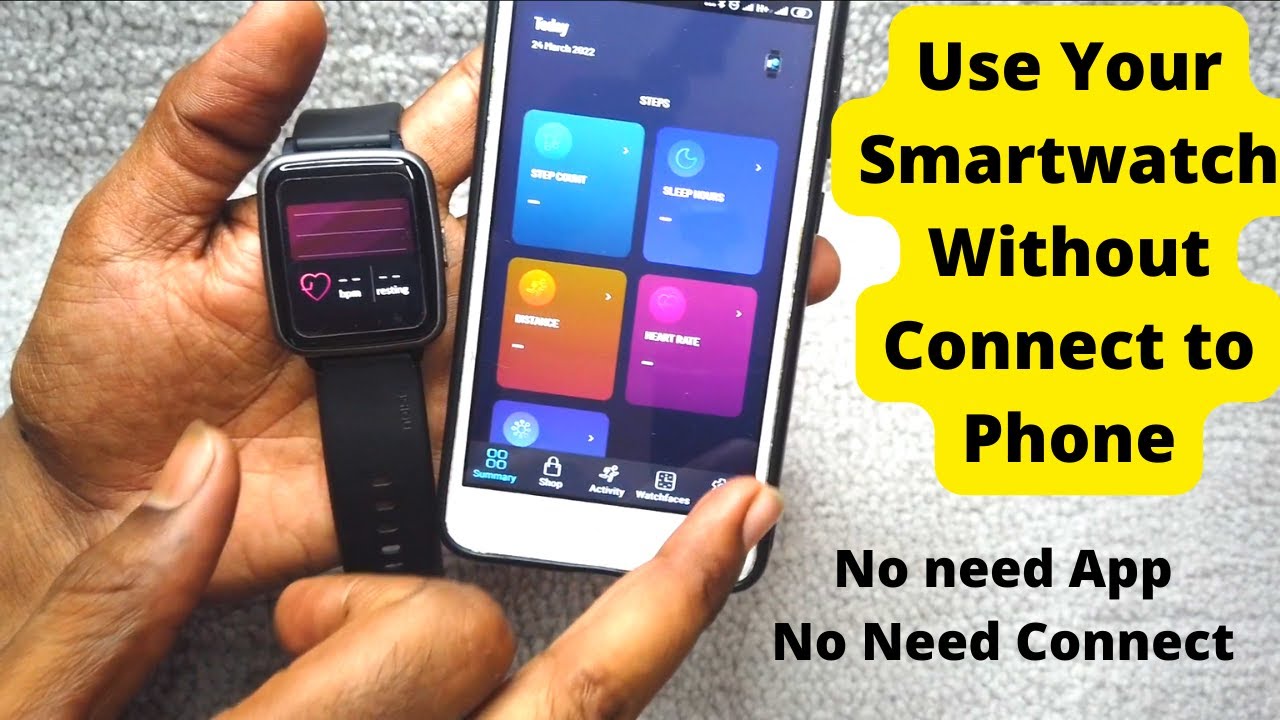
Battery life depends on the screen, sensors, GPS, apps, connection type, and usage. A watch with an always-on display and frequent GPS workouts may need charging every day. A simpler model may last several days.
To extend battery life:
• Lower screen brightness.
• Shorten the screen timeout.
• Turn off always-on display when you do not need it.
• Reduce unnecessary notifications.
• Use GPS only during outdoor activities.
• Remove apps that constantly refresh.
• Keep the watch software updated.
• Use battery saver mode during long trips.
Avoid extreme heat and use the correct charger. Do not use a damaged cable or charger. Water resistance also changes over time, so follow the manufacturer’s care instructions.
One common mistake is charging the watch only when the battery is nearly empty. A short daily charge, such as while showering or getting ready, is often easier than waiting for a complete shutdown.

Smartwatch Privacy and Security
A smartwatch collects personal information. This may include location, activity, sleep, heart rate, contacts, and payment details. Good privacy habits are part of learning how to use a smart watch safely.
Review these settings:
• Which apps can access health data
• Which apps can use location
• Whether notifications show private message text
• Whether data syncs to a cloud account
• Who can view shared fitness information
• Whether voice recordings are stored
Use a strong phone and watch passcode. Install apps only from trusted stores, and keep the operating system updated. If you sell or give away the watch, unpair it and erase all content first.
You should also check what happens when the watch is lost. Most major platforms offer tools to lock, locate, or erase a device remotely. Turn these tools on before a problem occurs.
Common Smartwatch Mistakes to Avoid
Even when you understand how to use a smart watch, small mistakes can reduce its value.
• Ignoring updates: Old software may cause connection and security problems.
• Wearing it too loosely: Poor skin contact can affect sensor readings.
• Accepting every notification: Too many alerts can increase distraction.
• Treating estimates as facts: Step counts, calories, and sleep stages are not perfect measurements.
• Forgetting charging habits: A dead watch cannot track activity or provide alerts.
• Using it as a medical device: Health readings need context and may require professional review.
• Choosing the wrong watch for your phone: Compatibility limits can appear after purchase.
• Wearing it during unsafe tasks: Do not look at the screen while driving, cycling in traffic, or using machinery.
The best smartwatch setup is not the one with the most features. It is the one that supports your needs with the least effort.
A Simple Daily Smartwatch Routine
A short routine can help you get more value from your device.
Morning
Check the battery, weather, calendar, and sleep summary. Do not treat a sleep score as a final judgment about your health. Look for patterns over time instead.
During the day
Use reminders, timers, and selected notifications. Keep the watch quiet during focused work or important conversations.
During exercise
Start the correct workout mode, wear the watch securely, and pause the session if the data looks wrong. Hydrate and follow normal safety rules.
Evening
Review activity trends, charge the watch, and enable a sleep or do-not-disturb mode. Take the watch off if your skin feels sore or irritated.
This routine makes how to use a smart watch feel natural. The device becomes a quiet assistant rather than another screen demanding attention.
Frequently Asked Questions About How to Use Smart Watch
How do I connect a smartwatch to my phone?
Install the watch maker’s official app, turn on Bluetooth, and follow the pairing instructions. Keep both devices close and confirm the code shown on their screens.
Can I use a smartwatch without a phone?
Some watches can track activity, show the time, play stored music, and use GPS without a phone nearby. Calling, messaging, app downloads, and data syncing may require a phone or a cellular plan.
How tight should a smartwatch be?
Wear it securely above the wrist bone with firm skin contact. It should not slide during exercise, but it should not cause pain, numbness, or skin marks that remain after removal.
Why is my smartwatch not receiving notifications?
Check Bluetooth, notification permissions, connection status, and battery saver settings. Restarting both devices and updating the watch app often fixes basic connection problems.
How often should I charge my smartwatch?
Charge it according to the model’s battery life and your usage. Daily charging is common for watches with bright screens, health sensors, and frequent GPS use.
Are smartwatch health readings accurate?
Smartwatch readings can be useful for general trends, but they are not always as accurate as clinical equipment. Movement, fit, skin contact, and device design can affect results, so discuss concerning symptoms or unusual readings with a health professional.
Can I swim while wearing a smartwatch?
Only swim with a watch rated for swimming or suitable water resistance. Follow the manufacturer’s limits because water resistance does not mean the device is safe in every depth, temperature, or water type.
Conclusion
Learning how to use a smart watch starts with a simple setup: pair it with your phone, update the software, choose useful notifications, and practice the main controls. From there, explore workouts, health trends, GPS, music, payments, and safety tools at your own pace.
Keep your expectations realistic. A smartwatch is a helpful companion, but its data is not perfect and it cannot replace medical care or common sense. Set up only the features that improve your day, then adjust them as your habits change.
Try one new feature today, such as a timer, walking workout, or customized watch face. Explore your device’s official guide for model-specific tools, and share your favorite smartwatch tip with someone who is just getting started.

Rubel Miah is the Senior Editor at MyStyleGrid.com, where he brings a sharp editorial eye and an unshakable love for fashion to everything he does. A true style addict, Rubel lives and breathes trends, from streetwear to high fashion, and has a knack for turning inspiration into impactful stories. With years of experience in fashion journalism and digital media, he curates content that empowers readers to express themselves through style. When he’s not editing features or forecasting the next big thing, you’ll find him hunting down vintage pieces or capturing street style moments around the city.