Changing your phone can be exciting, but it also brings real worries—like losing data from your smartwatch. Many people fear that after getting a new phone, their steps, workout history, sleep tracking, or even important app settings will be lost forever.
I’ve felt that panic too. When I switched to a new phone last year, my smartwatch seemed empty—no records, no reminders, nothing. But you don’t have to lose hope. With the right steps, you can recover lost smartwatch data, even after a phone change.
In this guide, I’ll walk you through the process, step by step. You’ll learn why data sometimes disappears, how to get it back, and how to avoid losing it next time. I’ll also share tips that helped me (and that most people miss).
Whether you use Apple Watch, Samsung Galaxy Watch, Fitbit, Garmin, or another brand, you’ll find practical advice here.
Why Smartwatch Data Gets Lost After A Phone Change
Switching to a new phone often means disconnecting your smartwatch from the old device. This process can break the link between your watch and the apps or cloud accounts where data lives. Here are common reasons why you might lose data:
- Unlinked Accounts: If you don’t sign in with the same account on the new phone, your data won’t show up.
- Local Storage Only: Some watches store data on the phone, not in the cloud. When you change phones, that data stays behind.
- Incomplete Backup: If you forget to back up before switching, the new phone starts fresh.
- App Sync Issues: Sometimes, the companion app doesn’t sync right away, leaving data out of reach.
- Factory Reset: Resetting the watch (or phone) without a backup wipes all data.
Knowing these causes helps you avoid mistakes and gives clues for recovery.
Types Of Smartwatch Data You Might Lose
Before you start recovery, it’s important to know what kind of data might be missing. This helps you focus your efforts.
- Activity records: Steps, heart rate, calories burned, exercise logs.
- Sleep tracking: Sleep stages, duration, quality.
- Notifications: Missed calls, messages, app alerts.
- Personal settings: Watch faces, alarms, reminders, custom shortcuts.
- App data: Data from third-party apps like Strava, MyFitnessPal, or music apps.
- Health data: Blood oxygen, ECG, stress levels.
Not every type of data is stored the same way. For example, heart rate history may sync to the cloud, while custom watch faces might stay local.
Credit: support.apple.com
How To Recover Lost Smartwatch Data: Step-by-step
Let’s get practical. Here’s what you should do, in order, to recover your lost smartwatch data after changing your phone.
1. Reinstall And Set Up The Companion App
First, download the official app for your smartwatch on your new phone. For Apple Watch, it’s the Watch app. For Samsung, it’s Galaxy Wearable. For Fitbit, it’s the Fitbit app.
- Install the app from the official store (App Store or Google Play).
- Log in with the same account you used before.
- Follow prompts to pair your watch with the new phone.
If you use the same account, much of your data may sync automatically.
2. Check For Cloud Sync
Most modern smartwatches use cloud sync. That means your activity and health data are stored online, not just on your device.
- In the app, look for sync status or last sync time.
- For Apple Watch, data is often linked to iCloud.
- For Fitbit, check your Fitbit account online.
- For Samsung, check Samsung Cloud.
- For Garmin, use Garmin Connect.
If cloud sync is active, your lost data should reappear after the first successful sync.
3. Restore From Backup
Some brands offer backup and restore features. This is critical for things like settings, watch faces, and app data.
| Brand | Backup Location | What’s Backed Up | How to Restore |
|---|---|---|---|
| Apple Watch | iCloud/iPhone | Settings, app layout, activity data | Restore during pairing |
| Samsung Galaxy Watch | Samsung Cloud | Settings, apps, faces | Restore in Galaxy Wearable app |
| Fitbit | Fitbit account | Activity, health data | Automatic with login |
| Garmin | Garmin Connect | Activities, settings | Sync with app |
If you backed up your watch or app before switching phones, choose the restore option during setup.
4. Manually Sync Data
If automatic sync doesn’t bring your data back, try manual sync.
- Open the companion app.
- Go to the device or data section.
- Look for a Sync now button or menu.
- Wait for the sync to complete.
Manual sync often solves problems, especially if your watch has stored data that did not upload before.
5. Reconnect Third-party Apps
Apps like Strava, MyFitnessPal, or Spotify often save their own data. When you change phones, you need to reconnect them.
- Open the smartwatch app on your phone.
- Find the third-party app connections or “linked apps” section.
- Log in to each app using your old credentials.
- Allow permissions for data access.
Sometimes, these apps store your data in their own cloud. Once you reconnect, old records should sync back.
6. Recover Data From Old Phone
If your data was stored only on your old phone (not in the cloud), you may still recover it.
- Reinstall the companion app on your old phone if possible.
- Log in and check if the data is there.
- Back up or export the data (if the app allows).
- Transfer the backup file to your new phone, using Bluetooth, cloud drive, or a cable.
- Import the backup into the companion app on your new phone.
When I switched phones once, I realized my step history was only on my old Android device. I used the “Export Data” feature in the app, sent the file to my new phone, and imported it. The data came right back.
7. Use Data Recovery Tools
If you cannot access your old phone or the data is deleted, data recovery apps may help. This option is less reliable, but it’s worth a try if you’re desperate.
- Use trusted data recovery apps (like Dr.Fone, iMobie, or Tenorshare).
- Connect your old phone to a computer.
- Scan for deleted or lost files linked to your smartwatch app.
- Recover and transfer data to your new phone.
Not all data can be recovered this way, and success varies by brand and device.
8. Contact Support
If you’ve tried everything and still can’t recover your data, contact the brand’s support team.
- Explain your situation clearly.
- Provide your account details and device information.
- Ask if they can recover or merge your data.
Support can sometimes restore data from their servers or guide you through advanced steps.
Brand-specific Recovery Methods
Different smartwatch brands have their own tools and steps for data recovery. Here’s how to recover lost data for the most popular brands.
Apple Watch
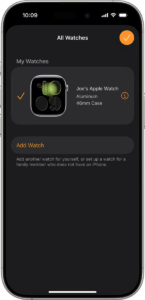
Apple Watch ties data closely to your iPhone and iCloud. If you set up your new iPhone from an iCloud backup, your watch data often moves automatically. If you set up as new, you’ll need to restore from a watch backup.
- Open the Watch app on your new iPhone.
- Pair your Apple Watch.
- When prompted, choose Restore from Backup.
- Select the most recent backup.
Health data (steps, workouts, etc.) syncs with iCloud if enabled. To check:
- Go to Settings > [your name] > iCloud > Health.
- Make sure Health is toggled on.
If you missed a backup, some data may not come back. Always check sync settings before switching.
Samsung Galaxy Watch
Samsung watches use the Galaxy Wearable app and Samsung Cloud. You can back up your watch before switching phones.
- Open Galaxy Wearable on your old phone.
- Tap Watch settings > Accounts and backup > Back up data.
- On your new phone, sign in to the same Samsung account.
- During pairing, choose to restore from backup.
If you already switched, try logging in to Samsung Cloud and restoring manually.
Fitbit
Fitbit devices save most data to your Fitbit account, not the phone. To recover:
- Install the Fitbit app on your new phone.
- Log in to your Fitbit account.
- Pair your device.
Your activity and health data should sync back within minutes. If not, force sync:
- Open the Fitbit app.
- Tap your profile photo, then your device.
- Tap Sync Now.
If you used a different email, your data won’t show up.
Garmin
Garmin uses the Garmin Connect app and website to store data.
- Download Garmin Connect on your new phone.
- Sign in with your Garmin account.
- Pair your device.
Your activities, sleep, and settings sync from the cloud. For old data not showing up, check the Garmin Connect web dashboard.
Other Brands (amazfit, Huawei, Etc.)
For less common brands, steps are similar:
- Download the official app.
- Log in with your old account.
- Pair your device.
- Check cloud sync and manual sync options.
Always keep your account details safe—changing your email or password may block access to old data.
Common Problems And Solutions
Even with careful steps, you might hit roadblocks. Here are common problems and ways to solve them.
Data Not Syncing
Sometimes, data won’t sync to the new phone.
- Make sure both your watch and phone have the latest software.
- Restart both devices.
- Check Wi-Fi or Bluetooth connections.
- Log out and log back in to your account.
- Try syncing at a different time of day.
Missing Data After Restore
Some records may be missing after restoring a backup.
- Check if your backup was recent.
- See if some data (like app settings) is excluded from backup.
- For health data, check if it’s stored in a separate app (like Google Fit or Apple Health).
Can’t Access Old Phone
If your old phone is broken or lost, recovery is harder.
- Try logging in to your cloud account from a computer.
- Contact support and explain your case.
- If you used an SD card, check for data files there.
Watch Not Pairing
If your watch won’t connect to the new phone:
- Unpair it from the old phone first (if possible).
- Reset the watch (factory reset may be needed).
- Make sure Bluetooth is on and the device is discoverable.
How To Avoid Losing Data Next Time
Losing smartwatch data is stressful. But you can prevent it next time with a few habits.
- Regular backups: Use backup features in the app or cloud.
- Sync often: Don’t let your watch go unsynced for weeks.
- Use one account: Stick to the same email/account when changing devices.
- Export important data: Some apps let you export workout history or health records.
- Check compatibility: Before changing phones, make sure your watch supports the new device.
| Tip | Why It Matters |
|---|---|
| Back up before switching | Ensures settings and data move safely |
| Sync to cloud | Protects against phone loss or damage |
| Test new device before wiping old one | Lets you check data transfer before erasing |
| Keep login info secure | Prevents lockout from old data |
I now always back up my smartwatch data before I change phones. It takes a few minutes but saves hours of stress if something goes wrong.
Credit: support.apple.com
What Beginners Often Miss
Many people forget about small details that can make a big difference:
- Watch faces and custom settings often don’t sync unless you back up manually.
- Third-party app connections sometimes need to be re-authorized. If you skip this, your old runs or workouts may not show up.
- Data export options in your smartwatch app are worth checking. You can often download a CSV of your health data for safekeeping.
- Regional differences: In some countries, certain backup features may not be available. Check your smartwatch brand’s support site for details.
When Data Recovery Fails
Despite all efforts, sometimes lost data can’t be recovered. If this happens:
- Focus on syncing and backing up from now on.
- Rebuild your data slowly. New records will fill in over time.
- Some fitness apps let you add past workouts manually.
Remember, tech changes quickly. Even if you lose one set of records, you can make sure it doesn’t happen again.

Credit: en.wikipedia.org
Frequently Asked Questions
How Do I Know If My Smartwatch Data Is Backed Up To The Cloud?
Most smartwatch apps show a sync status or last sync time. Check the app’s settings for backup or cloud options. If you log in to the brand’s website (like Fitbit.com or Garmin Connect), you should see your activity and health data there.
Can I Get My Old Smartwatch Data If I Changed Both My Phone And Email?
Usually, your data is tied to the email or account you used. If you change both, you may lose access. Contact support with proof of old and new accounts—they may be able to merge your data.
Is It Possible To Recover Data If My Old Phone Is Completely Broken?
If you used cloud sync or regular backups, you can recover data by logging in on your new phone. If your data was only stored locally and the phone is dead, it’s usually not possible to recover it without professional repair.
Will Resetting My Smartwatch Erase All My Data?
Resetting your watch clears local data, but anything synced to the cloud should come back when you pair it again. Always check that sync is complete before a reset.
Where Can I Find Official Help For My Smartwatch Brand?
Visit your brand’s support page. For example, the official Apple Watch support page, Samsung’s Galaxy Watch help, or Garmin’s support site. For more technical info, you can also check Wikipedia’s Smartwatch page.
Switching phones doesn’t have to mean losing your smartwatch history. With the right steps, you can recover lost data, protect future records, and keep your digital life in sync. Take a few minutes to back up, and you’ll save yourself a lot of stress in the long run.

Rubel Miah is the Senior Editor at MyStyleGrid.com, where he brings a sharp editorial eye and an unshakable love for fashion to everything he does. A true style addict, Rubel lives and breathes trends, from streetwear to high fashion, and has a knack for turning inspiration into impactful stories. With years of experience in fashion journalism and digital media, he curates content that empowers readers to express themselves through style. When he’s not editing features or forecasting the next big thing, you’ll find him hunting down vintage pieces or capturing street style moments around the city.