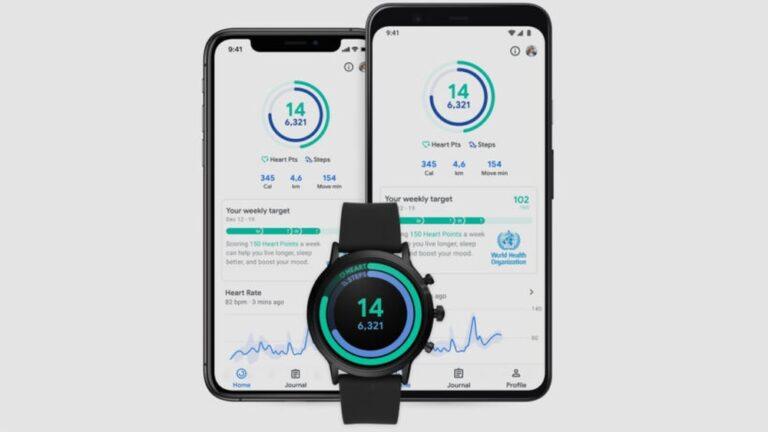
Syncing your smartwatch sleep data with Google Fit can change the way you see your health. Many of us wear smartwatches every night, hoping to understand our sleep better. But what happens after you wake up? The data just sits in the watch app. Wouldn’t it be better if all your health stats—steps, heart rate, and sleep—were in one place? That’s where Google Fit helps.
If you’ve tried syncing before and felt lost, you’re not alone. I remember when I first got my smartwatch, I was excited to see my sleep patterns. But my sleep data stayed on the watch app, and I missed the bigger picture. After some trial and error, I found ways to bring all my sleep data into Google Fit. The process is not always simple, but I’ll walk you through it step by step. Whether you use a Wear OS watch, a Fitbit, Xiaomi, or any other brand, you’ll find clear guidance here. Let’s get your sleep data where you want it—inside Google Fit.
Why Sync Sleep Data With Google Fit?
You might wonder why syncing is important. Here are a few reasons why it matters:
- One dashboard for health: Google Fit can show your activity, heart rate, and sleep data together. This helps you see patterns.
- Better insights: When your sleep data is in Google Fit, you can compare it with your steps, calories, and workouts. For example, you might see you sleep better on days when you walk more.
- Health reports: Google Fit lets you export your health data for your doctor or for your own records.
Many people only use their smartwatch’s app for sleep. But having everything in Google Fit makes it easier to track your health goals.
Understanding Smartwatch Sleep Tracking
Before we sync, let’s talk about how sleep tracking works on smartwatches. Most watches use sensors to check your movement and heart rate at night. This gives you information like:
- Total sleep time
- Deep, light, and REM sleep
- Wake-ups during the night
- Sleep quality score
Each brand’s app shows this data differently. But Google Fit can pull in these numbers, so you can see them with your other health stats.
Some smartwatches have built-in Google Fit support, but many do not. That’s why syncing can sometimes take a few extra steps.
What You Need Before You Start
Syncing works best when you prepare. Here’s a quick checklist:
- A compatible smartwatch: Most popular brands work, but some cheaper models may not sync.
- Smartphone with Google Fit installed: You need the Google Fit app on your phone.
- Your smartwatch’s app: For example, Fitbit app, Zepp (for Amazfit), Mi Fit, or Samsung Health.
- Internet connection: Syncing needs Wi-Fi or mobile data.
- Enough storage space: Make sure your phone has room for more data.
If you have these ready, you’re set to start.
How To Sync Different Smartwatches With Google Fit
The process depends on your watch brand. Let’s break it down by the most popular types.
Syncing Wear Os Smartwatches
Wear OS watches (like Fossil, Mobvoi TicWatch, and some older Samsung models) are made to work with Google Fit.
- Set up your watch: Connect it to your phone and sign in with your Google account.
- Open Google Fit on your watch: The app should be pre-installed. If not, get it from the Play Store.
- Allow permissions: Make sure your watch and phone both give Google Fit permission to access your activity and sleep data.
- Sync your data: Sleep data tracked by your Wear OS watch should now appear in Google Fit. Sometimes you need to wait a few minutes after you wake up.
Tip: If sleep data is missing, open Google Fit on your watch and phone at the same time. This can trigger a sync.
Syncing Fitbit Watches
Fitbit does not sync with Google Fit directly, but you can use a third-party app.
- Sync Fitbit to its app: Wear your Fitbit overnight. In the morning, open the Fitbit app and let it sync.
- Install a sync app: Apps like “Health Sync” or “FitToFit” can move data from Fitbit to Google Fit.
- Set up the sync: Open Health Sync and follow the prompts. You’ll link both Fitbit and Google Fit accounts.
- Choose what to sync: Pick “Sleep” as one of the data types.
- Start syncing: The app will now copy your sleep data to Google Fit.
Personal Note: I used Health Sync with my old Fitbit Inspire HR. The setup took about 10 minutes, but after that, my sleep data showed up in Google Fit every morning. The only thing to remember is to open the Fitbit app first, so your sleep data is fresh.
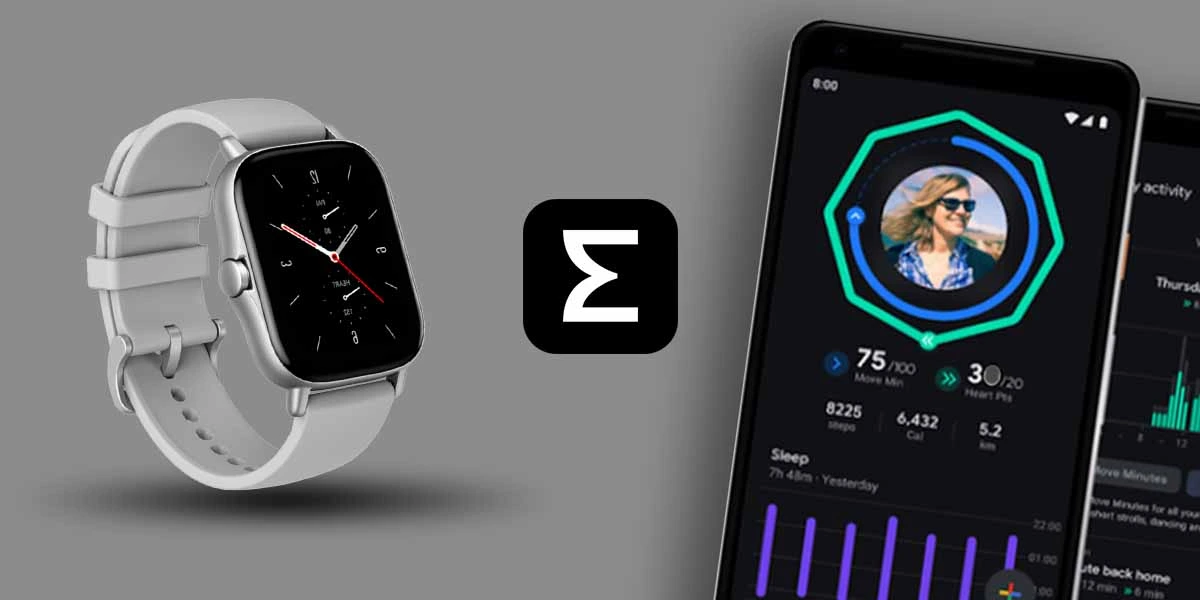
Syncing Xiaomi (mi Band) And Amazfit Watches
These watches use apps like Mi Fit or Zepp.
- Wear the watch overnight: Track your sleep as usual.
- Sync to Mi Fit or Zepp app: In the morning, open the app to upload your sleep data from the watch.
- Use a bridge app: Like with Fitbit, you can use Health Sync.
- Link accounts: In Health Sync, choose “Mi Fit” or “Zepp” as the source and Google Fit as the destination.
- Enable sleep sync: Select “Sleep” and follow the on-screen steps.
- Sync data: Open both apps and check that your sleep data appears in Google Fit.
Non-obvious tip: Sometimes, syncing won’t work if you don’t open the original watch app first. Always sync your watch to its app before trying to sync with Google Fit.
Syncing Samsung Galaxy Watches
Older Samsung watches may use Wear OS, but newer ones use Samsung’s Tizen system.
- Track sleep with your watch: Wear it overnight.
- Sync to Samsung Health: Open the Samsung Health app in the morning.
- Install Health Sync: This app can send data from Samsung Health to Google Fit.
- Follow the setup: Health Sync will ask you for permissions for both Samsung Health and Google Fit.
- Sync sleep data: Choose “Sleep” as the data to copy.
- Check Google Fit: Your sleep data should appear within a few minutes.
Advanced insight: Some Samsung devices block background syncing to save battery. If your sleep data is missing, open all apps and sync manually.
Other Popular Brands
Some other brands, like Garmin or Huawei, don’t support Google Fit natively. Here’s what you can do:
- Garmin: Use Health Sync or FitnessSyncer to move sleep data from Garmin Connect to Google Fit.
- Huawei: You may need to export sleep data as a file and use a tool like “Health Sync” (results can vary).
If your watch does not appear above, search for a bridge app that supports your watch and Google Fit. Always check user reviews to make sure the app is safe.
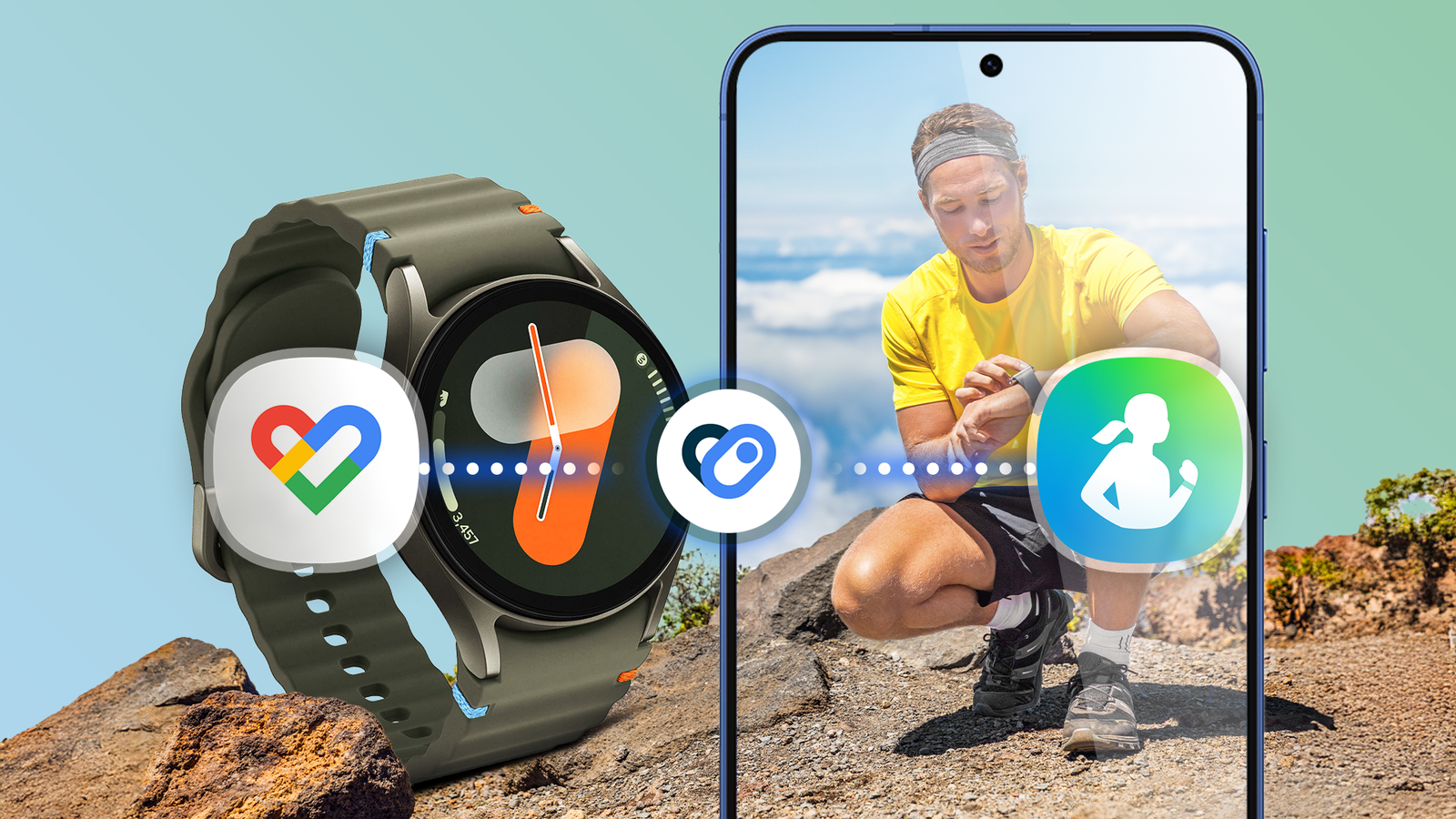
Credit: www.androidpolice.com
Using Health Sync: The Most Popular Solution
For most brands, Health Sync is the best way to move sleep data to Google Fit. Here’s how to use it step-by-step:
- Download Health Sync: Get it from the Google Play Store.
- Choose your source app: Pick Fitbit, Mi Fit, Samsung Health, or another compatible app.
- Pick Google Fit as the target: Health Sync will send your data here.
- Allow permissions: The app will ask for access to both accounts.
- Select data types: Make sure you include “Sleep.”
- Start syncing: The app will begin copying your data.
- Check for errors: Health Sync will show if the sync worked or if something went wrong.
Most people find Health Sync easy to use, but it sometimes needs to be restarted after system updates.
Troubleshooting: When Syncing Fails
Sometimes, sleep data won’t show up in Google Fit. Here are common problems and fixes:
- Permissions not allowed: Go to your phone’s settings and check that all apps have the right permissions.
- Watch app not synced first: Always sync your watch with its own app before syncing with Google Fit.
- App updates needed: Update all your apps to the latest version.
- Battery saver on: Turn off battery saver during syncing, as it may block background activity.
- Wrong account linked: Make sure you’re using the same Google account in all apps.
If you’ve tried all these and it still fails, restart your phone. If that doesn’t help, uninstall and reinstall Health Sync (or your bridge app).
Manual Methods For Older Watches
Some watches or bands don’t support syncing at all. If you’re using an older model, you may need to do things by hand.
- Export your sleep data: Some apps let you export a file (like CSV).
- Find a converter tool: Look for web tools that can convert your file to a format Google Fit accepts.
- Import to Google Fit: Log in to your Google Fit account on the web and import the file.
Warning: This method is slow and not always accurate. It’s best for people who need to move old sleep data or who switch to a new device.
Comparing Sync Methods
Which sync method is best for you? Here’s a quick comparison:
| Method | Ease of Use | Brands Supported | Cost |
|---|---|---|---|
| Wear OS Direct Sync | Very Easy | Wear OS Watches | Free |
| Health Sync App | Easy | Fitbit, Xiaomi, Samsung, Garmin, etc. | Free/Paid |
| Manual Export/Import | Hard | Old/Unsupported Watches | Free |
For almost everyone, using a bridge app like Health Sync is the best option.
Credit: mmguide.nl
Data Privacy And Permissions
Syncing health data means sharing private information. You should know:
- Google Fit encrypts your data. This means others can’t see it unless you let them.
- Bridge apps need access. Health Sync and similar apps need permission to read and write your sleep data. Only use trusted apps.
- Revoke permissions if you stop using an app. Go to your phone’s settings and remove access if you uninstall a sync app.
Non-obvious insight: Your health data may be stored on company servers, not just your phone. Read the privacy policy before syncing.
How Often Should You Sync?
For best results, sync your sleep data every morning after you wake up. This keeps Google Fit up to date. If you forget, you can sync later, but the data may not be as accurate.
Some bridge apps offer “auto-sync. ” This copies data every few hours. But auto-sync can use more battery and mobile data.

Credit: www.comuntia.org
Problems You May Face And Solutions
Let’s talk about some real problems. I once found that my Xiaomi Mi Band sleep data was missing in Google Fit for three days. Here’s what I learned:
- App updates can break sync. After a Mi Fit update, Health Sync stopped working. I had to update both apps, then re-link them.
- Time zones matter. If your watch and phone have different time zones, sleep data may show on the wrong day.
- Multiple devices can cause confusion. If you use more than one fitness tracker, only one should sync sleep data. Otherwise, you may see double entries.
Best Practices For Accurate Sleep Tracking
Getting good sleep data starts with how you wear your watch:
- Wear your watch snugly: If it’s loose, the sensors may not work well.
- Charge your watch before bed: Low battery can stop sleep tracking halfway through the night.
- Keep your phone nearby: Some watches send data by Bluetooth overnight.
- Update your apps often: This keeps syncing reliable.
- Check your data in the morning: Make sure sleep was recorded before syncing.
Tip: Try not to switch between multiple sleep trackers. Stick with one device for better accuracy.
How Sleep Data Looks In Google Fit
Once your data syncs, you’ll see:
- Total sleep time (how many hours you slept)
- Sleep stages (light, deep, REM)
- Sleep timeline (when you fell asleep and woke up)
- Sleep quality (some devices add a score)
Here’s a simple example of how Google Fit shows sleep data: