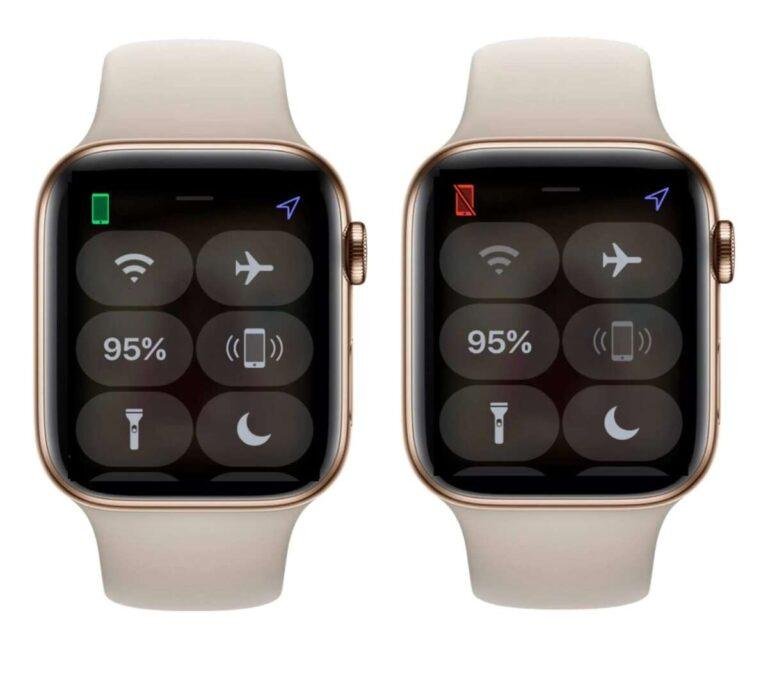
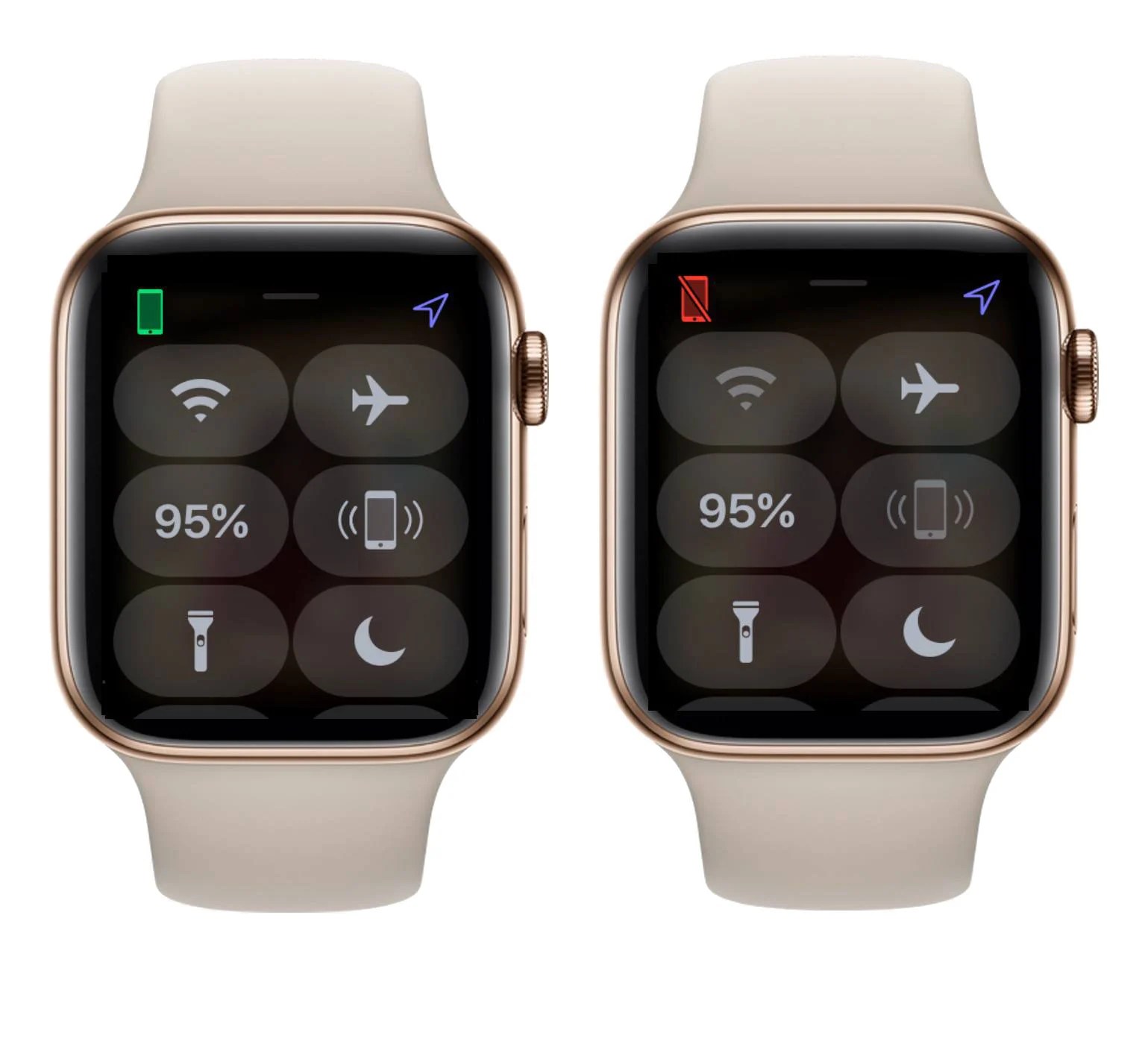
Your Apple Watch may not pair with a new iPhone because of updates, settings, compatibility, or an old pairing lock.
If you are asking, “why wont my apple watch pair with my new iphone,” the problem is usually fixable. The watch and iPhone must use compatible software, the correct Apple Account, and a clean Bluetooth connection. This guide explains the common causes, safe fixes, and the mistakes that can make pairing take even longer.

Why wont my Apple Watch pair with my new iPhone?
The most common reason is that the Apple Watch is still linked to your old iPhone. Apple Watch can pair with only one iPhone at a time, so the transfer must be completed correctly.
Other common causes include:
• The iPhone or Apple Watch software is too old
• Bluetooth or Wi-Fi is turned off
• The devices are too far apart
• The watch battery is low
• Activation Lock is blocking setup
• The Apple Watch is already paired with another iPhone
• The iPhone has not been signed in to the correct Apple Account
• A setup error occurred during iPhone data transfer
Think of pairing as a handshake. Both devices must be ready, close, updated, and using the right account. If one device misses a step, the handshake fails.
In real-world troubleshooting, the biggest mistake is resetting the watch too soon. A reset may remove local data and does not remove Activation Lock. Start with simple checks before erasing anything.
Check compatibility before trying anything else
A new iPhone may not support an older Apple Watch model if the watchOS version is too old. Apple regularly changes compatibility rules as new iPhone and watchOS versions arrive.
Check these details:
• Your iPhone model and iOS version
• Your Apple Watch model
• The watchOS version installed on the watch
• Whether the iPhone supports that watchOS version
You can check the iPhone software by opening Settings, selecting General, and tapping Software Update. If the watch is still connected to an old iPhone, open the Watch app there and go to General, then Software Update.
If you cannot access the old iPhone, the watch may need to be erased before it can be updated and paired again. However, this can create a problem if the watch does not have enough battery or if Activation Lock details are unavailable.
Apple publishes device compatibility information with its software updates. Use that information when pairing an older watch with a newer iPhone. Compatibility is not always based on age alone, so check the exact models.
Prepare both devices for pairing
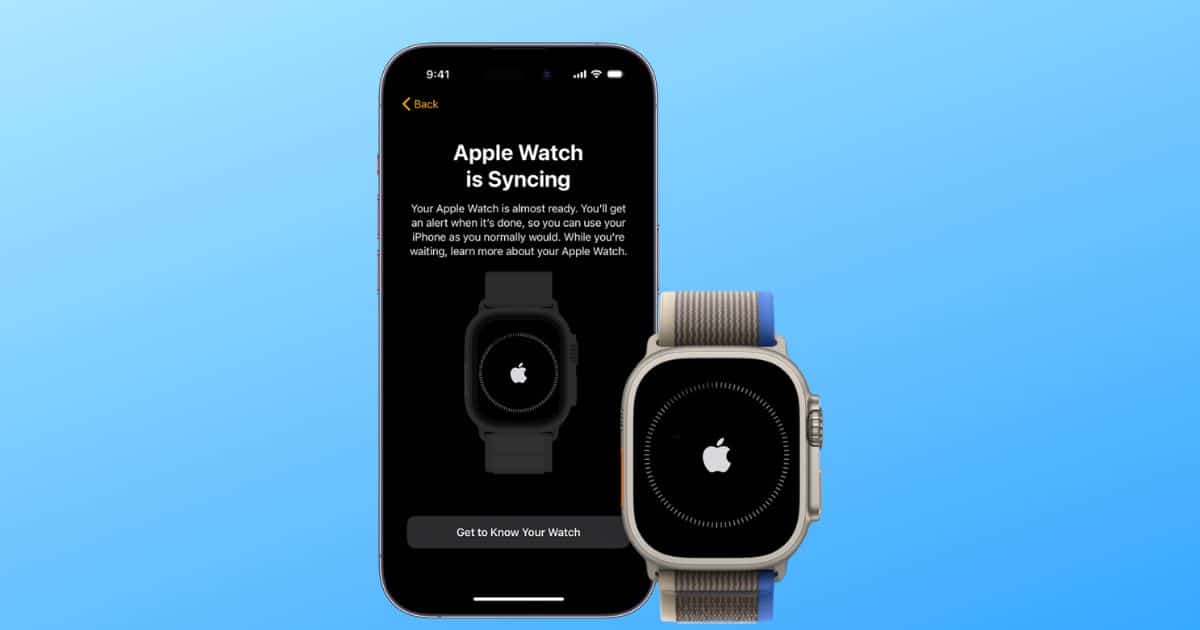
Before attempting another connection, place the iPhone and Apple Watch side by side. Keep them within a few inches of each other during setup.
Then complete these basic checks:
- Charge the Apple Watch to at least 50 percent.
- Charge the iPhone or connect it to power.
- Turn on Bluetooth in Settings > Bluetooth.
- Turn on Wi-Fi or cellular data on the iPhone.
- Turn off Airplane Mode on both devices.
- Restart the iPhone.
- Restart the Apple Watch.
- Make sure the iPhone is unlocked during pairing.
Bluetooth helps the devices discover each other, while Wi-Fi helps complete parts of the setup. A weak connection can make the pairing screen appear stuck even when nothing is visibly wrong.
Do not rely only on Control Center to check Bluetooth. Control Center can disconnect accessories without fully turning Bluetooth off. Check the main Settings app instead.

Update your iPhone and Apple Watch
Outdated software is one of the leading reasons why wont my apple watch pair with my new iphone problems happen. New iPhones often require a newer iOS version before they can complete Apple Watch setup.
On the iPhone:
• Open Settings
• Tap General
• Select Software Update
• Install any available update
• Keep the phone connected to power during the update
If the watch is connected to the old iPhone, update it through the Watch app. Open the app, tap General, and choose Software Update.
If the watch cannot update because it is not paired, first finish setting up the new iPhone. Then try pairing again. If the watch is too old for the iPhone’s required software, no restart or Bluetooth reset will solve the compatibility issue.
This is where many users lose time. They repeat the pairing animation when the real issue is a software mismatch. Updating both devices is often the cleanest first fix.

Transfer Apple Watch from your old iPhone
If you still have the old iPhone, use it to prepare the watch. This gives you the best chance of keeping your activity data and settings.
Follow these steps:
- Update the old iPhone and Apple Watch.
- Back up the old iPhone to iCloud or a computer.
- Keep the old iPhone and watch close together.
- Open the Watch app on the old iPhone.
- Tap All Watches.
- Tap the information button next to your watch.
- Choose Unpair Apple Watch.
- Enter your Apple Account password if asked.
- Set up the watch with the new iPhone.
When you unpair the watch correctly, the iPhone creates a current backup of watch data. That backup can help restore settings, apps, and activity information on the new iPhone.
A common mistake is deleting the Watch app or wiping the old iPhone before unpairing. That can leave the watch waiting for the old connection and may force you to erase it manually.

Pair the Apple Watch manually
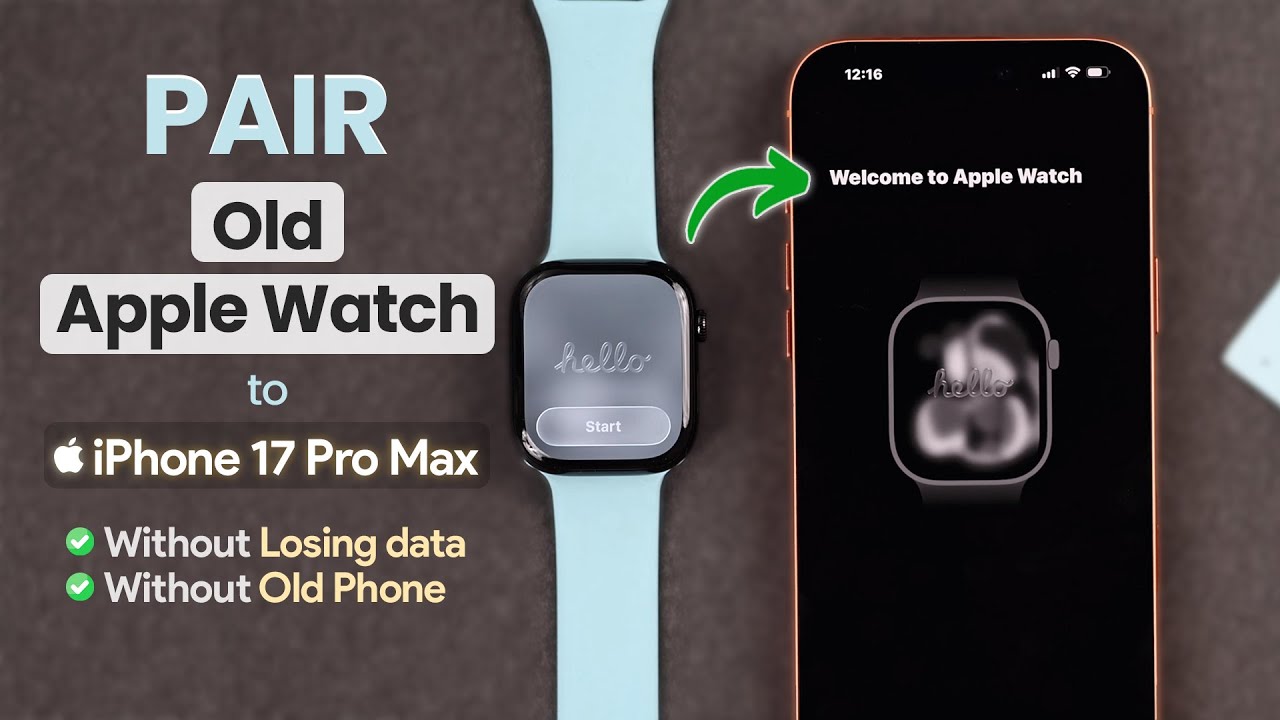
Sometimes the automatic setup card does not appear. You can still start the process from the Watch app.
- Open the Watch app on the new iPhone.
- Tap Start Pairing.
- Choose Set Up for Myself.
- Hold the watch animation inside the viewfinder.
- If the camera cannot read the animation, tap Pair Apple Watch Manually.
- Select the watch name shown on the screen.
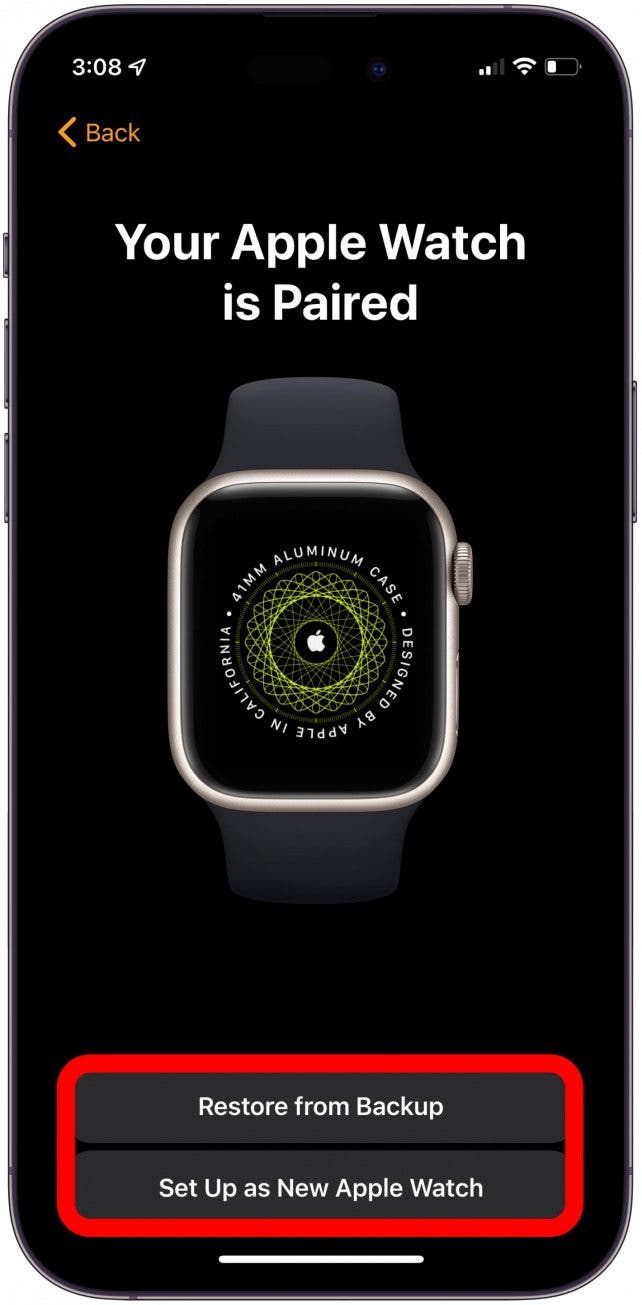
- Follow the prompts to restore from a backup or set up as new.
Manual pairing is useful when the camera cannot recognize the moving pattern. It does not bypass Activation Lock, software limits, or account security.
Keep the Watch app open while pairing. Locking the iPhone, walking away, or opening several other apps can interrupt the process. Pairing may take several minutes, especially when the watch must download software or restore apps.

Fix an Apple Watch that is already paired
If the watch shows a normal clock face instead of the pairing animation, it may still be paired with another iPhone. In that case, open the Watch app on the old iPhone and unpair it.
If the old iPhone is gone, erase the watch from the watch itself:
- Open Settings on the Apple Watch.
- Tap General.
- Tap Reset.
- Choose Erase All Content and Settings.
- Enter the passcode if requested.
- Confirm the erase.
- Start pairing with the new iPhone.
On some watch models, you can also erase the watch through the side button menu. The exact screen can vary by watchOS version.
Erasing the watch removes its local content, but it does not remove Activation Lock. You must enter the Apple Account credentials used to set up the watch. If the watch belonged to someone else, the previous owner must remove it from their account.
This is a key answer to why wont my apple watch pair with my new iphone. The watch may not be broken. It may simply still be tied to an earlier pairing record.
Resolve Activation Lock and Apple Account issues
Activation Lock protects an Apple Watch if it is lost or stolen. It links the watch to the owner’s Apple Account. A reset alone cannot remove this security feature.
You may see a message asking for the Apple Account email address and password used with the watch. Enter the correct account details, not simply any account currently signed in on the iPhone.
If you bought the watch used, ask the previous owner to:
• Open the Find My app
• Select the Devices tab
• Choose the Apple Watch
• Remove the watch from the account
The previous owner may also need to erase the watch remotely. Do not buy or keep a used Apple Watch that remains linked to another person’s account.
If you cannot verify ownership, Apple may not be able to remove Activation Lock. Keep your proof of purchase if you need help from Apple Support or an authorized service provider.
Restart Bluetooth, Wi-Fi, and network settings
A temporary wireless error can stop pairing even when all requirements are met. Start by turning Bluetooth off and on in the iPhone’s Settings app.
You can also try these steps:
• Restart both devices
• Turn Wi-Fi off, wait ten seconds, and turn it on again
• Move away from crowded wireless areas
• Remove thick cases from the iPhone during setup
• Disconnect other nearby Bluetooth accessories
• Try pairing in a different room
If the problem continues, reset the iPhone’s network settings. Go to Settings > General > Transfer or Reset iPhone > Reset > Reset Network Settings.
This removes saved Wi-Fi networks, passwords, VPN settings, and other network information. It does not erase photos, apps, or personal files. Make sure you know your Wi-Fi password before using this option.
Network reset is helpful, but it should not be the first step. Try a normal restart and software update before using it.
What to do when pairing stops or freezes
Pairing can pause at screens such as “Connecting,” “Signing in,” or “Preparing.” First, give the process several minutes. The watch may be installing software or restoring data.
If it remains frozen:
- Keep both devices connected to power.
- Confirm that Wi-Fi is working on the iPhone.
- Restart the iPhone and Apple Watch.
- Open the Watch app again.
- Try manual pairing.
- If needed, erase the watch and pair it as a new device.
Do not force the watch to restart during a software update unless the screen has clearly frozen for a long period. Interrupting an update can create a bigger problem.
When I troubleshoot this type of issue, I look for the last screen shown. A pairing failure at the camera screen suggests a discovery issue. A failure at the Apple Account screen points to sign-in or Activation Lock. A failure during software installation often points to updates, storage, or network trouble.
Fix the most common pairing error messages
Different messages suggest different causes. Reading the wording carefully can save time.
“Unable to pair”
Restart both devices, update the iPhone, and confirm that Bluetooth and Wi-Fi are enabled. Then open the Watch app and use the manual pairing option.
“Apple Watch is already paired”
Unpair the watch from the old iPhone. If the old iPhone is unavailable, erase the watch and enter the correct Apple Account details during setup.
“Software update required”
Install the latest supported iOS version first. The watch may also need an update before pairing can finish.
“Activation Lock”
Use the Apple Account that originally set up the watch. For a used watch, the previous owner must remove it from their account.
Pairing screen keeps spinning
Keep the devices close and connected to power. If a restart does not help, reset network settings or erase the watch as a final troubleshooting step.
Error messages are clues, not just warnings. They tell you which part of the pairing process failed.
When to contact Apple Support
Contact Apple Support if the Apple Watch will not pair after updating, restarting, and confirming account ownership. You should also seek help if the watch will not turn on, repeatedly crashes, or cannot complete an update.
Have these details ready:
• Apple Watch model
• iPhone model
• iOS and watchOS versions
• Exact error message
• Apple Account email used with the watch
• Proof of purchase, if available
• Steps you have already tried
Apple or an authorized service provider can check for hardware faults, account problems, and software recovery options. A damaged Bluetooth antenna, failed battery, or internal fault may look like a normal pairing problem.
Avoid unofficial tools that claim to bypass Activation Lock. They can put your account and personal data at risk, and they cannot safely replace Apple’s ownership process.
How to avoid pairing problems with your next iPhone
A little preparation makes the next transfer much easier. Before trading in or erasing your old iPhone, update both devices and unpair the watch through the Watch app.
Use this short checklist:
• Back up the old iPhone
• Update the iPhone and Apple Watch
• Keep both devices charged
• Unpair the watch before erasing the old iPhone
• Confirm your Apple Account password
• Keep the old iPhone nearby during setup
• Do not remove the watch from your account unless you are selling it
If you are moving from an old iPhone to a new iPhone, the safest path is to transfer your data first. After the new iPhone is ready, pair the watch and restore its backup.
This process protects your activity history and reduces the chance of an Activation Lock surprise. It also gives you a clear fallback if the new phone needs to be set up again.
Frequently asked questions
Why wont my Apple Watch pair with my new iPhone after I transferred my data?
The watch may still be linked to the old iPhone, or the new iPhone may need a software update. Update both devices, unpair the watch from the old iPhone if possible, and then use the Watch app on the new iPhone.
Can I pair an Apple Watch without my old iPhone?
Yes, but you may need to erase the Apple Watch first. You will also need the Apple Account and password linked to the watch because erasing it does not remove Activation Lock.
Will resetting my Apple Watch fix pairing problems?
Resetting can help if the watch has a damaged or incomplete pairing record. It will erase local content, though, so try updating, restarting, and unpairing through the old iPhone before using a reset.
Why does my Apple Watch ask for someone else’s Apple Account?
The watch is still protected by Activation Lock under another account. The previous owner must remove it from their Apple Account before you can use it.
Does an Apple Watch need Wi-Fi to pair with an iPhone?
The iPhone needs an internet connection for account verification and setup, while Bluetooth handles much of the nearby connection. Using reliable Wi-Fi and keeping both devices close usually provides the smoothest pairing process.
Can an older Apple Watch pair with a newer iPhone?
It depends on the watch model and the software versions it supports. Check Apple’s current compatibility details before assuming the watch has a hardware problem.
Conclusion
The answer to why wont my apple watch pair with my new iphone is usually linked to software, an old pairing record, wireless settings, or Activation Lock. Start with updates, charging, Bluetooth, Wi-Fi, and a restart. If the old iPhone is available, unpair the watch there before moving it to the new phone.
When those steps fail, erase the watch only after confirming your Apple Account details and understanding what data may be removed. Follow the checklist carefully, and you can usually get the watch working without a service visit. If this guide helped, share it with someone setting up a new iPhone or explore more Apple troubleshooting resources.

Rubel Miah is the Senior Editor at MyStyleGrid.com, where he brings a sharp editorial eye and an unshakable love for fashion to everything he does. A true style addict, Rubel lives and breathes trends, from streetwear to high fashion, and has a knack for turning inspiration into impactful stories. With years of experience in fashion journalism and digital media, he curates content that empowers readers to express themselves through style. When he’s not editing features or forecasting the next big thing, you’ll find him hunting down vintage pieces or capturing street style moments around the city.