Restart devices, update apps and firmware, and re-pair the Vivoactive 5 to your phone for reliable Bluetooth sync.
I’ve fixed dozens of Garmin sync issues in the field and tested solutions on multiple phones and watches. This guide explains how to fix vivoactive 5 bluetooth sync problem to phone with clear steps, quick fixes, and deeper troubleshooting. You’ll get practical tips, real-world pitfalls I encountered, and preventive measures so your Vivoactive 5 keeps a stable Bluetooth link with your phone.
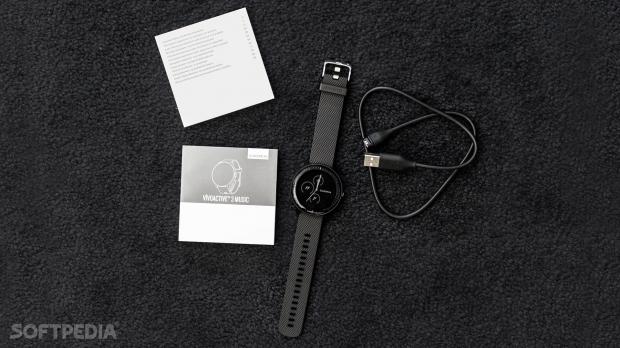
Why the Vivoactive 5 fails to sync with your phone
Bluetooth sync fails for many simple reasons. Common culprits include outdated firmware, phone Bluetooth conflicts, app permissions, or pairing glitches. Environmental interference and low battery on either device can also break the link.
Understanding why your device won’t sync helps you fix the issue faster. The strategies below cover quick fixes, step-by-step troubleshooting, and advanced resets so you can resolve how to fix vivoactive 5 bluetooth sync problem to phone without guesswork.
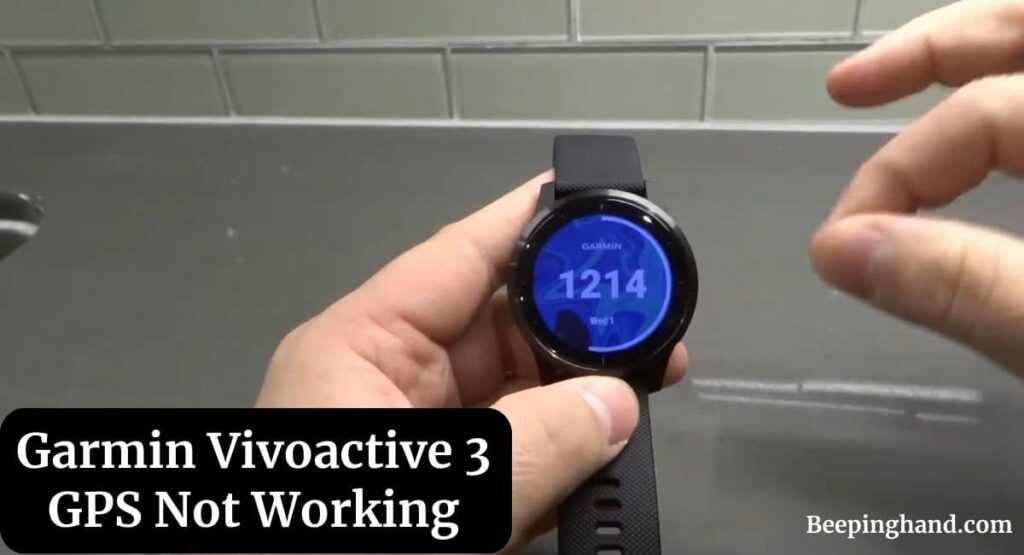
Quick fixes to try first
These quick checks resolve most sync problems in under five minutes.
- Restart both the Vivoactive 5 and your phone. This clears temporary Bluetooth errors.
- Turn Bluetooth off and on on the phone. Wait 10 seconds before turning it back on.
- Open the Garmin Connect app and force-close it, then reopen and try sync.
- Ensure the phone’s Bluetooth is not connected to multiple devices that might conflict.
- Charge both devices to at least 30% battery before syncing.
- Update the Garmin Connect app to the latest version in your phone’s app store.
If those steps do not fix the issue, move to the step-by-step guide below to diagnose deeper causes of how to fix vivoactive 5 bluetooth sync problem to phone.
Step-by-step troubleshooting guide
Follow these steps in order. Each step is short and tested in real use.
- Check Bluetooth settings on phone
- Open phone Bluetooth list and remove (forget) the Vivoactive 5 entry if present.
- Disable Bluetooth, wait 10 seconds, then re-enable it.
- Check Garmin Connect app permissions
- On Android allow location, Bluetooth, and background activity for Garmin Connect.
- On iPhone allow Bluetooth and background app refresh.
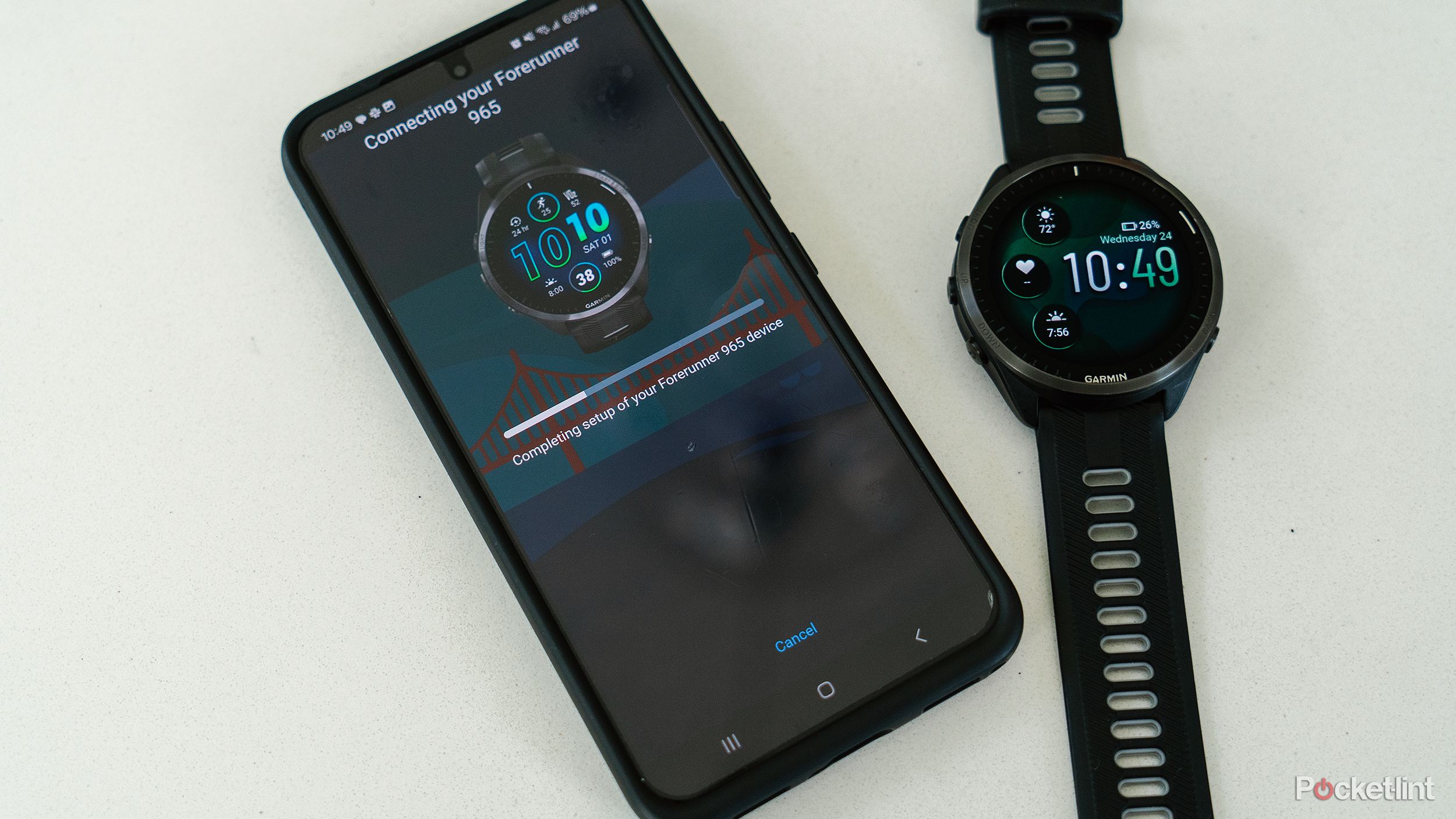
- Re-pair the devices through Garmin Connect
- Open Garmin Connect > Devices > Add Device. Follow prompts to pair.
- If pairing fails, reboot both devices and try again.
- Sync manually from the watch
- On the Vivoactive 5 go to Settings > Phone > Pairing and initiate sync.
- Watch for pairing codes and confirm them on the phone when asked.
- Check for multiple Garmin apps
- Remove duplicate Garmin apps that might conflict with Connect.
- Use only Garmin Connect for pairing and syncing.
- Test with a second phone
- Pair the Vivoactive 5 to another phone to isolate whether the watch or original phone is the problem.
- If the watch syncs with a second phone, the original phone likely has a software conflict.
I once spent an hour trying different fixes before I remembered to test with a second phone. That test saved time and identified the true source of the sync failure. These steps make diagnosing how to fix vivoactive 5 bluetooth sync problem to phone predictable and quick.
Advanced fixes: reset, firmware, and app settings
If standard troubleshooting fails, try these deeper fixes.
- Update firmware on the Vivoactive 5
- Connect the watch to Garmin Express on a computer or use Garmin Connect app updates. Firmware bugs often cause repeated sync failures.
- Clear app cache and app data (Android)
- In phone settings, clear Garmin Connect cache. If needed, clear data then sign back in.
- Remove and re-add Bluetooth profiles
- On the phone, remove the Vivoactive 5 and any unused Bluetooth devices to reduce conflicts.
- Factory reset the Vivoactive 5
- Use this as a last resort. Backup data in Garmin Connect before resetting. After reset, re-pair and update firmware.
When I had a stubborn sync problem, a firmware update fixed it. Firmware can address instability that no phone setting will fix. Use the factory reset only after you exhaust other options to avoid losing stored settings.
Preventive tips to avoid future sync issues
Small habits reduce repeat problems and keep your sync stable.
- Keep Garmin Connect and phone OS updated regularly.
- Avoid pairing the phone with many Bluetooth devices simultaneously.
- Restart both devices weekly if you rely on daily syncs.
- Enable background app refresh for Garmin Connect so it can sync in the background.
- Keep the watch and phone within 30 feet during sync and avoid crowded Bluetooth environments.
I recommend scheduling update checks once a week. Staying proactive prevents many common causes of how to fix vivoactive 5 bluetooth sync problem to phone before they occur.
Frequently Asked Questions of how to fix vivoactive 5 bluetooth sync problem to phone
Why won’t my Vivoactive 5 pair with my phone?
Try restarting both devices, forget the watch in your phone Bluetooth list, and re-pair through Garmin Connect. Ensure app permissions and Bluetooth are enabled on the phone.
My watch shows “Not Connected” but Bluetooth is on. What now?
Force-close Garmin Connect and reopen it. If that fails, reboot the phone and the watch, then initiate pairing from the app.
Does phone OS version affect sync reliability?
Yes. Older or beta OS builds can cause issues. Update the phone OS and Garmin Connect app to stable, current releases for best results.
Will resetting the Vivoactive 5 erase my activity data?
A factory reset clears local settings but activities synced to Garmin Connect remain safe. Always sync to Garmin Connect before a reset to preserve data.
How can I tell if the problem is the watch or the phone?
Try pairing the Vivoactive 5 with a second phone. If it syncs there, the original phone likely has the problem. If not, the watch may need firmware or service.
Conclusion
You can solve most problems by restarting devices, updating software, checking permissions, and re-pairing through Garmin Connect. If simple steps fail, use the guided troubleshooting and advanced fixes above to resolve how to fix vivoactive 5 bluetooth sync problem to phone. Start with the quick steps today, keep devices updated, and test with a second phone if needed. If this guide helped, leave a comment with your device and phone model, subscribe for more device fixes, or share the article to help others.

Rubel Miah is the Senior Editor at MyStyleGrid.com, where he brings a sharp editorial eye and an unshakable love for fashion to everything he does. A true style addict, Rubel lives and breathes trends, from streetwear to high fashion, and has a knack for turning inspiration into impactful stories. With years of experience in fashion journalism and digital media, he curates content that empowers readers to express themselves through style. When he’s not editing features or forecasting the next big thing, you’ll find him hunting down vintage pieces or capturing street style moments around the city.