Introduction
If you use an Apple Watch in the United States, you can check your heart rate in seconds with the built-in Heart Rate app. Open the app, keep your wrist still, and wait for the reading. Your watch can also record heart rate during workouts and send alerts for unusually high, low, or irregular rhythms when supported features are turned on.
This guide explains how to check your current heart rate, view past readings on your iPhone, improve reading accuracy, and understand when a heart rate result needs medical attention. Apple Watch can help you track patterns, but it does not replace a medical exam or emergency care.
How to check your current heart rate on Apple Watch
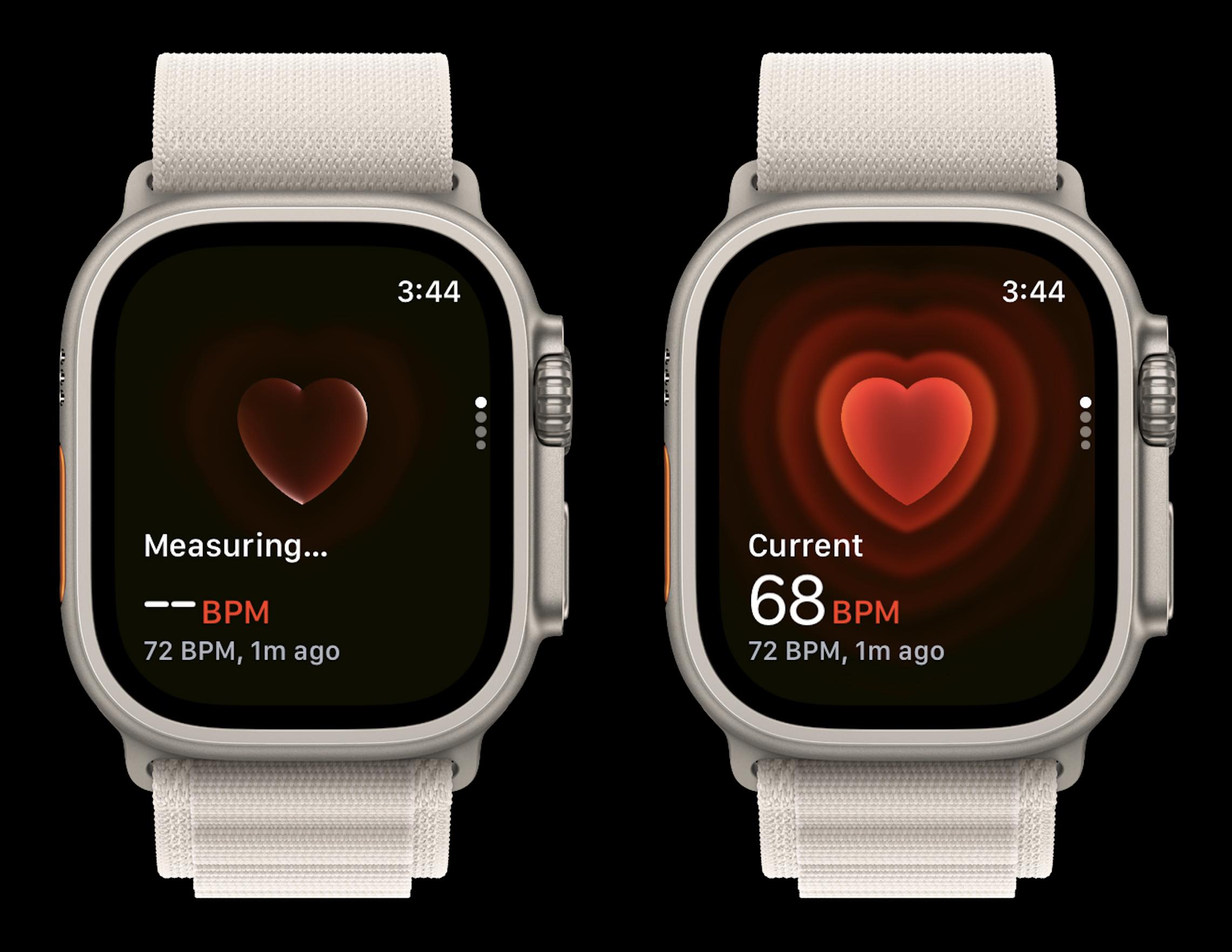
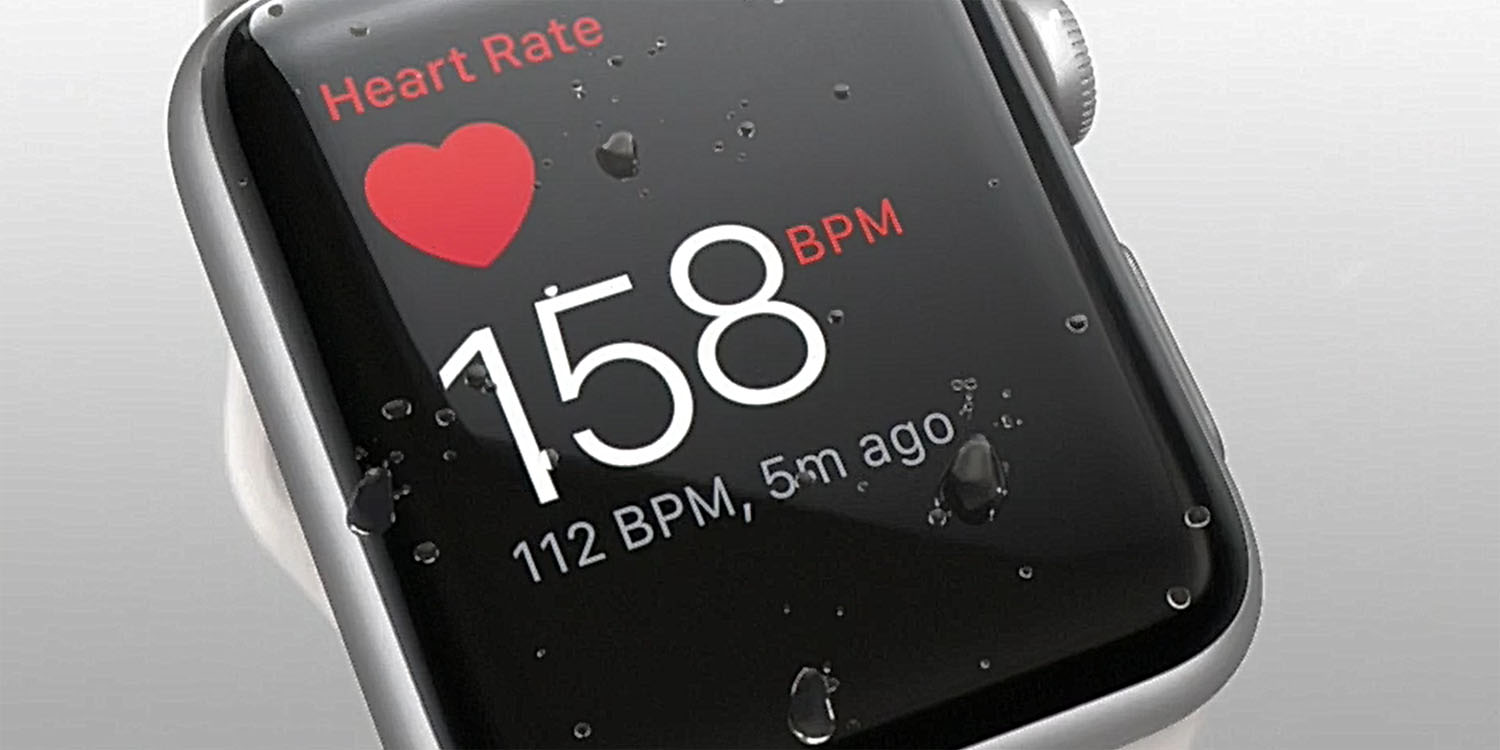
To check your current heart rate, open the Heart Rate app on your Apple Watch and wait for the measurement to finish.
Follow these steps:
- Press the Digital Crown on the side of your Apple Watch.
- Find and tap the Heart Rate app. Its icon looks like a heart.
- Keep your arm relaxed and your wrist still.
- Wait a few seconds for the current reading to appear.
- Scroll down to view other heart rate information, such as your resting rate, walking average, and workout readings.
Your result appears in beats per minute, often written as BPM. For example, a result of 72 BPM means your heart beat 72 times in one minute.
The reading may take longer if your watch is loose, your skin is cold, or you are moving. Keep the back of the watch in contact with your skin while the app measures your pulse.
What the Apple Watch measures
Apple Watch uses optical sensors on its back to detect changes in blood flow at your wrist. The sensors shine light into your skin and measure how much light is reflected back. Apple calls this technology a photoplethysmogram, or PPG.
The watch may measure your heart rate:
- When you open the Heart Rate app
- In the background during normal use
- During a workout
- During rest
- During sleep, if sleep tracking is enabled
- When you use supported heart health features
Background readings do not occur at one fixed, constant interval in every situation. The watch adjusts when it takes readings based on activity and other factors.
How to get a better reading
For a more reliable result:
- Wear the watch snugly, but not painfully tight.
- Place it above the wrist bone.
- Keep the watch and skin clean and dry.
- Rest your arm on a table if the reading is slow.
- Avoid checking immediately after intense movement unless you want a post-exercise reading.
- Make sure the watch is worn with the correct orientation and that the band does not allow it to move.
A loose band can let outside light reach the sensor. That can make it harder for the watch to detect your pulse.

How to view your heart rate history on iPhone
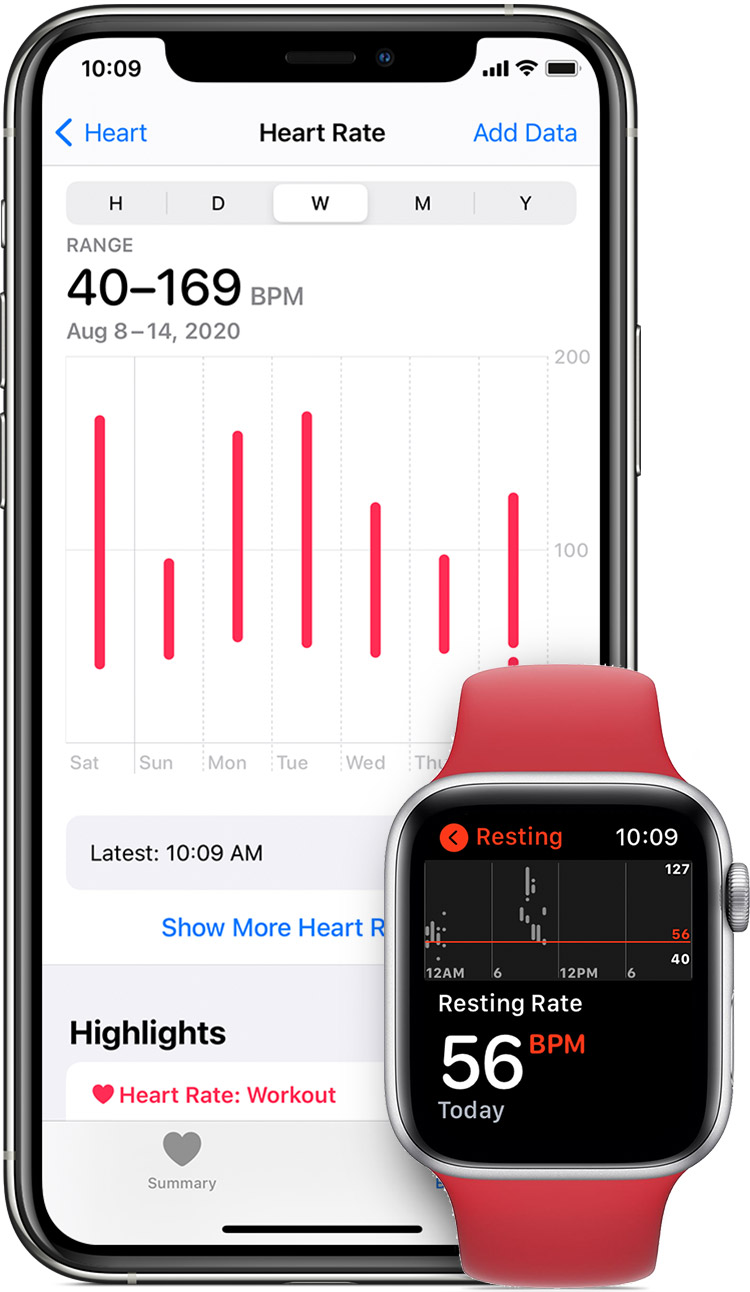
The Health app on your iPhone stores heart rate readings from Apple Watch and other compatible sources. Use it to review patterns instead of focusing on one number.
To find your heart rate data:


- Open the Health app on your iPhone.
- Tap Browse at the bottom of the screen.
- Tap Heart.
- Choose Heart Rate.
- Select a time period, such as Day, Week, Month, or 6 Months.
- Tap Show All Data if you want to review individual readings.
Depending on your Apple Watch model, settings, and use, you may also see:
- Resting heart rate
- Walking average
- Heart rate during workouts
- Heart rate recovery
- Heart rate variability
- Cardio fitness estimates
- High heart rate notifications
- Low heart rate notifications
- Irregular rhythm notifications
Current heart rate versus resting heart rate
Your current heart rate is the rate measured at a specific moment. It can change quickly because of walking, stress, caffeine, heat, illness, or exercise.
Your resting heart rate reflects your heart rate while you are awake and calm. It is usually more useful for tracking long-term changes than a single spot check.
A lower or higher number is not automatically good or bad. Fitness, age, medicines, sleep, stress, temperature, hydration, and health conditions can all affect heart rate. Compare readings taken under similar conditions when you want to identify a trend.
How to see heart rate during a workout
To check your heart rate during exercise:
- Open the Workout app.
- Choose a workout type, such as Outdoor Walk, Run, or Cycling.
- Start the workout.
- Raise your wrist or tap the display to view your workout metrics.
- Turn the Digital Crown to move through the available screens.
Heart rate zones may appear during supported workouts. These zones group heart rate ranges to help describe workout intensity. Your watch may calculate them from information in your Health profile, including age and other data.
Heart rate zones are useful for exercise planning, but they are estimates. If you take heart-rate medicines or have a heart condition, ask a health professional how to set safe exercise intensity.

How to turn on heart rate alerts
Apple Watch can notify you when your heart rate stays above or below a selected threshold while you appear inactive. These alerts are not designed to diagnose a condition.
To manage heart rate notifications on Apple Watch:
- Open the Settings app on the watch.
- Tap Heart.
- Tap High Heart Rate or Low Heart Rate.
- Choose the BPM threshold you want.
You can also manage some notification settings in the Watch app on your iPhone:
- Open the Watch app.
- Tap My Watch.
- Tap Heart.
- Review the available heart health settings.
Menu names and available features can vary by Apple Watch model, watchOS version, country, and age. Some features may not be available to children or people with certain account settings.
When an alert may not mean an emergency
A high reading can happen after exercise, stress, fever, or caffeine. A low reading can occur during sleep or in people who are physically fit. The setting and your symptoms matter.
If you receive an alert, sit down and repeat the reading after a few minutes. Note what you were doing and whether you have symptoms. Contact a health professional if the readings keep occurring or do not fit your usual pattern.
When to seek emergency help
Call 911 in the United States if you have possible signs of a heart emergency, such as:


- Chest pressure, pain, or tightness
- Severe shortness of breath
- Fainting or near-fainting
- Sudden weakness
- Confusion
- A fast or irregular heartbeat with serious symptoms
- Pain that spreads to the arm, back, neck, or jaw
Do not wait for an Apple Watch result before seeking help. A normal reading does not rule out a serious problem, and an unusual reading does not identify the cause.

How to check your heart rate without the Heart Rate app
If the Heart Rate app will not open or your watch cannot get a reading, you can check your pulse manually.
For a wrist pulse:
- Place two fingers from your other hand on the thumb side of your wrist.
- Press gently until you feel the pulse.
- Count the beats for 30 seconds.
- Multiply that number by two to estimate BPM.
For example, if you count 36 beats in 30 seconds:
36 × 2 = 72 BPM
You can count for a full 60 seconds if the rhythm feels uneven. This method is less convenient, but it can help you compare a manual pulse with the watch reading.
Do not use your thumb to check the pulse because your thumb has its own pulse and may confuse the count.

Why Apple Watch may show no heart rate
The most common cause is poor contact between the watch sensor and your skin. Check the fit first, then review settings and device condition.
Try these steps in order:
- Tighten the band slightly.
- Move the watch just above the wrist bone.
- Clean and dry the back of the watch.
- Warm your wrist if your hands are cold.
- Stop moving while the app measures.
- Remove clothing between the watch and your skin.
- Restart the Apple Watch.
- Check that the Heart Rate app is installed and that heart rate tracking is enabled.
- Update the watch and iPhone if an update is available.
- Test again under calm conditions.
Some tattoos can interfere with the optical sensors. Dark or dense ink may block the light needed for a reading. Scars, skin changes, wrist movement, and some bands can also affect sensor contact.
If the watch repeatedly fails to measure your heart rate, compare it with a manual pulse or another medically appropriate device. Contact Apple Support if the problem continues. If you have symptoms, contact a medical professional rather than relying on the watch to solve the issue.
Why Apple Watch readings may differ from another device
Two devices may take readings at different times or use different sensor locations. A chest strap, fingertip device, hospital monitor, and wrist sensor also use different methods.
Small differences do not necessarily mean one device is broken. Compare devices while sitting still and measure at the same time. Larger or repeated differences deserve professional advice, especially if you have symptoms.


Apple Watch is a consumer wellness and health device. It is not the same as a clinical monitor in a hospital.
Can Apple Watch detect an irregular heartbeat?
Supported Apple Watch models can provide an irregular rhythm notification. This feature looks for patterns that may suggest atrial fibrillation, also called AFib. It does not continuously check for every heart rhythm problem, and it does not diagnose all causes of an irregular heartbeat.
Some models also support the ECG app, which records an electrocardiogram from the wrist. An ECG is different from a simple heart rate reading:
- A heart rate reading tells you how fast the heart is beating.
- An ECG records electrical signals from the heart during the measurement.
- An irregular rhythm notification looks for certain patterns over time.
The ECG app is available only on supported Apple Watch models and in supported countries or regions. Availability can change based on local regulations and software support.
If your watch reports a possible rhythm issue, follow the instructions in the app and share the result with a qualified health professional when appropriate. Do not use Apple Watch to diagnose yourself or change prescribed medicine.

How accurate is Apple Watch heart rate?
Apple Watch can provide useful heart rate information, but the result is not guaranteed to match a clinical monitor in every situation. Accuracy can change with movement, band fit, skin contact, temperature, tattoos, exercise intensity, and the type of activity.
The best way to use Apple Watch heart rate data is to look for meaningful patterns and combine the data with how you feel. A single reading is only a snapshot.
Use extra care with readings taken during:
- High-impact exercise
- Weight lifting
- Boxing or activities that bend the wrist
- Cold-weather activity
- Loose or poorly fitted bands
- Rapid changes in movement
- Situations where the watch is damaged
For medical decisions, use the device and method recommended by your clinician. If your health professional has asked you to monitor your heart rate, ask which readings to record, how often to take them, and what threshold requires a call.
Common mistakes when checking heart rate
Avoid these errors:
Checking right after movement
Your heart rate may still be elevated after walking across a room or climbing stairs. That is not a resting reading. Sit quietly for several minutes if you want to measure your resting heart rate.
Treating one number as a diagnosis
One high or low result does not explain why it happened. Repeat the reading and consider activity, stress, illness, caffeine, and medication.


Wearing the watch too loosely
The sensor needs stable skin contact. A band that slides around can cause missing or inconsistent readings.
Ignoring symptoms because the number looks normal
Heart rate is only one part of your health. Chest pain, trouble breathing, fainting, or severe weakness needs prompt care even if the watch shows a typical number.
Comparing readings from different situations
A reading during sleep is not directly comparable with one taken after exercise. Record the time, activity, and symptoms if you need to discuss a trend with a clinician.

Frequently asked questions
Can I check my heart rate on Apple Watch without an iPhone?
Yes. You can open the Heart Rate app and view current readings directly on a compatible Apple Watch. An iPhone is useful for reviewing longer-term history, changing some settings, and viewing Health app details.
What is a normal heart rate?
For many adults, a resting heart rate between 60 and 100 BPM is commonly used as a general reference. Individual healthy rates can fall outside that range, especially among trained athletes or people taking certain medicines. Your symptoms and personal health history matter more than a general range.
Does Apple Watch check heart rate all the time?
No. Apple Watch can take background readings, but it does not measure your pulse continuously in every moment. Movement, fit, battery level, and the type of activity can affect when readings are recorded.
Why is my Apple Watch heart rate higher than usual?
Temporary causes include exercise, stress, lack of sleep, fever, dehydration, heat, nicotine, caffeine, and some medicines. Rest and repeat the reading. If the change continues or comes with symptoms, contact a health professional.
Can Apple Watch measure blood pressure?
Apple Watch does not provide a standard blood pressure reading by itself. Heart rate and blood pressure are different measurements. Use a validated blood pressure monitor if you need blood pressure measurements.
Can Apple Watch detect a heart attack?
Apple Watch is not a heart attack detector. It may provide heart rate, rhythm, or ECG information on supported models, but it cannot rule out a heart attack. Call 911 in the United States for possible emergency symptoms.
Conclusion
To check your heart rate with Apple Watch, open the Heart Rate app, keep your wrist still, and wait for the BPM result. For trends, review the Heart section of the Health app on your iPhone. Wear the watch snugly and treat readings as useful health information—not a diagnosis.
If a reading seems unusual, repeat it under calm conditions and consider what you were doing. If you have chest pain, severe shortness of breath, fainting, or other serious symptoms, call 911 instead of waiting for another watch reading.
Apple’s official support pages for the Heart Rate app, heart health notifications, and ECG feature are the best places to confirm model, software, and regional requirements because these details can change.

Rubel Miah is the Senior Editor at MyStyleGrid.com, where he brings a sharp editorial eye and an unshakable love for fashion to everything he does. A true style addict, Rubel lives and breathes trends, from streetwear to high fashion, and has a knack for turning inspiration into impactful stories. With years of experience in fashion journalism and digital media, he curates content that empowers readers to express themselves through style. When he’s not editing features or forecasting the next big thing, you’ll find him hunting down vintage pieces or capturing street style moments around the city.