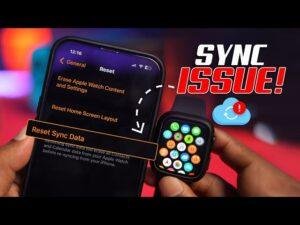
Install HryFine, enable Bluetooth, pair inside the app, and approve Samsung’s required permissions.
Learning how to connect HryFine watch to Samsung phone is usually quick, but the first setup can feel confusing. The watch may use the HryFine app instead of Samsung Galaxy Wearable, and missing one permission can stop pairing or notifications. This guide explains the full process, common errors, privacy points, and practical fixes in clear steps.
What You Need Before Pairing
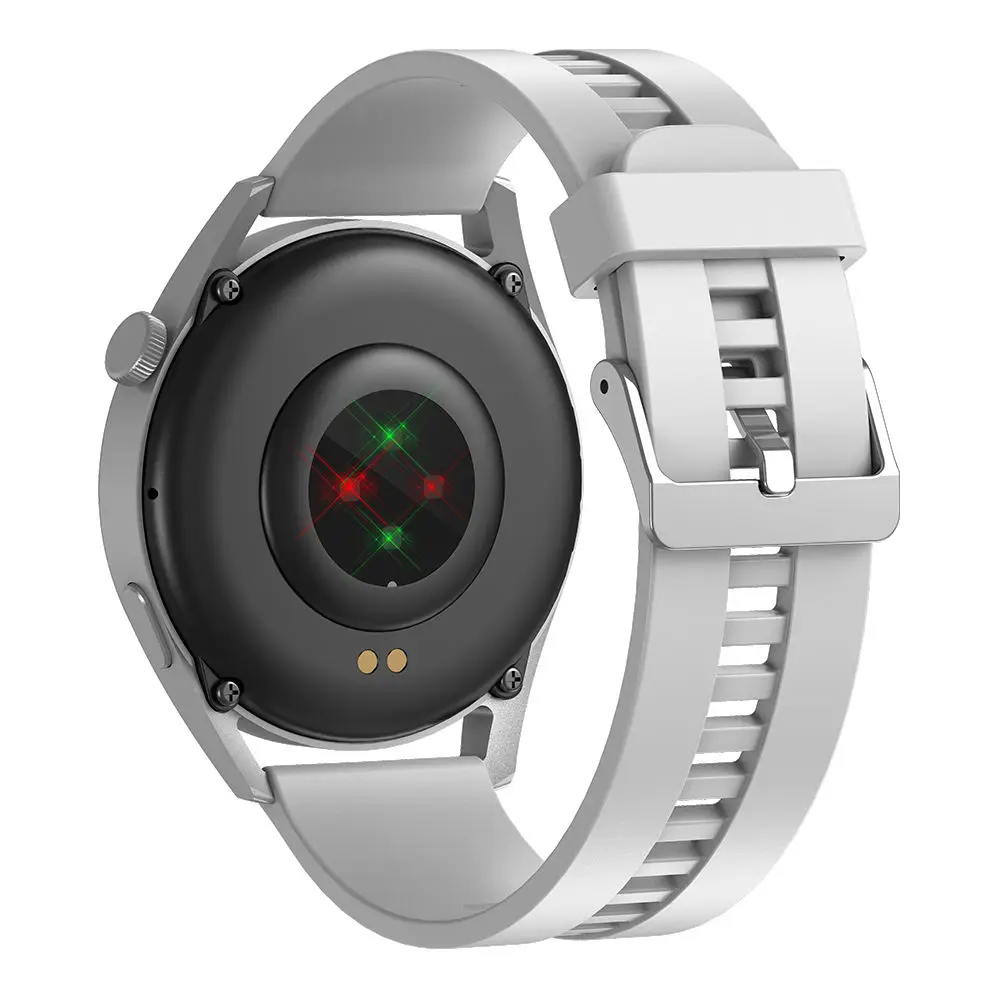
Before you learn how to connect HryFine watch to Samsung phone, prepare both devices. A few minutes of preparation can prevent most connection errors.
Check these items first:
- Charge the HryFine watch to at least 30 percent.
- Install the latest HryFine app from the Google Play Store or the QR code in the watch manual.
- Turn on Bluetooth on your Samsung phone.
- Keep the watch within 3 feet of the phone.
- Remove the watch from any older phone.
- Make sure your Samsung phone has a stable internet connection during app setup.
- Update your phone software if an update is waiting.
HryFine watches are usually Bluetooth companion devices. They are not the same as Wear OS watches, so Samsung Galaxy Wearable may not support them. The HryFine app normally manages the connection, health data, watch faces, alarms, and notifications.
Also check the app’s compatibility details. Android versions, watch models, and app features can vary. A watch that works with one HryFine app version may show a slightly different menu on another version.

How to Connect HryFine Watch to Samsung Phone
The most reliable method is to pair the watch through the HryFine app. Do not begin by pairing it only from the regular Bluetooth menu. Direct Bluetooth pairing can sometimes create an incomplete connection.
Follow these steps:
-
Turn on the HryFine watch.
Press and hold the side button until the screen lights up. If the watch does not start, charge it for at least 20 minutes and try again.
-
Install and open HryFine.
Search for “HryFine” in the Google Play Store, or scan the QR code shown in the watch manual. Check that the app has the correct publisher and reviews before installing any third-party download.
-
Sign in or continue as a guest.
Some versions let you use the app without an account. An account may help with data backup, but it can also require more personal information. Choose the option that fits your needs.
-
Allow nearby-device access.
Android uses nearby-device permission to help apps find Bluetooth devices. Tap Allow when HryFine asks for this access.
-
Turn on Bluetooth.
If Bluetooth is off, HryFine may send you to Samsung’s Settings screen. Turn it on, then return to the HryFine app.
-
Open the device page.
Look for a menu named Device, Add Device, Bind Device, Connect Device, or a plus sign. The wording can differ by app version.
-
Select your watch.
Wait for the scan to finish. Tap the watch name or model number that appears. If several devices appear, compare the name with the label shown on the watch screen.
-
Confirm the pairing request.
A code may appear on the phone or watch. Confirm that both codes match. Tap Pair or Confirm on each device.
-
Approve health and notification permissions.
HryFine may ask to read activity data, send notifications, run in the background, or access calls. Allow only the features you plan to use.
-
Wait for synchronization.
The first sync may take several minutes. Keep the watch near the phone and leave HryFine open until the home screen shows the connection.
This process explains how to connect HryFine watch to Samsung phone without using Samsung Galaxy Wearable. The HryFine app acts as the bridge between the watch and your Samsung device.

How to Pair HryFine Through Samsung Bluetooth Settings
The app should be your first choice. However, Samsung Bluetooth settings can help when the app cannot find the watch or when you need to remove an old pairing.
Open:
Settings > Connections > Bluetooth
Turn Bluetooth on and look under Available devices. If the HryFine watch appears, tap its name and accept the pairing request.
After that, open HryFine and check whether the watch appears as connected. Some models pair only after you start the process inside the app, so Samsung Bluetooth settings alone may not complete the setup.
If the watch shows under Paired devices but HryFine still says Not Connected, remove the device from Bluetooth settings. Then restart both devices and repeat the pairing process from HryFine.
Use this order when possible:
- Forget the watch in Samsung Bluetooth settings.
- Close HryFine completely.
- Turn Bluetooth off for 10 seconds.
- Turn Bluetooth on again.
- Open HryFine.
- Use Add Device inside the app.
- Confirm the pairing request.
This small reset often fixes a “connected but not working” problem. It is similar to reconnecting a loose cable before replacing the whole device.
Permissions Needed for HryFine on Samsung Phones
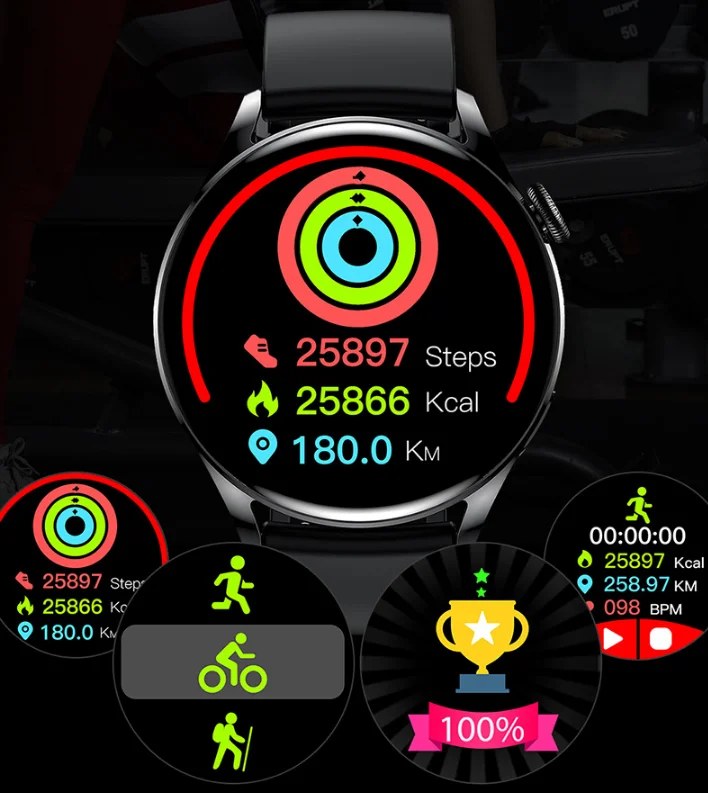
Permissions are one of the main reasons people struggle with how to connect HryFine watch to Samsung phone. Android protects private data by asking apps what they can access.
HryFine may request the following permissions:
- Nearby devices: Helps the app find and communicate with the watch.
- Location: Some older Android Bluetooth scans require location access.
- Notifications: Sends calls, texts, and app alerts to the watch.
- Phone: Displays incoming call alerts.
- Contacts: Shows caller names instead of only phone numbers.
- Physical activity: Supports steps, workouts, and movement data.
- Battery use in the background: Keeps the watch connection active.
You do not need to approve every permission. For example, you can deny contacts if you only want step tracking. The watch may still need nearby-device and physical-activity access for core features.
To review permissions, open:
Settings > Apps > HryFine > Permissions
Samsung phones may also restrict background activity. Go to:
Settings > Apps > HryFine > Battery
Choose an option that allows background use, such as Unrestricted or Optimized, depending on your battery needs. Unrestricted use may improve alerts but can use more battery.
For privacy, download the official app, review its privacy policy, and avoid giving access that does not match your intended use. Health and contact information deserves the same care as any other personal data.

How to Enable Notifications on the HryFine Watch
Pairing the watch does not always turn on notifications. You often need to enable them in both Samsung settings and the HryFine app.
First, check Samsung notification access:
- Open
Settings. - Tap
Notifications. - Open
App notificationsand confirm that important apps can send alerts. - Check
Notification accessif HryFine requests it. - Allow HryFine to read notifications when you want alerts on the watch.
Next, open HryFine and find a menu such as Message Reminder, App Alerts, or Notifications. Select the apps you want to receive on the watch.
Start with one app, such as Messages. Send yourself a test message. If it works, add other apps one at a time. This makes it easier to find an app that causes duplicate alerts or unusual behavior.
Also review Samsung modes that can block alerts:
- Do Not Disturb
- Power saving
- Sleep mode
- Airplane mode
- App notification controls
- Lock screen notification settings
A common hands-on lesson with budget Bluetooth watches is that notification features are less consistent than step tracking. Calls, texts, and popular messaging apps may work, while less common apps may not. The phone and watch must both support the same notification method.
How to Fix HryFine Watch Connection Problems
If the first setup fails, do not immediately reset the watch. Try the simple fixes first.
HryFine Cannot Find the Watch
Try these steps:
- Confirm that the watch is on and close to the phone.
- Turn Bluetooth off and on.
- Close other fitness apps that may be using Bluetooth.
- Restart the Samsung phone.
- Restart the watch.
- Check nearby-device permission for HryFine.
- Remove the watch from another nearby phone.
- Scan again from Add Device in HryFine.
If the watch is already connected to another phone, Bluetooth may refuse a new connection. Turn off Bluetooth on the old phone or use the watch’s factory reset option.
The Watch Says Connected but the App Does Not
This usually means the watch was paired from Samsung Bluetooth settings but not bound inside HryFine. Select Forget for the watch, restart both devices, and pair again from the app.
Do not keep tapping Pair many times. Repeated requests can create old connection records that confuse the app.
Notifications Do Not Arrive
Check notification access, app alerts inside HryFine, and Samsung’s battery controls. Make sure the phone is not in Do Not Disturb mode.
Some watches show only a notification icon or short preview. They may not display full messages, images, group chats, or long text. This is a device limitation, not always a pairing failure.
The Connection Drops Often
Keep the watch within normal Bluetooth range. Walls, crowded wireless areas, low battery, and aggressive battery saving can interrupt the connection.
On Samsung phones, check whether HryFine is sleeping:
Settings > Battery and device care > Battery > Background usage limits
If HryFine is listed as a sleeping app, remove it from that list. Test the watch for a day before deciding whether to use unrestricted battery access.
Health Data Does Not Sync
Open HryFine and pull down on the data screen to refresh it. Wear the watch snugly, with the sensor touching your skin. Loose placement can create missing or inaccurate readings.
Step counts and heart-rate readings from low-cost watches are estimates. They should not replace medical equipment or professional advice. Use them for general trends, not diagnosis.

How to Reconnect HryFine After a Phone Restart
Most HryFine watches reconnect automatically when Bluetooth and background permissions are active. If yours does not, open HryFine once after restarting the phone.
Check these settings:
- Bluetooth is on.
- HryFine can run in the background.
- Nearby-device permission is allowed.
- Battery saving is not blocking HryFine.
- The watch is not connected to another phone.
- HryFine is signed in if the app requires an account.
If automatic reconnection remains unreliable, open HryFine and tap the connected device. Choose Reconnect or Bind again if that option appears.
Avoid repeatedly uninstalling the app. Uninstalling can remove local data and may not fix a Bluetooth record stored in the phone. Forgetting the device, restarting both products, and pairing again is usually cleaner.
How to Reset and Pair the Watch Again
A reset is useful when you bought a used watch, changed phones, or tried several failed pairings. It erases settings and may remove stored health data from the watch.
Before resetting, sync the watch if possible. Then use one of these paths, depending on the model:
Watch Settings > System > Reset
or:
HryFine > Device > Unbind
After the reset:
- Forget the watch in Samsung Bluetooth settings.
- Turn Bluetooth off and on.
- Restart the Samsung phone.
- Turn on the watch.
- Open HryFine.
- Tap Add Device.
- Select the watch.
- Confirm the pairing code.
- Restore only the permissions you need.
A factory reset should be the last major step, not the first. It can solve damaged pairing data, but it cannot fix an unsupported Android version, a faulty battery, or broken Bluetooth hardware.
HryFine Watch Compatibility and Limitations
Understanding compatibility helps set realistic expectations. HryFine watches often support Android phones through Bluetooth and the HryFine app. They may not support Wear OS apps, Google Play apps on the watch, or Samsung-specific watch features.
You may be able to use:
- Step counting
- Basic heart-rate readings
- Sleep estimates
- Exercise modes
- Watch faces
- Alarms
- Call alerts
- Text and app notifications
- Remote camera controls
- Music controls
Features vary by model and app version. Some watches support Bluetooth calling, but this may require a second Bluetooth connection for audio. If the phone asks to pair a device named with “Call” or “Audio,” approve it only when your model supports calling.
You may not receive:
- Full app replies from the watch
- Samsung Pay or Google Wallet
- Wear OS applications
- Advanced Samsung Health integration
- Reliable GPS without phone support
- Medical-grade health readings
This is why the best answer to how to connect HryFine watch to Samsung phone depends on the watch model. The basic pairing steps are similar, but menus and features can differ.
Practical Tips for a Stable Connection
A few habits can make daily use much smoother.
Keep HryFine updated, but read the update notes when available. An app update may improve pairing, while a watch firmware update can change menus or permissions.
Avoid installing unofficial APK files from random websites. They may contain modified code, request excessive access, or use an old version that does not work well with current Samsung software.
When testing the connection, use a simple routine:
- Pair the watch.
- Send one test notification.
- Make one test call alert.
- Sync steps.
- Close and reopen HryFine.
- Restart the phone and test automatic reconnection.
This routine quickly shows whether the problem affects pairing, notifications, data sync, or background operation.
Another useful lesson is to change only one setting at a time. If you turn on five permissions and disable three battery controls at once, you will not know which change solved the issue.
Frequently Asked Questions About How to Connect HryFine Watch to Samsung Phone
Can I connect an HryFine watch to a Samsung Galaxy phone?
Yes, many HryFine watch models connect to Samsung Galaxy phones through the HryFine Android app and Bluetooth. Compatibility depends on the watch model, Android version, and current app support.
Do I need Samsung Galaxy Wearable to pair an HryFine watch?
Usually, no. HryFine watches generally use the HryFine app rather than Samsung Galaxy Wearable, which is designed mainly for Samsung and supported Wear OS devices.
Why is my HryFine watch not showing in the app?
Check Bluetooth, nearby-device permission, battery level, and distance between the devices. If the watch is paired with another phone, disconnect it there before scanning again in HryFine.
Can an HryFine watch receive calls and text messages?
Many models can show incoming call and message alerts, but support varies. Bluetooth calling may require an additional audio pairing, and most models cannot reply to messages like a full smartwatch.
How do I reconnect my HryFine watch after changing Samsung phones?
Forget the watch on the old phone, reset or unbind it if necessary, and then install HryFine on the new Samsung phone. Pair from Add Device inside HryFine instead of relying only on Samsung Bluetooth settings.
Why does HryFine keep disconnecting from my Samsung phone?
Battery saving, background limits, distance, low battery, or another phone using the watch can cause disconnections. Allow HryFine to run in the background and keep the watch within normal Bluetooth range.
Is HryFine compatible with Samsung Health?
Some HryFine models or app versions may offer limited data sharing, but full Samsung Health support is not guaranteed. Check the HryFine app and your watch manual for a specific Samsung Health integration option.
Conclusion
Connecting an HryFine watch to a Samsung phone is usually simple when you use the HryFine app as the main pairing tool. Turn on Bluetooth, allow nearby-device access, add the watch inside the app, and then configure notifications and battery settings.
If pairing fails, forget old Bluetooth records, restart both devices, and try again from HryFine. Keep expectations realistic because features such as calling, Samsung Health syncing, GPS, and message replies depend on the exact watch model.
Follow the steps above, test one feature at a time, and protect your privacy by granting only the permissions you need. If this guide helped, share your watch model or pairing experience in the comments and explore more practical smartwatch setup guides.

Rubel Miah is the Senior Editor at MyStyleGrid.com, where he brings a sharp editorial eye and an unshakable love for fashion to everything he does. A true style addict, Rubel lives and breathes trends, from streetwear to high fashion, and has a knack for turning inspiration into impactful stories. With years of experience in fashion journalism and digital media, he curates content that empowers readers to express themselves through style. When he’s not editing features or forecasting the next big thing, you’ll find him hunting down vintage pieces or capturing street style moments around the city.