Smartwatches are everywhere now. People love the small screen on their wrist. One feature that many enjoy is Always on Display (AOD). It keeps your watch face visible all the time, so you do not need to move your arm or tap the screen just to check the time. But here comes the problem—AOD uses battery power, and many users find their smartwatch dies much faster with it on. Is it possible to enjoy Always on Display without draining your smartwatch battery too quickly? Yes, it is. You just need the right settings, a few clever tricks, and a little understanding of how these displays work.
In this article, I’ll walk you through everything you need to know. I’ll share tips that I learned while using my own smartwatch. I’ll also point out easy steps, hidden settings, and things that most guides miss. If you want a clear clock on your wrist all day without running out of battery, keep reading.
Why Always On Display Uses So Much Battery
Before we start, let’s look at why AOD drains the battery in the first place. Smartwatches have small screens, but keeping them lit uses energy. Most watches use either AMOLED or LCD screens. AMOLED screens light up only the pixels that show content, while LCD screens light up the whole display. That means AMOLED can be more battery-friendly for AOD, but it still uses power.
Even if the display is dim, the watch needs to keep parts of the hardware awake. Every time the screen refreshes, it eats a little more battery. If you’re getting only one day of use with AOD on, you’re not alone.
I faced this problem with my first smartwatch, and it made me worry about missing important notifications if my watch died early.
Choosing The Right Smartwatch For Aod
If you haven’t bought a smartwatch yet, this is the best place to start. Not all watches handle AOD well. Some drain fast, while others use clever tech to save power.
| Smartwatch Model | Screen Type | Typical AOD Battery Life |
|---|---|---|
| Apple Watch Series 9 | LTPO OLED | Up to 18 hours |
| Samsung Galaxy Watch 6 | AMOLED | Up to 24 hours |
| Garmin Venu 3 | AMOLED | Up to 3 days |
| Fitbit Versa 4 | AMOLED | Up to 2 days |
| Amazfit GTR 4 | AMOLED | Up to 5 days |
As you can see, some watches last much longer with AOD. If battery life is your top concern, consider models known for efficient displays. Watches with LTPO (Low-Temperature Polycrystalline Oxide) or AMOLED screens usually do better. My own switch from an old LCD-based watch to an AMOLED one doubled my battery life with AOD on.
How To Enable Always On Display (aod) The Right Way
Turning on AOD is simple, but doing it the smart way is key. Here’s a general path, though your watch might look a bit different.
- Go to Settings: Open your watch’s settings menu.
- Find Display Settings: Look for “Display,” “Screen,” or “Appearance.”
- Select Always on Display: You may see “Always On,” “AOD,” or “Ambient Display.”
- Toggle On: Switch it on.
But don’t stop here. There are extra options and tricks that can help you save battery and still enjoy AOD.
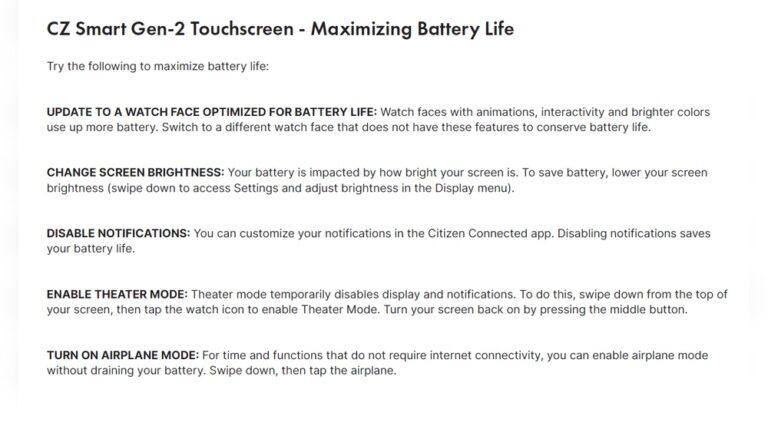
Adjust Brightness For Better Battery Life
The brightness of your AOD matters a lot. Most smartwatches let you adjust this.
- Set brightness to auto if available. Your watch will lower the brightness in dark places to save energy.
- If you must set it manually, keep it as low as possible while still readable. Your eyes adjust fast, and a dim display is often enough indoors.
- Some watches have a “night mode” or “low brightness” for AOD—use it!
I once set my AOD to maximum brightness, thinking it would look better. My battery dropped by 30% before noon! After lowering the brightness, I barely noticed a difference in clarity, but my watch lasted much longer.
Use Battery-saving Watch Faces
Not all watch faces are equal. Some are full of color, animation, and details. These look cool but use more power, especially on AMOLED screens.
- Pick a minimalist watch face for AOD. Simple faces with black backgrounds and few moving elements save the most battery.
- Avoid faces with constant animation or bright colors.
- Many watches have special “AOD watch faces” built for low power.
Here’s a quick comparison of watch face types:
| Watch Face Type | Battery Usage (AOD) | Best For |
|---|---|---|
| Minimal (black background) | Low | Battery saving |
| Colorful/animated | High | Style, not efficiency |
| Simple analog | Medium | Classic look, okay battery |
| Data-heavy (many stats) | High | Information, not battery |
Choosing the right face can make a big difference. My first week with a new watch, I picked a fun, animated watch face. I was charging every night. After switching to a plain digital face, I got an extra day before charging.
Set Aod To Turn Off When Not Needed
You don’t need AOD all the time. Many smartwatches let you set “schedules” or “smart modes” for AOD.
- Set AOD to turn off at night, or when you’re asleep. There’s no need for the screen to stay on while you’re in bed.
- Use “theater mode” or “sleep mode” to disable AOD in quiet places or meetings.
- Some watches have a “raise to wake” feature. You can set AOD to turn off when you take off the watch, or when you cover the screen.
This simple trick can add hours to your battery. For example, I set my AOD to turn off from 11 p. m. to 6 a. m. and noticed a big improvement.
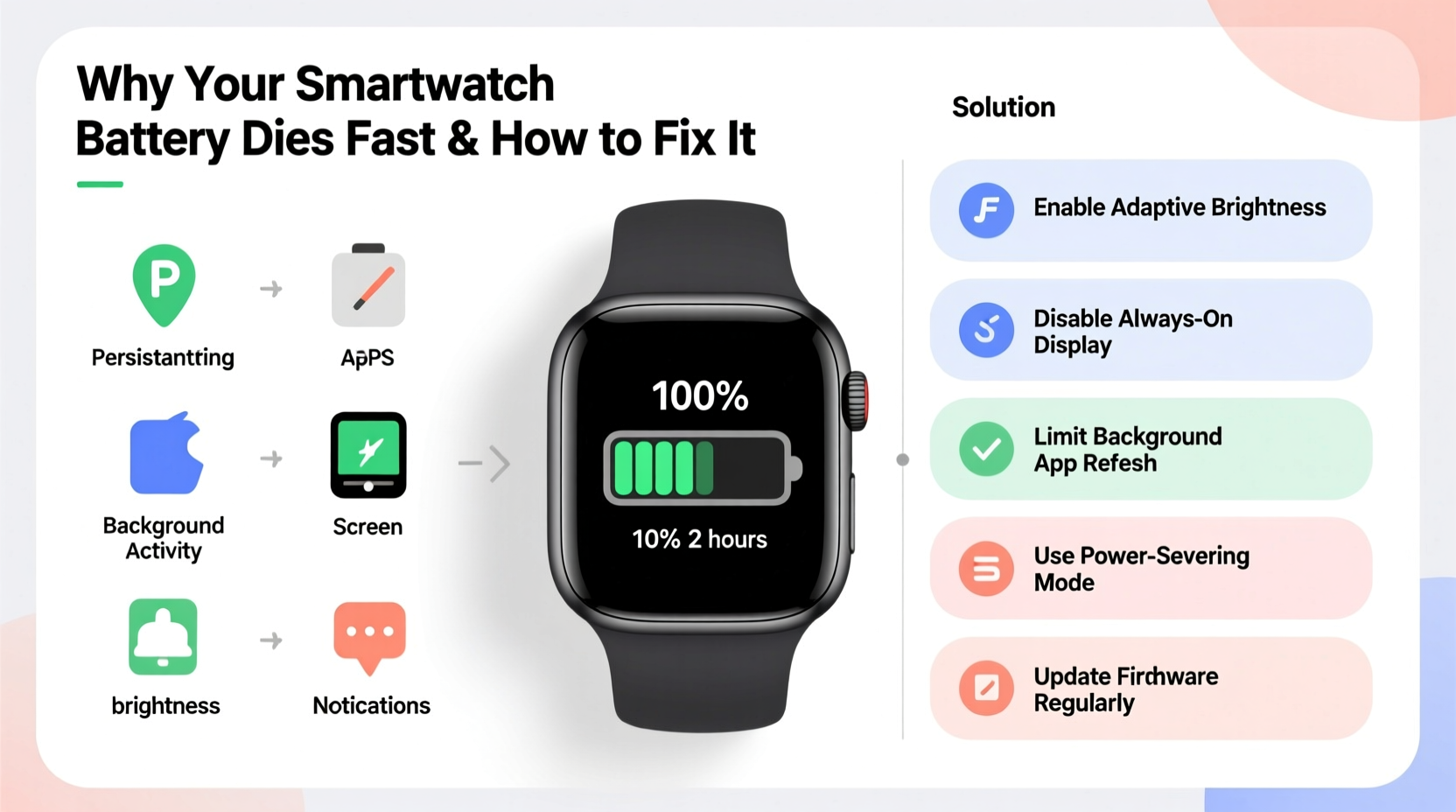
Use Power Saving Modes
Modern smartwatches come with built-in battery-saving features.
- Look for “Power Saving Mode,” “Battery Saver,” or similar settings.
- Some watches let you use AOD in a basic form when battery saver is on. It might show just the time, no extras.
- These modes might limit background apps or reduce notifications, but you get much longer battery life.
If you know you’ll be out for a long day, turn on power saving. You can still have AOD, but your watch will last longer.
Keep Your Watch Updated
Software updates often improve battery efficiency. Watch makers are always finding ways to make AOD use less power.
- Check for updates in your watch’s settings or app.
- Install updates when available.
- Read the update notes. Sometimes, they mention AOD improvements.
I once skipped a big update on my Galaxy Watch, and my battery was draining fast. After finally updating, AOD used much less power.
Turn Off Unneeded Features
Other features running in the background can make AOD use even more battery.
- Turn off GPS when not needed.
- Limit background heart rate checks.
- Reduce notifications to just the essentials.
- Turn off Wi-Fi or Bluetooth when not in use.
Each sensor or connection uses a bit of power. Together, they add up.
Use Official Or High-quality Apps Only
Third-party watch faces or apps can sometimes use more battery, even if they look simple.
- Stick to official watch faces from your watch’s app store.
- If you use third-party apps, read reviews. Some are not optimized and can drain your battery.
- Uninstall unused apps to keep things running smoothly.
A friend of mine loved custom watch faces, but her battery kept dying fast. Switching back to the official faces fixed the problem.
Calibrate Your Battery
Sometimes, your battery just needs a “reset.” If you notice your battery drops fast even after following all tips, try this:
- Let your watch battery drain completely.
- Charge it to 100% without removing it from the charger.
- Repeat once or twice.
This helps the watch “learn” its real battery limits. Don’t do this often—just once every few months.
Use The Latest Display Technology
If your watch is older, the screen tech might be outdated. Newer watches with LTPO or AMOLED displays are much better for AOD.
- LTPO screens can change their refresh rate from fast to very slow. When AOD is on, they refresh less often, saving battery.
- AMOLED screens light up only the pixels needed.
If your watch is more than 3 years old, upgrading can double your battery life with AOD.
Credit: www.alibaba.com
Adjust Screen Timeout And Wake Gestures
Some watches wake up fully when you raise your wrist or receive a notification. This uses more power.
- Shorten the screen timeout. Set it to the lowest comfortable value.
- Turn off wake-on-raise if you don’t need it.
- Reduce vibration intensity for notifications.
This keeps the AOD on, but the screen won’t wake up fully as often.
Keep Your Watch Clean And Cool
Heat can make batteries drain faster. If your watch gets hot on your wrist, it may use more power.
- Avoid leaving your watch in direct sun.
- Clean the back sensors to keep them working well.
- Remove the watch when doing very hot or sweaty activities.
A dirty sensor or a hot battery can use extra power, even with AOD.
Monitor Your Battery Usage
Most smartwatches show which apps or features use the most battery.
- Check the battery usage section in the settings.
- Look for apps or features that use too much power.
- Adjust or turn off the most power-hungry ones.
This helps you spot problems. Sometimes, a single app or setting is the reason your battery dies fast.
Restart Your Watch Regularly
Like phones, smartwatches need a restart sometimes.
- Restart your watch once a week.
- This clears memory and stops apps running in the background.
- It can fix small bugs causing battery drain.
A quick restart can add hours to your battery life.
Smartwatch Battery Saving Myths
Let’s clear up some common myths:
- “Black watch faces always save battery.” This is true only for AMOLED or OLED screens, not LCD.
- “Closing apps improves battery.” Only background apps matter; closing them on the watch face does little.
- “AOD always drains battery fast.” With the right settings, AOD can be used without heavy drain.
Don’t believe everything you read online. Stick to trusted sources and test what works for you.
Real-world Example: My Aod Experience
When I first got my Samsung Galaxy Watch, I was so excited to use AOD. But after half a day, I was already down to 50%. I tried all sorts of things. The real breakthroughs came when I switched to a black, simple watch face and turned off AOD at night. I also set notifications to only the most important ones.
I now get almost two full days with AOD on. It’s all about small tweaks. You don’t need to sacrifice style or function—just balance what you need.

Credit: smartwatch-straps.co.uk
Advanced Tips For Tech-savvy Users
If you’re comfortable with tech, try these extra steps:
- Lower the AOD refresh rate (some watches let you set this).
- Use developer options for deeper battery stats.
- Enable “doze” or “ambient” modes, if supported.
Always back up your watch data before changing advanced settings.
Comparing Aod Battery Life Across Platforms
Wondering how different smartwatch brands perform? Here’s a quick overview:
| Brand | Average AOD Battery Life | Special Features |
|---|---|---|
| Apple Watch | 18 hours | LTPO display, auto-brightness, smart schedules |
| Samsung Galaxy Watch | 24 hours | AMOLED, power saving AOD, custom schedules |
| Garmin Venu | 3 days | AMOLED, advanced power saver |
| Amazfit GTR | 5 days | AMOLED, ultra-long battery mode |
Garmin and Amazfit stand out for battery life, but each brand has its own strengths.

Credit: store.blackview.hk
When To Turn Off Aod
Sometimes, it’s just smarter to turn off AOD:
- When traveling and you can’t charge for a while.
- During workouts to save every bit of battery.
- When the watch is at low battery (under 20%).
You can always turn it back on later.
How To Tell If Aod Is Draining Your Battery
If you think AOD is causing big battery loss:
- Charge your watch to 100%.
- Use it with AOD on for a full day.
- Repeat with AOD off.
- Compare the results.
If the difference is huge, try more battery-saving tips or consider turning AOD off during busy days.
Common Mistakes To Avoid
Many people use AOD but make mistakes that drain battery fast:
- Using bright, animated, or colorful watch faces.
- Keeping all notifications on.
- Not updating software.
- Leaving AOD on at night.
- Never using power saving mode.
Avoid these mistakes, and you’ll see your battery last much longer.
The Future Of Always On Display
AOD technology keeps getting better. Screen makers are finding ways to use even less power. Some new smartwatches use microLED or more advanced LTPO screens, which may double or triple battery life soon.
Software is also getting smarter. Watches now learn when you need AOD and when you don’t. With features like adaptive brightness and automatic schedules, you may not have to worry much about battery in the future.
If you want more details about how these screens work, you can read more at the Always on Display Wikipedia page.
Wrapping Up
You do not have to choose between a visible watch face and good battery life. By picking the right watch, using simple faces, adjusting brightness, and turning off AOD when you don’t need it, you can enjoy both. It took me a few weeks of small changes, but now I never worry about my watch dying early.
Try these tips, and you’ll notice the difference too.
Remember, technology is meant to make life easier, not harder. With a little care, your smartwatch can keep you on time all day—without running out of power.
Frequently Asked Questions
How Much Battery Does Always On Display Really Use?
It depends on your watch and settings. On newer watches with AMOLED or LTPO screens, AOD might use only 5-10% extra battery per day. On older or LCD watches, it can use up to 20-30%. Watch face style, brightness, and background apps also matter.
Can I Use Aod And Still Get Two Days Of Battery?
Yes, if you use battery-saving tips. Pick a simple, dark watch face, keep brightness low, and turn off AOD at night. Some watches like Amazfit or Garmin can give 2-5 days even with AOD.
Does Turning Off Notifications Help With Battery Life?
Yes, every notification wakes the screen or uses sensors. Limit notifications to only the most important ones for better battery life with AOD.
Is Always On Display Bad For My Watch’s Screen?
No, most modern screens are made for AOD. They use special tech to avoid burn-in and save power. Just avoid using the same bright image for months without change.
What Should I Do If My Battery Still Drains Too Fast With Aod?
Check for software updates, try calibrating your battery, and use official watch faces. Turn off extra features like GPS and heart rate tracking if not needed. If the battery is still weak, it might be time for a new watch.
With these clear steps and insider tricks, you can enjoy Always on Display without worrying about your smartwatch battery.

Rubel Miah is the Senior Editor at MyStyleGrid.com, where he brings a sharp editorial eye and an unshakable love for fashion to everything he does. A true style addict, Rubel lives and breathes trends, from streetwear to high fashion, and has a knack for turning inspiration into impactful stories. With years of experience in fashion journalism and digital media, he curates content that empowers readers to express themselves through style. When he’s not editing features or forecasting the next big thing, you’ll find him hunting down vintage pieces or capturing street style moments around the city.