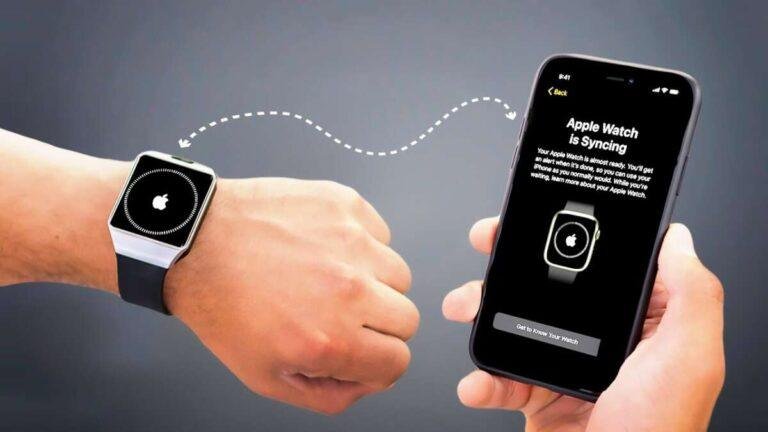
To pair a watch to a new phone, back up your data, reset the old link, then follow setup prompts.
Learning how to pair watch to new phone is usually simple, but the best steps depend on your watch brand, phone type, and whether the old phone still works. This guide explains the safe process for Apple Watch, Samsung Galaxy Watch, Google Pixel Watch, Fitbit, and other smartwatches, with clear fixes for common pairing errors.

What to do before pairing your watch to a new phone
Before you pair watch to new phone, prepare both devices. Good preparation helps protect your health data, apps, settings, photos, and watch history.
Keep the watch and the new phone close together. Charge both devices to at least 50% if possible. Pairing can take time, and a low battery may interrupt the process.
Check these items first:
• Install the latest phone software available.
• Turn on Bluetooth and Wi-Fi.
• Sign in to the same Apple, Google, or Samsung account used on the old phone.
• Update the watch app on the new phone.
• Keep your old phone nearby until the transfer is complete.
• Back up the old phone and watch data.
A watch often stores less data than a phone, but it may still hold activity records, settings, downloaded music, payment cards, and app data. A backup gives you a safety net if the watch must be erased.
For Apple Watch, use the Watch app on the old iPhone and check that the watch has recently backed up. For Wear OS watches, open the related app, such as Google Pixel Watch or Galaxy Wearable, and sync your data before you begin.
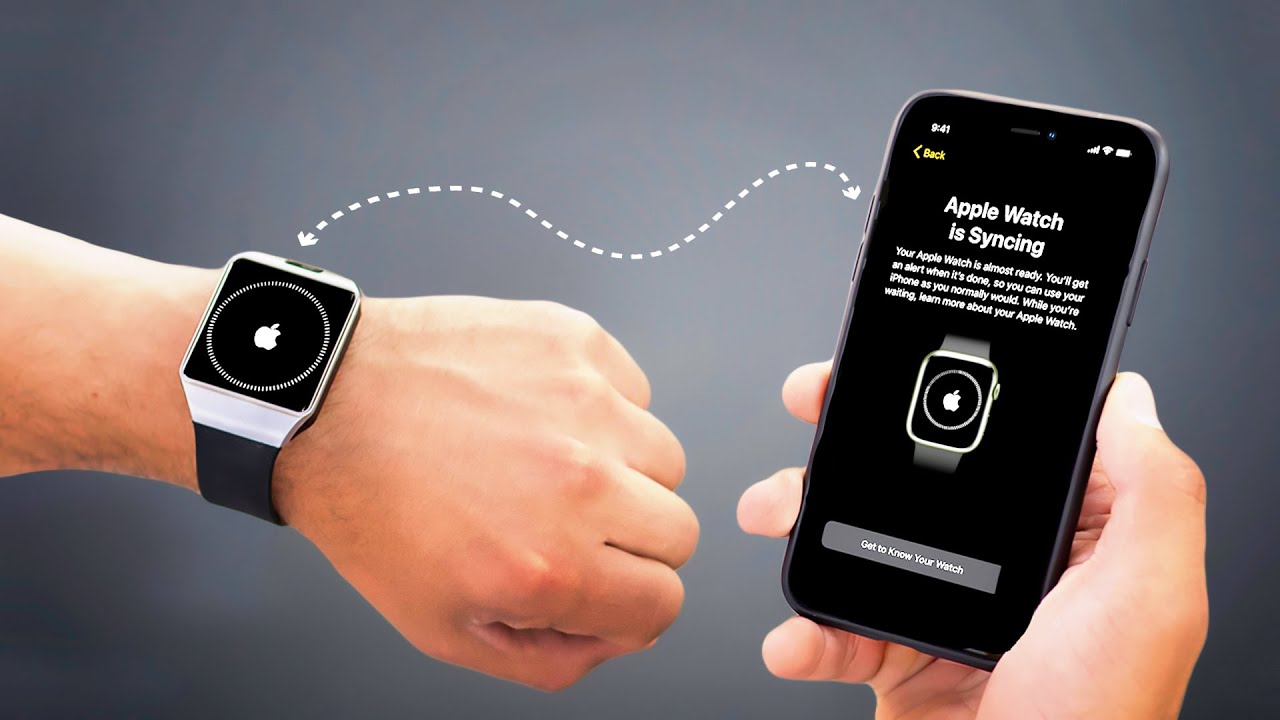
How to pair watch to new phone safely
The general method is similar across most brands. First, back up the watch. Next, disconnect it from the old phone in the correct way. Then open the official watch app on the new phone and follow the setup instructions.
Use this order:
-
Charge the watch and new phone.
-
Turn on Bluetooth and Wi-Fi.
-
Install the correct companion app.
-
Sign in to your account.
-
Unpair the watch from the old phone, if needed.
-
Open the watch app on the new phone.
-
Select the option to add, connect, or pair a new device.
-
Confirm the matching code shown on both screens.
-
Restore the backup or set up the watch as new.
-
Allow the watch to update and sync.
The pairing code is a security check. It confirms that your phone is connecting to your watch, not to a nearby device. If the code does not match, cancel the process and start again.
When you pair watch to new phone, do not rush through setup. Read each prompt about location, notifications, contacts, health data, and cloud access. These choices affect how the watch works each day.
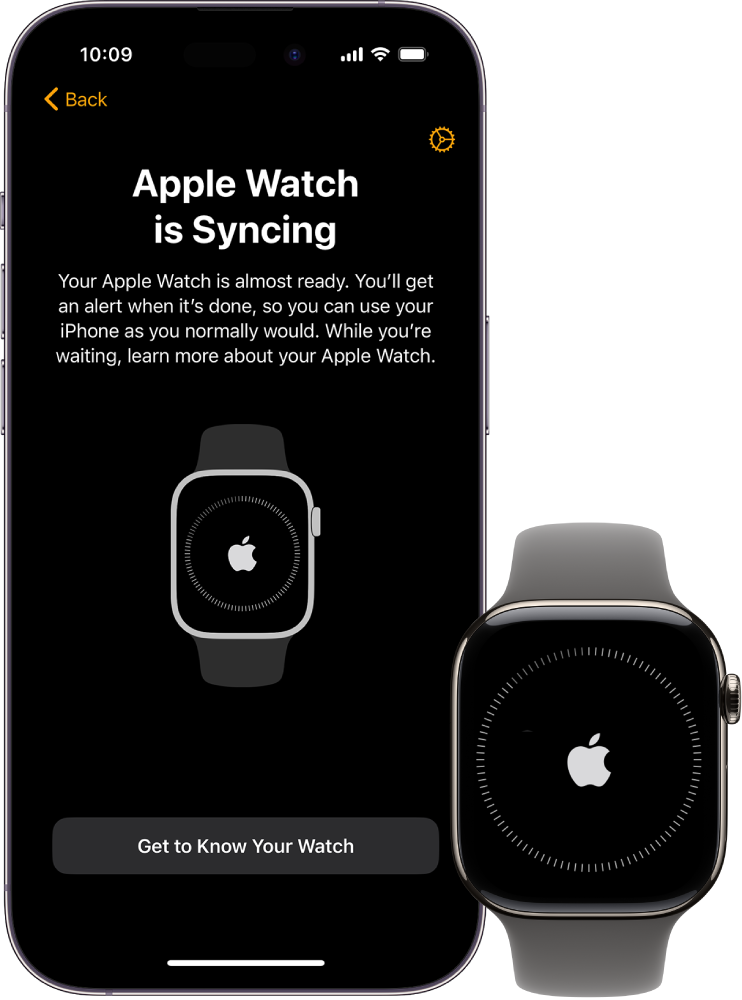
How to pair an Apple Watch to a new iPhone
Apple Watch works with iPhone. It does not support direct pairing with Android phones. If you are moving to a new iPhone, Apple provides a smooth transfer path when the old iPhone is available.
If you still have your old iphone
1. Update the old iPhone and Apple Watch.
-
Open the Watch app on the old iPhone.
-
Tap All Watches.
-
Tap the information button next to your watch.
-
Choose Unpair Apple Watch.
-
Enter your Apple Account password if asked.
-
Back up the watch when prompted.
-
Turn on the new iPhone and restore it from your iPhone backup.
-
Open the Watch app on the new iPhone.
-
Tap Start Pairing.
-
Choose Restore from Backup and select the latest watch backup.
Unpairing the watch correctly removes the Activation Lock connection and creates a current backup. This is safer than erasing the watch manually before unpairing it.
If your old iPhone is lost or broken
You can still pair watch to new phone, but you may need to erase the watch first. On the watch, open Settings, choose General, select Reset, and tap Erase All Content and Settings.
After the erase finishes, open the Watch app on the new iPhone and select Start Pairing. You may need the Apple Account password linked to the watch because of Activation Lock.
This method can restore data only if a recent backup exists in iCloud or on your computer. Without a backup, the watch may need to start as a new device.

How to pair a Samsung Galaxy Watch to a new phone
Samsung Galaxy Watch models usually pair through the Galaxy Wearable app. Some newer models use Google services during setup, so keep both your Samsung and Google account details available.
To pair watch to new phone:
-
Install Galaxy Wearable from the Google Play Store or Galaxy Store.
-
Turn on Bluetooth and Wi-Fi.
-
Open Galaxy Wearable.
-
Tap Start or Add new device.
-
Select your Galaxy Watch.
-
Confirm the code on the phone and watch.
-
Sign in to your Samsung account.
-
Restore your backup if one is available.
-
Allow required permissions.
-
Install updates after setup finishes.
Some Galaxy Watch models support iPhone, while newer models may require Android. Compatibility also varies by watch generation and phone features. Check the official compatibility list for your exact model before you begin.
If the watch was linked to another phone, Galaxy Wearable may ask you to reset it. Read the warning carefully. A reset removes local watch data, but a cloud backup may restore many settings and records.
How to pair a Google Pixel Watch or other Wear OS watch
Google Pixel Watch uses the Google Pixel Watch app. Other Wear OS watches may use a brand-specific app, such as Fossil Smartwatches, Mobvoi Health, or another approved companion app.
The basic steps are:
-
Download the correct watch app.
-
Turn on the watch and place it near the new phone.
-
Open the app and sign in to your Google account.
-
Choose Set up a new device.
-
Select the watch from the list.
-
Confirm the pairing code.
-
Connect the watch to Wi-Fi.
-
Restore your backup when offered.
-
Set up Google Assistant, Google Wallet, notifications, and health permissions.
-
Keep the watch near the phone while updates install.
Wear OS watches may need several permissions to work well. Notifications, location services, contacts, and health features can each require separate approval. Denying a permission may not stop pairing, but it can limit the watch later.
If you are moving from one Android phone to another, use the same Google account whenever possible. Account matching makes it easier to restore apps and settings.

How to pair a Fitbit to a new phone
Fitbit devices pair through the Fitbit app. You usually do not need to remove the device from the old phone before signing in on the new one, but Bluetooth should be disabled on the old phone during setup.
Follow these steps:
-
Install the Fitbit app on the new phone.
-
Sign in to the same Fitbit account.
-
Turn off Bluetooth on the old phone or move it away.
-
Open the Fitbit app on the new phone.
-
Tap your profile picture.
-
Select Set Up a Device or Add Device.
-
Choose your Fitbit model.
-
Confirm the code shown on the device.
-
Allow syncing to finish.
Fitbit activity data is linked mainly to your Fitbit account. This means your history often appears after you sign in and sync. Some device settings may still need to be changed again.
Do not use the phone’s Bluetooth settings as the main setup method. Most Fitbit models should be connected through the Fitbit app, not paired manually from the Bluetooth menu.

How to pair watch to new phone when the old phone is available
Having the old phone makes the process much easier. It lets you create a fresh backup and remove the old connection without forcing a factory reset.
Start by syncing the watch with the old phone. Open the companion app and wait until the latest data appears. Then use the app’s unpair, disconnect, or transfer option.
The exact wording varies, but look for options such as:
• Unpair watch
• Remove device
• Transfer watch
• Connect to a new phone
• Reset and disconnect
After the old connection is removed, install the watch app on the new phone. Follow the setup prompts and choose the latest backup if one appears.
I have seen many pairing problems happen because people turn off the old phone too early. Keep it powered on until the watch confirms that the backup and transfer are complete.

How to pair watch to new phone when the old phone is unavailable
You can still pair watch to new phone if the old phone is lost, damaged, traded in, or already erased. The main issue is that the watch may still be locked to the old account.
First, install the correct companion app on the new phone. Sign in with the same account used before. Some watches will appear automatically after the account syncs.
If the watch does not appear, you may need to erase it:
-
Open Settings on the watch.
-
Choose System, General, or About.
-
Select Reset or Disconnect and reset.
-
Confirm the erase.
-
Restart the watch.
-
Open the companion app on the new phone.
-
Pair the watch as a new device or restore a backup.
Account security can prevent unauthorized use. Apple Watch may require the Apple Account password. A Galaxy Watch may require the Samsung account. Wear OS devices may ask for the Google account used during setup.
If you cannot remember the account password, recover the account before resetting the watch. This can prevent an Activation Lock or account verification problem later.

Common problems when pairing a watch to a new phone
Pairing errors are common, and they do not always mean the watch is broken. Most problems come from an old Bluetooth connection, outdated software, a missing account, or an incorrect companion app.
The watch does not appear
Move the watch within a few feet of the phone. Restart Bluetooth, restart both devices, and open the official watch app again.
If the watch still does not appear, check that it is not connected to the old phone. Turning off Bluetooth on the old phone often helps.
The pairing code fails
Make sure the code on the phone matches the code on the watch. If it does not, cancel the process, restart both devices, and try again.
Avoid pairing through the phone’s Bluetooth menu unless the watch maker specifically instructs you to do so.
The watch says it is already paired
This message means the watch still has an old connection. Use the old phone to unpair it, or erase the watch from its settings if the old phone is unavailable.
You may also need to remove the watch from the account’s device list. This step varies by brand.
The app freezes during setup
Close the app and reopen it. Check your internet connection, free storage, and phone software.
If setup still fails, uninstall and reinstall the companion app. Do not erase the watch again until you confirm that the app and account are ready.
Health data is missing
Health records may take time to sync. Keep the phone connected to Wi-Fi, open the health app, and leave the watch near the phone.
Missing data can also result from using a different account. Confirm that the new phone uses the same account as the old phone.
How to transfer watch data and settings
Pairing connects the watch, but transferring data is a separate step. Some data may live in the cloud, while other settings may be stored only on the watch or old phone.
Data that may transfer includes:
• Activity and workout history
• Sleep records
• Watch faces
• Installed apps
• Notification settings
• Contacts
• Health measurements
• Music downloads
• Payment cards
Not every item transfers on every platform. Payment cards often require verification again for security. Downloaded music may also need to be downloaded again.
When you pair watch to new phone, use the same account and phone number when possible. Account continuity is one of the strongest factors in a successful transfer.
Give the process time. A watch may appear connected before all health records, apps, or settings finish syncing.
How to reconnect cellular service on a smartwatch
A cellular watch may need extra setup after you pair watch to new phone. The watch plan is often linked to your mobile carrier and account, not only to Bluetooth.
Open the watch app and look for Mobile Data, Cellular, or Mobile Plan. Follow the prompts to transfer or activate the plan.
You may need to:
• Confirm your carrier account.
• Verify your phone number.
• Accept new service terms.
• Sign in to the carrier app.
• Confirm the same billing account.
• Scan a setup code.
Do not cancel the old cellular plan until the new phone shows active service on the watch. Carrier transfers can vary by country, plan type, and watch model.
If cellular service does not work, contact the carrier first. The watch may be paired correctly while the mobile plan remains inactive.
Security and privacy tips during watch setup
A smartwatch can access sensitive information, including health data, messages, contacts, location, and payment details. Treat the pairing process like setting up a new computer.
Use these safety steps:
• Download apps only from the official app store.
• Use a strong screen lock on the phone.
• Set a passcode on the watch.
• Review health and location permissions.
• Do not share pairing codes with anyone.
• Turn on account two-factor authentication.
• Remove the watch from an old phone before selling or giving away the phone.
• Erase the watch before selling or giving it to another person.
Official support guidance from major watch platforms recommends keeping software updated and protecting account credentials. Updates often include security fixes, compatibility improvements, and bug fixes.
Mistakes to avoid when pairing watch to new phone
The most common mistake is erasing the watch before creating a backup. Once local data is removed, recovery may not be possible.
Other mistakes include:
• Using the wrong companion app.
• Pairing from the Bluetooth settings instead of the app.
• Signing in with a different account.
• Turning off the old phone too soon.
• Ignoring software updates.
• Removing the cellular plan before transfer.
• Repeatedly entering the wrong account password.
• Resetting the watch without checking Activation Lock.
One practical lesson is to change one thing at a time. Keep the old phone, new phone, and watch available until the new setup works. This makes it much easier to find the source of a problem.
Think of the old phone as a bridge. Cross to the new phone first, then remove the bridge after you know everything is safe.
How long does it take to pair watch to new phone?
Most basic pairings take between five and 20 minutes. A full transfer can take longer if the watch needs a software update or has many apps and health records.
Keep the watch charging if the process takes a while. Do not restart either device during an update unless the screen clearly tells you to do so.
If setup takes more than 30 to 45 minutes without progress, restart both devices and try again. A slow Wi-Fi connection, low storage, or a busy account server may be the cause.
Frequently asked questions about how to pair watch to new phone
Can I pair my watch to a new phone without the old phone?
Yes, in many cases. You may need to reset the watch first, then sign in with the same account and restore a backup if one exists. Some devices require the old account password because of theft protection.
Will I lose my data when I pair watch to new phone?
You may lose data if you erase the watch without a backup. Sync the watch first and use the same Apple, Google, Samsung, or Fitbit account to improve the chance of restoring your records.
Why is my watch not connecting to my new phone?
The watch may still be connected to the old phone, or you may be using the wrong companion app. Restart both devices, disable Bluetooth on the old phone, update the software, and begin pairing inside the official watch app.
Can I pair an Apple Watch with an Android phone?
No. Apple Watch requires an iPhone for setup and regular use. An Android phone cannot directly replace the iPhone connection.
Do I need to reset my watch before pairing it with a new phone?
Not always. If the old phone is available, use the official app to unpair or transfer the watch first. If the old phone is unavailable, a factory reset may be required.
Why did my watch pair but not show my health data?
The phone may be using a different account, or the data may still be syncing. Connect to Wi-Fi, open the health app, and confirm that the same account is signed in on both devices.
Can I pair one watch with two phones?
Most smartwatches are designed for one active phone connection at a time. You can often switch phones, but the watch may need to be unpaired, reset, or set up again.
Conclusion
To pair watch to new phone successfully, back up your data, use the correct companion app, and keep both phones nearby when possible. Unpair the watch properly, sign in with the same account, and allow time for updates and data to sync.
If the old phone is gone, do not panic. Account recovery, a factory reset, and a cloud backup can often restore access. Follow the steps for your exact watch model, then review privacy, cellular, notification, and health settings.
Take a few minutes to prepare before you start, and the move should feel more like a handoff than a repair. Share your experience or explore your watch maker’s support resources for model-specific help.

Rubel Miah is the Senior Editor at MyStyleGrid.com, where he brings a sharp editorial eye and an unshakable love for fashion to everything he does. A true style addict, Rubel lives and breathes trends, from streetwear to high fashion, and has a knack for turning inspiration into impactful stories. With years of experience in fashion journalism and digital media, he curates content that empowers readers to express themselves through style. When he’s not editing features or forecasting the next big thing, you’ll find him hunting down vintage pieces or capturing street style moments around the city.