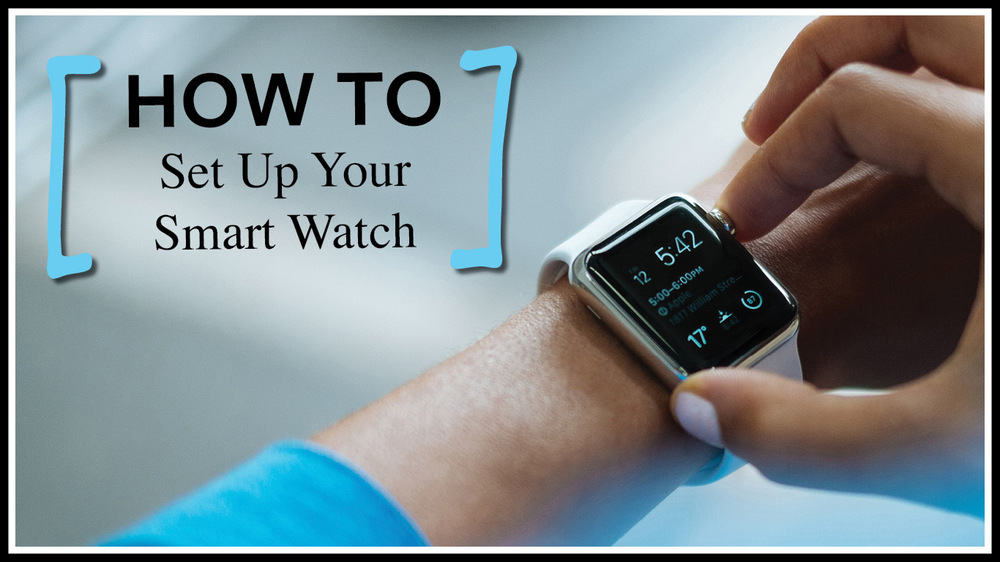
To set a smartwatch, charge it, pair it with your phone, install its app, and follow the setup steps.
Learning how to set smart watch features correctly takes only a few minutes, but the right order matters. This guide explains pairing, notifications, health settings, apps, privacy, and common fixes in clear steps. It also includes practical tips from real smartwatch setup mistakes so your watch works well from day one.
What to do before setting up a smartwatch
Before you learn how to set smart watch features, prepare both the watch and your phone. A little preparation can prevent pairing errors, missing notifications, and battery drain.
Start with these checks:
• Charge the smartwatch to at least 50 percent.
• Turn on Bluetooth on your iPhone or Android phone.
• Connect your phone to Wi-Fi or mobile data.
• Update your phone’s operating system.
• Find the correct smartwatch app.
• Keep your phone near the watch during setup.
Most brands use a companion app. Apple Watch uses the Watch app on an iPhone. Samsung Galaxy Watch commonly uses the Galaxy Wearable app. Fitbit, Garmin, Google Pixel Watch, and other brands use their own apps.
Check the watch box, manual, or official support page if you are unsure which app to install. Avoid random third-party apps because they may not support the watch or may request data they do not need.
A common mistake is trying to pair the watch only through the phone’s Bluetooth menu. Some watches require pairing inside the companion app. Bluetooth helps the devices connect, but the app usually completes the setup.

How to set smart watch for the first time
The first setup process is similar across most smartwatch brands. The names of buttons and menus may differ, but the basic path stays the same.
Step 1: Turn on the watch
Press and hold the side button or power button. Keep holding it until the brand logo appears. The first startup may take a few minutes.
Choose your language and region when prompted. These settings can affect time, date, units, emergency features, and health reports.
Step 2: Install the companion app
Open the App Store on an iPhone or the Google Play Store on an Android phone. Search for the official app made by the watch brand.
Install the app, then sign in or create an account if required. Use a strong password and enable two factor authentication when the option is available.
Step 3: Start pairing
Open the companion app and select an option such as Add Device, Set Up Watch, or Pair New Device.
The app may show a code on the phone and the watch. Confirm that the codes match. This step helps prevent you from connecting to the wrong nearby device.
Step 4: Allow useful permissions
The app may request access to notifications, contacts, location, calendars, health data, and Bluetooth. Approve only the permissions you need.
For example, location access may support GPS workouts and weather updates. Notification access allows messages and calls to appear on the watch. You can review or change these permissions later in your phone settings.
Step 5: Install updates
the watch may download a firmware update during setup. Keep the watch on its charger and the phone nearby.
Do not restart either device during an update. A failed update can cause setup problems and may require a reset.
Step 6: Set a passcode
Use a passcode if the watch stores payment cards, health data, or personal notifications. A passcode also helps protect the watch if you lose it.
Some watches require a passcode before enabling contactless payments. This is a useful security feature, not an unnecessary extra step.

How to set smart watch with an iPhone
Apple Watch works with iPhone, but other smartwatch brands may offer different levels of support. Some Android watches cannot pair with an iPhone at all, while others support only basic features.
To set up an Apple Watch:
-
Turn on the watch and place it near your unlocked iPhone.
-
Wait for the pairing message to appear.
-
Tap Continue and choose Set Up for Myself.
-
Scan the animation on the watch with your iPhone camera.
-
Select whether to restore from a backup or set up as a new watch.
-
Sign in with your Apple Account if asked.
-
Create a passcode.
-
Choose wrist preference and app settings.
-
Keep both devices close while syncing.
If the pairing message does not appear, open the Watch app on your iPhone. Tap All Watches, then Add Watch.
For a non Apple watch, install the brand’s official iPhone app first. Read the app description carefully because iPhone support may exclude features such as replying to messages, taking calls, or syncing health data.

How to set smart watch with an Android phone
Android setup varies by brand and phone model. A Samsung watch may work best with a Samsung phone, while a Pixel Watch requires an Android phone with compatible software.
Follow these steps:
-
Open Google Play Store.
-
Install the official companion app.
-
Turn on Bluetooth and location if the app requests it.
-
Open the app and tap Add Device.
-
Select your watch from the list.
-
Confirm the matching code on both screens.
-
Sign in to your account.
-
Install updates and required plugins.
-
Choose notifications, health options, and watch faces.
-
Keep the watch near the phone until syncing ends.
If your Android phone has aggressive battery saving, the companion app may stop running in the background. This can break notifications and syncing. Set the watch app to allow background activity if your phone provides that option.
Do not install several companion apps for the same watch unless the manufacturer specifically requires them. Extra apps can create duplicate alerts and confuse the connection.

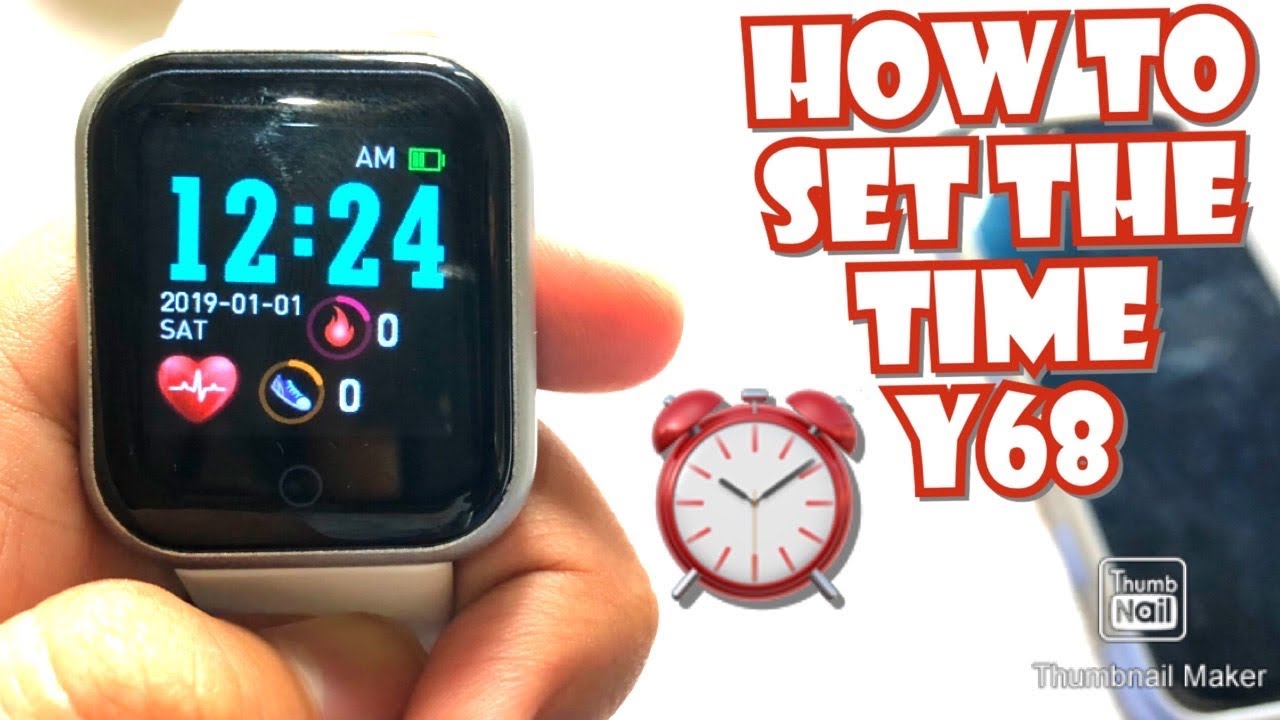
Set the time, date, language, and units
Most smartwatches set the time automatically after pairing. They use your phone’s time zone and regional settings.
Check these options:
• Time format: Choose 12 hour or 24 hour time.
• Date format: Select the format that feels most natural.
• Language: Match the watch to your preferred language.
• Temperature: Choose Fahrenheit or Celsius.
• Distance: Choose miles or kilometers.
• Weight: Choose pounds or kilograms.
• Height: Choose feet and inches or centimeters.
Correct units matter for health and workout data. If your height or weight is wrong, calorie estimates and fitness calculations may also be less useful.
If the time remains wrong, check your phone’s automatic date and time settings. Then restart both devices and sync again.
Customize notifications and calls
Notifications are one of the main reasons people learn how to set smart watch controls. A watch can reduce phone checking, but too many alerts can become distracting.
Open the companion app and select Notifications. Enable alerts for the apps you truly need, such as:
• Phone calls
• Text messages
• Calendar reminders
• Navigation
• Work messages
• Fitness alerts
• Banking alerts
Consider disabling shopping, game, and social media notifications. Your wrist should act like a useful filter, not a second phone that constantly buzzes.
Test notifications after setup. Send yourself a text or ask someone to call you. If alerts do not appear, check Bluetooth, notification permissions, Focus or Do Not Disturb modes, and background app access.
Some watches show message previews. If you work in public or share an office, turn off sensitive previews. This small privacy step can prevent private messages from appearing on the screen.

Set up health, fitness, and safety features
Smartwatches can track steps, heart rate, sleep, workouts, and other measurements. These tools can support healthy habits, but they are not a replacement for medical care.
Enter accurate personal details in the health profile. Depending on the watch, this may include age, sex, height, weight, activity level, and fitness goals.
Then review:
• Step goals
• Daily movement reminders
• Heart rate alerts
• Sleep tracking
• Workout shortcuts
• Fall detection
• Emergency contacts
• Medical ID
• Menstrual cycle tracking
Heart rate and oxygen readings can be affected by movement, skin contact, temperature, and fit. Wear the watch firmly but comfortably. A loose band may create inaccurate readings, while an overly tight band can irritate your skin.
Emergency tools also have limits. Fall detection may not recognize every fall, and location services may fail in areas with poor signal. Test safety features according to the manufacturer’s instructions and keep emergency contacts current.
If a health reading concerns you, repeat the measurement while resting and speak with a qualified health professional. Do not use a smartwatch alone to diagnose a condition.

Choose a watch face and organize apps
A good watch face shows the information you need without making the screen feel crowded. Start with a simple design, then add useful complications or widgets.
Helpful watch face information may include:
• Time and date
• Battery level
• Weather
• Step count
• Heart rate
• Calendar events
• Workout access
• Sunrise and sunset
Avoid adding every available feature. A crowded face is harder to read and may use more battery.
Organize apps so the most useful tools are easy to reach. Place workouts, timers, alarms, music, weather, and payments near the top if your watch supports app rearrangement.
In my experience helping people set up wearables, the best setup is not the one with the most features. It is the one that lets you reach daily tools in one or two taps.

Improve smartwatch battery life
Battery life depends on the screen, sensors, apps, GPS use, mobile service, and notification volume. New watches may also use more power during the first day while they index data and install updates.
Try these practical steps:
• Reduce screen brightness slightly.
• Shorten the screen timeout.
• Use raise to wake instead of an always on display if needed.
• Disable features you never use.
• Limit unnecessary notifications.
• Turn off cellular service when you do not need it.
• Use a simple watch face.
• Keep the software updated.
• Charge the watch with the correct cable or dock.
Do not use a damaged charger or a loose charging puck. Heat can reduce battery performance over time, so avoid charging the watch in direct sunlight or under bedding.
If battery life suddenly becomes poor, restart the watch and check for a recent app or software update. If the problem continues, remove unused apps and contact the manufacturer.
Smartwatch privacy and security settings
A smartwatch can hold personal information, including health records, contacts, location history, payment details, and message previews. Privacy should be part of learning how to set smart watch devices, not an afterthought.
Use these safeguards:
• Set a screen lock or passcode.
• Use a secure account password.
• Enable two factor authentication.
• Review app permissions.
• Turn off location access for apps that do not need it.
• Hide message previews on the lock screen.
• Enable Find My Device or the brand’s tracking feature.
• Remove payment cards before selling or giving away the watch.
• Install updates from official sources.
Review connected apps every few months. Remove services you no longer use. Also check whether health data is being shared with third-party apps.
No wearable is completely private. Cloud syncing, app permissions, and account settings all affect how data is stored and used. Read the brand’s privacy settings before enabling advanced health or location features.
Common smartwatch setup problems and fixes
Even when you follow every step, pairing may fail. Most problems have a simple cause.
The watch will not pair
Charge both devices, turn Bluetooth off and on, and restart the phone and watch. Make sure the watch is not already connected to another phone.
If the watch was previously owned, reset it before pairing. A factory reset removes old connections and personal data.
The companion app cannot find the watch
Move the watch within a few feet of the phone. Turn on location if the app requires it, and update the app from the official store.
Avoid pairing through the Bluetooth menu first. Start inside the companion app instead.
Notifications do not appear
Check notification access, Do Not Disturb, Focus mode, and battery restrictions. Also confirm that notifications are enabled for the specific app.
Some watches need the phone app to run in the background. Allow background activity if the phone has restricted it.
The watch disconnects often
Keep Bluetooth enabled and update both devices. Turn off extreme battery saver modes and remove unnecessary Bluetooth connections.
If the watch still disconnects, unpair it, restart both devices, and pair it again through the official app.
Health data looks wrong
Wear the watch snugly above the wrist bone. Clean the sensor, stay still during readings, and check that your personal profile is accurate.
Remember that consumer wearables estimate many health measurements. Treat unusual results as a reason to seek proper medical advice, not as a final diagnosis.
How to reset or unpair a smartwatch
You may need to reset a watch before selling it, switching phones, or fixing serious software problems. A reset usually erases apps, settings, payment cards, and personal data stored on the watch.
Before resetting:
-
Sync the watch with its companion app.
-
Back up health and activity data if the service offers backup.
-
Remove payment cards.
-
Unpair the watch from the phone.
-
Follow the watch’s reset instructions.
The reset option is often under Settings, General, System, or About. The exact name varies by brand.
If you are giving the watch to another person, do not stop after deleting the app. Properly unpair and erase the watch so your account and personal information are no longer connected.
How to set smart watch features for everyday use
Once the basic setup is complete, use the watch for a few days before making major changes. Notice which alerts help and which ones interrupt you.
A practical daily setup might include:
• A simple watch face
• Calls from close contacts
• Text alerts
• Calendar reminders
• Weather
• Step tracking
• A timer
• Sleep tracking
• Emergency contacts
Start small. You can always add more apps, widgets, and alerts later. This approach saves battery and makes the watch easier to use.
The biggest lesson I have learned from smartwatch setup is to test each feature in real life. Check a notification at work, start a workout outdoors, make a call, and charge the watch overnight. Small tests reveal problems before you depend on the device.
Frequently asked questions about how to set smart watch
How do I set up a smartwatch for the first time?
Charge the watch, install its official companion app, and pair it through that app. Then complete account setup, software updates, permissions, notifications, and health settings.
Can I set up a smartwatch without a phone?
Some watches can perform basic tasks without a phone after setup. However, most need a compatible phone for activation, software updates, app installation, and full data syncing.
Why is my smartwatch not connecting to my phone?
Check Bluetooth, Wi-Fi, battery level, software updates, and app permissions. If the watch was paired with another phone, reset or unpair it before trying again.
Do I need Wi-Fi to set up a smartwatch?
Many watches can pair through Bluetooth and use your phone’s internet connection. Wi-Fi may still be needed for updates, app downloads, backups, and some advanced features.
How do I set notifications on my smartwatch?
Open the companion app, choose notification settings, and enable alerts for selected apps. Also check the phone’s notification permissions, Focus mode, and battery restrictions.
Should I wear my smartwatch while sleeping?
You can wear it overnight if the band is comfortable and the watch supports sleep tracking. Clean and dry your skin and band regularly, and remove the watch if it causes irritation.
How do I reset a smartwatch before selling it?
Sync your data, remove payment cards, unpair the watch, and choose the factory reset option in its settings. This helps remove personal information and disconnects your account.
Conclusion
Setting up a smartwatch is easier when you follow the right order: charge it, install the official app, pair it correctly, update the software, and customize only the features you need. Take time to review notifications, health settings, privacy controls, and battery options.
Now that you know how to set smart watch features, test the watch during normal routines and adjust it as you learn what works best. Explore the manufacturer’s support tools for model specific help, and share your favorite smartwatch setup tips in the comments.

Rubel Miah is the Senior Editor at MyStyleGrid.com, where he brings a sharp editorial eye and an unshakable love for fashion to everything he does. A true style addict, Rubel lives and breathes trends, from streetwear to high fashion, and has a knack for turning inspiration into impactful stories. With years of experience in fashion journalism and digital media, he curates content that empowers readers to express themselves through style. When he’s not editing features or forecasting the next big thing, you’ll find him hunting down vintage pieces or capturing street style moments around the city.