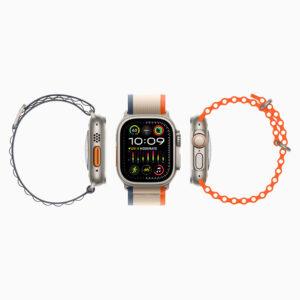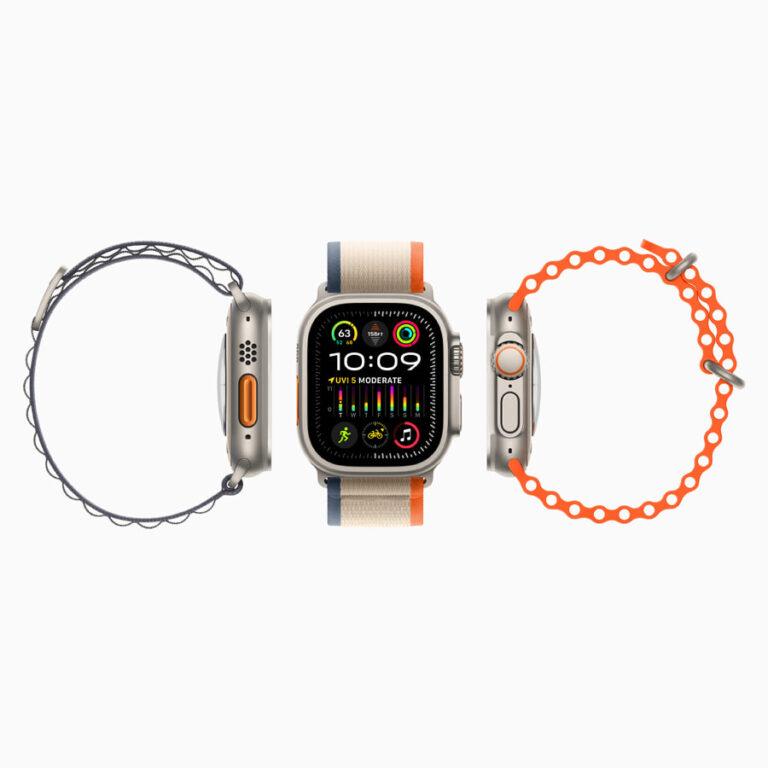
To set up Apple Watch Ultra 2, pair it with your iPhone, follow the Watch app prompts, and choose your settings.
Learning how to set up Apple Watch Ultra 2 is simple once you know what each screen means. This guide walks you through pairing, cellular service, Apple Account settings, safety tools, health features, and common fixes. It also includes practical tips that can save time during your first setup.
Check what you need before setup
Before you learn how to set up Apple Watch Ultra 2, gather the right devices and account details. Apple Watch Ultra 2 works with a compatible iPhone running a supported version of iOS. Apple’s requirements can change after software updates, so check your iPhone model and iOS version before you begin.
You should also have the following items ready:
• A compatible iPhone with Bluetooth and Wi-Fi turned on
• Your Apple Account password
• Your iPhone passcode
• A stable Wi-Fi connection
• Your Apple Watch Ultra 2 and its charging cable
• Your mobile carrier details if you want cellular service
• Your health information, such as age, height, weight, and medications, if you want accurate health features
Charge both devices first. Your iPhone should have enough battery to complete the process, while your Apple Watch Ultra 2 should be on its charger or have a healthy charge.
Remove any old Apple Watch from your wrist if you plan to replace it. If you are giving the old watch to someone else, erase it and remove Activation Lock from your Apple Account.
A common mistake is starting setup while your iPhone is low on storage or running an old iOS version. Updating the iPhone first often prevents pairing errors and long delays.

How to set up Apple Watch Ultra 2 step by step
The main setup process takes place in Apple’s Watch app on your iPhone. Keep the watch and iPhone close together during the entire process. Bluetooth helps them connect, while Wi-Fi helps download software and account data.
Follow these steps:
- Turn on Apple Watch Ultra 2
Press and hold the side button until the Apple logo appears. The first start may take a few minutes. Select your language and region when asked.
- Open the Watch app
Unlock your iPhone and open the Watch app. If a pairing message appears, tap Continue. You can also tap All Watches, then Add Watch.
- Scan the pairing animation
Tap Set Up for Myself. Hold the iPhone over the animation on your watch screen. The iPhone camera should recognize it and begin pairing.
If scanning does not work, tap Pair Apple Watch Manually. Then follow the instructions shown on both screens.
- Choose your setup method
You may see two choices:
• Set Up as New Apple Watch: Choose this for a fresh start.
• Restore from Backup: Choose this if you previously used an Apple Watch and want to bring back settings and data.
A backup can restore many settings, apps, and watch faces. It may not restore every app layout or every piece of health data unless that information was backed up correctly.
- Sign in to your Apple account
enter your Apple Account password if requested. This step supports services such as Find My, Apple Pay, Messages, and iCloud.
Two-factor authentication may send a code to another trusted Apple device or phone number. Keep that device nearby.
- Create a passcode
A passcode protects personal data and enables features such as Apple Pay. You can create a four-digit passcode or use a longer passcode for stronger protection.
- Set wrist preference and orientation
Choose whether you wear the watch on your left or right wrist. Apple Watch Ultra 2 lets you adjust the Digital Crown and side button position. Pick the layout that feels natural before tightening the band.
- Review settings
The Watch app may offer automatic updates, location services, Siri, Find My, and other features. Read each prompt and choose the settings that fit your needs.
- Wait for synchronization
The iPhone may show a progress wheel while it syncs apps and settings. Keep both devices close and connected to power if the process takes a while.
When the watch face appears, setup is mostly complete. You can now adjust watch faces, install apps, and test the main controls.
This is the most reliable method for how to set up Apple Watch Ultra 2 because it lets the iPhone guide each step. Do not restart either device during a software update unless the screen clearly tells you to do so.
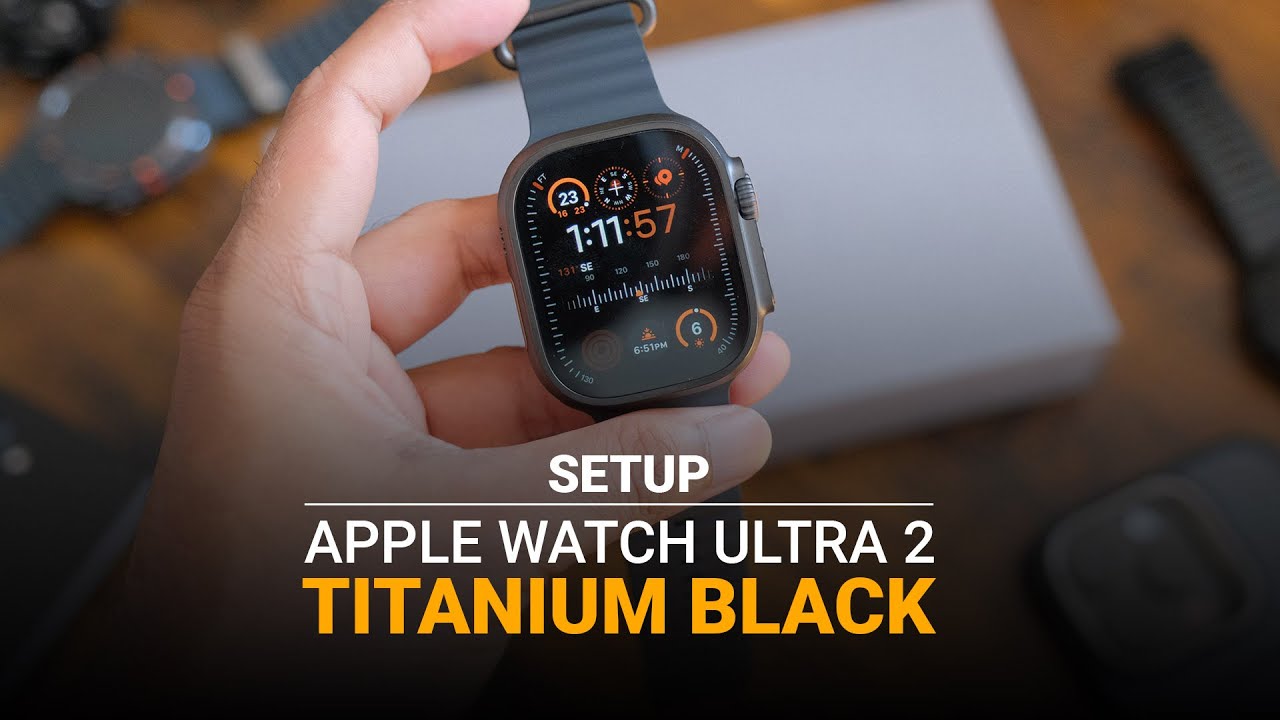
Set up cellular service on Apple Watch Ultra 2
Apple Watch Ultra 2 models with cellular support can connect to a mobile network without your iPhone nearby. This is useful for calls, messages, music streaming, maps, and emergency communication during runs or hikes.
Cellular service is optional. GPS works without a cellular plan, but your watch needs Wi-Fi or a nearby iPhone for many connected tasks.
To activate cellular service:
-
Open the Watch app on your iPhone.
-
Tap My Watch.
-
Tap Cellular.
-
Tap Set Up Cellular.
-
Follow your carrier’s sign-in and plan instructions.
Your carrier may charge a monthly fee. The iPhone and watch often need to use the same carrier, although some carriers support different arrangements. Business, prepaid, and family plans may have extra limits.
After activation, open Control Center on the watch. The cellular icon shows connection status. A green cellular icon usually means the watch has a cellular connection. A white icon may mean cellular service is active but not being used.
Test the service outside your home. Turn off Bluetooth on the iPhone and move away from your usual Wi-Fi network. Then try a call or message. Remember to turn Bluetooth back on after testing.
A key lesson from helping people with Apple Watch setup is that cellular activation can fail when carrier information is outdated. If the plan will not activate, update iOS and watchOS first, then contact the carrier before erasing the watch.

Configure Apple Pay, Siri, and safety features
Apple Watch Ultra 2 includes tools that can make daily use safer and faster. Set these features during setup or later in the Watch app.
Add Apple Pay
Open the Watch app and select Wallet & Apple Pay. Follow the prompts to add a supported credit or debit card. Your bank may ask you to verify the card by text, phone, or its own app.
Apple Pay on Apple Watch uses the watch passcode for protection. If you remove the passcode, payment cards are removed from the watch.
Set up Emergency SOS
Emergency SOS can help you call emergency services by pressing and holding the side button. Depending on your region and settings, the watch may also share your location with emergency contacts.
Open the Watch app, select Emergency SOS, and review the available options. Add emergency contacts in the Health app under your Medical ID.
Review Fall Detection and Crash Detection
Fall Detection can contact emergency services if the watch detects a hard fall and you do not respond. Crash Detection can respond to a severe car crash in supported areas.
These tools are helpful, but they are not perfect. A watch may miss an event or trigger an alert by mistake. Keep your Medical ID current and do not treat the watch as a replacement for professional emergency care.
Turn on Backtrack and Compass tools
Apple Watch Ultra 2 is built for outdoor use. The Compass app can mark a waypoint and retrace your route with Backtrack. Test these tools near home before relying on them in a remote area.
You should also download offline maps when you expect weak service. A cellular watch can still lose connection in valleys, dense forests, or remote locations.
Set up health and fitness tracking
The Apple Watch Ultra 2 can track workouts, heart rate, sleep, activity, and other health data. Accurate results depend on correct personal details and a proper fit.
Open the Health app on your iPhone and complete your Health Details. Add your:
• Date of birth
• Sex
• Height
• Weight
• Medications, if needed
• Medical conditions, if relevant
Wear the watch snugly during workouts. It should touch your skin without feeling painful. A loose band can cause poor heart-rate readings, while an overly tight band can cause discomfort.
To start a workout, open the Workout app on the watch and choose an activity. You can set goals for time, distance, calories, or pace. For outdoor activities, wait for the GPS signal when possible.
Sleep tracking works best when you wear the watch overnight. Turn on a Sleep Focus schedule in the Health app or Watch app. Charge the watch before bed or while you get ready in the morning.
Health features are not medical devices for diagnosis. Heart notifications, blood oxygen measurements, temperature data, and other readings can be useful signals, but speak with a health professional about medical concerns.
Personalize Apple Watch Ultra 2
Once you know how to set up Apple Watch Ultra 2, personalization makes the watch easier to use. You can change most options in the Watch app without repeating setup.
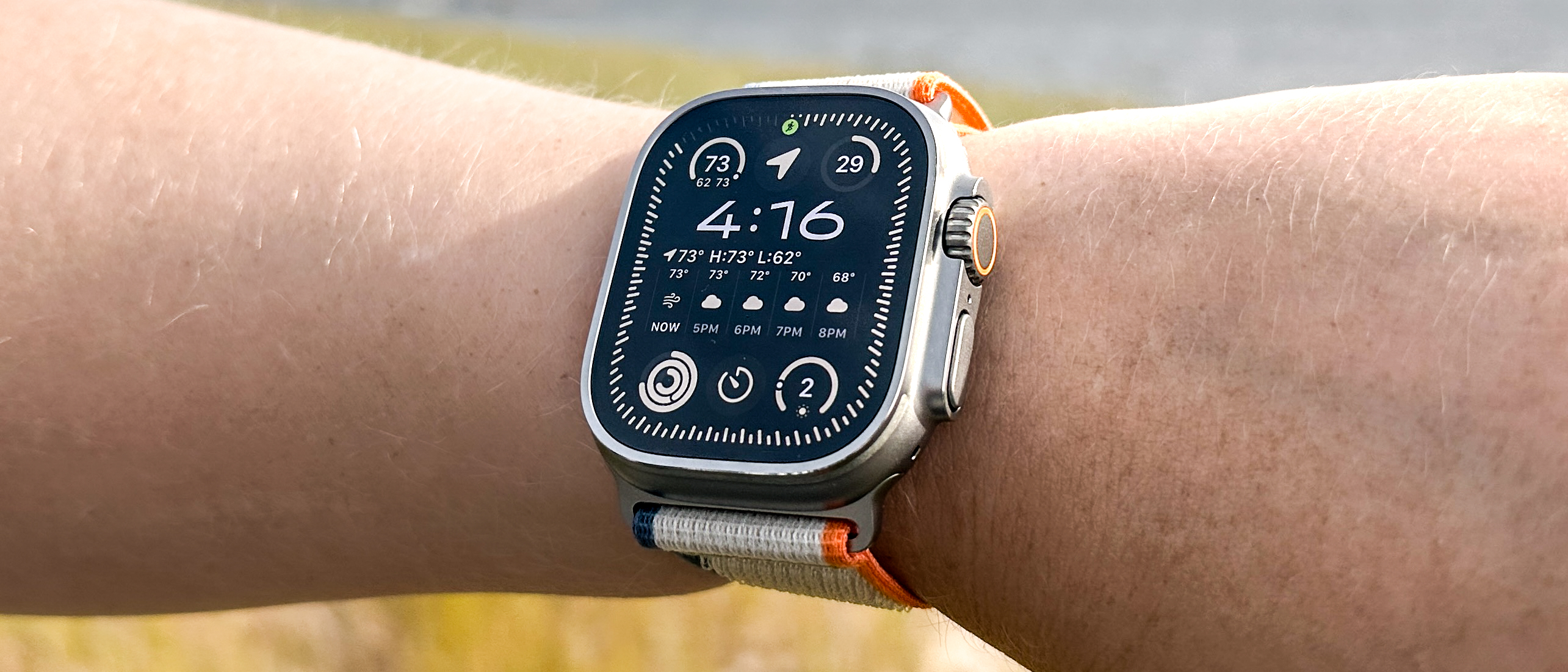
Start with the watch face. Touch and hold the current face, swipe left, and tap the plus button. Choose a face, then add complications such as:
• Weather
• Battery
• Activity rings