Setting up emergency SOS contacts on your smartwatch can save your life or someone you love. I know that sounds dramatic, but emergencies come fast and without warning. Having help just one button away gives you peace of mind. I remember one evening when my father fainted while out for a walk.
He used his smartwatch to call for help. The SOS feature sent me his location, and I reached him before the ambulance. That moment made me realize how important this feature is.
Today, smartwatches are more than cool gadgets. They are lifelines. If you ever worry about your parents, kids, or even yourself being alone, learning how to use SOS contacts is a must. In this guide, I’ll walk you through everything you need to know.
I’ll keep the words simple and the steps clear, so you can set up your emergency contacts, understand how they work, and feel confident using this tool on any major smartwatch.
What Are Emergency Sos Contacts?
Let’s start with the basics. Emergency SOS contacts are people you choose to get alerts if you are in trouble. When you activate SOS on your smartwatch, it calls or texts these contacts. Sometimes, it also sends your location. This helps your family or friends reach you faster, or tell emergency services where you are.
Smartwatches from brands like Apple, Samsung, Garmin, and others have this feature. It’s very useful for children, seniors, people with medical issues, or anyone who wants to feel safer when out alone.
Why Setting Up Sos Contacts Matters
You might think, “I already have a phone. Why do I need this on my watch? ” But in many emergencies, you might not have your phone in your hand. Imagine you fall down, get dizzy, or feel unsafe. A simple press on your wrist can call for help when your phone is out of reach.
I once met a runner who fell and broke her ankle. She couldn’t reach her phone in her pocket, but she used her smartwatch’s SOS feature to call her husband. He came within minutes. These real stories show why it’s not just a tech feature—it’s a safety net.

Credit: www.youtube.com
How Emergency Sos Works On Different Smartwatches
The way SOS contacts work depends on the brand and model of your smartwatch. Let’s compare the main brands:
| Brand | SOS Activation | Contact Method | Location Sharing |
|---|---|---|---|
| Apple Watch | Press and hold side button | Calls and texts contacts | Yes |
| Samsung Galaxy Watch | Press power button 3 times | Calls and texts contacts | Yes |
| Garmin | Hold light button | Sends message via phone | Yes |
| Fitbit | Not available on all models | Limited (text on some models) | Some models only |
Not all smartwatches have the same features. Always check your model’s manual or website.
Setting Up Sos Contacts On Apple Watch
Apple makes it simple to set up Emergency SOS. Here’s how you can do it:
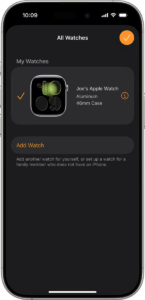
Add Emergency Contacts
- Open the Health app on your iPhone.
- Tap your profile picture.
- Select Medical ID.
- Tap Edit.
- Scroll to Emergency Contacts.
- Tap Add Emergency Contact and choose a person from your contacts.
- Choose their relationship to you.
- Tap Done to save.
Now, these people will get a message if you use the SOS feature. The message will show your location.
Turn On Sos Feature
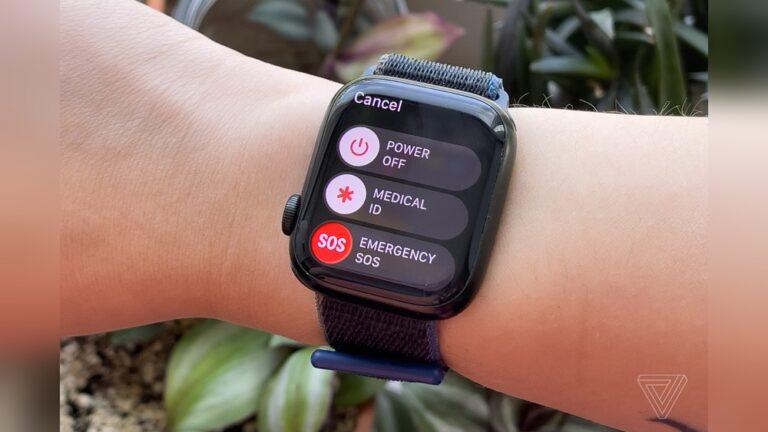
- On your watch, press and hold the side button.
- Keep holding until the Emergency SOS slider appears.
- Drag the slider or keep holding to call emergency services.
Practical Tips
- Make sure your Apple Watch has a cellular plan, or is near your iPhone with Bluetooth.
- Test the feature with a trusted contact so they know what a real alert looks like.
- Update your Medical ID with important details like allergies or health conditions.
Setting Up Sos Contacts On Samsung Galaxy Watch
Samsung Galaxy Watches are popular for Android users. Setting up SOS contacts is a bit different.
Add Emergency Contacts
- Open the Galaxy Wearable app on your phone.
- Tap Watch settings.
- Tap Advanced features.
- Select Send SOS requests.
- Turn on Send SOS requests.
- Add up to four contacts.
- Choose if you want to send calls, texts, or both.
Activate Sos
- Quickly press the Home/Power button three times.
- The watch will call or text your emergency contacts.
- It can also share your location.
Extra Features
- You can set the watch to send photos from the front and back cameras.
- It can record a short voice message and send it along with your SOS alert.
Tips For Samsung Users
- Make sure your contacts know you’ve added them.
- Test the feature when you first set it up.
- If your watch supports LTE, you don’t need your phone nearby.
Setting Up Sos Contacts On Garmin Watches
Garmin is big with runners, hikers, and people who love the outdoors. Their SOS system works through a paired phone.
Set Up Assistance Feature
- Open the Garmin Connect app.
- Go to your device settings.
- Select Safety & Tracking.
- Tap Assistance.
- Add up to three emergency contacts from your phonebook.
How To Use Sos
- Hold the Light button for several seconds.
- The watch will send a message and your location to your contacts through your phone.
Important Notes
- Your phone must be nearby and have a signal.
- Garmin’s inReach models use satellite networks, so they work even without a phone, but need a subscription.
Garmin Safety Tips
- Check your battery before long hikes.
- Tell your contacts you’ve set them as emergency contacts.
- For serious outdoor trips, consider a device with satellite messaging.
Credit: healingwithhorsesranch.org
Setting Up Sos On Fitbit And Other Smartwatches
Fitbit has limited SOS support. On the Sense and Versa 3 models, there’s no direct SOS feature. But you can use your phone’s safety features if your watch is connected.
Alternative Ways
- Use the Google Personal Safety app on your phone (if Android).
- Add emergency info to your phone and link it to your Fitbit profile.
- For watches without SOS, carry your phone and know your location.
Other Brands
Some brands, like Amazfit or Huawei, have their own safety features. Check their support pages for the latest details.
What To Consider When Choosing Emergency Sos Features
Not all smartwatches are equal for emergency help. Here’s what matters:
| Feature | Why It’s Important | Things to Watch For |
|---|---|---|
| Cellular Support | Lets you call/text without your phone | May need a separate plan |
| Location Sharing | Helps contacts find you quickly | Accuracy varies by model |
| Ease of Activation | In emergencies, simple is better | Check how many buttons you must press |
| Contact Limit | More contacts = more help | Some watches limit to 1-4 contacts |
| Battery Life | You want the feature to work anytime | Some watches lose battery fast with GPS on |

Credit: calisteniazonanorte.com
Step-by-step: Setting Up Your Emergency Contacts
Let’s break the process into simple steps anyone can follow. This works for most modern smartwatches.
- Check compatibility – Make sure your watch model supports SOS features.
- Update your device – Install the latest software updates on both your watch and phone.
- Pair your devices – Connect your watch to your phone if needed.
- Open the app – Use the companion app (like Health, Galaxy Wearable, or Garmin Connect).
- Find Emergency or Safety settings – This is often under “Advanced features” or “Safety.”
- Add contacts – Select people you trust. Add their phone numbers.
- Test the feature – Do a practice alert to make sure it works.
- Tell your contacts – Let them know what to expect if they get an SOS alert.
- Update info regularly – Change contacts if phone numbers change or people move away.
Common Mistakes When Setting Up Sos Contacts
Many people set up their smartwatches in a hurry. Here are mistakes you should avoid:
- Forgetting to test the feature – You might think it works, but if you never try it, you won’t know.
- Choosing the wrong contacts – Pick people who will answer quickly, not just family or friends who live far away.
- Not updating contacts – People change numbers. Update your list every few months.
- Ignoring privacy settings – Make sure your contacts agree to get your location and alerts.
- Not having cellular – If your watch needs your phone nearby to send messages, remember to carry both.
Real-life Examples: Sos In Action
You might wonder if people really use these features. Here are some real stories:
- Hiker in Trouble: A man hiking in the mountains slipped and broke his leg. He used his Garmin watch to send a message with his GPS location. Rescue teams found him in under an hour.
- Child Safety: A mother set up her Samsung Galaxy Watch for her 10-year-old daughter. When the girl felt lost in a park, she pressed the power button three times. Her mom got a text with her exact location.
- Senior Support: After my father’s fall, the Apple Watch texted both me and my sister. We both got his location and arrived quickly.
These examples show how technology and smart planning can make a real difference.
How To Teach Family Members To Use Sos
Technology can be tricky for seniors or kids. Here’s how you can help your loved ones:
- Practice together: Go through the steps with them. Let them try the SOS feature.
- Explain what will happen: Show them the alert message or call that will be sent.
- Write simple instructions: Keep a note with steps near their charger or in their phone case.
- Remind regularly: Repeat the steps every few months.
- Set up reminders: Add a calendar alert to test the feature.
From my own experience, teaching my mother how to use her Galaxy Watch took two sessions. But after a few tests, she felt much more confident.
How To Use Emergency Sos In Special Cases
Sometimes, you might need to set up SOS for special reasons.
For Children
- Use parental controls to prevent false alarms.
- Choose trusted adults as contacts.
- Teach children when it’s okay to use SOS.
For Seniors
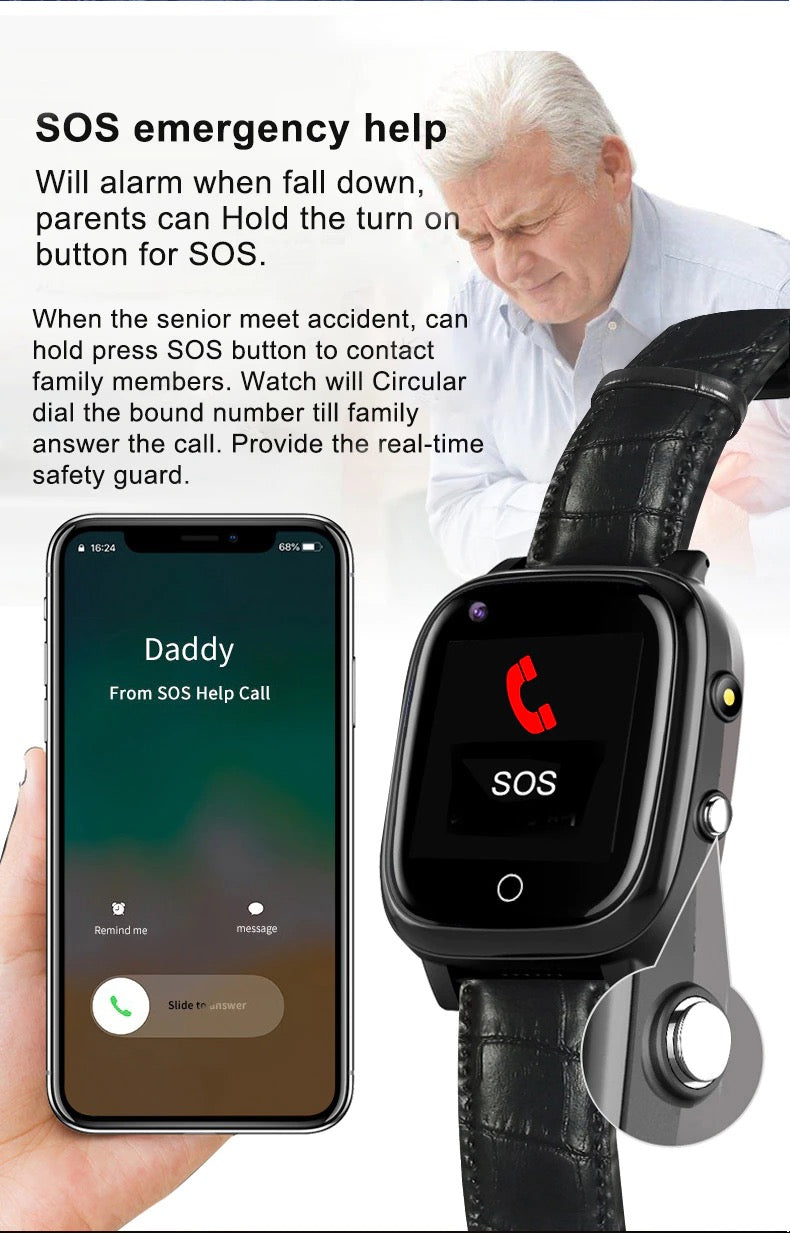
- Set the watch to call, not just text, for emergencies.
- Add a medical alert message in the Medical ID section.
- Use a model with a big, easy-to-press button.
For People With Medical Conditions
- Add medical details in the app, so emergency services can see allergies or medications.
- Choose contacts who know about their condition.
- Test the feature in case of sudden problems (like seizures or fainting).
How To Make Sure Sos Works In Your Country
Not all SOS features work everywhere. Some countries block automatic calls to emergency services, or have different rules.
- Check the smartwatch website for your country’s rules.
- Test with a trusted contact instead of emergency services if unsure.
- Update your watch’s region settings if you move countries.
For example, the Apple Watch can call local emergency numbers in most countries, but not all. Garmin’s inReach works worldwide, but you need a subscription.
Advanced Tips For Making Sos Even Better
Want to go beyond basic setup? Here are extra steps for more safety:
- Add more than one contact – If one does not answer, others might.
- Share medical info – In the Health app, add allergies, conditions, or medications.
- Use GPS sharing apps – Some apps let you share your location live for extra safety.
- Keep your watch charged – No battery means no help. Charge every night.
- Check for updates – Brands add new features often, so update your watch software.
Privacy And Security Concerns
You may worry about sharing your location or health info. Here’s what you should know:
- Only chosen contacts get your location – Others cannot see it.
- Data is usually encrypted – Brands like Apple and Samsung protect your info.
- You can turn off sharing – If you change your mind, you can remove contacts anytime.
- Review permissions – Check your app’s privacy settings.
If you want to learn more about data privacy, check official sites like Apple Privacy Policy.
What To Do After An Emergency Sos Is Activated
Sometimes, you might press the SOS button by mistake or need to stop the alert.
- Cancel quickly – Most watches let you tap “Cancel” if you pressed by accident.
- Call your contacts – Tell them it was a false alarm.
- Check your settings – If you get too many false alarms, adjust the button press length.
- Update your Medical ID – If your health changes after the event, update your info.
How Emergency Sos Can Change Your Daily Life
Once you set up this feature, you might feel more secure. You can send your kids out to play, help parents stay active, or feel safer during a solo run. The main benefit is peace of mind. Knowing that help is just a button away lets you focus on living, not worrying.
Frequently Asked Questions
How Many Emergency Contacts Can I Add To My Smartwatch?
Most watches let you add 1–4 contacts. Apple allows several, Samsung up to four, and Garmin usually three. Check your model’s manual for the exact number.
Will Emergency Sos Work Without My Phone Nearby?
It depends. If your watch has cellular (LTE), it works alone. If not, you need your phone nearby and connected by Bluetooth.
Can I Use Sos If I Travel To Another Country?
In many cases, yes. But some features might not work in all countries. Test your watch after you arrive, or check the brand’s official support site.
What Should I Do If I Send An Sos Alert By Mistake?
Cancel the alert as soon as possible. Then call or text your contacts to explain. Most people understand mistakes happen.
Is My Location And Medical Info Safe When Using Sos?
Yes, only your chosen contacts get your info. Brands like Apple, Samsung, and Garmin use strong security. Review privacy settings in your app to control what is shared.
—
Setting up emergency SOS contacts on your smartwatch is simple, but the impact can be huge. Take a few minutes now to set it up for yourself or your loved ones. You’ll feel safer every day, knowing help is always close. Don’t wait until something happens—do it today. Your peace of mind is worth it.

Rubel Miah is the Senior Editor at MyStyleGrid.com, where he brings a sharp editorial eye and an unshakable love for fashion to everything he does. A true style addict, Rubel lives and breathes trends, from streetwear to high fashion, and has a knack for turning inspiration into impactful stories. With years of experience in fashion journalism and digital media, he curates content that empowers readers to express themselves through style. When he’s not editing features or forecasting the next big thing, you’ll find him hunting down vintage pieces or capturing street style moments around the city.