Advertisement
How To Use Apple Watch SE

How To Use Apple Watch SE: Easy Setup Guide

To use Apple Watch SE, pair it with your iPhone, learn the controls, and customize it for daily tasks.

Learning how to use Apple Watch SE is simple once you understand its main controls, apps, safety tools, and health features. This guide walks you through setup, everyday use, fitness tracking, notifications, battery care, and common mistakes so you can use your watch with confidence.
What Is Apple Watch SE?
Source: apple.com

What Is Apple Watch SE?

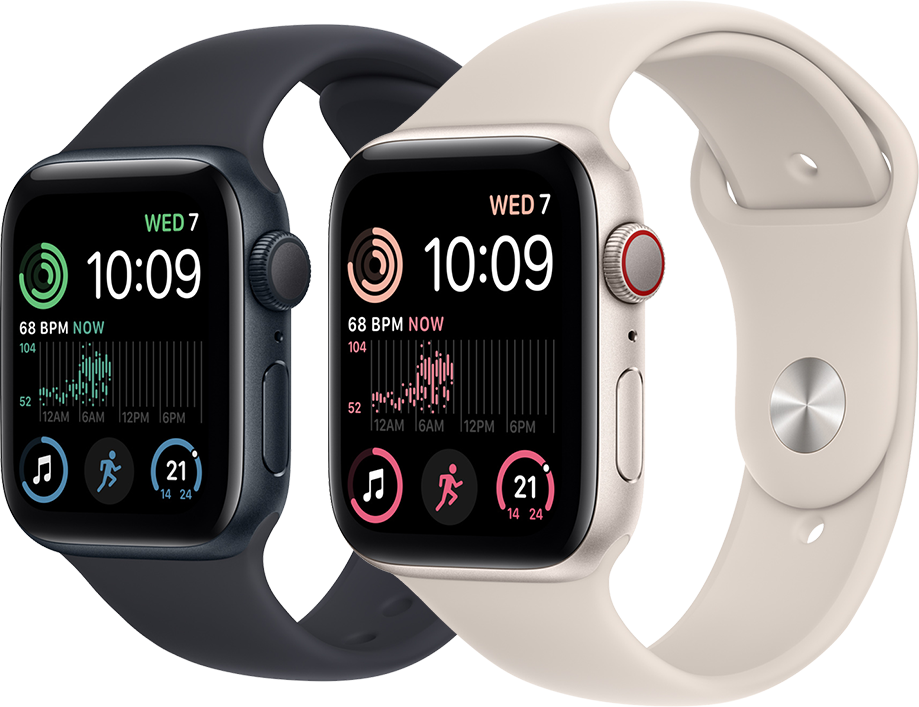
Apple Watch SE is Apple’s more affordable smartwatch. It offers many core Apple Watch features, including calls, messages, activity tracking, workout tracking, Apple Pay, emergency services, and app support.

Depending on the model and region, Apple Watch SE may come with GPS or GPS plus cellular service. GPS models rely on a nearby iPhone or Wi-Fi for many online tasks. Cellular models can connect to a supported mobile network when your iPhone is not nearby.

Apple Watch SE does not include every feature found on higher-end models. For example, some versions may not include an always-on display, advanced heart sensors, or temperature sensing. Check your model’s specifications before relying on a specific feature.

The watch works as a small control center on your wrist. It can show important alerts, record movement, help you stay connected, and reduce the need to check your phone throughout the day.

What You Need Before Setting Up Apple Watch SE
Source: youtube.com

What You Need Before Setting Up Apple Watch SE

Before learning how to use Apple Watch SE, prepare your iPhone, Apple Account, and watch. A smooth setup takes only a few minutes when everything is ready.

You need:

• An iPhone with a current version of iOS

• Your Apple Account password

• Bluetooth turned on

• Wi-Fi or cellular data

• At least 50% battery on the iPhone and Apple Watch SE

• A passcode for the watch

• A supported carrier plan if you have a cellular model

Apple Watch SE is designed to work with iPhone, not Android phones. Compatibility can vary by Apple Watch generation and software version, so check the current requirements before buying or pairing an older device.

Charge the watch first if the battery is low. Keep the iPhone and watch close together during setup. This helps prevent pairing delays and software errors.

How to Set Up Apple Watch SE
Source: apple.com

How to Set Up Apple Watch SE

Setting up Apple Watch SE links it to your iPhone and Apple Account. The process also lets you choose settings for health, safety, privacy, and notifications.

Follow these steps:

  1. Turn on Apple Watch SE by pressing and holding the side button.

  2. Put the watch on your wrist or keep it beside your iPhone.

  3. Open the Watch app on your iPhone.

  4. Tap “All Watches” if needed, then choose “Add Watch.”

  5. Select “Set Up for Myself.”

  6. Hold the iPhone over the animation shown on the watch.

  7. Choose whether to restore from a backup or set up the watch as new.

  8. Create a passcode for the watch.

  9. Sign in with your Apple Account if asked.

  10. Review health, location, Siri, and privacy settings.

  11. Add Apple Pay cards if supported by your bank.

  12. Wait for the sync to finish.

If the camera cannot scan the animation, tap the manual pairing option on the watch. Keep both devices nearby until the setup is complete.

A useful lesson from real-world setup is to avoid rushing through the permissions screen. Notifications, location access, and health settings affect how the watch behaves every day. Take a moment to choose only the alerts and features you truly need.

How to Use the Apple Watch SE Controls
Source: youtube.com

How to Use the Apple Watch SE Controls

The main controls are the Digital Crown, side button, touchscreen, and Action button on models that include one. Learning these controls makes how to use Apple Watch SE much easier.

Use the Digital Crown

The Digital Crown is the round button on the side of the watch.

• Press it once to see the Home Screen.

• Press it twice to return to the last app.

• Turn it to scroll through lists or zoom the Home Screen.

• Press and hold it to activate Siri, depending on your settings.

• Turn it slowly while viewing some screens to wake the display gradually.

Use the side button

The side button sits below the Digital Crown.

• Press it once to open the Dock or recent apps.

• Press and hold it to view power and emergency options.

• Double-click it to use Apple Pay after adding a card.

• Press it with the Digital Crown to take a screenshot if screenshots are enabled.

Use the touchscreen

• Tap an app or option to open it.

• Swipe up or down to move through information.

• Swipe left or right to change watch faces or view pages.

• Touch and hold the screen to access extra options.

• Cover the display with your palm to silence an alert or turn off the screen.

Think of the Digital Crown as a scroll wheel and the side button as a shortcut key. Once these controls become familiar, you will spend less time tapping around.

How to Navigate the Apple Watch SE Interface
Source: apple.com

How to Navigate the Apple Watch SE Interface

The Apple Watch SE interface is built around the watch face, Home Screen, Control Center, and Smart Stack. Each area has a different purpose.

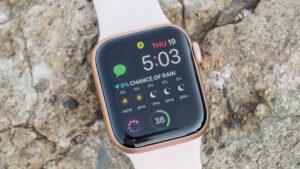
The watch face shows the time and selected complications. Complications are small information panels that may show weather, battery level, calendar events, activity progress, or heart rate data.

To open the Home Screen, press the Digital Crown. You can view apps in a grid or list. The list view is often easier for beginners because apps appear in alphabetical order.

To open Control Center, press the side button on newer watchOS versions. Control Center includes useful controls such as:

• Battery percentage

• Airplane Mode

• Silent Mode

• Focus modes

• Wi-Fi

• Cellular service

• Flashlight

• Theater Mode

• Water Lock on supported models

To access widgets and timely information, use the Smart Stack if it is available on your watchOS version. You can change which widgets appear in the Watch app on your iPhone.

How to Customize Apple Watch SE
Source: apple.com

How to Customize Apple Watch SE

Customizing Apple Watch SE helps you see useful information without opening several apps. You can change the watch face, complications, app layout, alerts, and text settings.

To change the watch face:

  1. Touch and hold the current watch face.

  2. Swipe through available faces.

  3. Tap “Add” to choose another face.

  4. Select the colors and complications you want.

  5. Tap the face to activate it.

Choose complications that match your routine. For example, a commuter may want weather, calendar, and transit information. Someone focused on exercise may prefer Activity rings, Workout, heart rate, and battery level.

You can also use the Watch app on your iPhone to manage faces. It provides a larger screen for editing colors and complication layouts.

To rearrange apps, open the Watch app, choose “App View,” and select a grid or list layout. The list view is often faster when you know the app’s name.

A common mistake is adding too many complications. A crowded watch face can feel like a cluttered desk. Start with three or four useful items and add more only when they solve a real problem.

How to Use Notifications on Apple Watch SE
Source: apple.com

How to Use Notifications on Apple Watch SE

Notifications are one of the most useful parts of learning how to use Apple Watch SE. The watch can alert you about messages, calls, calendar events, reminders, and supported apps.

When a notification arrives, raise your wrist or tap the screen to read it. You may be able to reply with:

• Dictation

• Scribble

• Emoji

• Suggested replies

• A quick reaction

To manage notifications:

  1. Open the Watch app on your iPhone.

  2. Tap “My Watch.”

  3. Choose “Notifications.”

  4. Select an app.

  5. Choose whether notifications mirror the iPhone or use custom settings.

Limit alerts to messages, calls, calendars, reminders, and apps that matter. Too many alerts can make the watch feel noisy and distracting.

Use Focus modes when you need quiet time. You can create different settings for work, sleep, driving, or personal time. Focus settings can sync between your Apple devices when enabled.

How to Make Calls and Send Messages
Source: pcmag.com

How to Make Calls and Send Messages

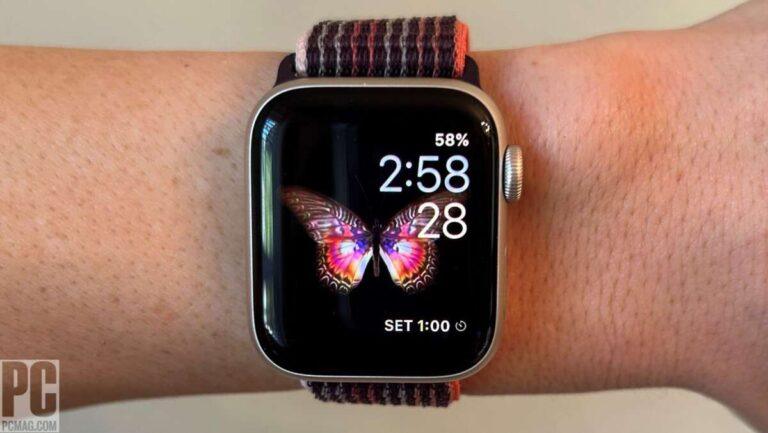
Apple Watch SE can handle calls and messages when connected to your iPhone. A cellular model can do more when it has an active plan and network coverage.

To make a call:

  1. Open the Phone app.

  2. Choose contacts, recent calls, or the keypad.

  3. Tap the person you want to call.

  4. Use the watch speaker or connect Bluetooth headphones.

To send a message:

  1. Open the Messages app.

  2. Open a conversation or start a new one.

  3. Tap the reply field.

  4. Use dictation, Scribble, emoji, or a suggested response.

Speak clearly when using dictation. Short phrases usually work better than long, complex sentences. Review the message before sending it, especially when names or numbers are involved.

Apple Watch SE is convenient for short replies. For long messages, a phone remains faster and easier to use.

How to Use Apple Pay on Apple Watch SE
Source: apple.com

How to Use Apple Pay on Apple Watch SE

Apple Pay lets you make contactless payments with a compatible card and supported bank. The card must be added separately to Apple Watch, even if it is already on your iPhone.

To add a card:

  1. Open the Watch app on your iPhone.

  2. Tap “Wallet & Apple Pay.”

  3. Choose “Add Card.”

  4. Follow the verification steps from your bank.

To pay, double-click the side button and hold the watch near a contactless payment reader. A gentle vibration and confirmation show that the payment was processed.

Apple Watch uses a passcode to help protect payment cards. If you remove the watch from your wrist, you may need to enter the passcode again before using Apple Pay.

Do not share your watch passcode. If you lose the watch, use Find My to mark it as lost and protect your account.

How to Track Activity and Workouts

Apple Watch SE can track daily movement, exercise, standing time, and many workout types. The Activity app uses rings to show progress toward movement goals.

The main rings include:

• Move: Active calories burned

• Exercise: Minutes of brisk activity

• Stand: Hours in which you stood and moved for at least one minute

To start a workout:

  1. Open the Workout app.

  2. Choose an activity such as Outdoor Walk, Indoor Run, Cycling, or Strength Training.

  3. Wait for the countdown or tap the controls to begin.

  4. Swipe to view workout details.

  5. Tap the end button when finished.

  6. Review your results.

Choose the workout type that best matches your activity. Outdoor workouts can use GPS to estimate distance and pace. Indoor workouts may rely more on motion and heart rate data.

Wear the watch snugly during exercise. It should not slide around, but it should not feel tight or numb your skin. A loose fit can reduce the accuracy of heart rate and movement readings.

Apple says Apple Watch health and fitness measurements are not medical diagnoses. Treat them as useful trends, not a replacement for professional medical care.

How to Use Health and Safety Features

Health and safety features are an important part of how to use Apple Watch SE. Available tools may include heart rate alerts, fall detection, Emergency SOS, noise notifications, and medical information.

Emergency SOS

To contact emergency services, press and hold the side button until the emergency call option appears, then continue following the onscreen instructions. The exact process can vary by region and watch model.

Set up emergency contacts in the Health app:

  1. Open the Health app on your iPhone.

  2. Tap your profile picture.

  3. Choose “Medical ID.”

  4. Add emergency contacts and important details.

  5. Turn on “Show When Locked” if you want responders to see the information.

Fall detection

Fall detection can contact emergency services after a hard fall if you remain still. It may not detect every fall, and it can sometimes mistake intense movement for a fall.

Review the setting in the Watch app under “Emergency SOS.” Consider your age, health, work, and daily activities when deciding whether to use it.

Heart rate alerts

Apple Watch SE can notify you about unusually high or low heart rates when you are inactive. These alerts can be helpful, but they do not identify the cause of a reading.

If you receive a concerning alert or feel unwell, contact a medical professional. Do not use the watch to confirm that you are healthy.

How to Use Siri on Apple Watch SE

Siri can help you set reminders, start workouts, check the weather, send messages, and answer simple questions. You can activate Siri by raising your wrist and speaking, pressing and holding the Digital Crown, or saying “Hey Siri” if enabled.

Try commands such as:

• “Set a timer for ten minutes.”

• “Remind me to call Mom at six.”

• “Start an outdoor walk.”

• “What is the weather today?”

• “Send a message to Alex.”

Siri needs a suitable connection for many requests. If the watch is offline, some commands may not work.

Use short, direct sentences. In a noisy room, pressing and holding the Digital Crown can work better than voice activation.

How to Manage Battery Life

Battery life depends on the Apple Watch model, settings, activity, cellular use, and software. Frequent workouts, calls, GPS, and streaming audio can use more power.

To check the battery:

• Open Control Center.

• Add a battery complication to the watch face.

• Check the Battery section in the Settings app.

To improve battery life:

• Reduce unnecessary notifications.

• Turn off features you do not use.

• Use a simple watch face.

• Keep the software updated.

• Limit long cellular calls when battery is low.

• Charge the watch before sleep if you track sleep.

• Use Low Power Mode when you need extra time.

Place the back of the watch on its magnetic charger and confirm that the charging symbol appears. Keep the charger and watch sensors clean and dry.

Do not expose the watch or charger to extreme heat. Battery capacity naturally decreases over time, so older watches may need more frequent charging.

How to Use Apple Watch SE Without an iPhone Nearby

Apple Watch SE can still perform several tasks when your iPhone is not nearby. What it can do depends on whether the watch has Wi-Fi, cellular service, and previously synced information.

Without an iPhone nearby, you may still be able to:

• Track workouts

• Record activity

• Play downloaded music or podcasts

• Use alarms and timers

• Make contactless payments

• View synced calendar information

• Use some apps over Wi-Fi

• Make calls with cellular service on supported models

GPS-only models have more limits when they are away from the iPhone. They may need Wi-Fi for internet features and cannot use cellular networks.

Before leaving your phone behind, check Control Center for a connection. Download music and podcasts in advance if you plan to exercise without your iPhone.

How to Use Apple Watch SE for Sleep Tracking

Apple Watch SE can track sleep when worn overnight with supported watchOS features and apps. Sleep tracking may show time asleep, time awake, and sleep stages, depending on your model and software.

To prepare:

  1. Open the Health app on your iPhone.

  2. Set a sleep schedule.

  3. Turn on sleep tracking.

  4. Charge the watch before bed.

  5. Wear it comfortably and securely.

  6. Review sleep trends in the Health app.

Sleep data is an estimate. A poor fit, low battery, or removing the watch during the night can reduce the amount of data recorded.

A practical habit is to charge the watch while getting ready in the evening, then wear it overnight. If your battery does not last through the night, use a short charge in the morning or before bed.

How to Install and Remove Apps

You can install compatible apps through the App Store on Apple Watch or through the Watch app on your iPhone. Some apps need a matching iPhone app.

To install an app:

  1. Open the App Store on the watch.

  2. Search for an app using dictation or Scribble.

  3. Tap “Get” or the price.

  4. Enter your Apple Account password if asked.

To remove an app:

  1. Press the Digital Crown to open the Home Screen.

  2. Touch and hold the app.

  3. Tap the delete option.

  4. Confirm the removal.

Remove apps you never use. This keeps the Home Screen easier to navigate and reduces unnecessary alerts.

How to Update Apple Watch SE

Software updates can add features, improve security, and fix problems. Keep the Apple Watch and iPhone updated when possible.

To update from your iPhone:

  1. Open the Watch app.

  2. Tap “General.”

  3. Choose “Software Update.”

  4. Download and install the update.

Keep the watch on its charger and near the iPhone during installation. Make sure the iPhone has internet access and both devices have enough battery.

Updates may change menus or add new controls. If a feature seems missing after an update, search the Settings app or review the official Apple Watch user guide for your watchOS version.

Common Apple Watch SE Problems and Fixes

Small connection or battery problems are common with any smartwatch. Try simple fixes before resetting the device.

Apple Watch SE will not pair

Make sure Bluetooth and Wi-Fi are on. Restart both devices and keep them close together. If pairing still fails, update the iPhone and check that the watch is compatible.

Notifications are not appearing

Check that the watch is unlocked and connected. Open the Watch app, review notification settings, and check whether a Focus mode is blocking alerts.

The battery drains quickly

Review battery use, reduce unnecessary notifications, and check whether cellular or GPS features are running often. A recent software update can also affect battery behavior for a short time.

The screen is not responding

Dry the screen and your fingers. Remove gloves or anything covering the display. Restart the watch if the problem continues.

Workout data looks wrong

Wear the watch snugly, keep your personal details updated in the Health app, and choose the correct workout type. GPS readings can also change near tall buildings, trees, or poor satellite conditions.

Tips for Using Apple Watch SE Safely

Apple Watch SE is water resistant under certain conditions, but it is not waterproof. Water resistance can decrease with age, impact, chemicals, and repeated exposure.

Follow these safety tips:

• Do not use the watch for diving or high-speed water activities unless Apple specifically supports the activity for your model.

• Rinse the watch with fresh water after swimming in salt water or a pool.

• Dry the watch and band after exercise.

• Keep the watch away from harsh chemicals.

• Stop wearing it if your skin becomes sore or irritated.

• Keep the band comfortably snug.

• Do not rely on the watch alone for emergency or medical decisions.

Apple also advises using approved chargers and accessories. Cheap or damaged charging equipment can create heat and charging problems.

Mistakes to Avoid When Using Apple Watch SE

The easiest way to improve your experience is to avoid common setup and usage mistakes.

• Turning on every notification: Choose only alerts that help you act.

• Wearing the watch too loosely: A loose fit can affect sensor readings.

• Ignoring battery habits: Charge it on a routine that fits your day.

• Treating health data as a diagnosis: Use readings as general information.

• Forgetting the passcode: A passcode protects personal data and payment cards.

• Using a crowded watch face: Keep only the complications you check often.

• Skipping software updates: Updates can improve security and performance.

• Assuming GPS and cellular work the same: GPS models depend more on an iPhone or Wi-Fi.

One of the best lessons in how to use Apple Watch SE is to start small. Learn calls, messages, workouts, and battery checks first. Add advanced features after the basics feel natural.

How to Use Apple Watch SE: A Simple Daily Routine

A short routine can help you get more value from the watch without constantly checking it.

In the morning:

• Check the battery level.

• Review weather and calendar events.

• Start a workout if you exercise.

During the day:

• Respond to important notifications.

• Use timers and reminders.

• Check activity progress.

• Use Focus mode during work or meals.

In the evening:

• Review your activity trends.

• Charge the watch if needed.

• Set an alarm or sleep schedule.

• Turn on a quiet mode before bed.

This routine keeps the watch useful rather than distracting. Your goal is not to use every feature. Your goal is to make the features you use fit your life.

Frequently Asked Questions About How to Use Apple Watch SE

How do I turn on Apple Watch SE?

Press and hold the side button until the Apple logo appears. If it does not turn on, place it on the charger for several minutes and try again.

Can I use Apple Watch SE with an Android phone?

No. Apple Watch SE is designed to pair with an iPhone. Android phones cannot complete the normal Apple Watch setup and management process.

Does Apple Watch SE need an iPhone nearby?

It needs an iPhone for initial setup and many management tasks. After setup, it can perform some functions independently, especially with Wi-Fi or an active cellular plan.

How do I answer a call on Apple Watch SE?

When a call arrives, tap the answer button and speak through the watch speaker or connected headphones. You can also transfer the call to your iPhone for a longer conversation.

How do I charge Apple Watch SE?

Place the back of the watch on its compatible magnetic charger. Make sure the charging symbol appears and keep the charger connected until the battery reaches the level you need.

Can Apple Watch SE track workouts?

Yes. Open the Workout app and select an activity. The watch can record information such as time, heart rate, calories, distance, and pace, depending on the workout and model.

Can Apple Watch SE detect a fall?

Supported Apple Watch SE models can use fall detection. The feature may contact emergency services after a detected hard fall if you remain still, but it cannot detect every fall.

How do I reset Apple Watch SE?

Open the Settings app on the watch, choose “General,” select “Reset,” and then erase the watch’s content and settings. Back up important data and know your Apple Account password before resetting.

Conclusion

Learning how to use Apple Watch SE starts with pairing it to your iPhone, mastering the Digital Crown and side button, and choosing settings that match your routine. From notifications and Apple Pay to workouts, sleep tracking, and safety tools, the watch can handle many daily tasks from your wrist.

Start with the basics today: set up a useful watch face, limit notifications, try one workout, and check your battery routine. Explore the official user guide for your model and share your favorite Apple Watch SE tips or questions in the comments.

Advertisement

Leave a Reply

Your email address will not be published. Required fields are marked *

Advertisement