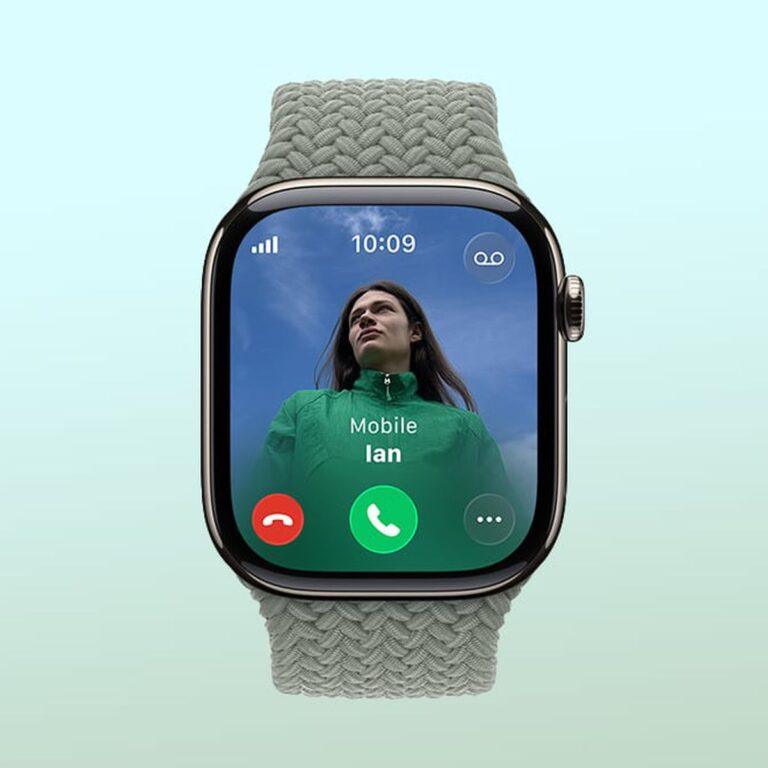
Your iWatch model is easiest to identify in the Watch app, on the case, or through its model number.
Wondering “what iWatch do I have” is common because Apple Watch models look very similar. This guide shows reliable ways to identify your exact series, size, case type, cellular support, and software limits without guessing.
What Apple Watch Do I Have?
Apple does not officially call its smartwatch an “iWatch.” The official name is Apple Watch, but many people search for “what iWatch do I have” when they want to identify their device.
Your Apple Watch model includes more than its marketing name. It may have several details, such as:
• Apple Watch Series 3, Series 4, Series 5, Series 6, Series 7, Series 8, or Series 9
• Apple Watch SE, SE 2, Ultra, or Ultra 2
• A case size, such as 38mm, 40mm, 41mm, 42mm, 44mm, 45mm, or 49mm
• GPS or GPS + Cellular connectivity
• Aluminum, stainless steel, titanium, or ceramic construction
• A specific model number that confirms its identity
The most accurate answer comes from the model number. The watch name shown in the Watch app can help, but the model number is better when two versions look alike.

How to Check What iWatch Do I Have in the Watch App
The Watch app on your iPhone is usually the fastest way to find your Apple Watch model. This method works best when the watch is paired with your iPhone.
Follow these steps:
- Open the Watch app on your iPhone.
- Tap the My Watch tab.
- Tap General.
- Tap About.
- Find the Model Name field.
- Check the Model Number field.
- Tap the model number once if it begins with the letter “M.”
After tapping the model number, it may change from a part number that starts with “M” to a model identifier that starts with “A.” The A-number is useful for confirming the exact Apple Watch generation.
You may also see these details:
• Capacity
• Serial number
• Software version
• Case size
• Network status
• Warranty information
• IMEI number for some cellular models
When people ask me “what iWatch do I have,” I recommend starting here. It avoids confusing a watch’s color or band style with its actual generation.
How to Find the Apple Watch Model Number
If your Apple Watch is not paired with an iPhone, you can often find the model number on the watch itself.
Remove the band from the watch. On many models, the model number is printed inside the band slot. You may need a bright light to read it because the text is small.
You can also check the watch directly:
- Open Settings on the Apple Watch.
- Tap General.
- Tap About.
- Scroll to Model or Model Number.
- Record the number that begins with “A,” if shown.
The model number can identify the model family, case material, size, and connection type. Apple’s official model list is the best reference because similar-looking watches may use different model numbers in different regions.
Be careful when reading the number. A serial number is not the same as a model number. The serial number identifies your individual watch, while the model number identifies the product type.
This is one of the most useful lessons when checking “what iWatch do I have.” Do not rely only on the serial number or the watch’s appearance.
How to Identify Your Apple Watch by Appearance
Appearance can provide clues, but it should not be your only method. Apple has reused many designs across generations, so visual checks can sometimes lead to the wrong answer.
Look for these features:
Digital Crown and side button
Most Apple Watch models have a Digital Crown and a side button on the right side. The Digital Crown may have a red ring on some cellular models, although this is not a perfect test.
Newer models may have a larger display and thinner borders. The Apple Watch Ultra models have a large 49mm case, a raised edge around the screen, and an Action button on the left side.
Case size
The case size is often printed in the Watch app under About. Older models may use 38mm or 42mm sizes. Later models often use 40mm, 44mm, 41mm, or 45mm sizes.
The 49mm size is linked to Apple Watch Ultra models. However, case size alone does not always identify the series because Apple has used similar sizes across several generations.
Back sensor design
Turn the watch over and examine the rear sensor. The layout may help separate older models from newer ones, but it is not always easy to interpret.
A ceramic back, a different sensor ring, or a temperature sensor can suggest a newer model. Still, the model number remains more reliable than the back design.
Screen shape
Apple Watch Series 7 and newer standard models have a larger display with thinner borders than earlier versions. The Apple Watch Ultra has a noticeably larger and more rugged design.
Do not assume that a larger screen means a newer watch. Some models have different case proportions, and the case may have been replaced.

Apple Watch Model Numbers and Series Guide
The table below gives a general guide to common Apple Watch model families. Model numbers can vary by size, region, and cellular band.
| Apple Watch model | Common model number range or examples | Main identifying details |
|---|---|---|
| Apple Watch Series 1 | A1553, A1554 | Older design, no GPS in the original model |
| Apple Watch Series 2 | A1757, A1758 | Built-in GPS and improved water resistance |
| Apple Watch Series 3 | A1858, A1859, A1860, A1861 | Older body design, GPS or cellular versions |
| Apple Watch Series 4 | A1977, A1978, A2007, A2008 | Larger display and electrical heart sensor |
| Apple Watch Series 5 | A2092, A2093, A2094, A2095 | Always-On display |
| Apple Watch SE | A2351, A2352, A2353, A2354 | Lower-cost model based on newer hardware |
| Apple Watch Series 6 | A2291, A2292, A2293, A2294 | Blood oxygen sensor on supported versions |
| Apple Watch Series 7 | A2473, A2474, A2475, A2476 | Larger display and stronger front glass |
| Apple Watch Series 8 | A2770, A2771, A2772, A2773 | Temperature sensing and crash detection |
| Apple Watch SE 2 | A2722, A2723, A2724, A2725 | Updated SE design and crash detection |
| Apple Watch Ultra | A2681 | 49mm titanium case and Action button |
| Apple Watch Series 9 | A2980, A2981, A2982, A2983 | Updated processor and Double Tap support |
| Apple Watch Ultra 2 | A2986 | 49mm titanium case and newer processor |
This chart is a starting point rather than a replacement for Apple’s official model database. Regional versions may have different A-numbers, especially cellular models.
If you are still asking “what iWatch do I have” after finding an A-number, compare that number with Apple’s official identification page. This is the safest way to confirm your result.
How to Tell If Your Apple Watch Has Cellular Service
Knowing whether you have GPS or GPS + Cellular is useful. It affects setup, resale value, and how the watch works away from your iPhone.
Try these checks:
• Open the Watch app and tap Cellular. If the option appears, your watch may support cellular service.
• Look for a red ring or red mark on the Digital Crown. This often indicates a cellular model.
• Open Settings on the watch and check for Mobile Data or Cellular.
• Check the model number against Apple’s cellular model list.
• Look for an IMEI number in the About section. Cellular models usually show one.
The red Digital Crown ring is only a clue. A case may have been repaired or replaced, and some generations use different visual markers.
A GPS + Cellular Apple Watch can make calls, send messages, stream some content, and use data without the iPhone nearby. It still needs a supported carrier plan for cellular functions.
GPS models can use GPS outdoors without cellular service. They can also connect to known Wi-Fi networks and use the iPhone when it is nearby.

How to Find Your Apple Watch Case Size and Material
The case size is different from the screen size. Apple lists the case height, such as 40mm or 45mm, rather than measuring the display corner to corner.
To check the size:
- Open the Watch app.
- Tap My Watch.
- Go to General.
- Tap About.
- Look for the case information.
You can also inspect the back of the watch. Some models have the case size and material engraved around the sensor.
Common Apple Watch materials include:
• Aluminum, which is light and common
• Stainless steel, which has a polished and heavier finish
• Titanium, used in Apple Watch Ultra models
• Ceramic, used in select older editions
The band connector can help you understand compatibility. Apple designed many bands to work across nearby case sizes, but not every band fits every model perfectly.
For example, Apple states that bands designed for 38mm, 40mm, and 41mm cases generally work together. Bands for 42mm, 44mm, and 45mm cases are also broadly compatible. The 49mm Ultra case can use some larger standard bands, but fit and appearance may differ.
How to Identify Your Apple Watch Without an iPhone
You can still find the answer if your iPhone is lost, broken, or unavailable.
On the Apple Watch:
- Press the Digital Crown.
- Open Settings.
- Tap General.
- Tap About.
- Review the model, serial number, software version, and capacity.
If the watch does not turn on, inspect the inside of the band slot. Remove the band carefully by pressing the release button and sliding the band out.
You may also find the original box, receipt, or order email. The box often lists the case size, color, and connectivity type. A purchase record may show the exact product name.
Apple’s coverage website can sometimes recognize your serial number. It may show the device family and support status, but the serial number alone may not display every detail you need.
When I help troubleshoot “what iWatch do I have,” I always suggest using at least two clues. For example, match the A-number with the case size. This catches mistakes caused by reading tiny text or using an incorrect online chart.

Why Your Apple Watch Model Matters
Identifying your Apple Watch is not just about satisfying curiosity. The model affects what your watch can do and which accessories or updates it supports.
Software support
Each Apple Watch has hardware limits. New watchOS versions may not support every older model. Apple publishes compatibility details for each major watchOS release.
An older watch may still work well, but it may not receive new features or security updates. Checking the model helps you understand its remaining software life.
Health features
Health features vary by model and region. Depending on the watch, you may have access to:
• Heart rate notifications
• ECG readings
• Blood oxygen measurements
• Fall detection
• Crash detection
• Temperature sensing
• Sleep tracking
• Irregular rhythm notifications
These features are not a substitute for medical care. Apple also notes that availability can depend on the country, local approval, and software version.
Battery and performance
Newer models usually have faster processors and improved displays. Battery health also depends on age, charging habits, temperature, and usage.
A two-year-old Series 7 may have better real-world performance than an older Series 5 with a worn battery. The model tells you the original hardware, but battery health tells you more about current condition.
Accessories and repairs
The exact model helps you buy the right screen protector, case, band, charger, and replacement parts. It also helps a repair shop estimate the correct service options.
Common Mistakes When Identifying an Apple Watch
Many wrong answers come from simple assumptions. Here are the mistakes I see most often.
• Assuming the newest watch face means the newest model. Watch faces can work across several generations.
• Treating a red Digital Crown as absolute proof of cellular service. It is only a visual clue.
• Confusing the serial number with the model number. These numbers serve different purposes.
• Guessing from the band. Bands can be changed and do not identify the watch generation.
• Using the case size as the only clue. Several series share similar case sizes.
• Trusting a third-party chart without checking Apple’s official information. Regional models can differ.
• Assuming all health features are available everywhere. Some features depend on local regulations and software.
One practical mistake is entering the wrong number into a search engine. An A-number, M-number, and serial number can look similar when printed in tiny text. Copy the number directly from the Watch app when possible.
A Simple Three-Step Method to Confirm Your Model
If you want the most dependable answer to “what iWatch do I have,” use this process.
-
Check the Watch app
Open Watch, select General, tap About, and record the Model Name and Model Number. -
Confirm the A-number
Tap the model number to reveal the A-number. Compare it with Apple’s official model identification information.