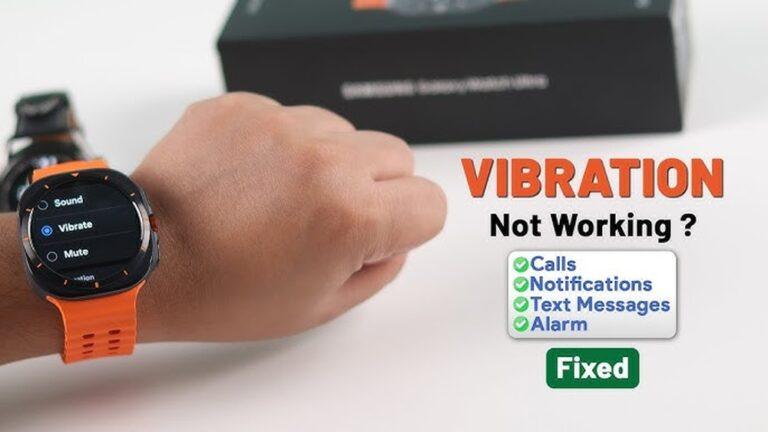
If your smartwatch stops vibrating for notifications, it feels like you’re missing half the point of owning one. You might not notice messages, calls, or reminders when your phone is silent or away. This can be frustrating, especially if you depend on your watch to stay connected during meetings, exercise, or daily life.
I know how annoying this problem is—I once missed an important call because my watch didn’t buzz in my pocket. The good news is, there are clear steps you can take to fix this problem yourself. Let’s walk through all the possible causes and solutions together, so you can get your smartwatch vibration working again and never miss a beat.
Understanding How Smartwatch Vibration Works
Before we dive into fixes, it helps to understand how vibration in a smartwatch actually works. Most smartwatches use a tiny motor called a vibration motor. When a notification arrives, the motor spins or moves, making the watch shake just enough for you to feel it. The settings on your watch or phone control when and how strong this vibration is. If something goes wrong with the motor, software, or connection, your notifications might not vibrate as they should.
Quick Checks Before Troubleshooting
Sometimes, the problem is simple. Here are a few things to check right away:
- Is your watch battery low? Many watches turn off vibration to save power.
- Is Do Not Disturb or Silent Mode on? These modes block all alerts, including vibration.
- Are notifications turned on for the apps you want? If an app can’t send notifications, the watch won’t vibrate.
- Is the watch band loose? If the band is too loose, you may not feel the vibration.
If you check these and nothing changes, move on to more detailed fixes below.
Checking And Adjusting Notification Settings
Most vibration issues come from notification settings on your smartwatch or phone. Here’s how you can check and adjust them.
On Your Smartwatch
Go to your smartwatch’s Settings menu. Look for options like “Notifications,” “Vibration,” or “Sounds & Alerts.” Make sure vibration is turned on. Some watches let you set vibration strength—try picking a stronger level if possible.
On Your Phone
Your phone controls which notifications go to your smartwatch. Open your phone’s companion app (like Wear OS, Galaxy Wearable, or Apple Watch app). Check the notification settings:
- Choose which apps send alerts to your smartwatch.
- Make sure vibration is enabled for each app, if possible.
- Check that your phone is paired and connected to the watch.
If you use a specific app for messages or calls, make sure that app has permissions to send notifications to your watch.
Personal Tip
Once, my smartwatch stopped vibrating for text messages, but still worked for calls. I found out that I had accidentally turned off message notifications in the companion app. It took just a minute to fix, but I only found it after checking all app settings one by one.
Sometimes, the answer is simple but hidden.
Restarting Your Devices
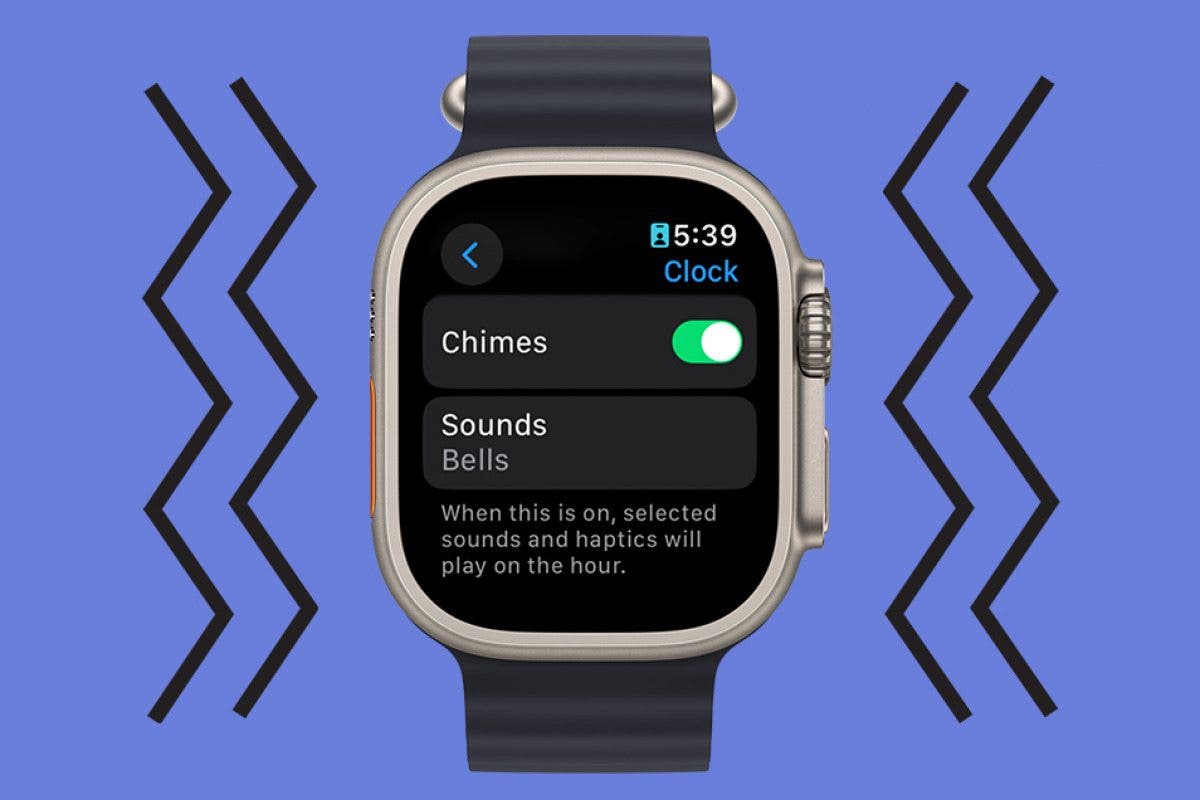
A quick restart can fix small software glitches that block vibration.
- Restart your smartwatch: Hold the power button until you see the restart option.
- Restart your phone: Power it off, wait ten seconds, then turn it on again.
This simple step often solves the issue, especially after software updates.
Credit: www.iphonelife.com
Updating Software And Firmware
Old software can cause bugs with vibration. Both your smartwatch and phone need up-to-date software to work well together.
- Check for updates on your smartwatch. Go to settings and look for “System” or “About.” Choose “Update” if you see it.
- Update your phone’s operating system and the companion app.
New versions often fix notification and vibration problems. Always back up important data before updating, just in case.
Checking App Permissions
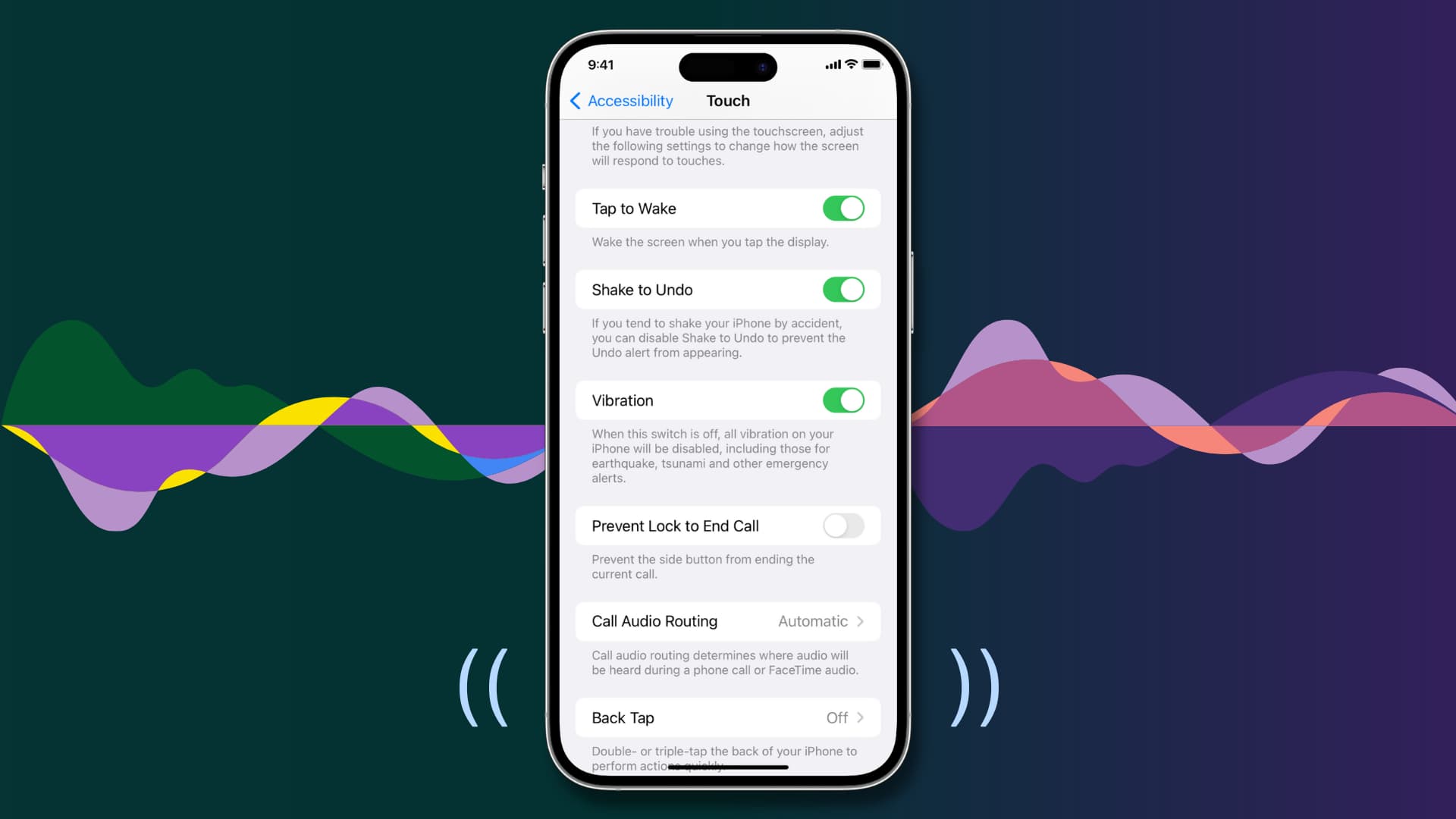
Smartwatches need permission to get notifications from your phone. If you block these permissions, vibration won’t work.
- On Android: Go to your phone’s “Settings” > “Apps & notifications” > “See all apps.” Find your companion app (like Galaxy Wearable or Wear OS), then tap “Permissions.” Make sure notifications, contacts, and other needed permissions are enabled.
- On iPhone: Open “Settings” > “Bluetooth.” Find your watch and make sure it’s connected. Then, open the companion app and check notification permissions.
If permissions are missing, grant them and restart both devices.
Credit: www.idownloadblog.com
Comparing Notification Controls: Popular Platforms
Here’s how vibration and notification controls compare across some popular smartwatch platforms.
| Platform | Notification Controls | Vibration Strength Option | Default Mode |
|---|---|---|---|
| Apple Watch | Via Watch app on iPhone & watch settings | Yes (Default/Prominent) | On |
| Wear OS | Via Wear OS app on phone & watch settings | Depends on model | On |
| Samsung Galaxy Watch | Via Galaxy Wearable app & watch settings | Yes (Low/Medium/Strong) | On |
| Fitbit | Via Fitbit app & watch settings | Limited | On |
| Garmin | Via Garmin Connect & watch settings | Yes | On |
If you don’t see the right options, check your device’s support page or manual.
Testing Vibration Motor Function
If your settings are all correct and there’s still no vibration, it’s time to check the vibration motor itself.
Using Built-in Tools
Some smartwatches have a way to test vibration. Look for a “Test” or “Diagnostics” option in your settings. For example, some Wear OS watches offer “Vibration test” under developer or system settings.
Manual Test
Set an alarm or timer on your watch. Most watches vibrate when an alarm goes off—even if other notifications are blocked. If you feel nothing, the motor might be faulty.
What If The Motor Is Dead?
If the vibration motor doesn’t work at all, your watch may need repair. If it’s under warranty, contact the manufacturer for support. If not, a repair shop might be able to replace the motor, but prices and success rates vary.
Cleaning Your Smartwatch
Dirt, sweat, or moisture can get inside your smartwatch and block the vibration. This is more likely if you wear your watch during workouts, swimming, or in dusty places.
- Remove your watch from your wrist.
- Gently clean the back and sides with a soft, dry cloth.
- Check for any stuck particles near the charging or sensor area.
Do not use water or cleaning sprays unless your smartwatch is waterproof and the manual says it’s safe.
Checking Bluetooth Connection
Your smartwatch and phone talk to each other using Bluetooth. If the connection drops, notifications (and vibration) may stop working.
- Open the Bluetooth menu on your phone.
- Check if your watch is listed as “Connected.”
- If not, un-pair and re-pair the devices.
To re-pair, forget the device in Bluetooth settings, then add it again through your companion app.
Comparing Notification Delay By Connection Quality
Sometimes, a weak Bluetooth connection causes delays or missed vibrations. Here’s what you might notice:
| Bluetooth Signal Strength | Notification Delay | Missed Vibrations |
|---|---|---|
| Strong (3 bars/full) | Instant (0-1 sec) | Rare |
| Medium (2 bars) | Short (1-3 sec) | Sometimes |
| Weak (1 bar) | Long (3+ sec) | Often |
| Disconnected | Never arrives | Always |
If you notice delays, move closer to your phone or remove things blocking the signal.
Reinstalling Or Resetting The Companion App
Sometimes, the app that connects your phone and watch can have bugs. Uninstalling and reinstalling this app can fix hidden problems.
- Uninstall the companion app from your phone (like Wear OS, Galaxy Wearable, or Apple Watch app).
- Restart your phone.
- Reinstall the app from the official app store.
- Re-pair your watch and check notification settings again.
This step can solve strange problems that don’t go away with other fixes.
Resetting Your Smartwatch
If nothing else works, you may need to reset your smartwatch to factory settings. This erases all data and returns the watch to new condition. Only do this after backing up anything important.
- Find “Reset” or “Factory Reset” in your watch’s settings menu.
- Follow the instructions on the screen.
- Set up your watch again as new, and pair it with your phone.
After resetting, most vibration and notification issues disappear—unless there is a hardware problem.
Common User Mistakes That Block Vibration
From my own experience and talking to other users, here are a few mistakes people often make:
- Leaving Do Not Disturb on: Easy to forget, especially if you turn it on for meetings.
- Ignoring battery saver: Some smartwatches turn off vibration when battery is low or saver is active.
- Missing app-specific settings: Some apps (like WhatsApp or Messenger) have their own notification settings, separate from the system.
- Forgetting about watch faces: Some custom watch faces block notifications or vibration.
- Wearing the watch too loose: You may not feel the vibration unless the watch touches your wrist.
Being aware of these mistakes can save you time and avoid unnecessary frustration.
When To Seek Professional Help
If you’ve tried everything above, and your smartwatch still won’t vibrate, it might have a hardware problem. Here are signs you need expert help:
- The watch never vibrates, even for alarms or timers.
- You hear strange noises or feel heat when the motor should work.
- The watch has water damage, even if it’s water-resistant.
Contact the manufacturer or a trusted repair center. If your watch is under warranty, repairs may be free or discounted.
Tips To Keep Your Smartwatch Vibration Working
Once you get your vibration back, you want it to stay reliable. Here’s how you can keep it working well:
- Keep your software updated. New updates fix bugs.
- Clean your watch regularly. Sweat and dust can block sensors.
- Charge your watch often. Low battery can stop vibration.
- Check notification settings after updates. Updates can reset settings.
- Avoid third-party watch faces unless they’re well-rated.
- Take breaks from water and sweat. Even waterproof watches need care.
Table: Troubleshooting Steps And What They Fix
This quick reference helps you match the right fix to the problem you see.
| Problem | Suggested Fix | Effectiveness |
|---|---|---|
| No vibration for any alerts | Restart devices, check settings, test vibration motor | High |
| No vibration for some apps | Check app notification settings on phone & watch | Very High |
| Vibration too weak | Increase vibration strength in settings, tighten band | Medium |
| Vibration stopped after update | Update both phone and watch, reinstall companion app | High |
| Vibration works only when charging | Check for hardware fault, seek repair | Low |
Non-obvious Insights For Smartwatch Users
Here are two useful things many users miss:
- Some smartwatches block vibration when you’re wearing both your phone and watch. For example, if you’re using an iPhone and Apple Watch, notifications only go to the device you’re using. If you’re active on your phone, the watch might stay silent. Try locking your phone or putting it away to test if vibration returns.
- Custom watch faces or third-party apps can break vibration. If you installed a new watch face or app before the problem started, try switching back to the original options for a day.
Frequently Asked Questions
What Should I Do If My Smartwatch Vibrates For Some Notifications But Not Others?
Check if the apps that don’t vibrate have notification permissions enabled on both your phone and smartwatch. Some apps have their own notification settings inside the app. Make sure vibration is turned on in both places. Also, check the companion app on your phone to ensure those apps are allowed to send notifications to your watch.
Can A Low Battery Really Stop Vibration Alerts?
Yes, many smartwatches turn off vibration when the battery is low or when battery saver mode is on. This helps the battery last longer. Charge your watch to at least 50% and see if vibration returns.
Is It Possible To Make The Vibration Stronger On My Watch?
On most smartwatches, you can adjust vibration strength in the settings. Look for options like “Vibration,” “Haptics,” or “Alert Strength. ” Some models only have one level, but others let you choose between low, medium, or strong.

Credit: www.youtube.com
How Do I Know If The Vibration Motor Is Broken?
Set an alarm or timer on your watch. If it doesn’t vibrate, even for alarms, the motor may be faulty. You might also hear strange sounds or feel nothing at all. If you suspect a hardware issue, it’s best to contact support or a repair center.
Where Can I Find Official Help For My Smartwatch?
You can visit your smartwatch brand’s official support page or check user forums. For example, the Apple Support site has guides for Apple Watch users. Always use official sources for troubleshooting and repairs.
Your smartwatch should help you stay on top of your day—not leave you guessing about missed notifications. By following these steps, you can fix vibration problems and keep your device working smoothly. If you ever feel stuck, don’t hesitate to reach out for expert help.
With a bit of patience and care, you’ll be back to feeling every important buzz in no time.

Rubel Miah is the Senior Editor at MyStyleGrid.com, where he brings a sharp editorial eye and an unshakable love for fashion to everything he does. A true style addict, Rubel lives and breathes trends, from streetwear to high fashion, and has a knack for turning inspiration into impactful stories. With years of experience in fashion journalism and digital media, he curates content that empowers readers to express themselves through style. When he’s not editing features or forecasting the next big thing, you’ll find him hunting down vintage pieces or capturing street style moments around the city.