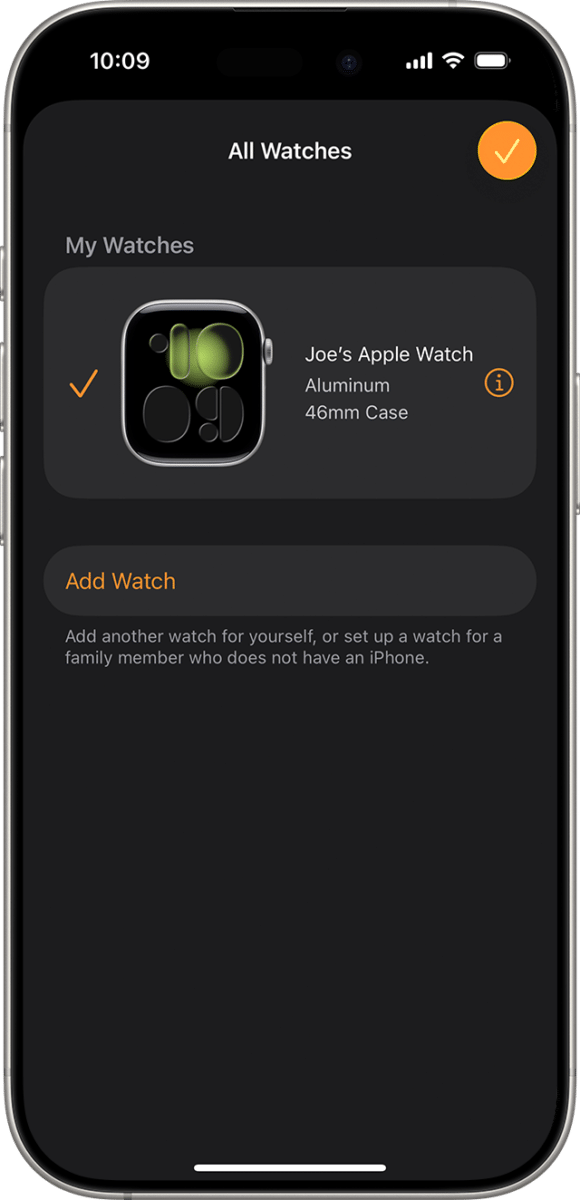
Your Apple Watch model appears in the Watch app, the watch’s Settings screen, or the model number on its case.
If you are asking, “which Apple Watch do I have,” you are not alone. Apple has released many models that look alike, including the Apple Watch SE, Series 4 through Series 10, and Apple Watch Ultra models. This guide explains the safest ways to identify your watch, read its model number, check its features, and avoid common mistakes.
The fastest way to find which Apple Watch you have
The Watch app on your iPhone usually gives the clearest answer. You do not need to guess from the watch face or case shape.
Follow these steps:
- Open the Watch app on your iPhone.
- Tap the My Watch tab.
- Tap General.
- Tap About.
- Find Model Name.
You may also see the model number, serial number, storage capacity, software version, and watch size. The Model Name field may say something like Apple Watch Series 8, Apple Watch SE, or Apple Watch Ultra 2.
If you do not have your iPhone nearby, use the watch itself:
- Open the Settings app on your Apple Watch.
- Tap General.
- Tap About.
- Scroll to Model Name and Model Number.
This is often the best answer to “which Apple Watch do I have” because the software identifies the exact product family.

How to identify your Apple Watch with the model number
Apple assigns every watch a model number that starts with the letter A. For example, a model number may look like A2473 or A2986.
You can find it in these places:
• On your iPhone, open Watch, then go to General, About, and Model Number.
• On the watch, open Settings, then go to General, About, and Model Number.
• On some older models, remove the band and look inside the band slot.
There is one small detail that often causes confusion. On the iPhone, tap the Model Number once. It may change from a part number beginning with M to an A-number model identifier. The A-number is the useful code for matching your watch to Apple’s model list.
Use the model number with the watch’s case size and connection type. A single model family may have different A-numbers for GPS, cellular, and regional versions.
Apple Watch model number examples
The following examples can help narrow down your model:
| Apple Watch model | Common model numbers |
|---|---|
| Apple Watch Series 4 | A1977, A1978, A2007, A2008 |
| Apple Watch Series 5 | A2092, A2093, A2156, A2157 |
| Apple Watch Series 6 | A2291, A2292, A2375, A2376 |
| Apple Watch SE, first generation | A2351, A2352, A2355, A2356 |
| Apple Watch Series 7 | A2473, A2474, A2475, A2476 |
| Apple Watch Series 8 | A2770, A2771, A2772, A2773 |
| Apple Watch SE, second generation | A2722, A2723, A2724, A2725 |
| Apple Watch Ultra | A2684 |
| Apple Watch Series 9 | A2978, A2980, A2982, A2984 |
| Apple Watch Ultra 2 | A2986 |
| Apple Watch Series 10 | A3001, A3002, A3003, A3200 |
Model numbers can vary by country, size, and cellular band. When accuracy matters, compare the number with Apple’s official model identification information rather than relying on a seller’s listing.

How to tell Apple Watch models apart by appearance
Appearance can help, but it should not be your only test. Several Apple Watch generations share the same rounded design.
Apple Watch Series 10
The Series 10 has a thinner body and a larger display than many earlier standard models. It came in 42mm and 46mm sizes and has a wide-angle OLED display.
Depending on the finish, it may have an aluminum or titanium case. Its side button and Digital Crown look familiar, so the About screen remains the best way to confirm it.
Apple Watch Ultra and Ultra 2
The Ultra line is easy to spot because it has:
• A larger 49mm titanium case
• A raised guard around the Digital Crown
• An orange Action button
• A flat front crystal
• A more rugged design
The original Apple Watch Ultra and Ultra 2 look very similar. Check the Model Name or model number to tell them apart.
Apple Watch Series 7, Series 8, and Series 9
These models have a larger screen with thinner borders than Series 6 and earlier watches. Their cases look almost identical.
Series 7, Series 8, and Series 9 can be difficult to distinguish by sight. Software information, the model number, or the purchase record is more reliable than color or button placement.
Apple Watch SE
The Apple Watch SE looks like a standard Apple Watch but leaves out some advanced health features. The first-generation SE resembles Series 4 through Series 6, while the second-generation SE resembles Series 4 through Series 8.
The SE label is not always printed on the case. Check the Watch app before assuming an older watch is an SE.
Older Apple Watch models
The first-generation Apple Watch, Series 1, Series 2, Series 3, Series 4, Series 5, and Series 6 can look similar at a glance. Case size, back sensors, screen shape, and software support can provide clues, but the model number is still the safest method.

How to use the case size to identify your Apple Watch
Apple Watch case size is measured by height, not by the width of the screen. You may see sizes such as 38mm, 40mm, 41mm, 42mm, 44mm, 45mm, 49mm, or 46mm.
You can check the size in the Watch app:
- Open the Watch app.
- Tap My Watch.
- Tap General.
- Tap About.
- Look for the case size or model details.
You can also check the back of the watch. Many models show the case size near the sensor area, although small text may be difficult to read after years of wear.
Case size can narrow down the answer:
• 38mm usually means an older model, such as the first-generation Apple Watch through Series 3.
• 40mm usually means Series 4 through Series 6 or the first-generation SE.
• 41mm usually means Series 7 through Series 9 or the second-generation SE.
• 42mm can refer to older large-case models or the Series 10 small case.
• 44mm usually means Series 4 through Series 6 or the first-generation SE.
• 45mm usually means Series 7 through Series 9 or the second-generation SE.
• 49mm identifies the Apple Watch Ultra family.
• 46mm identifies the large Apple Watch Series 10 case.
Size alone cannot confirm the generation. Think of it as a clue, not proof.

How to identify Apple Watch GPS and cellular versions
Your Apple Watch may be a GPS model or a GPS plus Cellular model. This difference does not always tell you the exact generation, but it helps confirm the watch’s configuration.
A cellular Apple Watch may have one or more of these clues:
• A red ring or red mark around the Digital Crown on older models
• A red accent on the side button or crown on some models
• A cellular option in the Watch app
• An active or inactive mobile plan under Cellular
To check your connection type:
- Open the Watch app on your iPhone.
- Tap My Watch.
- Tap Cellular.
- Look for cellular setup or plan information.
A cellular-capable watch may not have an active plan. The absence of a plan does not prove that the watch is GPS-only.
Also, cellular support varies by region and carrier. A model bought in another country may not work with your current US carrier, even when the watch looks identical.

How to identify your Apple Watch from its features
Features can help you compare possible models. They are useful when the watch is unpaired, the text is worn, or the original packaging is missing.
Always-On display
The Always-On display lets the watch show a dim version of the time and some information while your wrist is down. Apple introduced this feature with Apple Watch Series 5.
The Apple Watch SE does not include an Always-On display. However, a screen that turns off does not always prove that your watch lacks the feature. Low Power Mode, settings, or a software issue may also affect the display.
Blood oxygen app
Some Apple Watch models include hardware for blood oxygen measurement. In the United States, availability and functionality can vary because of legal and regulatory limits.
Do not identify a watch only by whether the Blood Oxygen app appears. The app may be unavailable or disabled even when the hardware is present.
ECG app
The ECG app is available on supported models, beginning with Apple Watch Series 4, except for Apple Watch SE. It also requires a supported region and the correct software.
An ECG feature strongly narrows the model range, but it does not identify the exact generation by itself.
Temperature sensing
Temperature sensing is included in newer models, including Apple Watch Series 8, Series 9, Series 10, and Apple Watch Ultra models. It supports features such as cycle tracking, but it is not a general medical thermometer.
Fall Detection and Crash Detection
Fall Detection is available on several newer Apple Watch models. Crash Detection is found on selected recent models, including Series 8 and later, second-generation SE, and Apple Watch Ultra models.
These safety features can change with software and regional support. Use them as supporting evidence rather than your only identification method.

How to identify your Apple Watch without an iPhone
You can still answer “which Apple Watch do I have” if your iPhone is lost, broken, or not nearby.
Use the watch itself:
- Press the Digital Crown.
- Open Settings.
- Tap General.
- Tap About.
- Read Model Name and Model Number.
If the watch will not turn on, inspect the back case. You may find the case size, material, series information, or model details near the sensors.
You can also check:
• The original box
• The purchase receipt