To pair your watch with a new phone, install its app, enable Bluetooth, and follow the on-screen setup steps.
Moving to a new phone should not mean losing your watch data, settings, or daily routine. The exact process depends on whether you use an Apple Watch, Samsung Galaxy Watch, Google Pixel Watch, Fitbit, Garmin, or another model. This guide explains how to pair my watch with my new phone safely, fix common connection problems, and avoid the mistakes that cause lost data or failed setup.
Before you pair your watch with your new phone
Before learning how to pair my watch with my new phone, check that both devices are ready. A few minutes of preparation can prevent most pairing errors.
Use this checklist:
• Charge the watch to at least 50 percent.
• Charge the new phone or connect it to power.
• Turn on Bluetooth and Wi-Fi on the phone.
• Update the phone’s operating system.
• Install the official watch app.
• Keep the watch and phone close together.
• Know the password for your Apple ID, Google Account, or Samsung account.
You should also check compatibility. An Apple Watch works with an iPhone, while most Wear OS watches work best with Android phones. Some Garmin and Fitbit watches work with both iPhone and Android, but certain features may vary by platform.
Do not erase your old phone too soon. If the watch is still linked to it, you may need the old phone to create a backup, remove the old connection, or transfer your watch settings.
Back up your watch before changing phones
A backup protects your apps, settings, health data, watch faces, and activity history. The backup process differs by brand, but it usually happens through the watch’s companion app or cloud account.
For an Apple Watch, keep the watch and old iPhone near each other. Make sure iCloud backup is enabled, then create a fresh iPhone backup. Apple Watch data is usually included in that backup when the correct iCloud settings are active.
For a Wear OS watch, open the watch app on your old phone and check whether your watch data syncs with your Google Account. Samsung watches may use a Samsung account and Samsung Health for data storage. Fitbit and Garmin devices usually sync activity data through their own accounts.
A useful rule is simple: if your activity history appears in the brand’s app on the old phone, it is more likely to return after you sign in on the new phone. If the data exists only on the watch, it may not transfer.

How to pair my watch with my new phone: the basic method
The general process is similar across most brands. Follow these steps in order:
- Turn on the new phone and complete its basic setup.
- Install the official watch app from the Apple App Store or Google Play.
- Sign in with the same account used on your old phone.
- Turn on Bluetooth and Wi-Fi.
- Open the watch app.
- Choose Add Device, Pair New Watch, or a similar option.
- Select your watch from the list.
- Confirm the matching code shown on both devices.
- Allow permissions for notifications, contacts, health data, and location when needed.
- Wait for the watch to sync and install updates.
The pairing code is a security check. If the numbers on the phone and watch do not match, stop and try again. Never approve a code that belongs to a different device.
When people ask how to pair my watch with my new phone, they often expect Bluetooth alone to finish the job. Bluetooth creates the link, but the companion app manages accounts, updates, notifications, backups, and many other features.

How to pair an Apple Watch with a new iPhone
Apple Watch pairing is controlled through the Watch app on the iPhone. The watch cannot be fully set up through the iPhone’s Bluetooth menu alone.
If you still have your old iPhone, use this method:
- Update the old iPhone and Apple Watch.
- Keep both devices close together.
- Open the Watch app on the old iPhone.
- Tap All Watches.
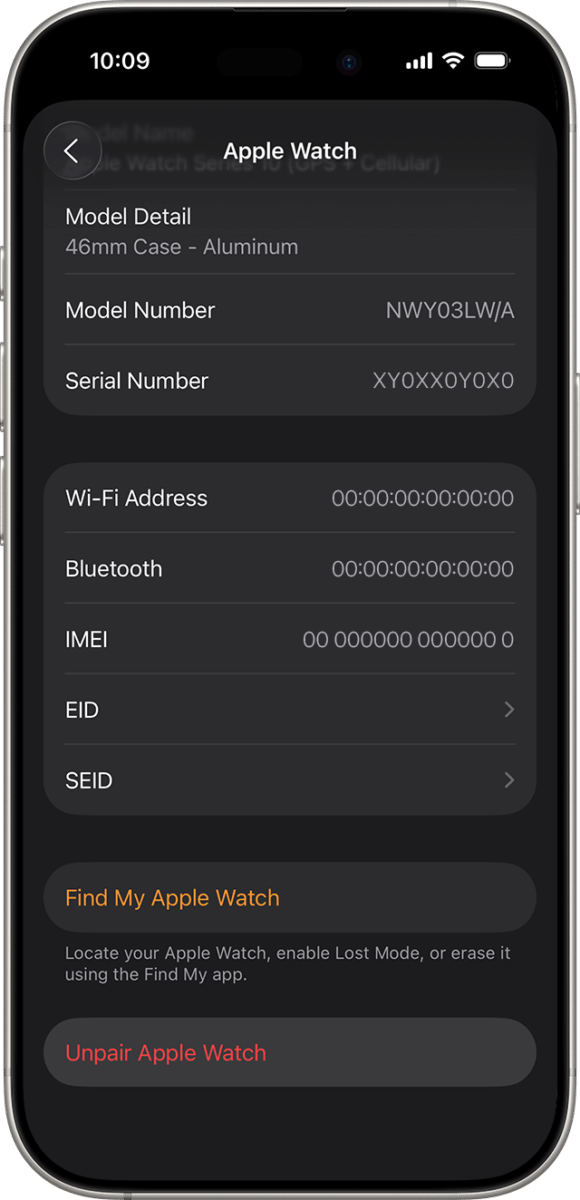
- Tap the information button beside the watch.
- Choose Unpair Apple Watch.
- Enter your Apple ID password if asked.
- Back up the old iPhone to iCloud or a computer.
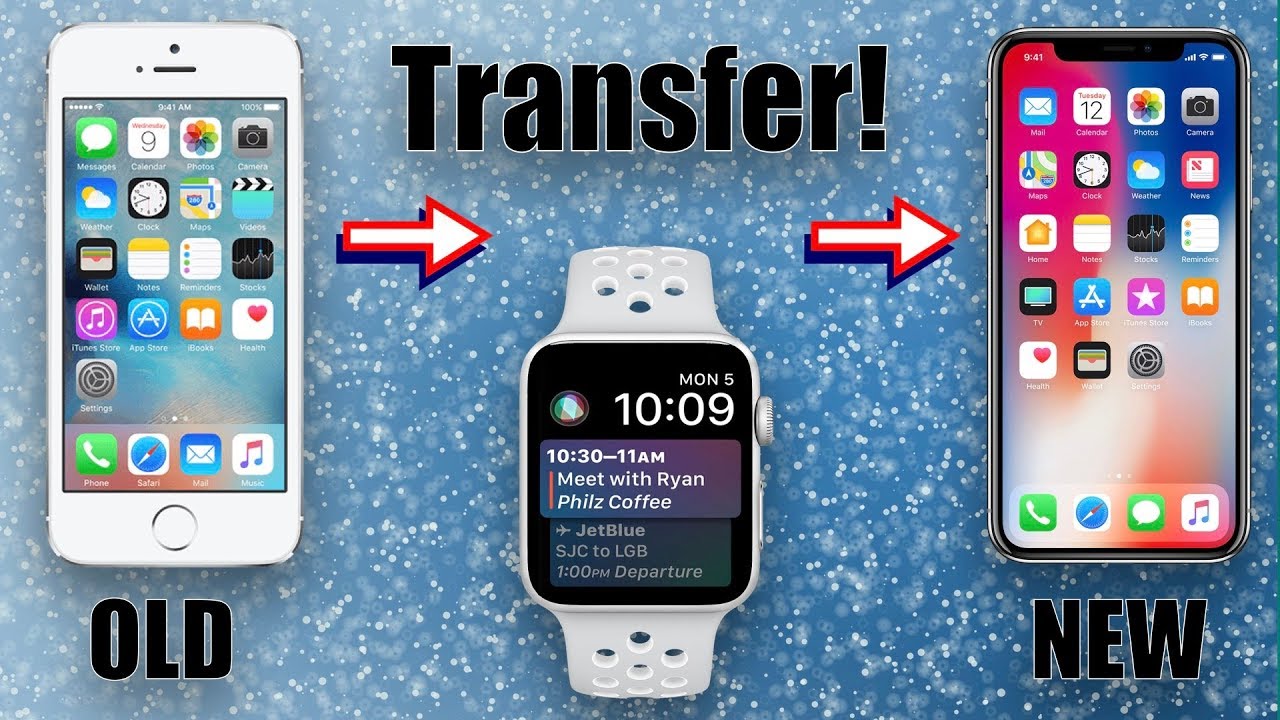
- Turn on the new iPhone and restore the backup.
- Open the Watch app on the new iPhone.
- Tap Start Pairing.
- Choose Restore from Backup when the option appears.
If you no longer have the old iPhone, erase the Apple Watch from the watch itself. Go to Settings, choose General, tap Transfer or Reset, and select Erase All Content and Settings. Then open the Watch app on the new iPhone and pair the watch as a new device or restore an available backup.
Erasing the watch may remove local content. Confirm that your health and activity data have synced before using this option. This is one of the most important lessons when learning how to pair my watch with my new phone: protect the backup before removing the old link.

How to pair a Samsung Galaxy Watch with a new phone
Samsung Galaxy Watches usually pair through the Galaxy Wearable app. The exact screens can change by watch model and software version.
Follow these steps:
- Install or update the Galaxy Wearable app.
- Sign in to your Samsung account.
- Turn on the watch.
- Open Galaxy Wearable on the new phone.
- Tap Start or Add new device.
- Choose your Galaxy Watch.
- Confirm the code on both devices.
- Sign in to your Google account if requested.
- Restore a backup if one is available.
- Allow permissions for calls, messages, notifications, and health features.
Some newer Galaxy Watch models use Wear OS and require an Android phone. Compatibility with iPhone is limited or unavailable for many current models. Always check the requirements for your exact watch before buying or switching phones.
If the watch was connected to another phone, you may need to reset it before pairing. Look for the reset or connect to new phone option in the watch settings. A reset can delete watch content, so sync Samsung Health data first.

How to pair a Google Pixel Watch or other Wear OS watch
Google Pixel Watch and many Wear OS watches pair through the Google Pixel Watch app or the Wear OS companion app. The required app depends on the watch model.
To connect a Wear OS watch:
- Install the correct companion app.
- Turn on Bluetooth and location.
- Open the app and tap Set up or Add a watch.
- Select the watch name.
- Match the pairing code.
- Sign in to your Google Account.
- Choose whether to restore a backup.
- Install system updates.
- Review notification and health permissions.
Location access may be required during setup because Android uses it to scan for nearby Bluetooth devices. You can review or change this permission later, but denying it too early may stop the pairing process.
Some Wear OS watches support Android only. Others may have limited iPhone support, but features such as replies, Google Assistant, payments, or health syncing may not work fully. Check the manufacturer’s compatibility list before starting.
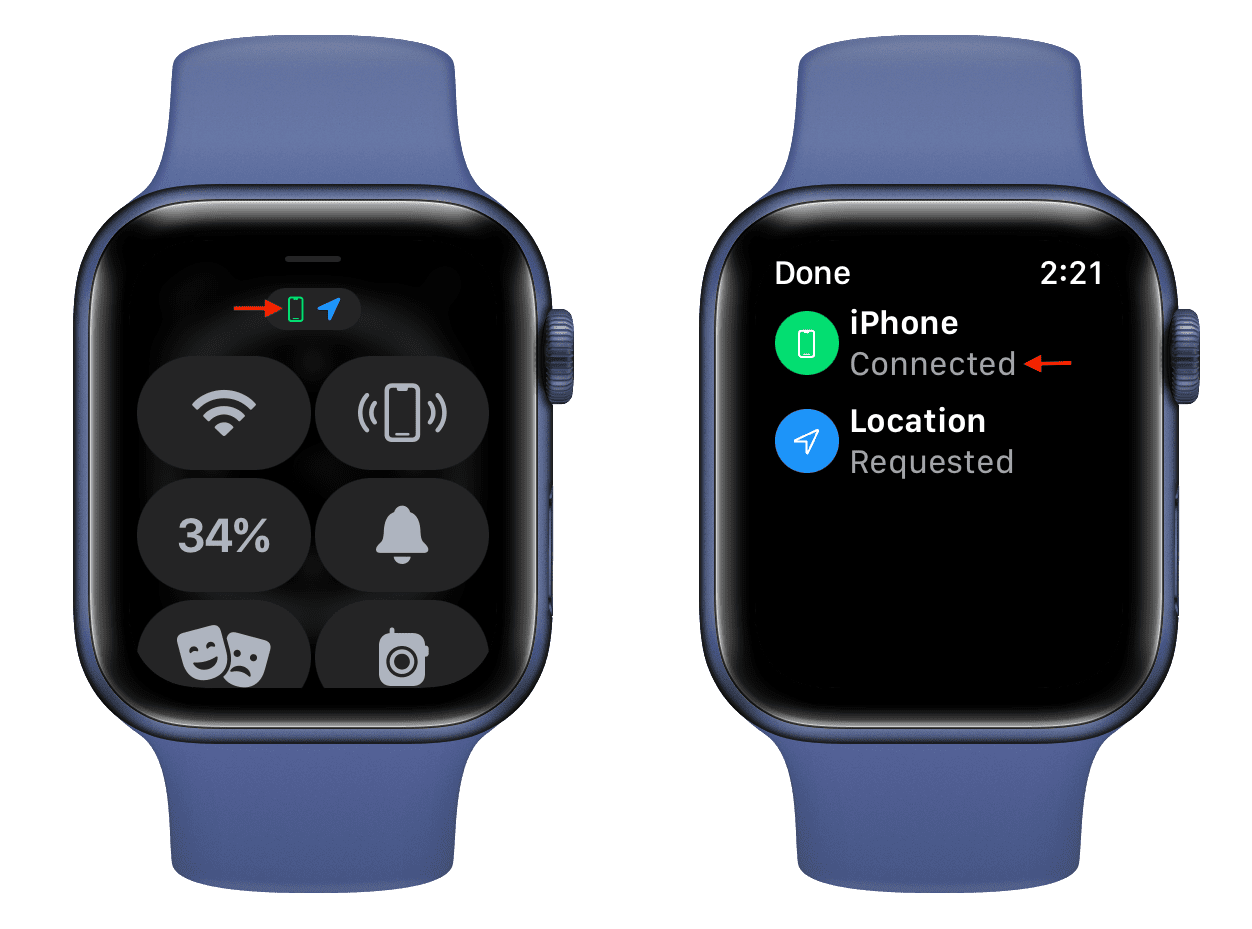
How to pair a Fitbit or Garmin watch with a new phone
Fitbit and Garmin devices usually make phone changes easier because much of the data is linked to your online account.
For Fitbit:
- Install the Fitbit app.
- Sign in with the same Fitbit or Google account.
- Open the account or device section.
- Select Set Up a Device or Add Device.
- Choose your Fitbit model.
- Follow the pairing instructions.
- Allow notifications and location access.
- Sync the device before changing settings.
For Garmin:
- Install Garmin Connect.
- Sign in to your Garmin account.
- Open the More menu.
- Choose Garmin Devices.
- Tap Add Device.
- Select your watch.
- Confirm the pairing code.
- Complete the sync and update process.
Do not pair the watch directly from the phone’s Bluetooth settings unless the manufacturer specifically tells you to do so. The official app needs to create the account link and manage future syncing.
What to do if your watch is still connected to your old phone
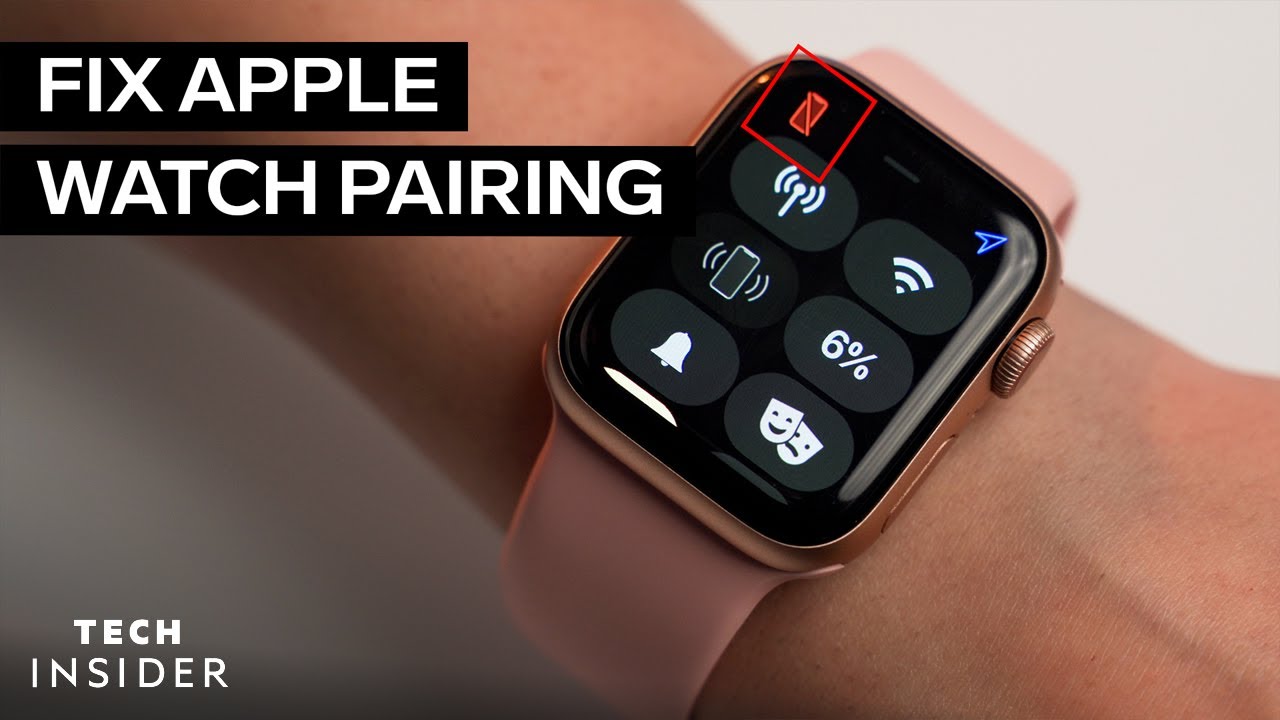
A watch can usually maintain one main phone connection. If it is still linked to the old phone, the new phone may not find it or may fail during setup.
First, open the old phone’s watch app and remove or unpair the device. Keep the account signed in so the latest data can sync. Then restart both the watch and the new phone before trying again.
If the old phone is lost, broken, or unavailable, use the watch’s settings to reset or transfer it to a new phone. This step may erase local settings, apps, music, and stored data. Cloud-synced data should return after you sign in, but local-only data may not.
In my experience helping with device changes, the most common mistake is resetting the watch before checking the app’s last sync time. Treat that sync time like a receipt. It shows whether your latest activity has reached your account.
Fix common watch pairing problems
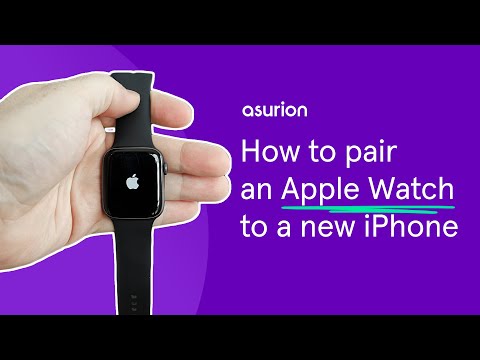
Pairing problems are usually caused by a stale Bluetooth connection, missing permissions, outdated software, or an account mismatch.
Try these solutions:
• Restart both devices.
• Turn Bluetooth off, wait 10 seconds, and turn it on again.
• Keep the devices within a few feet of each other.
• Update the watch app and phone software.
• Remove the watch from the old phone.
• Forget the watch in the phone’s Bluetooth settings only after using the official app.
• Make sure airplane mode is off.
• Turn on location access during Android setup.
• Sign in with the correct Apple, Google, Samsung, Fitbit, or Garmin account.
• Reset network settings if Bluetooth remains stuck.
If the watch appears in Bluetooth but not inside the companion app, the connection may be incomplete. Forget the device, restart both products, and begin again inside the official app.
If the pairing code fails, make sure another nearby phone is not trying to connect to the watch. Turn off Bluetooth on old phones, tablets, or family devices during setup.

Fix missing notifications after pairing
A successful pairing does not always mean notifications are ready. The phone must give the watch permission to read and display alerts.
Check these settings:
• Notifications are enabled for the apps you want.
• The watch app can run in the background.
• Do Not Disturb or Focus mode is not blocking alerts.
• Battery saver is not restricting the watch app.
• The watch has permission to access notifications.
• Calls and messages are allowed if you want those alerts.
On iPhone, open Settings, then Bluetooth, Notifications, and the watch app settings. On Android, check App permissions, Battery, Notification access, and Connected devices. Menu names can vary by phone brand and Android version.
Also check whether the phone is unlocked when testing. Some watches show alerts only when the phone screen is locked. Send yourself a test message after each change so you know which fix worked.
Keep health and activity data safe
Health data is more sensitive than ordinary app data. It may include heart rate, sleep, workouts, steps, location, and other personal details.
Use the same account on the new phone that you used on the old phone. If you sign in with a different account, the watch may pair successfully but show an empty history.
Before you erase the old phone:
- Open the health or fitness app.
- Wait for the latest sync to finish.
- Check that recent workouts and sleep records appear.
- Confirm cloud backup or account sync is enabled.
- Keep the old phone until the new setup works.
Not every data type transfers between brands. For example, moving from an Apple Watch to a Garmin watch may not bring every health record into the Garmin app. Some data can be exported, but the process depends on the platform and file format.
Pairing a watch after switching from iPhone to Android
Crossing from iPhone to Android can be more complex than moving between phones on the same platform. Your watch may work, but some functions may disappear.
Apple Watch models generally require an iPhone for full use. An Apple Watch is not designed to pair as a normal smartwatch with an Android phone.
Fitbit and Garmin watches usually offer the smoothest cross-platform experience. Some Samsung and Wear OS models work with Android only, while older models may offer limited iPhone support.
Before switching platforms, check:
• Phone compatibility.
• Available health features.
• Call and message support.
• Payment support.
• Voice assistant access.
• Backup transfer options.
• Cellular plan requirements.
A watch can still be useful after a phone switch, but it may not behave exactly as it did before. Confirm the limitations before erasing the old phone.
How to improve battery life after pairing
A new connection may use extra battery for the first day because the watch is syncing apps, photos, settings, and software updates. Battery use should settle after setup finishes.
To improve battery life:
• Install only the apps you use.
• Reduce unnecessary notifications.
• Lower screen brightness.
• Shorten the screen timeout.
• Turn off always-on display if you do not need it.
• Limit continuous GPS use.
• Update the watch software.
• Avoid repeated pairing attempts.
If battery drain continues for several days, restart the watch and phone. Check for a stuck update or app that keeps syncing in the background. A factory reset may help, but use it only after confirming your data is backed up.
Mistakes to avoid when pairing a new phone
Knowing what not to do makes learning how to pair my watch with my new phone much easier.
Avoid these common errors:
• Erasing the old phone before the final sync.
• Pairing only through Bluetooth settings.
• Using a different account by mistake.
• Skipping system updates.
• Resetting the watch without checking backups.
• Denying every permission during setup.
• Trying to pair while the watch is nearly out of power.
• Keeping several old phones nearby with Bluetooth enabled.
• Assuming every watch works with every phone.
One mistake I often see is tapping “Set up as new” too quickly. That option may be correct if you want a clean start, but it can remove saved settings and make the watch look empty. Read each setup screen before choosing.
How long does it take to pair a watch with a new phone?
Most watch pairings take 5 to 20 minutes. Updates, backups, large app libraries, and slow Wi-Fi can extend the process.
Keep both devices charged and close together. Do not restart either device while an update or data transfer is in progress.
Can I pair my watch with a new phone without the old phone?
Often, yes, but you may need to erase the watch first. Without the old phone, you may also lose data that was never synced to your account.
Why is my new phone not finding my watch?
The watch may still be connected to the old phone, or Bluetooth, location, or app permissions may be disabled. Restart both devices, update the companion app, and begin pairing inside the official app.
Will I lose my watch data when I change phones?
You may keep synced data by signing in with the same account and restoring a backup. Data stored only on the watch may be lost if you reset it before syncing.
Can I pair an Apple Watch with an Android phone?
Apple Watch models are designed to work with iPhone and do not offer full Android pairing. If you switch to Android, you may need a compatible Fitbit, Garmin, Samsung, or Wear OS watch.
Do I need to unpair my watch from my old phone?
Usually, yes. Removing the old connection prevents conflicts and helps the new phone detect the watch. Back up and sync your data before unpairing.
Why did my watch pair but stop showing notifications?
The phone may not have granted notification access, or battery settings may be blocking the companion app. Check notification permissions, background activity, Focus or Do Not Disturb mode, and battery restrictions.
Can I use the same watch with two phones?
Most watches support one primary phone at a time. Some models can switch between phones, but you may need to reset the watch or repeat setup when changing devices.
Conclusion
Learning how to pair my watch with my new phone is mainly about using the correct app, matching the right account, and protecting your data before disconnecting the old phone. Charge both devices, update their software, sync your health records, and follow the brand-specific pairing steps.
If the connection fails, restart both devices, remove the old pairing, check permissions, and try again through the official app. Take a few extra minutes to confirm that your activity history and notifications work correctly. Explore your watch manufacturer’s support tools for model-specific help, and share your setup experience in the comments.

Rubel Miah is the Senior Editor at MyStyleGrid.com, where he brings a sharp editorial eye and an unshakable love for fashion to everything he does. A true style addict, Rubel lives and breathes trends, from streetwear to high fashion, and has a knack for turning inspiration into impactful stories. With years of experience in fashion journalism and digital media, he curates content that empowers readers to express themselves through style. When he’s not editing features or forecasting the next big thing, you’ll find him hunting down vintage pieces or capturing street style moments around the city.