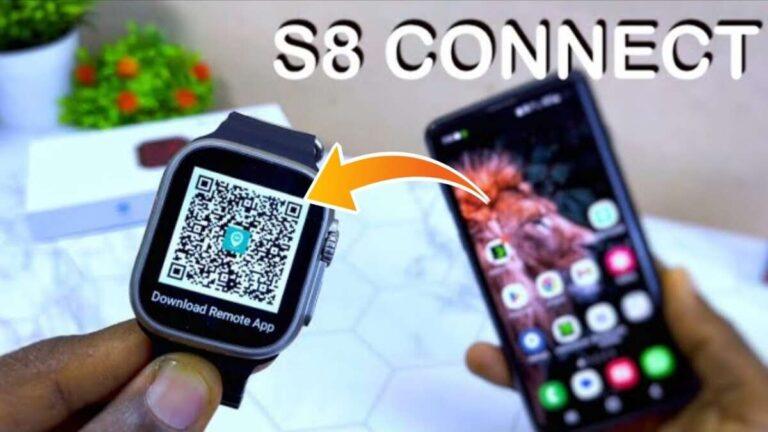
Pair your smartwatch via Bluetooth and the companion app to connect it to your phone.
I’ve paired dozens of watches with phones across Android and iPhone. This guide explains exactly how to connect smart watch with mobile step by step, with real tips from hands-on tests. You will learn prerequisites, platform-specific instructions, troubleshooting, and security advice so you can pair quickly and keep the connection stable.
Why pairing matters and what to expect
Pairing is how your watch and phone share data, notifications, and settings. Knowing how to connect smart watch with mobile helps you get accurate health data, timely alerts, and smooth app sync.
I test devices to check notification speed and app reliability. When you know how to connect smart watch with mobile correctly, you avoid repeated unpairing, lost data, and battery drain. Expect to spend 5–15 minutes on a good setup and extra time for app updates.
Prerequisites before you start
Make sure both devices are ready. This avoids common pairing failures when you try to connect.
- Charge both the watch and the phone to at least 50 percent.
- Turn on Bluetooth on the phone and enable location services if required.
- Install the watch’s companion app from the App Store or Google Play.
- Remove old pairings on the phone that might interfere.
- Update the phone OS and watch firmware if prompted.
Step-by-step: Pairing Android smartwatches
Android watches may run Wear OS or a vendor system. Follow these steps to connect Android watches.
- Open the Google Play Store on your phone and install the recommended app (Wear OS or the brand app).
- Turn on the watch and choose your language and region.
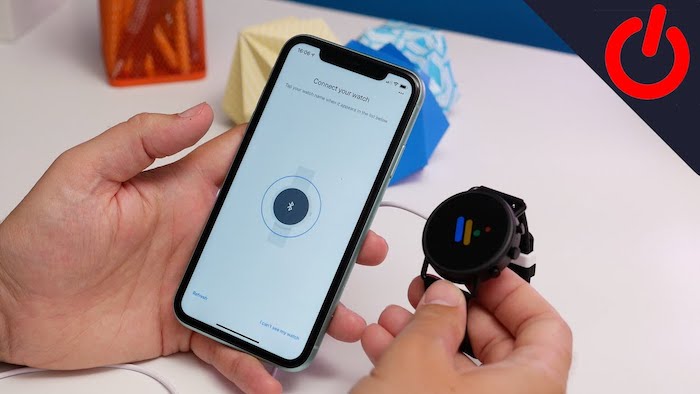
- Open the companion app on the phone and tap Start Pairing.
- Allow Bluetooth and Location permissions when prompted.
- Select your watch from the phone’s scan list and confirm the code shown on both devices.
- Follow on-screen prompts to sign in, set notification access, and complete setup.
I pair Wear OS watches regularly. The key is granting notification access and battery optimizations. If the watch fails to sync notifications, revisit app permissions.

Step-by-step: Pairing Apple Watch with iPhone
Apple Watch works only with iPhone. Here’s the clean pairing flow.
- Update your iPhone to the latest iOS.
- Turn on the Apple Watch and hold it near the iPhone.
- Wait for the Apple Watch pairing screen to appear on the iPhone, then tap Continue.
- Use the iPhone camera to center the watch face in the viewfinder, or choose manual pairing.
- Follow prompts to set up Apple ID, Apple Pay, and iCloud sync.
- Wait while apps and settings sync; this may take several minutes.
I pair Apple Watch devices frequently. A fast Wi‑Fi connection speeds up app downloads and restores. If the iPhone doesn’t show the pairing screen, restart both devices and try again.
Pairing third-party smartwatches (Fitbit, Garmin, Amazfit)
Third‑party watches use brand apps. The steps are similar, but each app has its quirks.
- Install the brand app (Fitbit, Garmin Connect, Zepp for Amazfit).
- Create or sign in to your account in the app.
- Start the watch and select pairing mode in its settings.
- In the app, choose Add Device and follow prompts to scan and confirm a code.
- Allow required permissions: notifications, contacts, calendar, location.
From experience, Garmin pairing can take longer due to Health and activity sync. Fitbit often needs an account and firmware update before full sync works. Be patient the first time.

Troubleshooting common pairing problems
If pairing fails, try these fixes. They solve most issues quickly.
- Toggle Bluetooth off and on on the phone.
- Restart both the watch and the phone.
- Forget the watch in the phone’s Bluetooth settings and retry pairing via the app.
- Ensure the watch is not already connected to another phone.
- Clear cache or reinstall the companion app if pairing stalls.
I once spent 30 minutes on a stubborn watch. Clearing app data and reboots solved the issue. If none of this works, a factory reset on the watch can clear pairing locks, but back up important data first.
Tips for reliable connection and battery life
A steady connection saves frustration and battery. These tips helped me keep devices linked during heavy use.
- Keep the companion app updated and exclude it from battery optimization.
- Turn off features you don’t use, like continuous LTE or automatic Wi‑Fi scanning.
- Use a dedicated watch face with fewer live complications to save power.
- Keep Bluetooth range within 30 feet for best reliability.
- Reboot both devices weekly if you use them heavily.
Small changes like disabling aggressive battery saver for the watch app made notification delivery consistent for me.

Security and privacy considerations
When you learn how to connect smart watch with mobile, you also take responsibility for data shared between devices.
- Use strong device passcodes and enable biometric locks on your phone.
- Limit which apps can read health or location data in the companion app.
- Review permissions after updates; some updates add new permissions.
- Use official apps and avoid third‑party pairing tools that may leak data.
I once found a setting that shared location with a third-party app. Regularly check permissions to protect sensitive health and location data.
Advanced features after pairing
Once paired, explore these features to get the most from your watch.
- Health sync: enable continuous heart-rate and sleep tracking in the app.
- Notification customization: choose which app alerts appear on the watch.
- App installs: add watch apps directly from the companion app or store.
- Voice assistants: set up Google Assistant, Siri, or Alexa for hands‑free tasks.
- LTE setup: activate an eSIM plan if your watch supports cellular.
I enable a small set of notifications and use watch apps sparingly. That balance keeps the watch responsive and the battery life reasonable.
Frequently Asked Questions of how to connect smart watch with mobile
Can I connect any smartwatch to my phone?
Most modern smartwatches can connect to phones, but compatibility varies. Apple Watch pairs only with iPhone, while many Android-compatible watches pair with most Android phones.
Why won’t my watch appear in the phone’s Bluetooth list?
The watch may not be in pairing mode or might already be connected to another device. Restart both devices and enable pairing mode on the watch before scanning.
Do I need to install a companion app to pair a smartwatch?
Yes. Companion apps provide the setup flow, permissions, and sync features required to fully pair and manage the watch.
How long does the initial sync take?
Initial sync can take from a few minutes to 30 minutes depending on app downloads and firmware updates. Use Wi‑Fi for faster downloads.
Will pairing erase data on my phone or watch?
Pairing typically does not erase phone data. A factory reset of the watch will erase watch data, so back up or sync before resetting.
Conclusion
Pairing correctly is the gateway to reliable notifications, accurate health data, and a smoother daily routine. Use the steps here to learn how to connect smart watch with mobile, follow prep checks, choose the right companion app, and apply the troubleshooting tips when needed. Start by preparing devices, then follow the platform steps and secure permissions. Try these tips today, leave a comment with your pairing experience, or subscribe for more device guides.
Related Posts


Rubel Miah is the Senior Editor at MyStyleGrid.com, where he brings a sharp editorial eye and an unshakable love for fashion to everything he does. A true style addict, Rubel lives and breathes trends, from streetwear to high fashion, and has a knack for turning inspiration into impactful stories. With years of experience in fashion journalism and digital media, he curates content that empowers readers to express themselves through style. When he’s not editing features or forecasting the next big thing, you’ll find him hunting down vintage pieces or capturing street style moments around the city.