How To Change Smartwatch Watch Face Automatically Every Day
Have you ever wished your smartwatch could match your mood, outfit, or the day of the week—without you touching a thing? Many people love customizing their watch faces but forget to change them often. It can feel boring to see the same screen every day. The good news is, you can set your smartwatch to change its watch face automatically every day. This makes your watch feel fresh, fun, and personal.
When I got my first smartwatch, I changed the face all the time. But after a few weeks, I forgot about it and just used the default one. Then I learned it was possible to switch faces on a schedule.
It was a small change, but it made my watch feel new every morning. You might feel the same excitement when you try this out.
In this guide, I’ll show you how to set up automatic watch face changes. I’ll cover different smartwatch brands, useful apps, and smart tips. Whether you use Wear OS, Apple Watch, Samsung Galaxy Watch, or something else, you’ll find clear steps here. I’ll also share some common mistakes and non-obvious insights that can save you time and stress.
Why Change Your Watch Face Daily?
Changing your watch face every day is not just about looks. Here’s why many people love this feature:
- Personal expression: Show your style, mood, or support for a cause.
- Better focus: Use faces with more info (like calendar or weather) on busy days.
- Less boredom: A fresh face every day keeps your watch interesting.
- Surprise element: It’s fun to see a new look on your wrist each morning.
When I started using daily watch face changes, I felt a small boost each time I noticed a new face. It’s a simple way to add joy to your routine.
What You Need Before You Start
Before you set up automatic changes, make sure you have:
- A compatible smartwatch. Most modern watches support this. Some older ones may not.
- The latest software update. Check your watch’s settings for updates.
- Multiple watch faces installed. Download a few faces you like.
- The right app or feature. Some systems need a third-party app. Others have it built-in.
If you don’t have these, don’t worry. I’ll explain how to get them as we go.
How Automatic Watch Face Switching Works
This feature lets your watch pick a new face on a schedule you choose. Most people set it to change once a day—often at midnight or in the morning. The process is usually done by:
- Using built-in features (like on Apple Watch)
- Using companion apps (for Wear OS, Fitbit, etc.)
- Using third-party automation apps
Below, I’ll break it down by platform.
Setting Up On Apple Watch
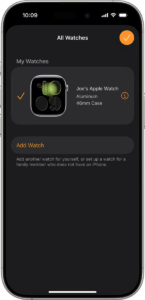
The Apple Watch has a built-in way to change faces with the Shortcuts app. Here’s how you can do it:
Step 1: Open Shortcuts On Your Iphone
Look for the Shortcuts app. If you don’t have it, download it from the App Store.
Step 2: Create A New Automation
- Tap “Automation” at the bottom.
- Tap “+” and choose “Create Personal Automation”.
- Select “Time of Day” and pick when you want the watch face to change (for example, 7: 00 AM).
- Tap “Next”.
Step 3: Add The Watch Face Action
- Tap “Add Action”.
- Type “Set Watch Face” in the search bar.
- Tap “Set Watch Face” and choose the face you want.
- Tap “Next”.
Step 4: Turn Off ‘ask Before Running’
Disable “Ask Before Running” so it happens automatically.
Step 5: Repeat For Each Day
If you want a different face for each day, repeat these steps and pick a different face for each automation.
Example
You can set a colorful face on Monday, a simple one on Tuesday, and so on. Your watch will update the face every morning without you doing anything.
Non-obvious Tip
- If you want your watch face to match your calendar events (like a fitness face on gym days), use the “Calendar” condition in Shortcuts. This lets you set faces based on your schedule, not just time.

Credit: www.youtube.com
Setting Up On Wear Os Watches
Wear OS watches (by Google) have many options. Some brands add their own apps, but you can also use third-party tools.
Using Watch Face Scheduler Apps
There are apps like Facer, Watch Face Changer, or WearFace Scheduler. Here’s how to use them:
Step 1: Install A Scheduler App
Go to the Play Store on your watch or phone and search for “watch face scheduler”.
Step 2: Pick And Download Watch Faces
In the scheduler app, browse or import faces you like.
Step 3: Set Up The Schedule
- Open the scheduler app.
- Add the watch faces to your schedule.
- Set the time for each face (for daily, set 24-hour intervals).
Step 4: Grant Permissions
Some apps need extra permissions. Make sure you allow them to run in the background.
Example
You could have a digital face on workdays and an analog one on weekends.
Data Table: Popular Scheduler Apps For Wear Os
| App Name | Free Version | Custom Schedules | User Rating |
|---|---|---|---|
| Facer | Yes | Yes | 4.1 |
| Watch Face Changer | Yes | Yes | 3.8 |
| WearFace Scheduler | No | Yes | 4.0 |
Non-obvious Insight
- Some scheduler apps can use weather, location, or steps to pick a face. For example, show a sunny face when the weather is clear.
Samsung Galaxy Watch (tizen And Wear Os)
Samsung’s watches now use Wear OS, but some older ones use Tizen. Here’s what you need to know.
For Older Tizen Watches
Samsung’s old software did not support automatic face changes. You can use Tasker (on your phone) and AutoWear plugin to do it. However, it needs more setup.
For New Wear Os Samsung Watches
Follow the same steps as other Wear OS watches (see above). Use apps like Facer or Watch Face Scheduler.
Personal Experience
I once tried to set up auto-watch faces on my old Galaxy Watch Active 2. It was tricky and needed two apps. On my new Galaxy Watch 5, it took only five minutes with Facer. It’s much easier on the latest models.

Credit: www.reddit.com
Fitbit And Other Smartwatches
Fitbit does not have built-in support for daily changes. You can do it with third-party apps, but results may vary.
Using Ifttt
IFTTT (If This Then That) is an automation tool. Some Fitbit watch faces support IFTTT triggers. You can create a schedule to change faces, but you need to use specific compatible faces.
- Go to IFTTT.com and sign up.
- Find Fitbit integrations.
- Set up a schedule trigger to change the face.
Note
Not all Fitbit models or faces support this. Check your device’s support page.
Using Third-party Automation Apps
Apps like Tasker (Android), IFTTT, and Shortcuts (iPhone) let you automate almost anything. Here’s a quick overview:
Tasker (android)
Tasker is a powerful tool. You can create a profile to change your watch face at a set time. You may need plugins like AutoWear (for Wear OS) or AutoApps.
Steps
- Install Tasker and the plugin.
- Set a time-based trigger.
- Choose the action to switch the watch face.
- Save and test.
Shortcuts (iphone/apple Watch)
As explained earlier, Shortcuts is the easiest way for Apple Watch.
Ifttt
Best for smartwatches that support web-based triggers (like some Fitbit and Garmin models).
Table: Automation App Comparison
| App | Platform | Difficulty | Custom Triggers |
|---|---|---|---|
| Tasker | Android | Medium | Yes |
| Shortcuts | iOS | Easy | Yes |
| IFTTT | All | Medium | Yes |
Common Mistakes And How To Avoid Them
Many users struggle with automation at first. Here are some mistakes to watch out for:
- Picking faces that need Wi-Fi: Some faces update with the internet. If your watch loses Wi-Fi, the face may not change.
- Forgetting permissions: Scheduler apps need to run in the background. If you block notifications or battery use, it may not work.
- Using too many faces: If you schedule 7+ faces, you might forget which one appears on which day. Keep it simple.
- Not updating the app: Old apps or watch software can break automation. Always update both.
- Not testing changes: Test each automation once to be sure it works before you rely on it.
Creative Ideas For Daily Watch Faces
Changing your face every day can be more than just a new look. Here are some fun ways to use this feature:
- Motivation Monday: Show a quote or goal.
- Fitness Friday: Show your steps or workout data.
- Weekend Relax: Use a calm or nature background.
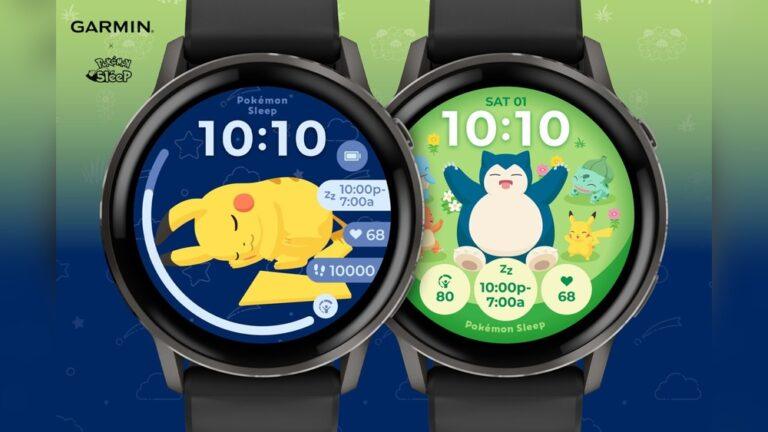
- Theme days: Match faces to holidays, team colors, or special events.
On my watch, I use a cartoon face on Sundays. My kids love seeing which character shows up, and it’s a fun way to start the week.
Security And Privacy Considerations
When using third-party apps, always check their privacy policy. Some faces may collect data (like step count or location). Use only trusted apps with good reviews.
- Only download from the official app store.
- Check permissions. Don’t allow access to data you don’t want to share.
- Update your watch and apps to get the latest security fixes.
Troubleshooting: What If It Doesn’t Work?
If your watch face is not changing as planned, try these steps:
- Restart your watch: Many problems fix themselves after a reboot.
- Check battery settings: Make sure the scheduler app is not blocked from running in the background.
- Update everything: Update your watch, the companion app, and the face.
- Try a different app: If one app fails, try another.
- Read user reviews: Sometimes a new update breaks features. See what other users say.
Real-world Examples
Let’s look at some real ways people use daily watch face changes:
- Office workers: Use a simple, professional face for meetings. Switch to a fun one after work.
- Fitness fans: Show workout stats in the morning, and a relaxing face at night.
- Students: Show class schedules or reminders on weekdays, and a playful face on weekends.
A friend of mine is a nurse. She uses a bright, bold face on days she works the night shift. It helps her stay alert. On her days off, she switches to a calm, soft color.
Pros And Cons Of Automatic Watch Face Switching
Changing your watch face every day is fun, but is it always better? Here’s a quick look at the good and the bad.
Advantages
- Keeps your watch feeling new
- Suits your mood and activities
- Shows off your style
- Can help with focus (task faces on workdays, fun faces on weekends)
Disadvantages
- Some apps may use more battery
- May need more setup time
- Not all faces are compatible with automation
- A glitch could set the wrong face
Most users find the pros outweigh the cons, especially if you keep things simple and update your apps.
How To Choose The Best Watch Faces For Automation
Not all faces are equal. When picking faces to switch automatically, consider these factors:
- Clarity: Can you read the time and info easily?
- Battery usage: Some faces use more battery (especially animated ones).
- Data shown: Pick faces that show what you need (steps, calendar, weather, etc. ).
- Style: Match your look, mood, or activity.
- Compatibility: Some faces only work with certain apps or watches.
Try to pick 3–5 favorites. This way, your watch feels fresh but not confusing.
Table: Watch Face Types And When To Use Them
| Face Type | Best For | Battery Use |
|---|---|---|
| Minimal Analog | Work, meetings | Low |
| Data-rich Digital | Busy days, fitness | Medium |
| Animated | Weekends, fun | High |
| Photo/Custom | Special events | Medium |

Credit: www.vaerwatches.com
Future Trends: Smarter Watch Face Automation
In the future, more watches will use AI to pick faces for you. For example, your watch might choose a weather face on rainy days or a sports face before a run. Some smartwatches already do this in a basic way.
If you want to learn more about smartwatch features, you can check the official Wikipedia Smartwatch page.
Simple Checklist For Success
Before you finish, run through these quick points:
- Do you have 2–5 faces installed?
- Is your watch and app updated?
- Did you test the schedule at least once?
- Are your faces clear and easy to read?
- Did you check battery use?
If You Answered Yes, You’re All Set!
Frequently Asked Questions
How Do I Change My Watch Face Automatically Every Day On Apple Watch?
Use the Shortcuts app on your iPhone. Create a personal automation for “Time of Day” and add the “Set Watch Face” action. Repeat for each day if you want a different face each day.
Can I Use Third-party Watch Faces With Automation?
Yes, but not all third-party faces support automation. Check the app’s details and reviews. Apps like Facer work on most Wear OS watches.
Will Automatic Watch Face Switching Use More Battery?
A little. Animated or data-rich faces can use more power. Pick simple faces for better battery life, and update your apps for best results.
What If My Watch Face Is Not Changing As Scheduled?
Restart your watch, check app permissions, and update your apps. Try a different scheduler app if needed. Look for help in user forums if problems continue.
Is It Safe To Use Watch Face Scheduler Apps?
Most apps from the Play Store or App Store are safe. Check user reviews and only give permissions you are comfortable with. Keep your watch and apps updated for security.
Switching your smartwatch face automatically every day is a smart way to keep things fresh and fun. With the right setup, you’ll enjoy a new look every morning—without lifting a finger. Give it a try, and you might find a little extra joy every time you check the time!

Rubel Miah is the Senior Editor at MyStyleGrid.com, where he brings a sharp editorial eye and an unshakable love for fashion to everything he does. A true style addict, Rubel lives and breathes trends, from streetwear to high fashion, and has a knack for turning inspiration into impactful stories. With years of experience in fashion journalism and digital media, he curates content that empowers readers to express themselves through style. When he’s not editing features or forecasting the next big thing, you’ll find him hunting down vintage pieces or capturing street style moments around the city.