To set up a Samsung watch, charge it, install Galaxy Wearable, pair it with your phone, and follow the on-screen steps.
Learning how to set up Samsung watch models is simple when you follow the right order. This guide covers charging, pairing, Samsung account steps, mobile service, health features, notifications, updates, and common fixes. It also explains the small mistakes that can make setup feel harder than it should.
What to do before setting up a Samsung watch
Before you set up a Samsung watch, gather the items you need. A few minutes of preparation can prevent pairing errors and lost time.
You will usually need:
• Your Samsung Galaxy Watch and its charging puck or dock
• A compatible Android phone with Bluetooth turned on
• The Galaxy Wearable app
• A Samsung account
• Your Google account for Wear OS apps and services
• Wi-Fi or mobile data
• Your phone’s screen lock PIN, pattern, or password
• Your carrier details if the watch supports LTE service
Most newer Galaxy Watch models use Wear OS. These include many Galaxy Watch4, Watch5, Watch6, and Watch7 models. Older watches may use Samsung’s Tizen software, so menus and app support can differ.
Charge the watch to at least 50 percent before you begin. The watch can often pair with less power, but a low battery may interrupt updates or app installation. Keep the watch and phone close together during the entire setup.
How to set up Samsung watch step by step
The basic process is similar across most Galaxy Watch models. The names of some menus may change by software version, but the order remains nearly the same.
1. Turn on the Samsung watch
Place the watch on its charger. Press and hold the Home or Power button until the Samsung logo appears.
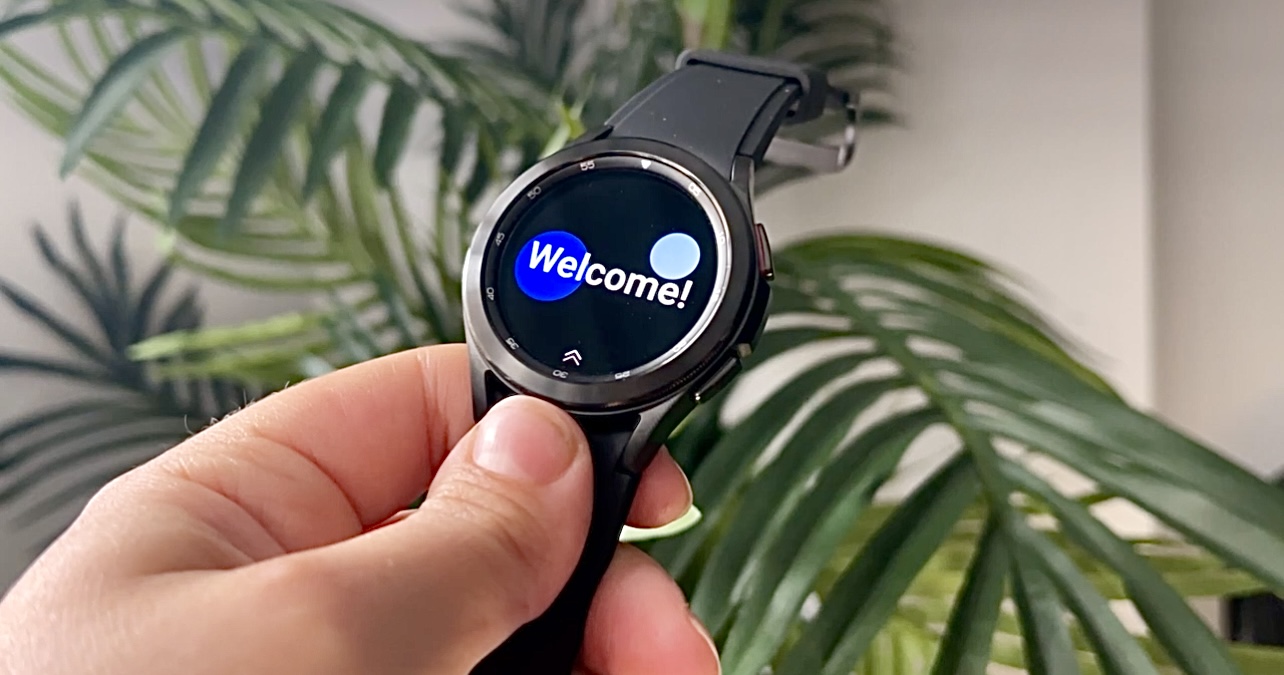
Choose your language and region when asked. Read the basic terms and privacy information, then continue.
If the watch does not turn on, leave it on the charger for 15 to 30 minutes. Check that the charging puck is connected to power and that the watch sits correctly on the center of the charger.
2. Install Galaxy Wearable
On your Android phone, open the Google Play Store. Search for Galaxy Wearable and install the official Samsung app.
Avoid downloading setup apps from unknown websites. The official app manages pairing, watch settings, software updates, watch faces, and connected services.
Open Galaxy Wearable after installation. Allow Bluetooth and nearby-device access when requested. These permissions help the phone find and communicate with the watch.
3. Pair the watch with your phone
Tap Start or Add new device in Galaxy Wearable. Select your watch from the list.
A matching code should appear on both devices. Confirm that the codes match, then tap Confirm or Pair.
If the watch was connected to another phone before, it may ask to reset. A reset removes old personal data and settings from the watch. Back up important data first if the old phone is still available.
4. Sign in to your accounts
Sign in to your Samsung account when prompted. You may also sign in to your Google account.
These accounts help with features such as:
• Samsung Health data
• Watch face downloads
• App installation
• Cloud backup
• Find My Device features
• Google Maps, Google Assistant, and other Wear OS apps
If you skip an account, some features may not work. You can add an account later through the Galaxy Wearable app.
5. Restore a backup or set up as new
The setup process may offer a backup from an older watch. Choose Restore if you want to bring back watch faces, apps, settings, and selected preferences.
Choose Set up as new if you want a clean start. This option is useful when moving from a different watch brand or fixing problems caused by old settings.
A clean setup often works best after a major phone change. It is like moving into a new home without bringing every old box with you.
6. Finish the setup process
Keep the watch near the phone while apps and software install. Do not turn off Bluetooth or restart either device during this stage.
When setup ends, wear the watch and adjust the band so the sensor touches your skin. It should feel secure but not tight. A loose fit can affect heart rate and sleep readings.

How to set up Samsung watch notifications
Notifications are one of the main reasons people buy a smartwatch. You can control which phone alerts appear on the watch.
Open Galaxy Wearable, then select Watch settings and Notifications. The exact menu name may vary. Turn on notifications for the apps you use most.
Useful notification settings include:
• Show phone notifications on watch
• Show notifications while using the phone
• Notification pop-up style
• App notification controls
• Notification history
• Do not disturb schedules
Start with essential alerts such as calls, texts, calendars, and delivery updates. Allowing every app to send alerts can drain the battery and make the watch feel noisy.
For private messages, check the setting that hides message details. This is helpful at work, on public transport, or around family members.
If notifications do not appear, check three places:
- Make sure the phone app can send notifications.
- Make sure Galaxy Wearable has notification access.
- Make sure Do Not Disturb, sleep mode, or theater mode is not active.

How to set up Samsung watch health features
Samsung Health can track steps, workouts, heart rate, sleep, stress, and other measurements. The exact features depend on the watch model, region, software, and phone.
Open Samsung Health on your phone and complete the profile setup. Add your age, height, weight, activity level, and health goals. Accurate profile data can improve estimates such as calories and step targets.
For better readings:
• Wear the watch above the wrist bone
• Keep the sensor clean and dry
• Use a steady fit during workouts
• Avoid wearing the watch over clothing
• Keep still during measurements
• Follow the instructions shown on the screen
Some Samsung watches offer blood pressure or electrocardiogram features. These tools may require calibration, a compatible Samsung phone, and approval in your region.
Health features are not a replacement for medical care. A watch can show useful trends, but it cannot diagnose a condition. Speak with a qualified health professional about unusual readings or symptoms.
A common setup mistake is treating one reading as a final answer. Trends over time are usually more useful than a single number, especially when the watch fit changes from day to day.

How to set up Samsung watch LTE service
An LTE Samsung watch can make calls, send messages, and use data without staying near your phone. It needs a separate wearable plan from a compatible carrier.
During setup, select the mobile plan option if it appears. You may also activate service later through Galaxy Wearable by opening Watch settings and selecting Mobile plans.
Before activation, confirm that:
• Your carrier supports the exact watch model
• The watch and phone use compatible network technology
• Your carrier supports smartwatch number sharing
• Your account has the correct billing permissions
• The watch is not locked to another carrier
Some carriers use a shared phone number. Others give the watch a separate number. Ask the carrier how calls and texts will work before choosing a plan.
LTE uses more battery than Bluetooth-only use. If you mostly carry your phone, Wi-Fi or Bluetooth may be the better choice. LTE is most useful for runs, walks, travel, or emergencies when you want to leave your phone behind.
How to set up Samsung watch payments
You can often add a payment card through Samsung Wallet or Google Wallet, depending on the model and software.
Open the wallet app on the watch or phone. Follow the prompts to add a card, verify your identity, and create a security lock.
A screen lock is required for many payment features. This protects your card if someone removes the watch from your wrist.
To use payments:
- Open the wallet app or use the assigned shortcut.
- Select the card.
- Authenticate if requested.
- Hold the watch near the payment terminal.
Contact your bank if a card cannot be added. Some banks, regions, or card types may not support smartwatch payments.
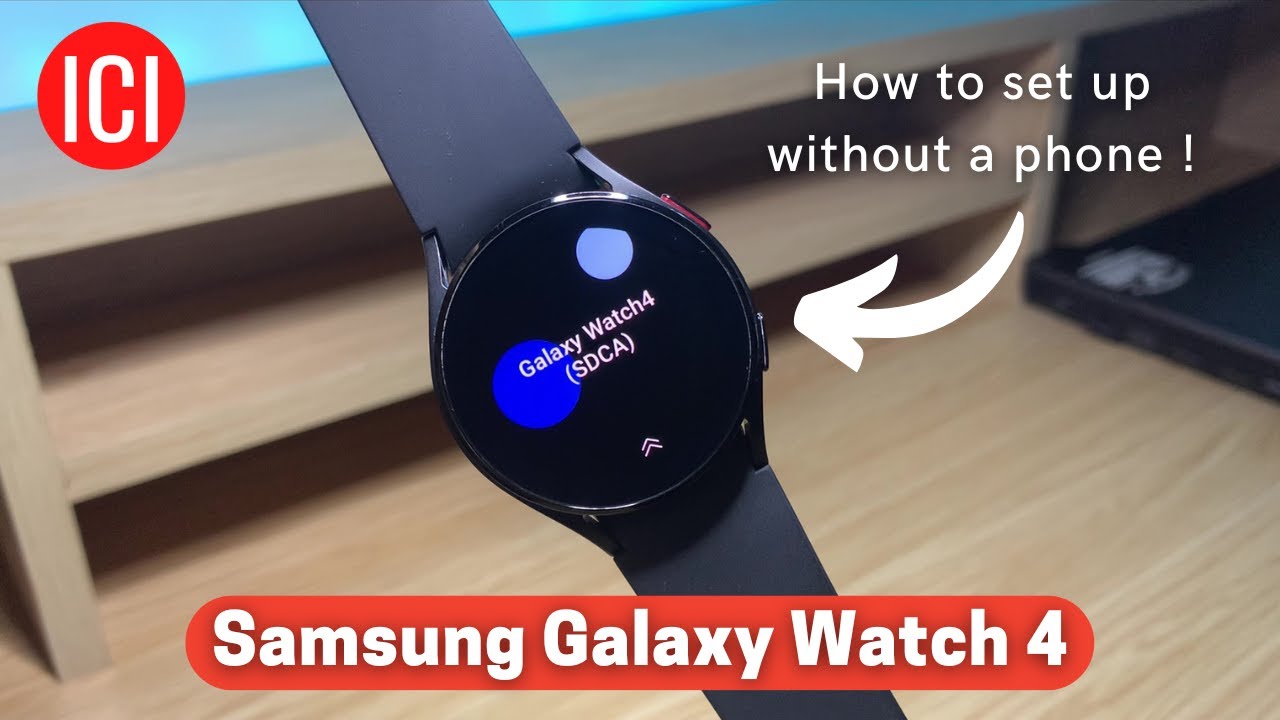
How to customize a Samsung watch
Once you know how to set up Samsung watch basics, customize it for daily use. Personal settings can make the watch faster and less distracting.
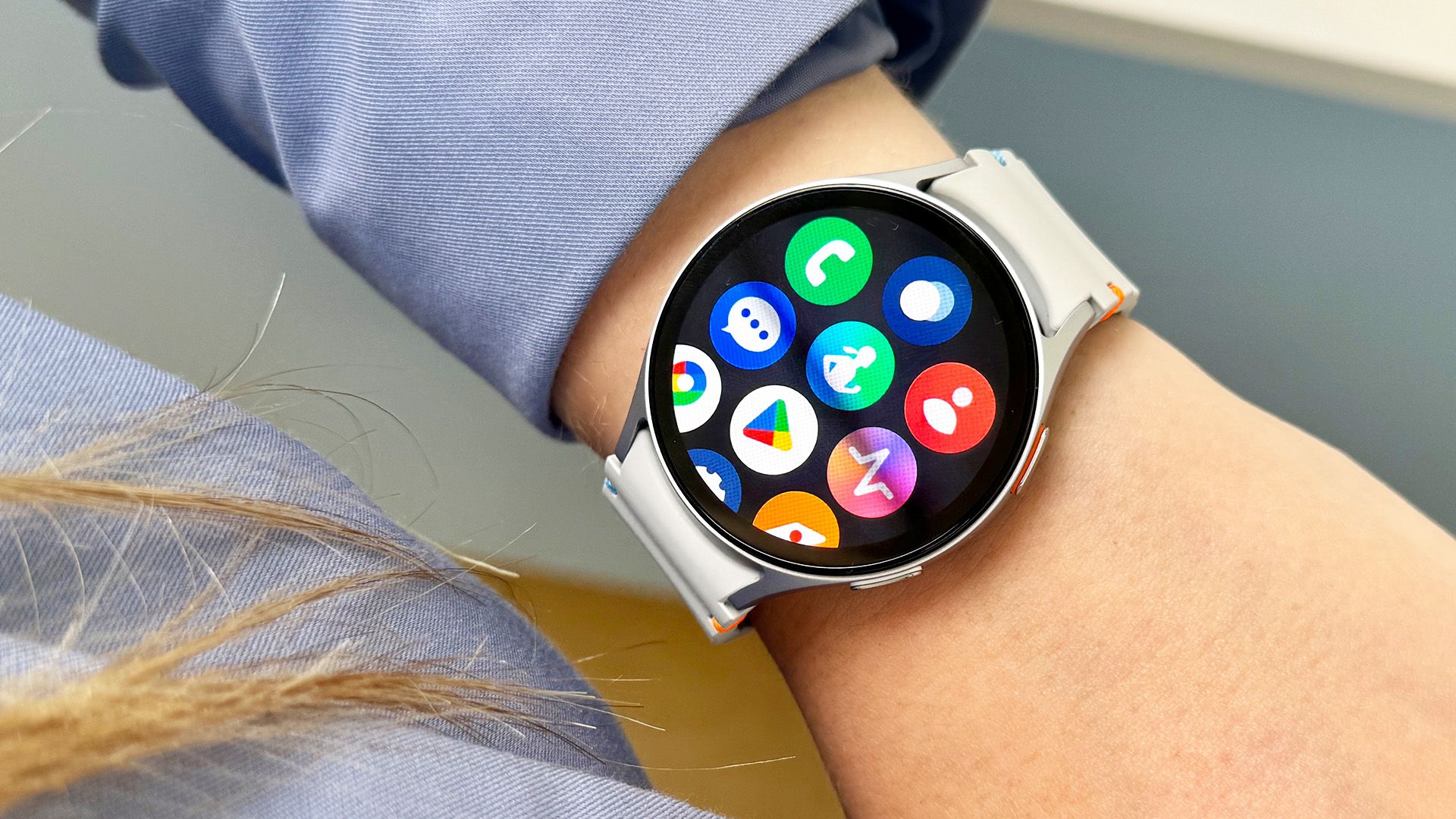
Start with the watch face. You can change it from the watch by pressing and holding the current face. You can also use Galaxy Wearable to download faces and change complications.
Complications are small watch-face tools. They can show:
• Battery level
• Weather
• Steps
• Heart rate
• Calendar events
• Sunrise and sunset
• Workout shortcuts
Next, arrange the quick panel. Add tools you use often, such as flashlight, sound mode, airplane mode, battery saver, and sleep mode.
Adjust the buttons and gestures if your model allows it. For example, you may assign a button to recent apps or Samsung Pay. Keep the most useful shortcut easy to reach.
A practical lesson from many device setups is to change one setting at a time. If you change everything at once, it becomes harder to know which setting caused a problem.
How to improve Samsung watch battery life
Battery life depends on the model, display settings, LTE use, GPS, health sensors, and apps. A watch with a bright always-on display and frequent GPS workouts will use more power.
Try these changes if the battery runs down too quickly:
• Lower screen brightness
• Turn off always-on display when you do not need it
• Reduce the screen timeout
• Limit unnecessary notifications
• Turn off LTE when Bluetooth is available
• Use power-saving mode during long days
• Remove unused apps and watch faces
• Install software updates
• Avoid weak Wi-Fi or cellular areas when possible
Do not disable every health feature just to gain battery life. Instead, balance the settings with your routine. A runner may need GPS, while a desk worker may prefer longer battery life.
Battery performance can also improve after one or two full setup cycles. The watch may install updates and sync data in the background during the first day.
How to update a Samsung watch
Updates can improve security, stability, battery behavior, and feature support. Check for updates after the first setup and continue checking from time to time.
Open Galaxy Wearable and select Watch settings. Choose Watch software update or Software update, then select Download and install.
Keep the watch on its charger during the update. Make sure the phone has a stable internet connection and enough battery.
Do not interrupt the update unless the screen clearly shows an error. Restarting during an update can create software problems.