Find your Galaxy Watch model in the Galaxy Wearable app, watch settings, or the model number on its case.
Wondering “which Galaxy Watch do I have?” is common, especially when Samsung releases several models that look alike. The fastest method is to check the model name in the Galaxy Wearable app, then confirm it with the model code, software version, size, and physical design. This guide explains each method in simple steps so you can identify your watch with confidence.

The fastest way to check which Galaxy Watch you have
The Galaxy Wearable app is usually the easiest and most accurate way to identify a Samsung smartwatch. It works with most recent Galaxy Watch models, including the Galaxy Watch4, Watch5, Watch6, Watch7, Watch FE, and Galaxy Watch Ultra.
Follow these steps:
- Open the Galaxy Wearable app on your Samsung phone or compatible Android phone.
- Tap the watch name at the top of the screen.
- Tap Watch settings.
- Select About watch.
- Look for the model name, model number, serial number, and software version.
The screen may show a name such as “Galaxy Watch6 Classic” or “Galaxy Watch5 Pro.” This is the clearest answer when you need to know which Galaxy Watch you have.
If you own more than one Samsung wearable, tap the device name at the top of the app. Your phone may be connected to Galaxy Buds or another watch, so confirm that the correct device is selected.
Find your Galaxy Watch model without a phone
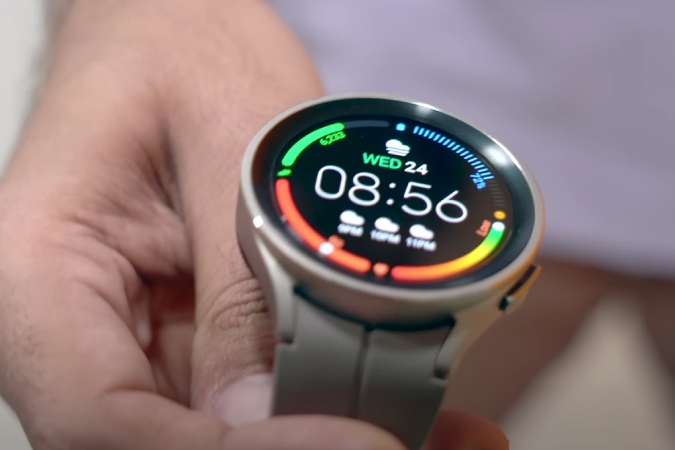
You can also identify the watch directly from its screen. This method helps if your phone is lost, disconnected, or no longer supports the Galaxy Wearable app.
On most newer Galaxy Watch models:
- Open the Settings app on the watch.
- Scroll down and tap About watch.
- Review the model name and model number.
- Tap Software information if you need the One UI Watch or Wear OS version.
Some older Samsung watches use a slightly different path. Try Settings, About device, or About watch. The exact wording can vary by model and software update.
The model name may not appear in large text on every watch. If you only see a code, write it down and compare it with Samsung’s official product information. The code is often more useful than the watch’s appearance.

Check the model number on the back of the watch
If the watch turns on but the menus are hard to use, inspect the rear case. Samsung often prints small details around the health sensors or charging area.
Look for:
• A model code beginning with “SM-R”
• The watch size, such as 40mm, 44mm, or 45mm
• Regulatory marks
• Serial information
The model code is the most important detail. For example, different Galaxy Watch generations may use codes such as SM-R800, SM-R830, SM-R840, SM-R850, SM-R860, SM-R870, SM-R890, SM-R900, SM-R920, SM-L300, or SM-L705. A single letter or number can separate one generation from another, so copy the full code carefully.
Do not rely only on the words printed on the back. Some watches show “Galaxy Watch” without clearly stating whether they are a Classic, Active, Pro, FE, or Ultra model.
Identify which Galaxy Watch you have by its model code
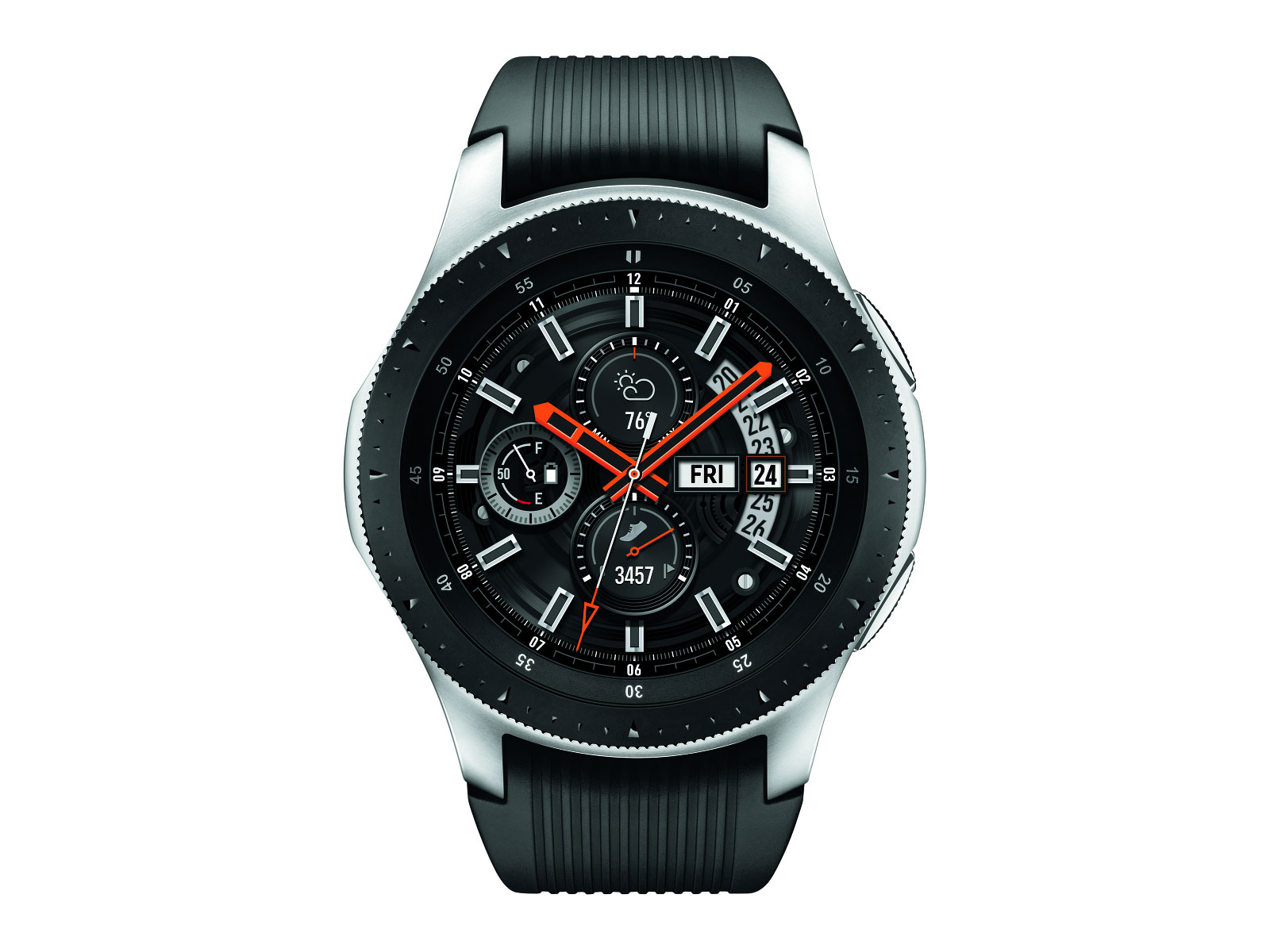
A model code can reveal the watch family more accurately than its shape or color. Use the list below as a practical guide.
| Model family | Common model codes | Main clues |
|---|---|---|
| Galaxy Watch | SM-R800, SM-R805, SM-R810, SM-R815 | First-generation design, rotating physical bezel on some versions |
| Galaxy Watch Active | SM-R500 | Slim body, no physical rotating bezel |
| Galaxy Watch Active2 | SM-R820, SM-R825, SM-R830, SM-R835 | Touch bezel, sporty design |
| Galaxy Watch3 | SM-R840, SM-R845, SM-R850, SM-R855 | Physical rotating bezel, classic watch design |
| Galaxy Watch4 | SM-R860, SM-R865, SM-R870, SM-R875 | Wear OS return, digital or classic versions |
| Galaxy Watch4 Classic | SM-R880, SM-R885, SM-R890, SM-R895 | Physical rotating bezel |
| Galaxy Watch5 | SM-R900, SM-R905, SM-R910, SM-R915 | Flat design, improved sapphire crystal |
| Galaxy Watch5 Pro | SM-R920, SM-R925 | Larger body, titanium case, outdoor focus |
| Galaxy Watch6 | SM-R930, SM-R935, SM-R940, SM-R945 | Slimmer bezels, standard and Classic sizes |
| Galaxy Watch6 Classic | SM-R950, SM-R955, SM-R960, SM-R965 | Physical rotating bezel |
| Galaxy Watch FE | SM-R861 | Entry-level model based on the Watch4 platform |
| Galaxy Watch7 | SM-L300, SM-L305, SM-L310, SM-L315 | Newer health sensors and updated processor |
| Galaxy Watch Ultra | SM-L705 | Large rugged case, cushion-style design, orange action button |
| Galaxy Watch8 series | Check the About watch menu | Model codes depend on size and connection type |
This table is a starting point, not a substitute for the About watch menu. Samsung may use different codes for Bluetooth, Wi-Fi, LTE, and regional versions. The code can also change by case size.
Tell the difference between similar Galaxy Watch models
Several Galaxy Watch models look nearly identical. Small details can help narrow down which Galaxy Watch you have.
Galaxy Watch4 versus Galaxy Watch5
The Galaxy Watch4 and Watch5 both use Wear OS and have a similar round design. The Watch5 usually has a flatter rear sensor area and improved sapphire crystal protection.
The model number remains the best way to separate them. Watch4 models commonly begin with SM-R86, SM-R87, or SM-R88, while Watch5 models commonly begin with SM-R90 or SM-R92.
Galaxy Watch5 versus Galaxy Watch6
The Galaxy Watch6 has thinner bezels and a larger-looking display in a similar case size. The Watch6 Classic also brought back the physical rotating bezel.
The Watch5 Pro is easier to recognize because it has a large 45mm titanium body and a raised bezel. It is designed more for outdoor use than the standard Watch5.
Galaxy Watch6 versus Galaxy Watch7
The Galaxy Watch7 has a newer processor, updated health features, and a different model code family. Its case still looks familiar, so visual inspection alone can be misleading.
If your model code begins with SM-L3, you likely have a Galaxy Watch7. Confirm this in the Galaxy Wearable app before buying bands or accessories.
Galaxy Watch Classic versus standard Galaxy Watch
A physical rotating bezel is the easiest clue. Galaxy Watch Classic models have a ring that turns around the screen. Standard models usually have a smooth digital bezel that responds to touch.
The rotating bezel can identify the family, but it cannot tell you the exact generation. A Galaxy Watch3 Classic, Watch4 Classic, and Watch6 Classic all use a similar control style.
Galaxy Watch FE versus Galaxy Watch4
The Galaxy Watch FE shares much of its design with the Galaxy Watch4. It may include special branding or a different band package, but those details are not always visible on a used watch.
Check the model code. The Galaxy Watch FE commonly uses SM-R861, while Galaxy Watch4 models use different SM-R86, SM-R87, or SM-R88 codes.
Use the Samsung account and Bluetooth settings
Your Samsung account can help if the watch was registered during setup. Open the Samsung Members app, Samsung account device list, or Galaxy Wearable app and review your connected products.
You can also check your phone’s Bluetooth menu:
- Open Settings on your phone.
- Tap Connections.
- Tap Bluetooth.
- Select the connected Galaxy Watch.
- Review its device details.
Bluetooth may show only “Galaxy Watch” instead of the exact model. This method is useful as a clue, but it is not always enough to determine which Galaxy Watch you have.
If the watch was purchased used, the previous owner’s account may still be connected. Resetting the watch removes personal data, but it does not make the Bluetooth name a reliable model identifier.
Check the box, receipt, or purchase history
The original box often lists the exact model, case size, color, and connection type. Look for a label on the bottom or side of the package.
Other useful records include:
• Your email order confirmation
• A carrier account for LTE models
• A retailer purchase history
• A Samsung account order history
• A warranty registration page
• The receipt from a local store
This method is especially helpful when the watch has a damaged screen or will not turn on. However, confirm that the box belongs to the watch. Used devices are sometimes sold with the wrong packaging.

Know the difference between Bluetooth, LTE, and Wi-Fi models
Finding which Galaxy Watch you have may also involve identifying its connection type. Samsung sells many models in Bluetooth and LTE versions.
A Bluetooth or Wi-Fi watch needs your phone for calls, messages, and some online features when you are away from a wireless network. An LTE watch can connect to a supported cellular plan without carrying your phone.
Look for these clues:
• An LTE watch may have an antenna line around the case.
• The Galaxy Wearable app may show Mobile plans.
• Settings may include Mobile networks.
• The model code can differ from the Bluetooth version.
• A carrier may list the watch under connected devices.
LTE does not always mean the watch has an active plan. A watch can support cellular service but remain inactive. Check the About watch screen and model code before contacting your carrier.
Why identifying your Galaxy Watch matters
Knowing which Galaxy Watch you have is more than a curiosity. It can help you make safer and smarter choices.
Buy the correct band
Galaxy Watch bands depend on case size and lug width. Many newer models use standard 20mm bands, but the watch size still affects how the band looks and fits.
A 40mm and 44mm watch may use the same band width, yet the band length and visual balance can differ. Check both the model family and case size before ordering.
Install the right charger
Galaxy Watch chargers are not always interchangeable in the same way. Some older and newer models may charge at different speeds or require different alignment.
Use a charger made for your model or a Samsung-approved compatible accessory. Avoid cheap chargers with poor heat control, especially if the watch becomes hot while charging.
Check software support
Samsung provides software updates based on model, age, region, and hardware. A Galaxy Watch4 may not receive the same features as a Galaxy Watch7, even if both use Wear OS.
Knowing the exact model helps you check update eligibility and understand why one watch has a feature that another does not.
Choose compatible health features
Health tools can vary by model and region. Features such as sleep tracking, body composition, skin temperature readings, ECG, and blood pressure support may require certain hardware, software, or regional approval.
Never assume that a health feature works just because it appears in an advertisement for another Galaxy Watch. Confirm support in the Samsung Health Monitor app and your location.
Common mistakes when identifying a Galaxy Watch
People often guess the model from the color, band, or screen size. These clues can help, but they are not proof.
Avoid these common mistakes:
• Confusing the case size with the model generation
• Assuming every watch with a rotating bezel is a Watch6 Classic
• Reading only the “Galaxy Watch” label on the back
• Using the Bluetooth name as the final answer
• Buying a band before checking the lug size
• Treating a refurbished watch box as reliable proof
• Confusing the software version with the hardware model
The most reliable approach is to compare two details: the model name shown in About watch and the full SM-R or SM-L model code. When both match, you can be confident about which Galaxy Watch you have.
A practical example of identifying a Galaxy Watch
Suppose the About watch menu shows SM-R890. The watch also has a physical rotating bezel and a 46mm-style case.
The SM-R890 code points to the Galaxy Watch4 Classic family. The rotating bezel supports that result, but the code provides the stronger evidence.
Now imagine another watch shows SM-R960. It may also have a physical rotating bezel, but that code points to the Galaxy Watch6 Classic family. This example shows why appearance alone can lead to the wrong answer.
When I help people solve this kind of device question, I recommend taking a photo of the model code. Small printed letters can be difficult to read, and one wrong digit can send you to the wrong accessory page.
What to do if your Galaxy Watch will not turn on
A dead watch limits the information you can see on the display, but you still have several options.
- Inspect the back of the watch with a phone flashlight.
- Check the original box or receipt.
- Review your Samsung account devices.
- Look at your phone’s old Bluetooth connections.
- Search your email for the original order.
- Contact Samsung support with the serial number.
Try charging the watch for at least 30 minutes with a compatible charger. If it remains completely unresponsive, do not open the case yourself. A damaged battery can be unsafe, and opening the watch may affect water resistance.
Frequently asked questions about which Galaxy Watch do I have
How can I tell which Samsung Galaxy Watch I have?
Open the Galaxy Wearable app, tap Watch settings, and choose About watch. The model name and model number shown there provide the most reliable answer.
Where is the model number on a Galaxy Watch?
The model number is usually printed on the back of the watch near the health sensors. It often begins with SM-R or SM-L and may be very small.
Can I identify my Galaxy Watch by its appearance?
You can make an educated guess from features such as a rotating bezel, case shape, and button layout. However, similar designs across generations mean you should confirm the result with the model code.
How do I know if my Galaxy Watch is LTE?
Open the Galaxy Wearable app and look for Mobile plans or Mobile networks. An LTE model may also have an antenna line around the case, but the settings menu and model code offer better confirmation.
How do I find the size of my Galaxy Watch?
Check About watch, the rear case, the original box, or the purchase record. The size is often listed as 40mm, 41mm, 42mm, 43mm, 44mm, 45mm, 46mm, or 47mm, depending on the model.
Is Galaxy Watch FE the same as Galaxy Watch4?
The Galaxy Watch FE uses a design and hardware platform related to the Galaxy Watch4, but it is a separate product. Its model code and software support can differ, so do not treat the two watches as identical.
Can I use any Galaxy Watch band on my watch?
No. Band width, lug design, and case size matter. Check your exact model and band size before buying, even when two watches look similar.
Conclusion
Finding which Galaxy Watch you have is usually quick. Start with the Galaxy Wearable app, open About watch, and record the model name and full model code. If the watch is unavailable, check the back case, box, receipt, Samsung account, or Bluetooth history.
Use the model code as your final check before buying bands, chargers, screen protectors, or health accessories. Once you identify the watch, you can check its software support and get the most from its features. Share your model code in the comments if you want help confirming the exact Galaxy Watch version.

Rubel Miah is the Senior Editor at MyStyleGrid.com, where he brings a sharp editorial eye and an unshakable love for fashion to everything he does. A true style addict, Rubel lives and breathes trends, from streetwear to high fashion, and has a knack for turning inspiration into impactful stories. With years of experience in fashion journalism and digital media, he curates content that empowers readers to express themselves through style. When he’s not editing features or forecasting the next big thing, you’ll find him hunting down vintage pieces or capturing street style moments around the city.