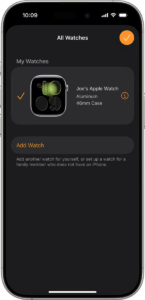
Every day, many people rely on their smartwatches to stay connected. A gentle buzz on your wrist tells you that a friend messaged you or a meeting is about to start. But what if your smartwatch is slow? You look at your phone and see a message, but your watch is silent. This delay can be annoying, and sometimes you may even miss something important. If you want to fix smartwatch notifications delayed from phone apps, you are not alone. I have been through this myself, and I know how it feels when your smartwatch does not deliver notifications on time.
In this guide, I will help you solve this problem step by step. I will explain why it happens, what you can do, and share some tips that most people miss. You do not need to be a tech expert.
I will use simple words and show you the best ways to get your notifications back on track.
Why Do Smartwatch Notifications Get Delayed?
Understanding the cause is the first step. There are several reasons why your smartwatch notifications arrive late.
1. Bluetooth Issues
Smartwatches use Bluetooth to talk to your phone. If the connection is weak, notifications can lag.
2. Battery Saving Features
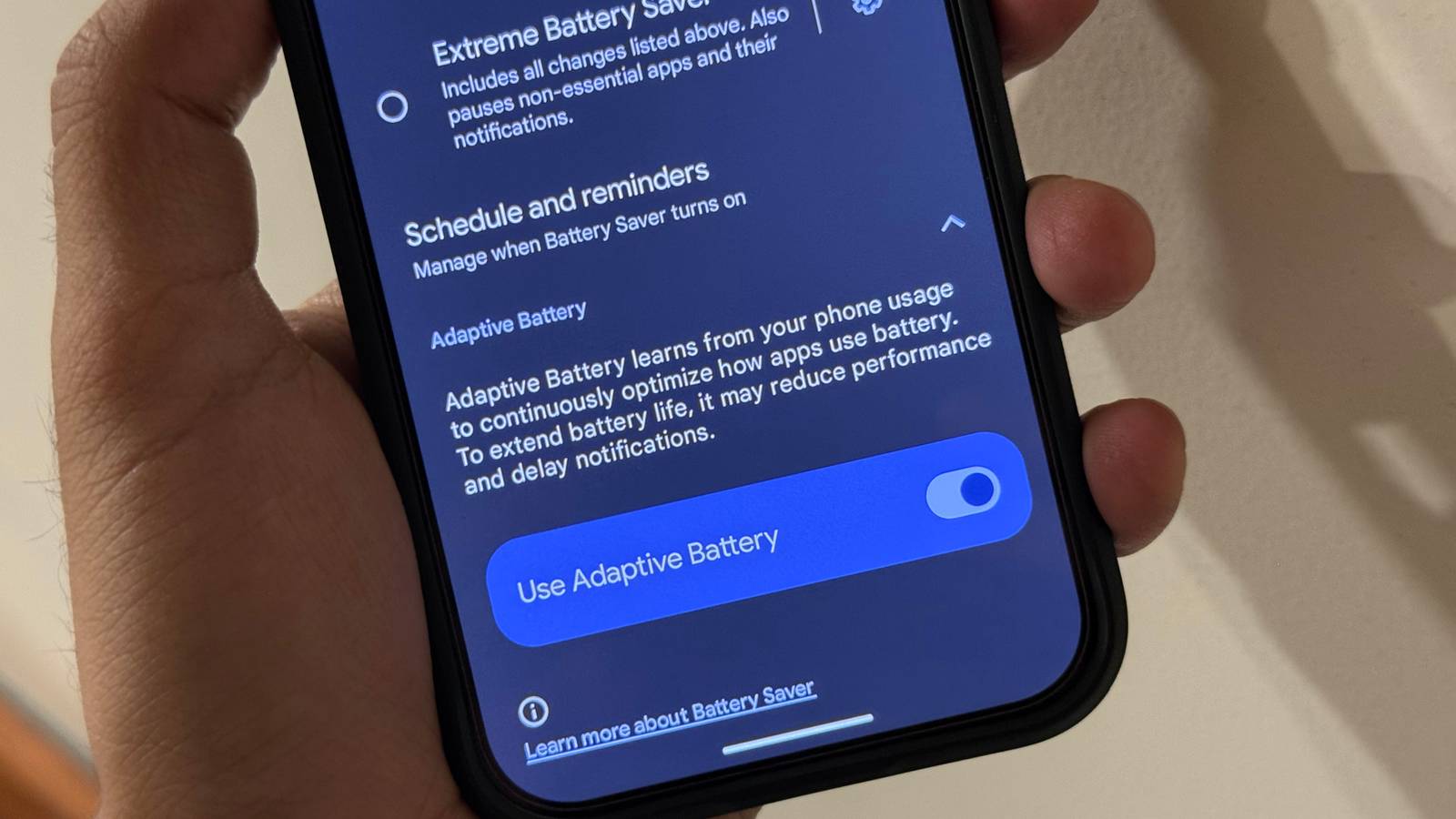
Phones and smartwatches both have power-saving modes. These can delay or block notifications to save battery.
3. App Settings
Sometimes, apps on your phone are not allowed to send notifications to your watch.
4. Software Bugs
Old or buggy software can slow things down.
5. Network Problems
If your phone has a poor internet connection, messages may arrive late.
6. Overloaded Devices
Too many apps or not enough memory can slow your phone and watch.
Let’s look at each one and see what you can do.
Check Your Bluetooth Connection
Bluetooth is the main link between your phone and smartwatch. If it is not strong, notifications may come late or not at all.
How To Test Your Bluetooth
- Move your phone and watch close together.
- Check for any walls or objects between them.
- Turn Bluetooth off and on again on both devices.
If your watch quickly reconnects, Bluetooth is working. If not, there may be interference.
Tips To Improve Bluetooth
1. Keep Devices Close
Stay within 10 meters (about 33 feet). Walls and metal can block the signal.
2. Avoid Wi-fi Interference
Wi-Fi and Bluetooth use similar frequencies. Try turning off Wi-Fi for a moment to see if Bluetooth works better.
3. Restart Devices
A simple restart can clear small issues.
I once had a delay problem because I left my phone in the kitchen and walked to the living room. Moving back closer fixed the delay.
Turn Off Power Saving Modes
Phones and watches have battery-saving features. These features sometimes pause notifications to save power.
On Your Phone
- Open the Settings app.
- Find Battery or Power Saving Mode.
- Turn off any power-saving settings.
- Some phones have App Power Management. Make sure your messaging or email apps are not restricted.
On Your Smartwatch
- Open your watch’s settings.
- Look for Battery or Power Mode.
- Set it to normal, not power saving.
Why This Matters
Power-saving features stop apps from running in the background. If your phone or watch limits background activity, notifications will be late.
Review App Notification Settings
Many times, apps are not allowed to send notifications to your watch.
On Android Phones
- Open Settings.
- Tap Apps & Notifications.
- Select the app (for example, WhatsApp).
- Tap Notifications.
- Make sure all options are on.
On Iphones
- Open Settings.
- Tap Notifications.
- Select the app.
- Turn on Allow Notifications.
On Your Smartwatch
- Open the watch’s companion app on your phone (like Wear OS or Galaxy Wearable).
- Go to Notifications.
- Turn on the apps you want notifications from.
One Hidden Trick
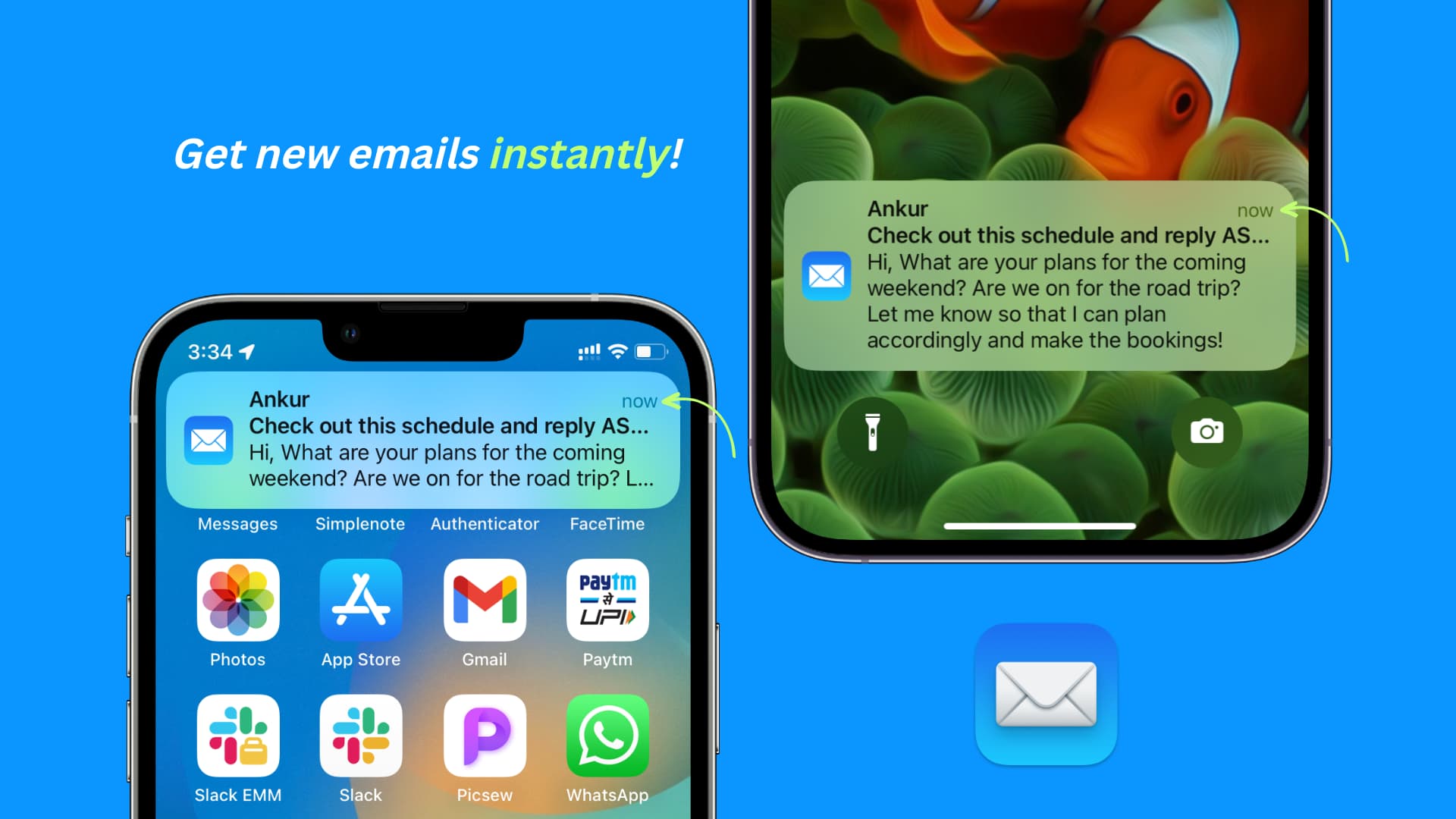
Some smartwatches let you choose which apps can send notifications. Make sure the right apps are selected. I once missed important messages because I forgot to enable notification access for my email app.
Credit: www.idownloadblog.com
Update Your Software
Old software can cause many problems. Updates often fix bugs that slow down notifications.
Update Your Phone
- Open Settings.
- Tap Software Update.
- Download and install updates if available.
Update Your Smartwatch
- Open the companion app on your phone.
- Look for Watch Software Update.
- Follow the steps to update.
Why Updates Help
Manufacturers fix bugs all the time. If you delay updates, your device may not work well with new apps.
Check Internet Connection
A poor internet connection can delay notifications, especially for messaging or email apps.
How To Test
- Try browsing a website on your phone.
- If it loads slowly, your connection is weak.
Solutions
- Use Wi-Fi instead of mobile data, if possible.
- Move closer to your Wi-Fi router.
- Restart your router.
If your phone cannot get notifications fast, your watch cannot either.
Credit: www.androidpolice.com
Free Up Device Resources
If your phone or watch is overloaded, both will slow down.
Signs Your Device Is Overloaded
- Apps take a long time to open.
- The battery drains fast.
- Your phone or watch feels hot.
What You Can Do
1. Close Unused Apps
Swipe away apps you do not need.
2. Delete Unneeded Apps
Free up space by removing unused apps.
3. Restart Both Devices
Restarting clears memory and speeds up notifications.
4. Clear Cache (android Only)
Go to Settings > Storage > Cached data and clear it.
Compare Notification Speeds By Brand
To see if your watch is slow or normal, here is a simple comparison of notification speeds for popular smartwatch brands.
| Brand | Average Notification Delay | Notes |
|---|---|---|
| Apple Watch | 1-2 seconds | Very fast, if paired with iPhone |
| Samsung Galaxy Watch | 2-3 seconds | Fast, best with Samsung phones |
| Wear OS Watches | 3-5 seconds | Varies with phone brand |
| Xiaomi/Amazfit | 4-6 seconds | Some delays, check app settings |
| Garmin | 2-4 seconds | Reliable for fitness apps |
If your watch is much slower than these numbers, something is wrong.
Manage Battery Optimization On Android
Android phones have a setting called Battery Optimization. It stops apps from running in the background, which can delay notifications.
How To Change Battery Optimization
- Go to Settings > Apps.
- Tap the three dots (top right) and choose Special Access.
- Tap Battery Optimization.
- Find the app (like WhatsApp).
- Choose Don’t optimize.
This setting keeps the app running and sending notifications.
Important Note
Only turn off optimization for apps you trust. Otherwise, your battery may drain faster.
Allow Background Data And Activity
Apps need permission to run and use data in the background. If blocked, they cannot send notifications quickly.
How To Check
Android
- Open Settings > Apps.
- Select the app.
- Tap Data Usage.
- Turn on Background Data.
Iphone
- Open Settings > General > Background App Refresh.
- Make sure it is on for important apps.
Some users miss this step, but it is very important for real-time notifications.
Re-pair Your Devices
If nothing works, try disconnecting and reconnecting your smartwatch and phone.
Steps To Re-pair
- Unpair the watch from your phone’s Bluetooth menu.
- Restart both devices.
- Pair them again using the companion app.
This can fix hidden connection problems.
Reset Network Settings
Sometimes, your phone’s network settings get mixed up. This can block notifications.
How To Reset
Android
- Go to Settings > System > Reset options.
- Tap Reset Wi-Fi, mobile & Bluetooth.
Iphone
- Go to Settings > General > Reset.
- Tap Reset Network Settings.
Warning: You will need to re-enter Wi-Fi passwords.
Factory Reset As Last Resort
If you have tried everything and nothing works, a factory reset can help. This wipes the device and starts fresh.
On Your Smartwatch
- Open settings.
- Find System or Reset.
- Tap Factory Reset.
On Your Phone
- Backup your data first.
- Go to Settings > System > Reset > Erase all data.
Only do this if nothing else works. I had to do this once with an old smartwatch, and it fixed a stubborn delay issue.
Compare Notification Troubleshooting Steps
Here’s a table to show which fixes are quick and which need more effort.
| Fix | Time Needed | Difficulty |
|---|---|---|
| Restart devices | 2 minutes | Easy |
| Check app settings | 5 minutes | Easy |
| Update software | 10-30 minutes | Medium |
| Re-pair devices | 10 minutes | Medium |
| Factory reset | 20-60 minutes | Hard |
Start with the easiest steps and move to harder ones only if you need to.
Don’t Overlook Do Not Disturb And Focus Modes
Many people forget about Do Not Disturb (DND) or Focus Modes. If these are on, notifications may be blocked.
How To Check
- On your phone, swipe down for the quick menu. Make sure DND is off.
- On your watch, check for a crescent moon or similar icon.
- Check if Focus modes are active (especially on iPhones).
These modes are helpful when you need silence but can block alerts when left on by mistake.
Check App Sync Settings
Some apps have their own sync settings. For example, Gmail lets you choose how often it checks for new mail.
- Open the app.
- Go to settings.
- Look for Sync or Fetch options.
- Set to Push or Automatic.
If set to manual or a long interval, notifications will always be late.
Update Or Reinstall Companion Apps
If you use a companion app (like Galaxy Wearable, Wear OS, or Amazfit), make sure it is updated.
- Go to the Play Store or App Store.
- Search for your watch’s app.
- Tap Update if available.
- If nothing works, uninstall and reinstall the app.
Sometimes, the app itself is the problem.
Check If Notifications Are Muted
Some smartwatches let you mute notifications for certain apps.
- On your watch, go to the notifications menu.
- Check if the app is muted or blocked.
- Unmute if needed.
This is a small setting, but it can cause big problems if missed.
Test With Simple Apps First
To see if the delay is with all apps or just some, test with a basic app like SMS or Calendar.
- Send a test message.
- Set a calendar event to ring in one minute.
If these work fine, the problem is with a specific app, not your devices.
Ask For Support
If you still have problems, contact support for your watch or phone. Sometimes, there are unique bugs with certain models or updates.
You can also check forums or official Wear OS support for help.
Two Insights Most People Miss
1. Background Restrictions Are Not Always Clear:
Some Android phones have hidden settings that restrict background activity. You may need to dig deeper in your phone’s Developer Options or use the manufacturer’s support app to find all restrictions.
2. Some Battery Optimizers Are Third-party Apps:
If you installed a battery saver or cleaner app, it might block notifications even if phone settings look fine. Always check for these apps and turn off their notification controls.
Frequently Asked Questions

Credit: www.youtube.com
What Causes Smartwatch Notifications To Be Delayed?
Many things can cause delays. The most common are weak Bluetooth, battery optimization, network problems, or blocked app permissions. Sometimes, it is a mix of small issues.
How Can I Fix Delayed Notifications On My Smartwatch?
Start with simple steps: restart your phone and watch, check Bluetooth and notification settings, and turn off power-saving modes. Update all software. If these do not work, try more advanced steps like re-pairing or resetting devices.
Will Resetting My Smartwatch Delete My Data?
Yes, a factory reset will erase all data on your watch. Always back up anything important before doing this.
Why Do Notifications Work With Some Apps But Not Others?
This is often because of app-specific settings or permissions. Make sure all apps have notification access on both the phone and the watch. Some apps also need background data turned on.
Can Third-party Battery Saver Apps Cause Notification Delays?
Yes, they can. Many third-party battery saver or cleaner apps block background activity. If you use these, try disabling them or uninstalling to see if notifications improve.
—
Staying connected is important. When your smartwatch notifications are delayed, it can be frustrating and confusing. By following these steps, you can solve most notification issues on your own. Remember, start with the easiest fixes and only move to advanced steps if you need to.
I know firsthand how annoying it is to miss a message, but with patience and the right steps, you can get your smartwatch working smoothly again.

Rubel Miah is the Senior Editor at MyStyleGrid.com, where he brings a sharp editorial eye and an unshakable love for fashion to everything he does. A true style addict, Rubel lives and breathes trends, from streetwear to high fashion, and has a knack for turning inspiration into impactful stories. With years of experience in fashion journalism and digital media, he curates content that empowers readers to express themselves through style. When he’s not editing features or forecasting the next big thing, you’ll find him hunting down vintage pieces or capturing street style moments around the city.