Connecting a smartwatch to a WiFi network by yourself can seem a bit scary at first. But once you know the steps, it becomes simple and even enjoyable. I remember the first time I tried to connect my own smartwatch to WiFi—I was worried I would mess up the settings or lose my data.
But with some patience and careful attention, I got it done. Now, I want to guide you through the process, step by step, so you can do it too. Whether you have an Apple Watch, Samsung Galaxy Watch, or another brand, you will find that the basics are quite similar.
Let’s make sure your smartwatch is always online, even when your phone is not nearby.
Why Connect Your Smartwatch To Wifi?
You might wonder, why is it important for your smartwatch to connect to WiFi? The answer is simple: a WiFi connection helps your watch do more. It allows you to:
- Receive notifications without your phone nearby
- Download apps and updates directly to your watch
- Sync data such as fitness tracking and calendar events
- Stream music or use voice assistants
Imagine you leave your phone in another room or forget it at home. With WiFi, your smartwatch can still get messages, emails, and calls. This is a big advantage, especially if you use your watch for work, health, or travel.
Some smartwatches also need WiFi for backup, security, and finding lost devices.
Things To Check Before You Start
Before you try to connect your smartwatch to WiFi, there are a few things you should check. These steps help you avoid common problems:
- Check your smartwatch model: Some older smartwatches do not support WiFi. Make sure your device has this feature.
- Update your software: Go to your watch’s settings and look for updates. Updated software often fixes bugs and improves WiFi support.
- Know your WiFi network name and password: Write them down or have them ready.
- Keep your phone nearby: Many watches need the phone for setup, even if you want the watch to connect to WiFi alone later.
If you skip these steps, you might spend a long time trying to fix issues. I learned this the hard way when my watch failed to connect because the WiFi password had changed.

Credit: specialthailande.com
How To Connect A Smartwatch To Wifi Manually
Now, let’s get into the main part: connecting your smartwatch to a WiFi network by hand. I will show you the steps for the most popular types of smartwatches. While the details can change with each model, the main idea stays the same.
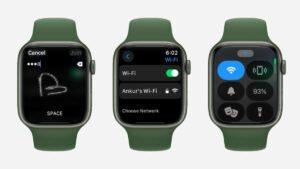
For Apple Watch
- Wake your Apple Watch and press the Digital Crown to open the app menu.
- Tap on the Settings app (it looks like a gear).
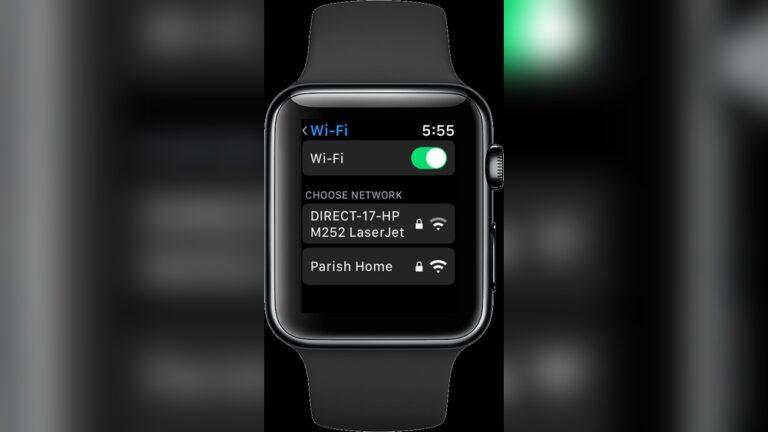
- Scroll down and tap Wi-Fi.
- Your watch will scan for networks. Tap the network you want to join.
- Enter the password using the on-screen keyboard or your phone if asked.
- Tap Join. Wait a few seconds for the watch to connect.
If you see a checkmark next to the network, you’re connected. If you see an exclamation mark, try the password again.
For Samsung Galaxy Watch
- Press the Home button to wake the watch.
- Swipe up or press the Apps button.
- Open Settings.
- Scroll and tap Connections.
- Tap Wi-Fi.
- Make sure WiFi is turned on.
- Tap Wi-Fi Networks to see a list.
- Select your network, enter the password, and tap Connect.
Galaxy Watches with Tizen OS and Wear OS have similar menus, but the look can change.
For Fitbit Smartwatches
- Open the Settings app on your watch.
- Tap Wi-Fi Settings.
- Tap Add Network.
- Choose your WiFi network from the list.
- Enter the password using the Fitbit app on your phone if prompted.
- Tap Connect.
Note: Fitbit often asks you to use the phone app for WiFi setup, but you can still add networks this way.
For Garmin Smartwatches
- Press and hold the Menu button.
- Scroll and select Settings.
- Go to Wi-Fi.
- Select Add Network.
- Choose your network and enter the password.
- Confirm and wait for connection.
Garmin watches sometimes need you to use the Garmin Connect app for WiFi setup. If you see a message on your watch, follow the app’s instructions.
For Other Brands
Most other smartwatches, like Fossil, Amazfit, or TicWatch, use a similar system:
- Open Settings from the main menu.
- Tap Network or Wi-Fi.
- Turn on WiFi.
- Select your network.
- Type in the password.
- Confirm and wait for connection.
If you do not see your network, make sure your watch is close to the router and your network is not hidden.
What To Do If Your Watch Will Not Connect
Sometimes, your smartwatch will not connect to the WiFi network right away. Here are some steps to fix common problems:
- Check the password: Even one wrong letter or number means it will fail.
- Restart your watch: Turn it off and on again. This clears small bugs.
- Restart your router: Sometimes, the problem is with the WiFi, not the watch.
- Move closer to the router: Walls or distance can block the signal.
- Update your watch software: Old software can have bugs.
- Forget and re-add the network: Go to WiFi settings, tap your network, and choose “Forget”. Then add it again.
If it still does not work, try connecting your phone or another device to the same WiFi. If they also fail, the problem is with the network.
Wifi Bands And Compatibility
Smartwatches can connect to different WiFi bands, but not all watches support every type. Here is a simple comparison:
| WiFi Band | Speed | Range | Watch Support |
|---|---|---|---|
| 2.4 GHz | Slower | Longer | Almost all watches |
| 5 GHz | Faster | Shorter | Only newer models |
If your WiFi router uses only 5 GHz and your watch supports only 2. 4 GHz, you will not be able to connect. In my own house, I had to set up a “guest” network on 2. 4 GHz for my older Fitbit.
Hidden Networks And Advanced Settings
Some people use hidden WiFi networks for extra security. If your network does not show up in the list, you may need to add it manually.
- Go to your watch’s WiFi settings.
- Choose Add Network or Other.
- Enter the exact network name (SSID).
- Enter the password.
- Choose the right security type (like WPA2).
Be sure to type the network name exactly. One small mistake and the watch will not connect.
Advanced users can set static IP addresses or custom DNS, but most people do not need to change these. If your IT department gives you special settings, enter them in the “Advanced” menu.
Using Your Phone App For Wifi Setup
Many smartwatches let you use your phone’s companion app to add WiFi networks. This can be much faster, especially if your watch does not have a keyboard.
Here’s how it works for most brands:
- Open the companion app on your phone (like Apple Watch app, Galaxy Wearable, or Fitbit app).
- Go to Settings > WiFi.
- Select your watch.
- Choose Add Network.
- Enter the WiFi name and password.
- The app will send the info to your watch.
This is helpful if you have a long password or if the on-watch keyboard is small.
Common Problems And How To Fix Them
Let’s look at a few issues I’ve seen, both for myself and when helping friends:
“can’t Connect” Error
- Double-check the password.
- Try turning WiFi off and on again.
- Forget the network and re-add it.
Network Not Showing Up
- Move closer to the router.
- Make sure your network is not hidden.
- Restart both your watch and router.
Watch Keeps Disconnecting
- Check for software updates.
- Make sure the router is not too far away.
- Remove other wireless devices that may cause interference.
“authentication Failed” Message
- Password might have special characters your watch can’t handle.
- Try changing the WiFi password to something simple and try again.
Watch Connects To Wifi, But No Internet
- Try connecting another device to the same network.
- Restart your router.
- Check if your network requires extra login (like in hotels or schools).
Security Tips When Connecting To Wifi
Connecting your smartwatch to WiFi is safe if you follow some simple rules. Smartwatches do not have the same security as phones or computers, so you need to be a bit careful.
- Use strong passwords for your home WiFi.
- Avoid public WiFi networks unless you trust them.
- Turn off WiFi when you do not need it.
- Update your watch software regularly.
- Forget networks you do not use.
If you travel a lot, it’s best to use your phone’s hotspot instead of public WiFi. I once connected my watch in a coffee shop and later found strange notifications—public WiFi is not always safe.
What To Do After Connecting
Once your smartwatch is connected, you might want to:
- Check notifications: Make sure you get messages and calls.
- Try downloading an app: This tests the connection.
- Sync your fitness data: Open the health app and see if it updates.
- Try voice commands: Say “Hey Siri” or “OK Google” to see if it works.
If everything is working, you’re all set. If not, try the troubleshooting steps above.
Comparing Manual And Automatic Wifi Setup
You might wonder if you should use manual or automatic WiFi setup. Here’s a side-by-side look:
| Manual Setup | Automatic Setup |
|---|---|
| You choose the network and enter the password yourself | Your watch uses your phone’s WiFi settings |
| Works even if your phone is off | Needs your phone to send info |
| Good for special networks (work, guest) | Faster for home networks |
| Can be tricky with long passwords | Easy, but may miss some networks |
Manual setup gives you more control, while automatic setup is easier for beginners. If you have more than one WiFi network, manual is often the best choice.
Saving Battery When Using Wifi
WiFi uses more battery than Bluetooth. Here’s how to keep your watch running longer:
- Turn off WiFi when you do not need it.
- Use Bluetooth for daily syncing.
- Lower screen brightness.
- Update your software to get battery improvements.
I keep WiFi off on my watch except when I need to download something big. This way, my battery lasts all day.
Tips For A Smooth Wifi Connection
Here are a few extra tips I wish someone had told me:
- Write down your password before you start.
- Keep your watch and phone near the router for best signal.
- Restart your watch after adding a new network.
- Use the companion app if the on-screen keyboard is small.
- Forget old networks you do not use.
These small steps can save you a lot of time and trouble.
How To Connect Your Smartwatch To Wifi In Hotels Or Public Places
Connecting your smartwatch to WiFi in hotels, airports, or coffee shops is a bit harder. Many public WiFi networks use a “captive portal. ” This means you have to open a web page and log in before you get full access.
Most smartwatches cannot open these web pages directly. Here’s what you can do:
- Use your phone as a hotspot: This is the easiest way.
- Ask the staff if they support smartwatches.
- Try connecting through the companion app if it supports “sharing” a network.
- Use home or work networks for important tasks.
If you must use public WiFi, avoid sending private messages or logging into important accounts.
Keeping Your Wifi Connection Stable
A stable WiFi connection is important for updates and apps. Here are ways to keep your connection strong:
- Place your router in a central spot.
- Keep your watch close to the router during setup.
- Reduce the number of devices on your network if possible.
- Restart your router once a month.
- Use good-quality routers, not old or damaged ones.
A strong WiFi signal means fewer dropped connections and faster syncing.
Wifi Troubleshooting: Real-life Example
A friend of mine tried to connect his TicWatch to WiFi at his gym. He entered the password many times, but it always failed. We checked and found the gym’s network was 5 GHz, but his watch only worked with 2.
4 GHz. Once he connected to the right network, it worked perfectly.
This shows how important it is to know your watch’s WiFi bands and your network’s settings. You can check your router’s settings or ask your network admin for help.

Credit: wccftech.com
Should You Use Wifi Or Bluetooth?
Both WiFi and Bluetooth are helpful for smartwatches. Here’s when to use each:
- Bluetooth: Good for daily syncing, short range, uses less battery.
- WiFi: Good for updates, notifications far from phone, needs more power.
If you use your watch mostly at home or work, WiFi is very useful. If you are outside, Bluetooth is enough for basic syncing.
Updating Your Watch Over Wifi
Many smartwatches let you update the software directly over WiFi. This is faster and easier than using Bluetooth.
- Make sure your watch is fully charged.
- Connect to a stable WiFi network.
- Go to Settings > System > Software Update.
- Download and install the update.
Do not turn off your watch during the update. Software updates often bring new features and better security.

Credit: www.isuzucorluservis.com
Using Wifi For Apps And Streaming
Some smartwatches let you download music, podcasts, and apps over WiFi. Here’s how:
- Open the app store on your watch.
- Browse or search for the app you want.
- Tap to download.
- Wait for the download to finish.
Streaming music or podcasts also works better over WiFi. Just remember, this uses more battery.
Data Privacy And Your Smartwatch
Your smartwatch collects a lot of data—health, location, messages. When connecting to WiFi, make sure:
- You trust the network.
- You use strong passwords.
- You check privacy settings in your watch and companion app.
Most brands keep your data safe, but it’s smart to be careful. For more on privacy, see this Consumer Reports guide.
Frequently Asked Questions
How Can I Tell If My Smartwatch Is Connected To Wifi?
Look for a WiFi icon or check in the watch’s settings. Most watches show a small WiFi symbol when connected.
Can I Connect My Smartwatch To More Than One Wifi Network?
Yes. Most smartwatches can remember several networks. They will connect to the strongest one that is in range.
What Should I Do If My Smartwatch Does Not Show My Home Wifi?
Try moving closer to the router. Make sure your WiFi network is not hidden and uses 2. 4 GHz if your watch is older.
Is It Safe To Connect My Smartwatch To Public Wifi?
It is better to avoid public WiFi for important tasks. Use your phone’s hotspot or a trusted network for safer browsing.
Why Does My Smartwatch Disconnect From Wifi When My Phone Is Nearby?
Some watches use Bluetooth when your phone is close and switch to WiFi when your phone is far. This saves battery.
Connecting your smartwatch to WiFi by hand may look hard, but with a little patience, you can do it. The steps above work for most brands and models. Take your time, write down your password, and use your phone app if you need help.
Once you are set up, you will enjoy all the benefits of a smart, always-connected watch on your wrist.

Rubel Miah is the Senior Editor at MyStyleGrid.com, where he brings a sharp editorial eye and an unshakable love for fashion to everything he does. A true style addict, Rubel lives and breathes trends, from streetwear to high fashion, and has a knack for turning inspiration into impactful stories. With years of experience in fashion journalism and digital media, he curates content that empowers readers to express themselves through style. When he’s not editing features or forecasting the next big thing, you’ll find him hunting down vintage pieces or capturing street style moments around the city.