Pair your smartwatch with the right phone, charge it, install its app, and follow the on-screen setup steps.
Learning how to set a smartwatch is easier when you follow the correct order. This guide explains pairing, account setup, notifications, health features, privacy controls, and common fixes so your watch works well from day one.

What to Do Before You Set a Smartwatch
Before you set a smartwatch, check that it is compatible with your phone and ready to connect. Most watches work with either Android, iPhone, or both, but some features may depend on the phone brand and operating system.
Start with these simple checks:
• Charge the smartwatch to at least 50 percent.
• Turn on Bluetooth and Wi-Fi or mobile data on your phone.
• Update your phone’s operating system.
• Remove any old smartwatch connection if you are replacing a watch.
• Find the watch’s official companion app.
Common companion apps include Apple Watch, Galaxy Wearable, Wear OS, Fitbit, Garmin Connect, and Amazfit. Download the app from the official Apple App Store or Google Play Store. Avoid unofficial apps, as they may create security and connection problems.
You may also need an account. For example, some watches use an Apple Account, Google Account, Samsung account, or brand-specific account. Use an email address that you can access, because the app may ask you to verify it.
In my experience, many setup problems start before pairing. A watch with low battery or an outdated phone may look faulty when it simply needs a basic update or charge.

How to Set a Smartwatch for the First Time
The exact screens vary by brand, but the main process is almost the same. Follow these steps to set a smartwatch from the beginning.
-
Press and hold the power button until the watch turns on.
-
Choose your language and region.
-
Open the watch’s companion app on your phone.
-
Select “Add device,” “Set up device,” or a similar option.
-
Choose your smartwatch from the list.
-
Confirm that the pairing code on the phone matches the code on the watch.
-
Accept the requested permissions.
-
Sign in to your account or create one.
-
Install available software updates.
-
Choose your main settings, such as the watch face, notifications, and health tracking.
Keep the phone and watch close together during pairing. Bluetooth connections can fail when the devices are in different rooms or separated by walls.
Do not close the companion app while the watch is updating. Updates may take several minutes, and the watch can restart more than once. Interrupting the process may cause setup errors.
If you see a pairing code, compare both screens carefully. This code helps confirm that you are connecting to your own watch rather than another nearby device.
How to Pair a Smartwatch With Android
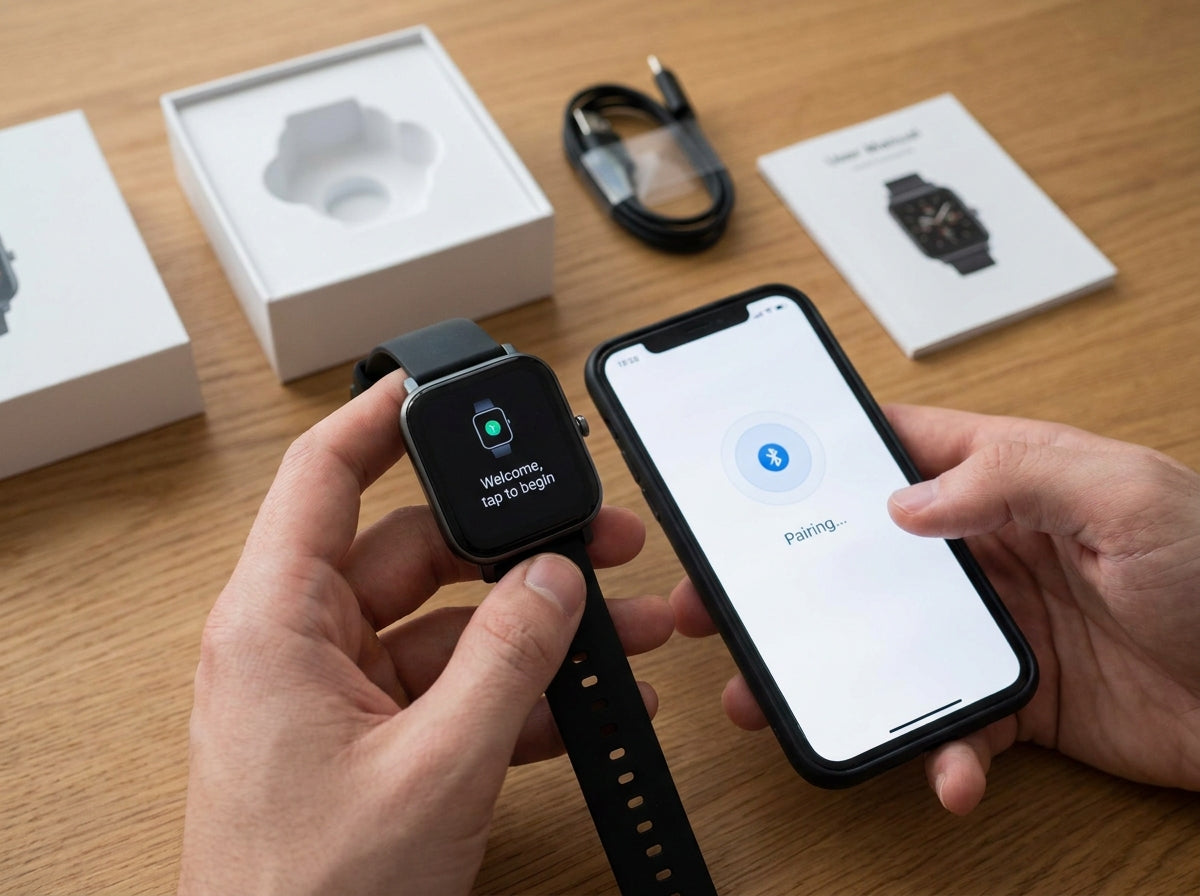
To set a smartwatch with an Android phone, begin by turning on Bluetooth. Then install the official app recommended for your watch.
For a Wear OS watch, use the Wear OS app if the manufacturer directs you to do so. Samsung watches may use Galaxy Wearable. Fitbit, Garmin, and other brands use their own apps.
Follow this process:
• Open the companion app.
• Tap the option to add or connect a new device.
• Select your watch model.
• Accept the Bluetooth pairing request.
• Confirm the code shown on both devices.
• Sign in to your Google or brand account.
• Allow useful permissions, such as notifications and location.
Some Android phones restrict apps that run in the background. If notifications stop later, open your phone’s battery settings and allow the watch app to run in the background.
Android menus differ by manufacturer. A Google Pixel, Samsung Galaxy, and Motorola phone may use different names for the same setting. Look for “Apps,” “Battery,” “Permissions,” and “Notifications” if you need to adjust access.
When you set a smartwatch with Android, also check the phone’s notification access menu. Without this permission, the watch may connect correctly but fail to show calls, texts, or app alerts.
How to Pair a Smartwatch With an iPhone
To set a smartwatch with an iPhone, make sure the watch supports iOS. Apple Watch models require an iPhone, while some watches from Garmin, Fitbit, and other brands work with both iPhone and Android.
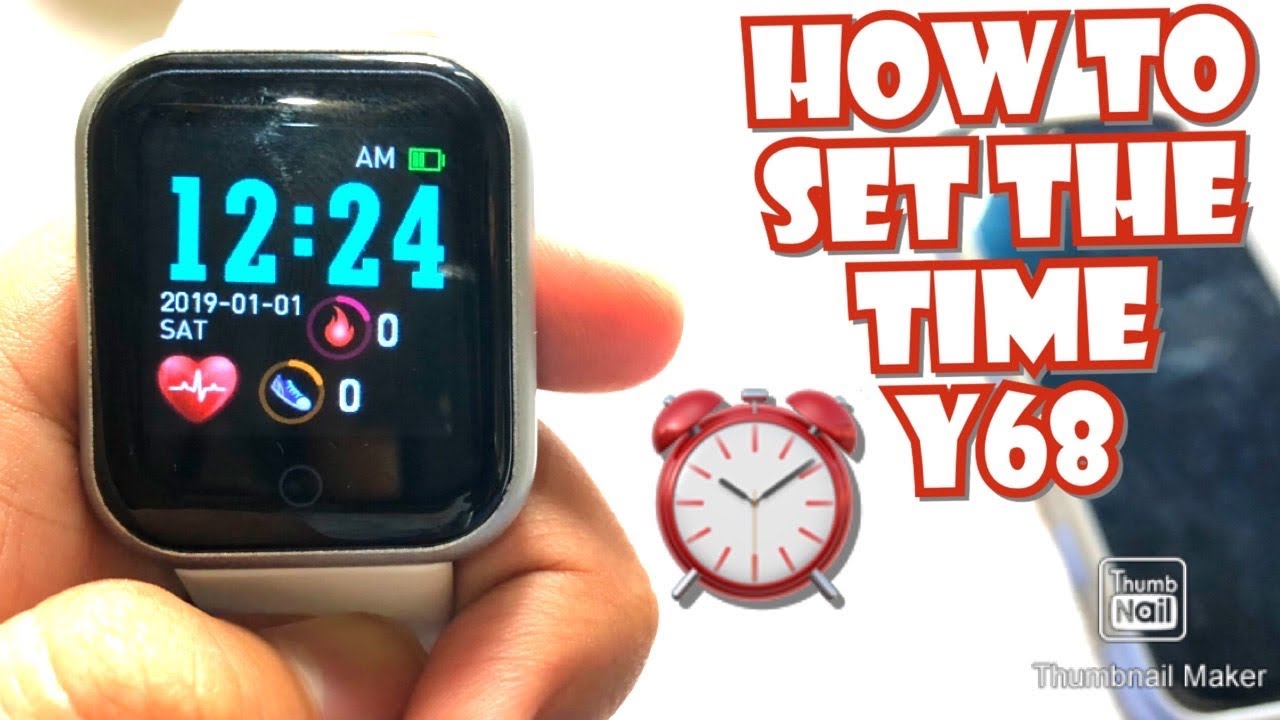
For an Apple Watch, open the Watch app on the iPhone. Tap “Pair New Watch,” then follow the animation and pairing instructions. You can choose to set it up as a new watch or restore it from a backup.
For a non-Apple smartwatch, install the brand’s official iPhone app. Sign in, select the watch, and approve Bluetooth and notification permissions.
Remember these iPhone limits:
• Some third-party watches cannot reply to text messages.
• Some health features may be limited on iOS.
• Background app refresh can affect sync speed.
• Apple Health integration may require extra permission.
• Calls may need separate Bluetooth permissions.
When you set a smartwatch with an iPhone, check notification permissions under Settings. Open the relevant app settings and allow notifications, Bluetooth, background refresh, and any other access needed by the watch.
Set Up Your Smartwatch Account and Personal Details
Your account helps the watch save settings, sync data, and restore information after a reset. Use a strong password and turn on two-factor authentication when available.
The app may ask for details such as:
• Age
• Height
• Weight
• Sex
• Activity level
• Fitness goals
These details help estimate calories, stride length, heart rate zones, and other measurements. Enter them as accurately as possible, but remember that smartwatch readings are estimates. They are useful for trends, not a replacement for medical tests.
Your watch may also ask for permission to use location data. Location access supports GPS routes, weather updates, emergency features, and location-based services. You can often choose between “Always,” “While using,” or limited access.
Review privacy settings before accepting every permission. Health and location data can be sensitive. Only allow access that supports features you plan to use.
A practical lesson is to avoid rushing through account screens. During one common setup pattern, users accept every option and later feel overwhelmed by alerts or privacy concerns. Taking two extra minutes to review permissions can prevent that frustration.

Configure Notifications, Calls, and Messages
Notifications are one of the main reasons people set a smartwatch. A good setup shows important alerts without turning your wrist into a noisy second phone.
Open the companion app and choose which apps can send alerts. Start with only essential notifications, such as:
• Phone calls
• Text messages
• Calendar reminders
• Navigation directions
• Security alerts
• Family or work messages
You can add more apps later. If you allow every app to send notifications, the watch may vibrate all day and reduce battery life.
To receive calls, the watch may need a Bluetooth connection for phone calls. Cellular models may require a separate mobile plan. Contact your carrier if cellular service does not activate after setup.
Check these settings if alerts do not appear:
-
Make sure the phone is unlocked at least once after pairing.
-
Confirm that notifications are enabled on the phone.
-
Check notification permissions in the companion app.
-
Turn off Do Not Disturb or a sleep mode if needed.
-
Keep Bluetooth active.
-
Restart both devices.
Some watches mirror the phone’s alert settings. If an app is muted on the phone, the watch may not show its alerts either.
Set Up Health and Fitness Tracking
Most modern watches can track steps, heart rate, sleep, workouts, and other health data. To set a smartwatch for fitness, wear it correctly and complete the health profile in the app.
Place the watch above the wrist bone. It should feel secure but not painfully tight. A loose band can create poor heart rate readings, while an overly tight band may irritate your skin.
Start by selecting your goals:
• Daily steps
• Active minutes
• Exercise frequency
• Sleep duration
• Stand reminders
• Weekly workout targets
You can then add workout shortcuts, such as walking, running, cycling, swimming, or strength training. GPS workouts may take longer to start if you are indoors or near tall buildings.
Keep these limits in mind:
• Step counts can vary between devices.
• Wrist heart rate may be less accurate during intense movement.
• Sleep tracking is an estimate, not a diagnosis.
• Calorie estimates depend on personal data and movement patterns.
• A smartwatch cannot replace professional medical care.
Health authorities generally advise using wearable data as supporting information. If your watch shows an unusual reading and you feel unwell, contact a health professional instead of relying only on the device.
Customize the Watch Face and Quick Settings
The watch face is the screen you see most often, so choose one that fits your daily routine. A simple face may improve battery life, while a detailed face can show weather, calendar events, heart rate, and activity progress at a glance.
To customize it:
• Press and hold the current watch face.
• Tap “Edit,” “Customize,” or “Add.”
• Choose a design.
• Select useful widgets or complications.
• Change the color and layout.
• Save the design.
Avoid adding too many live widgets. Weather, GPS, heart rate, and animated designs may use more power.
Set up quick settings for features you use often. These may include brightness, airplane mode, flashlight, silent mode, sleep mode, and theater mode.
You should also set the correct time zone. Most connected watches update the time automatically, but a watch that is not synced may display the wrong time after travel or a phone change.
Improve Battery Life After Setup
Battery life depends on the model, screen type, GPS use, cellular service, and health features. A watch that lasts one day under heavy use may last longer with fewer screen and notification settings.
Use these battery tips:
• Reduce screen brightness.
• Shorten the screen timeout.
• Turn off an always-on display if you do not need it.
• Limit unnecessary notifications.
• Use GPS only during outdoor workouts.
• Disable cellular service when your phone is nearby.
• Install software updates from the official app.
• Use a simple watch face.
Battery saver mode can extend use, but it may pause GPS, background sync, or health tracking. Check what the mode disables before turning it on.
A common mistake is charging the watch only when the battery reaches zero. You do not need to wait for a full drain. Use the supplied charger and keep the charging contacts clean and dry.
Do not use a damaged cable or charger. Heat, swelling, or a damaged battery needs prompt attention. Stop using the device and contact the manufacturer or a qualified service provider.
Set Up Security and Emergency Features
A smartwatch may contain personal messages, location history, health information, and payment details. Protect it with a passcode or device lock.
Choose a passcode that is not easy to guess. If your watch supports wrist detection, turn it on. The watch can then lock when removed from your wrist.
Review these security tools:
• Device passcode
• Wrist detection
• Find My Device or a similar tracking feature
• Emergency calling
• Fall detection
• Medical ID or emergency contacts
• Contactless payment protection
Emergency features vary by country, model, phone, and cellular plan. Test the settings without making a false emergency call. Read the manufacturer’s instructions so you know how the feature behaves.
Do not assume that every smartwatch can call emergency services without a phone. Some models need a nearby phone, Wi-Fi, or an active cellular plan.
Troubleshoot Smartwatch Setup Problems
If you cannot set a smartwatch, use simple fixes before resetting it. Most pairing problems come from Bluetooth conflicts, outdated software, missing permissions, or an old connection.
Try these steps:
-
Charge the watch and phone.
-
Restart both devices.
-
Turn Bluetooth off and on.
-
Move the devices close together.
-
Update the companion app.
-
Install phone and watch updates.
-
Remove the watch from old Bluetooth connections.
-
Open the companion app and try pairing again.
-
Check notification and location permissions.
-
Reset the watch only as a final step.
If the watch was connected to another phone, unpair it from that phone first. A factory reset may erase workouts, settings, and unsynced data, so sync the watch before resetting it when possible.
If the watch keeps disconnecting, look for battery restrictions on the phone. Some Android devices close background apps to save power. On an iPhone, check Bluetooth, background refresh, and notification settings.
For persistent problems, use the manufacturer’s support page or contact support. Give them the watch model, phone model, operating system version, and exact error message. This information makes troubleshooting faster.
Mistakes to Avoid When Setting a Smartwatch
A careful setup saves time later. Avoid these common mistakes:
• Pairing through the phone’s Bluetooth menu instead of the official companion app.
• Skipping software updates.
• Allowing every app to send alerts.
• Entering incorrect height, weight, or age details.
• Wearing the watch too loosely during workouts.
• Ignoring privacy permissions.
• Forgetting to sync data before a factory reset.
• Using a charger that is not approved for the watch.
• Assuming health readings are medical diagnoses.
• Activating cellular service without checking the monthly cost.
The biggest mistake is trying to change too many settings at once. Set up the basics first, test calls and notifications, and then add health tools or advanced features.
When you set a smartwatch gradually, it is easier to find the cause of a problem. Think of the process like setting up a new home: connect the power first, arrange the rooms next, and add decorations last.
Frequently Asked Questions About How to Set a Smartwatch
How long does it take to set a smartwatch?
Most people can set a smartwatch in 10 to 30 minutes. Updates, account verification, app downloads, and cellular activation can make the process longer.
Can I set a smartwatch without a phone?
Some cellular smartwatches can complete basic tasks without a phone nearby, but most require a compatible phone for first-time setup. You may also need a phone to manage apps, settings, updates, and backups.
Why will my smartwatch not pair with my phone?
The most common causes are low battery, outdated software, Bluetooth conflicts, missing permissions, or an old pairing with another phone. Restart both devices, update the apps, remove old connections, and try pairing through the official companion app.
Do I need Wi-Fi to set a smartwatch?
You usually need internet access to download the companion app, sign in, install updates, and sync data. Bluetooth handles the main connection between the phone and watch, while Wi-Fi may improve downloads and updates.
How do I reset a smartwatch before giving it away?
First, sync the watch and remove payment cards or personal accounts. Then use the factory reset option in the watch settings or companion app, and remove the device from your online account.
Why is my smartwatch battery draining quickly after setup?
Heavy notifications, GPS, cellular service, an always-on display, and health tracking can use extra power. Give the watch a day or two to finish syncing, then reduce features you do not need and check for software updates.
Conclusion
To set a smartwatch correctly, charge it, install the official app, pair it with a compatible phone, update its software, and review each permission. Then customize notifications, health tracking, security, watch faces, and battery settings for your daily needs.
Start with the essential features and add advanced tools over time. A few careful choices now can make your watch more useful, private, and reliable. If this guide helped you set a smartwatch, explore your manufacturer’s support resources and share your setup tips in the comments.

Rubel Miah is the Senior Editor at MyStyleGrid.com, where he brings a sharp editorial eye and an unshakable love for fashion to everything he does. A true style addict, Rubel lives and breathes trends, from streetwear to high fashion, and has a knack for turning inspiration into impactful stories. With years of experience in fashion journalism and digital media, he curates content that empowers readers to express themselves through style. When he’s not editing features or forecasting the next big thing, you’ll find him hunting down vintage pieces or capturing street style moments around the city.