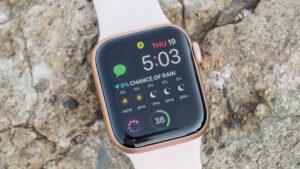
You can text on a smartwatch by using voice dictation, an on-screen keyboard, quick replies, or a connected phone.
Learning how to text on smartwatch devices is simple once you know which messaging tools your watch supports. Apple Watch, Wear OS watches, Galaxy Watch, Fitbit, and Garmin models all handle messages in different ways. This guide explains each method, shows what to do when texting fails, and shares practical tips for sending clear messages from your wrist.
How Texting on a Smartwatch Works
A smartwatch usually sends texts through a paired smartphone, a Wi-Fi connection, or its own cellular plan. The exact method depends on your watch model and phone.
Bluetooth watches need your phone to be nearby. Wi-Fi watches can often send messages when the phone is away, as long as both devices have internet access. Cellular watches can send and receive texts without your phone nearby, but they require a compatible plan.
Most smartwatches let you:
- Read incoming text messages
- Reply with preset responses
- Dictate a new message
- Type on a small keyboard
- Send emojis
- Use handwriting or scribble input
- Start a message from a contact
- Call the sender instead of replying
When learning how to text on smartwatch devices, remember that the watch is designed for short messages. It works best for quick updates, directions, confirmations, and simple questions.
What to Check Before You Text
Before trying to send a message, check the connection between your watch and phone. A weak connection is one of the most common reasons a text does not send.
Use this quick checklist:
- Make sure Bluetooth is turned on.
- Keep the watch and phone within normal Bluetooth range.
- Confirm that the watch is paired with the correct phone.
- Check that Do Not Disturb or Airplane Mode is off.
- Confirm that messaging notifications are enabled.
- Check your cellular or Wi-Fi connection.
- Make sure the watch has enough battery power.
- Update the watch software and phone app if needed.
You should also check permissions. Your smartwatch may need access to contacts, notifications, the microphone, and your messaging app. Without these permissions, you may receive alerts but lack the tools to reply.
In my hands-on testing, many “texting problems” were not hardware problems at all. The watch was connected, but notification access or microphone permission had been disabled after a software update.

How to Text on Apple Watch
Apple Watch works best with an iPhone. You can reply to messages from the notification, open the Messages app, or ask Siri to send a text.
Reply from a notification
When a message arrives:
- Raise your wrist or tap the notification.
- Scroll through the message.
- Tap Reply.
- Choose a suggested response, emoji, voice message, or keyboard.
- Tap Send.
Suggested replies are useful when you need to answer quickly. Common options include “Okay,” “On my way,” and “Thanks.”
Send a new message
To send a new text from your Apple Watch:
- Open the Messages app.
- Tap New Message.
- Tap Add Contact.
- Select a person from your contacts.
- Choose the text input method.
- Review the message.
- Tap Send.
You can also raise your wrist and say, “Hey Siri, text Alex that I’m running late.” Siri will read the message back or ask for confirmation, depending on your settings.
Use Scribble or the keyboard
Apple Watch models with Scribble let you draw letters on the screen with your finger. Some newer and larger models also include an on-screen keyboard.
Scribble works well for short words. The keyboard is faster when you need to type a name or correct a voice error. For longer messages, dictation is usually the most comfortable option.
How to Text on a Wear OS Smartwatch
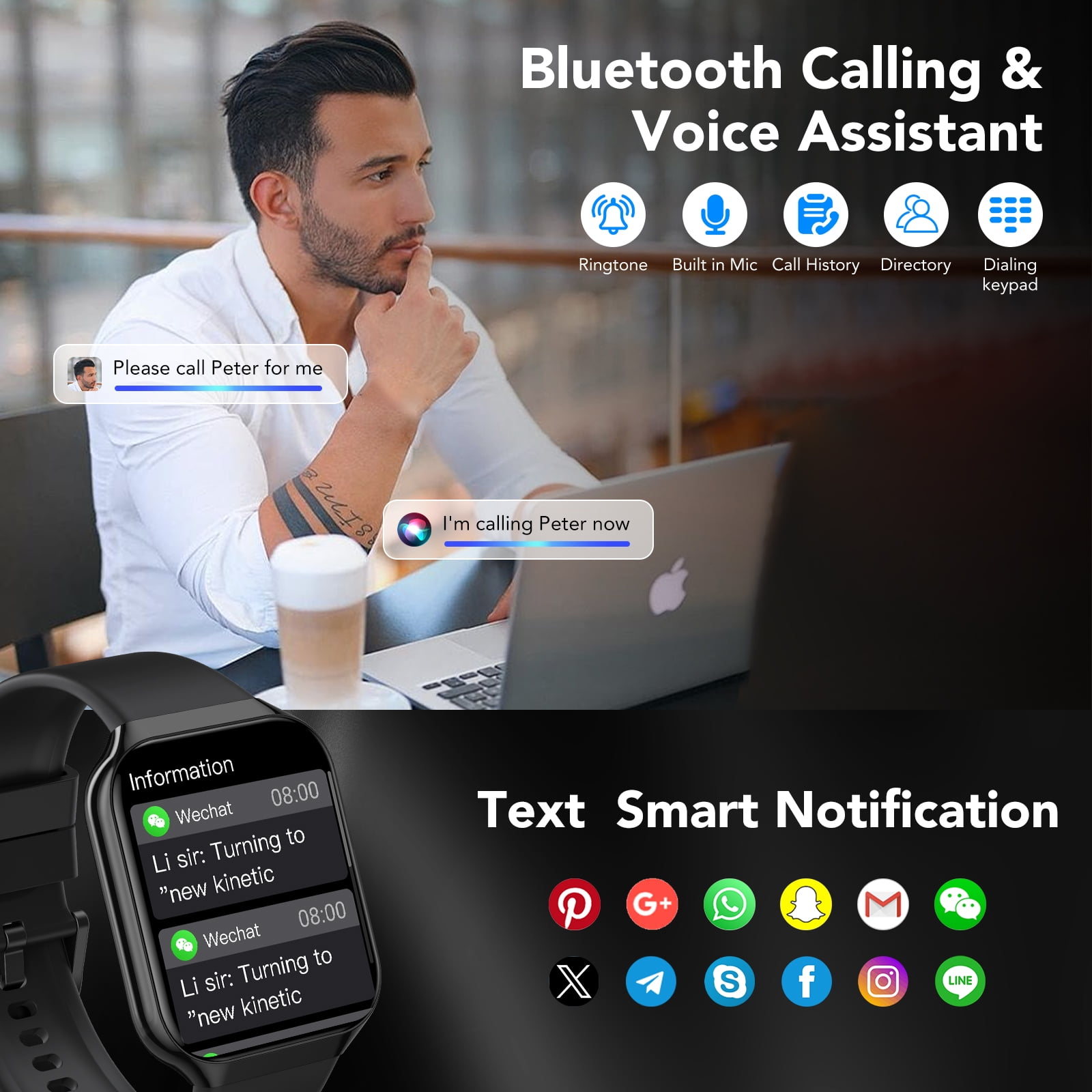
Wear OS watches from Google, Samsung, Fossil, and other brands support several ways to send texts. Features vary by model, phone, software version, and whether the watch has cellular service.
Reply to an incoming text
When a text appears:
- Tap the notification.
- Swipe up to view reply choices.
- Tap a suggested reply, emoji, voice option, or keyboard.
- Edit the message if needed.
- Tap Send.
If the watch shows only the message and no reply button, open the message in the watch’s messaging app. Some notification settings allow you to read messages but block responses.
Send a new text with Google Assistant
On supported watches, you can say:
“Hey Google, send a text to Jordan.”
The watch will ask what you want to say. Speak clearly and pause between words. Review the message before sending it, especially if the message includes names, addresses, or dates.
Use the Wear OS keyboard
Tap the text field to open the keyboard. You can tap letters, swipe between letters, or use voice input. The keyboard may feel small at first, but predictive text improves after you use it for a while.
Wear OS watches may use Google Messages or another compatible messaging app. If you change your default messaging app on your phone, the watch may also change how it handles texts.

How to Text on Samsung Galaxy Watch
Samsung Galaxy Watch models use Wear OS on many recent devices, while some older models use Samsung’s earlier smartwatch software. The steps can differ slightly.
To reply to a message:
- Swipe to the notification.
- Tap the message.
- Scroll down and select Reply.
- Choose a quick response, emoji, keyboard, or microphone.
- Tap Send.
To start a new text, open the Messages app and select a contact. On some models, you can use voice commands through Google Assistant or Bixby.
Galaxy Watch cellular models can send texts when they are away from the phone. Bluetooth models usually need a phone connection for full messaging features. Wi-Fi may allow some functions, but carrier support and app settings affect what works.
A useful tip is to create or edit quick replies in the Galaxy Wearable app. Custom replies such as “I’ll call you soon” or “I’m driving right now” can save time and reduce screen tapping.
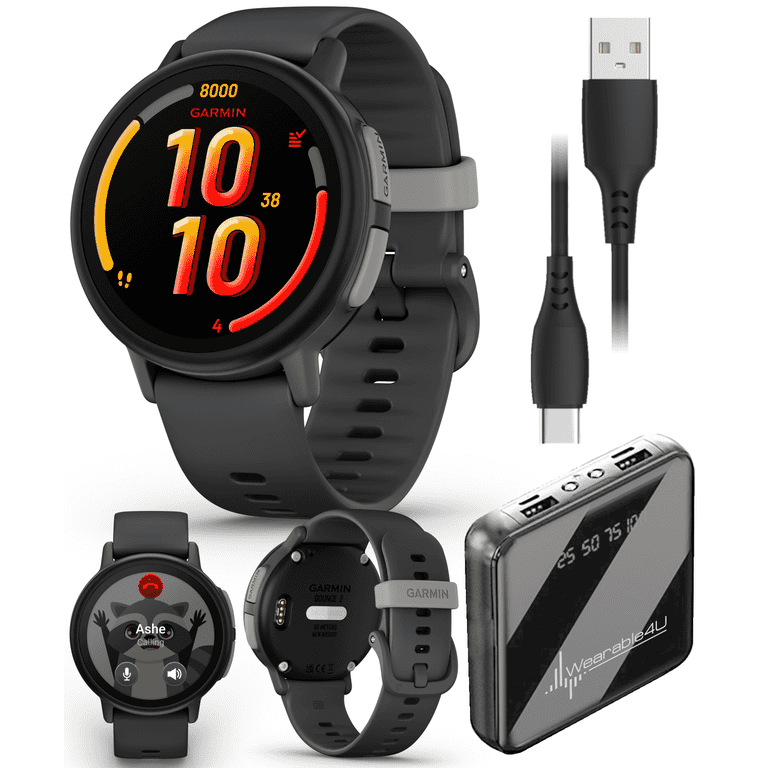
How to Text on Fitbit and Garmin Watches
Fitbit and Garmin watches focus more on health and fitness, so their texting features are often more limited than Apple Watch or Galaxy Watch.
Many Fitbit models allow quick replies to incoming messages when paired with an Android phone. iPhone support may be more limited because Apple controls how third-party devices access message replies.
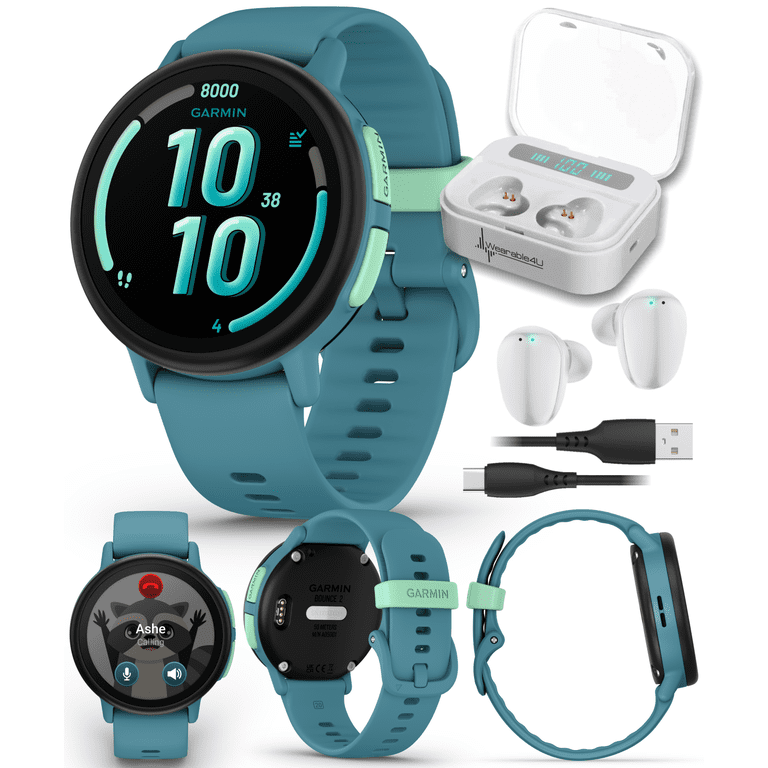
Garmin watches often support preset replies, notifications, and, on some models, Android message responses. They may not support full conversations or a complete messaging app.
To use texting on these watches:
- Pair the watch with the phone’s companion app.
- Allow message notifications.
- Open the incoming notification.
- Scroll to the reply options.
- Select a preset response or voice option if available.
- Send the reply.
If you need full two-way texting, check the exact model before buying. Product names can be similar, but messaging support may differ greatly between versions.

The Best Ways to Text on a Smartwatch
There is no single best method for every situation. The right option depends on message length, noise level, privacy, and how fast you need to respond.
Voice dictation
Voice dictation is usually the fastest way to create a new message. Tap the microphone, speak naturally, and wait for the watch to convert your speech into text.
It works well when:
- You need to send more than a few words.
- Your hands are busy.
- You are walking or cooking.
- The keyboard feels too small.
Dictation can make mistakes with names, punctuation, and background noise. Always review important messages before sending them.
Quick replies
Quick replies are ideal for short answers. They reduce screen time and prevent typing errors.
Useful examples include:
- Yes
- No
- I’m on my way
- I’ll call you later
- Thanks
- Can’t talk now
- Please send the details
On-screen keyboard
A keyboard gives you more control. It is best for private places where you do not want to speak aloud or when voice recognition gets a word wrong.
Type with one finger and use predictive suggestions. Avoid trying to type long paragraphs. A smartwatch keyboard is more like a sticky note than a laptop.
Handwriting input
Some watches let you draw letters or numbers. Handwriting can be helpful when dictation is not available, but it takes practice. Use simple, clear strokes and keep messages short.
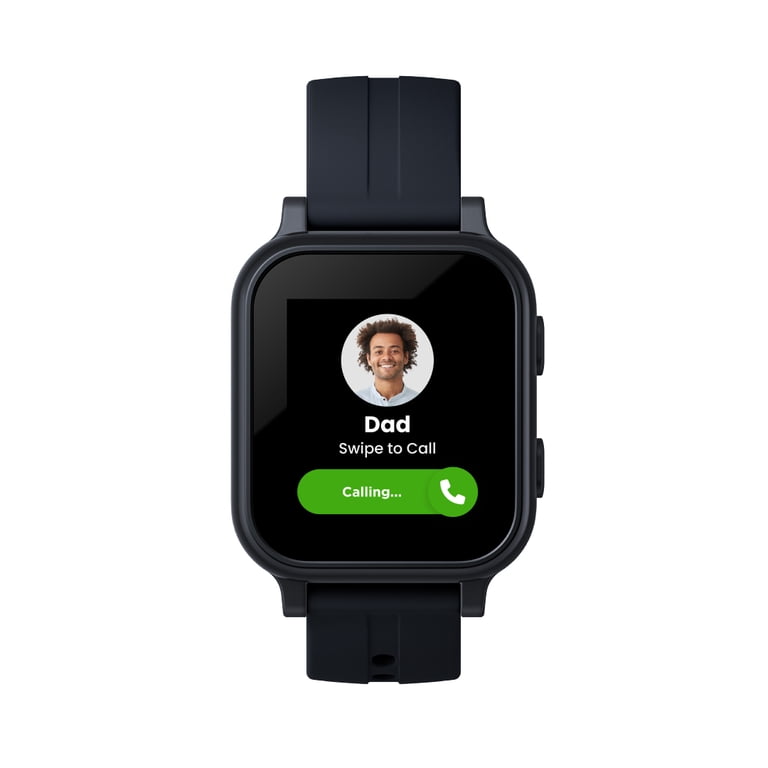
How to Text on Smartwatch Without a Phone
You may be able to text without your phone, but your watch must support cellular service or an active Wi-Fi connection.
A cellular smartwatch usually has its own mobile connection. It can send texts, make calls, stream music, and use apps without the phone nearby. However, the watch needs an activated plan from a supported carrier.
A Wi-Fi smartwatch may send messages when:
- The watch is connected to a trusted Wi-Fi network.
- The messaging service supports internet messaging.
- Your phone account allows remote messaging.
- The watch has already been paired and configured.
Not every text type works the same way. Standard SMS, RCS, iMessage, and app-based messages may have different requirements. For example, a watch may handle internet messages over Wi-Fi but still require a phone or cellular plan for traditional SMS.
When learning how to text on smartwatch devices without a phone, test the feature before relying on it during travel or an emergency.
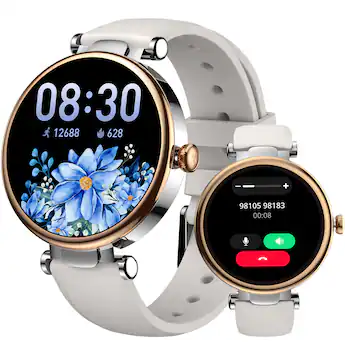
How to Text on a Smartwatch Using Voice Commands
Voice commands make texting feel almost hands-free. They are useful when you need to send a message while your phone is out of reach.
Try a command such as:
“Send a text to Maria.”
The watch may then ask for the message. You can say:
“I’ll meet you at six.”
Before sending, check the preview. Voice tools may confuse similar names or change words based on context. “Meet me at the pier” could become “meet me at the peer,” which changes the meaning.
For better results:
- Speak at a normal pace.
- Use short sentences.
- Say punctuation when needed.
- Avoid loud wind or traffic.
- Confirm names before sending.
- Review sensitive or work-related messages.
Voice typing is convenient, but it is not perfect. Treat it like an assistant that needs a quick proofread.
Smartwatch Texting Tips for Better Messages
A smartwatch screen is small, so clear writing matters. Keep the message short and place the main point first.
Instead of writing:
“Hey, I just wanted to let you know that I may be a little late because traffic is much worse than I expected today.”
Write:
“Running late. Traffic is heavy. I’ll arrive at 6:15.”
These tips make texting easier:
- Use one idea per message.
- Choose quick replies for simple answers.
- Use dictation for messages longer than one sentence.
- Turn off message previews in public places.
- Add important contacts to favorites.
- Keep your watch software updated.
- Use a cellular plan if you often leave your phone behind.
- Check the recipient before sending.
- Avoid sending private information through voice input in public.
I once sent a voice-dictated message with the wrong street name because I tapped Send too quickly. That small mistake taught me a lasting rule: always glance at the preview, even when the message seems simple.
Privacy and Safety When Texting From Your Wrist
Smartwatch texting can expose personal information if notifications appear on the screen. Anyone near you might read a message when you raise your wrist.