How To Use Smart Glasses: Easy Beginner’s Guide

Smart glasses connect to your phone, show useful information, and respond to touch, voice, or hand controls.

Learning how to use smart glasses is easier when you treat them like a small wearable computer, not a magic pair of eyeglasses. After testing different types of smart glasses, I have found that the best results come from a careful setup, simple voice commands, and good privacy habits. This guide explains how smart glasses work, how to connect them, what you can do with them, and which mistakes to avoid.

What Are Smart Glasses?

Smart glasses are wearable devices that combine eyeglass frames with cameras, speakers, microphones, sensors, or a small display. Some models look like normal glasses and focus on audio, photos, and calls. Others place digital text, maps, or 3D images in your field of view.

The term “smart glasses” covers several types of products:

• Audio smart glasses play music, podcasts, and calls through small speakers near your ears.

• Camera smart glasses let you take photos and record video from your point of view.

• Display smart glasses show digital content in front of your eyes.

• Augmented reality glasses place digital objects or information over the real world.

• Assisted reality glasses support work tasks, remote help, training, or navigation.

Smart glasses usually connect to a smartphone through Bluetooth or Wi-Fi. Some advanced models can work with their own operating system, mobile data connection, or built-in storage.
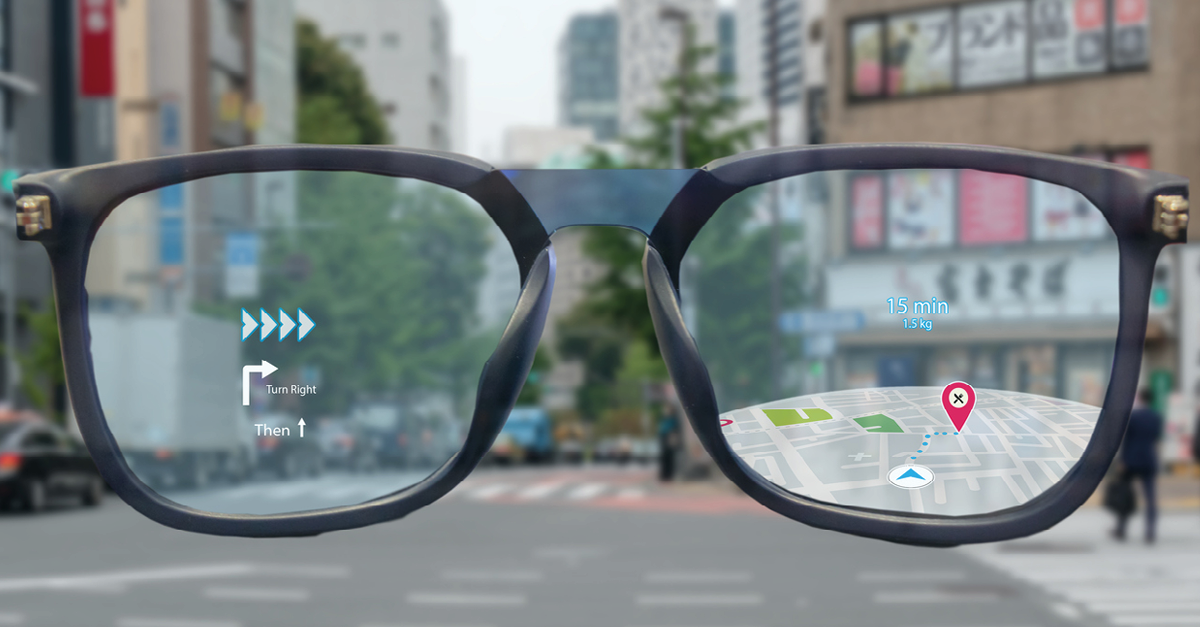
What Are Smart Glasses?
Source: xmreality.com

How Do Smart Glasses Work?

Smart glasses use several small parts that work together. A camera captures images, microphones hear your voice, speakers play sound, and motion sensors track how your head moves.

Display models use tiny projectors, waveguides, or transparent screens to place images in your view. The result can feel like looking through a clear window with a digital layer on top.

Most smart glasses include:

• A rechargeable battery

• Bluetooth and sometimes Wi-Fi

• One or more cameras

• Microphones for calls and voice commands

• Speakers or bone conduction audio

• Touch controls, buttons, or a touchpad

• Motion sensors

• A companion mobile app

Some models use artificial intelligence to describe images, translate text, answer questions, or summarize information. These features depend on the brand, app, internet connection, and privacy settings.

A key lesson from hands-on use is that smart glasses are not all-purpose computers. They work best when they perform a few tasks well, such as taking quick photos, answering calls, listening to audio, or showing navigation prompts.
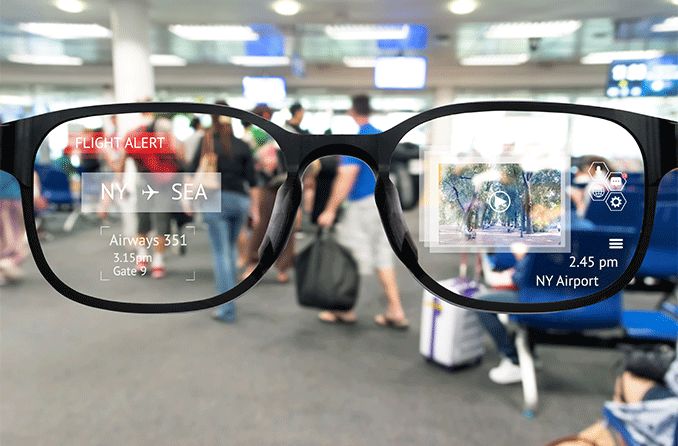
How Do Smart Glasses Work?
Source: allaboutvision.com

How to Use Smart Glasses for the First Time

The first setup takes only a few minutes if you follow the correct order. Keep the glasses, phone, charging cable, and companion app nearby.

1. Charge the smart glasses

Charge the glasses before pairing them. A low battery can interrupt setup or cause Bluetooth problems.

Check the charging case or cable for indicator lights. The user manual will explain what each color means. Avoid using a damaged cable or charger.

2. Install the official app

Search for the official companion app in the Apple App Store or Google Play Store. Do not download random setup apps from unknown websites.

The app may manage:

• Device pairing

• Software updates

• Camera settings

• Voice controls

• Contacts

• Privacy options

• Battery information

• Cloud storage

3. Turn on Bluetooth

Open your phone settings and turn on Bluetooth. Some glasses also need Wi-Fi access for software updates, video uploads, or artificial intelligence features.

Keep the glasses close to your phone during setup. A distance of a few feet usually works best.

4. Pair the glasses

Open the companion app and choose the option to add a new device. Follow the on-screen steps until the app confirms the connection.

Do not pair the glasses only through the phone’s Bluetooth menu unless the manual tells you to do so. Many models need the companion app to complete the setup.

5. Allow needed permissions

The app may ask for access to the camera, microphone, contacts, photos, notifications, or location. Approve only the permissions that match the features you want to use.

For example, navigation needs location access. Calling features may need contacts. A camera function may need photo storage access.

6. Update the software

Install firmware updates before regular use. Updates can improve battery life, fix bugs, and add security protections.

This step is easy to skip, but it prevents many connection and performance issues.

How to Use Smart Glasses for the First Time
Source: nsflow.com

How to Control Smart Glasses

Smart glasses may use voice commands, physical buttons, touch controls, or a mobile app. Learn one control method at a time instead of trying to memorize every feature.

Voice commands

Voice control is useful when your hands are busy. Depending on the model, you may say a wake phrase followed by a command.

Common commands include:

• Take a photo

• Start recording

• Stop recording

• Play music

• Pause audio

• Answer the call

• Give me directions

• Read my notifications

• Turn up the volume

Voice commands may fail in noisy places. Speak clearly and use the exact phrase listed in the manual.

Touch controls

Touchpads and buttons often control basic tasks:

• Tap once to play or pause audio

• Swipe to change volume

• Press and hold to activate a voice assistant

• Press a camera button to take a photo

• Double tap to answer or end a call

Control layouts differ by model. Practice at home before using the glasses while walking, driving, or working.

Mobile app controls

The companion app usually offers the most settings. You can change privacy controls, camera quality, notification behavior, voice options, and download preferences.

The app also helps you find the glasses if they are nearby and connected.
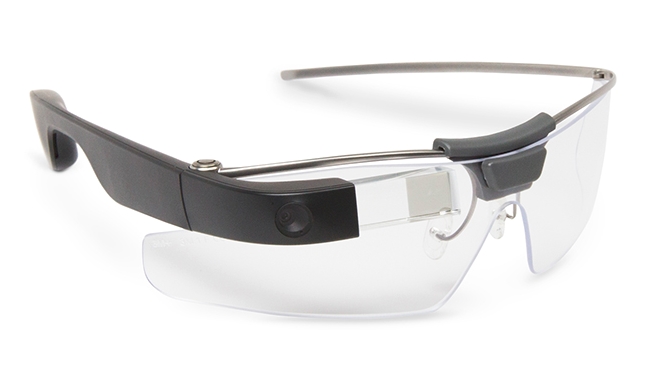
How to Control Smart Glasses
Source: plataine.com

How to Take Photos and Record Video

Camera smart glasses make it easy to capture a first-person view. To take a photo, press the camera button or use the approved voice command. A small light may appear to show that the camera is active.

Use these steps for better results:

  1. Clean the camera lens with a soft microfiber cloth.

  2. Keep your head still for a moment.

  3. Face the subject before taking the photo.
  4. Check the camera angle in the mobile app.

  5. Review the image after capture.

Video uses more battery and storage than photos. Short clips are usually easier to manage and share.

A common mistake is assuming that the glasses point exactly where your eyes point. The camera may sit above or beside your normal line of sight. Take a few test photos and adjust how you position your head.

Always respect local recording laws. In the United States, privacy rules vary by state. Do not record private conversations, restricted areas, medical visits, classrooms, or workplaces without permission.

How to Take Photos and Record Video
Source: oxmaint.com

How to Listen to Music and Make Calls

Audio smart glasses use small speakers near your ears. They let you hear music, podcasts, and calls while staying aware of nearby sounds.

To use audio features:

• Pair the glasses with your phone.

• Open your music or podcast app.

• Start playback on the phone or with a voice command.

• Adjust the volume with the touch controls or app.

• Use the call button or voice command to answer an incoming call.

Open speaker designs usually leak some sound. People nearby may hear your audio if the volume is high. Bone conduction models may sound different from traditional headphones, especially with deep bass.

Keep the volume at a safe level. Long exposure to loud sound can harm hearing. If you cannot hear traffic, coworkers, or someone speaking beside you, lower the volume.

During calls, speak toward the microphones. Wind and traffic can reduce call quality. For important calls, test the glasses in the same place where you plan to use them.

How to Listen to Music and Make Calls
Source: businessoffashion.com

How to Use Smart Glasses for Navigation

Some smart glasses provide spoken directions through connected navigation apps. Display models may show arrows or turn prompts in your view.

For spoken navigation:

  1. Connect the glasses to your phone.

  2. Open a trusted navigation app.

  3. Enter your destination.

  4. Start the route.

  5. Listen for directions through the glasses.

For display navigation, check that the brightness and text size are comfortable. A display that is too bright can distract you, especially at night.

Never depend only on smart glasses while driving. Use a vehicle’s approved navigation system and keep your attention on the road. Pedestrians should also pause and look around before crossing streets.

Navigation can be less accurate inside buildings, underground stations, or dense city areas. Keep your phone available as a backup.

How to Use Smart Glasses for Navigation
Source: amazon.com

How to Use Smart Glasses for Work and Study

Smart glasses can support work without forcing you to hold a phone. A technician might view instructions while keeping both hands free. A student might listen to an audio lesson during a walk. A remote worker might use smart glasses for calls or quick reminders.

Useful work features include:

• Hands-free checklists

Remote expert support

• Voice notes

• Live translation

• Product instructions

• Barcode scanning

• Video calls

• Digital maps

• Training simulations

Display glasses can help workers see instructions in the right place. For example, a repair worker may view a wiring diagram beside the equipment.

Still, smart glasses are not suitable for every workplace. Employers should set clear rules for recording, data storage, worker consent, and customer privacy. Do not use personal smart glasses to capture confidential business data unless your employer has approved the practice.

How to Use Smart Glasses for Work and Study
Source: solosglasses.com

How to Use Smart Glasses With Artificial Intelligence

Some newer smart glasses connect to an artificial intelligence assistant. You may ask the assistant to identify an object, describe a scene, translate a sign, or answer a general question.

To use AI features:

• Connect the glasses to the companion app.

• Make sure the phone has internet access.

• Activate the assistant with the wake phrase or button.

• Ask one clear question.

• Wait for the response through the speakers or display.

AI can be helpful, but it can also make mistakes. It may misunderstand an image, give outdated information, or miss important details. Do not use it as the only source for medical, legal, financial, or safety decisions.

Be careful with sensitive images. Avoid sending faces, documents, medical records, passwords, or private conversations to an AI service unless you understand how the data is handled.

How to Use Smart Glasses With Artificial Intelligence
Source: persistencemarketresearch.com

Smart Glasses Privacy and Safety Tips

Privacy is one of the most important parts of learning how to use smart glasses. A camera on your face can make other people feel watched, even when you have good intentions.

Follow these habits:

• Tell people when you are recording them.

• Watch for the recording indicator light.

• Turn off the camera when you do not need it.

• Avoid recording in bathrooms, locker rooms, clinics, and private homes.

• Review app permissions often.

• Use a strong phone password.

• Install official software updates.

• Do not share your glasses with strangers.

• Store photos and videos securely.

• Follow workplace, school, and local recording rules.

A visible recording light does not make every recording legal or welcome. Consent and context matter. Think of smart glasses as a camera that happens to be attached to your face.

Also protect your physical safety. Do not stare at a display while crossing a road, climbing stairs, or operating machinery. Smart glasses should reduce friction, not remove awareness.

How to Improve Battery Life

Battery life depends on the camera, speakers, display brightness, wireless connection, and artificial intelligence features. Recording video and using a bright display usually drain the battery fastest.

Try these practical tips:

• Turn off features you do not use.

• Reduce display brightness.

• Download updates over Wi-Fi.

• Store the glasses in their charging case.

• Avoid extreme heat and cold.

• Keep the phone reasonably close.

• Stop background features that are not needed.

• Charge the case before a long day.

Do not expect the battery to last equally long in every situation. A model that lasts all day for occasional calls may last only a few hours during continuous video recording.

Common Smart Glasses Problems and Fixes

Connection problems are common during the first week. Most have simple fixes.

The glasses will not connect

Make sure Bluetooth is on and the glasses have enough power. Restart both devices, then try pairing through the official app.

If that fails, remove the glasses from the phone’s Bluetooth list and pair them again.

Voice commands do not work

Check microphone permissions and internet access. Move away from loud noise and use the exact wake phrase.

Some voice assistants also need the phone screen unlocked or the companion app running.

The camera will not record

Check storage space, battery level, and camera permissions. Look for a physical privacy switch or recording lock.

If the camera light does not work as expected, stop using the device and contact the manufacturer.

Audio sounds weak

Clean the speaker openings and raise the volume slightly. Make sure the glasses are positioned correctly on your face.

Wind, traffic, and open speaker designs can limit sound quality.

The glasses feel uncomfortable

Adjust the nose pads or frame position if the model allows it. Take breaks during long sessions.

If the glasses cause pain, pressure, headaches, or blurred vision, stop using them and consult an eye care professional.

Benefits and Limitations of Smart Glasses

Smart glasses can make small tasks easier. Their value often comes from convenience rather than dramatic changes.

Main benefits include:

• Hands-free calls and audio

• Fast photo and video capture

• Quick access to voice assistants

• Navigation without holding a phone

• Support for remote work

• Better access to digital information

• Useful tools for accessibility

However, limitations remain:

• Battery life can be short

• Some models need a phone

• Cameras raise privacy concerns

• Displays may be hard to see outdoors

• Voice controls can fail in noise

• Apps may not support every phone

• Frames can feel heavy

• Advanced models can be expensive

• AI responses may be wrong

The best smart glasses match your main need. Choose audio glasses for calls and music. Choose camera glasses for quick capture. Choose display glasses for navigation, training, or visual instructions.

How to Choose the Right Smart Glasses

Start with your use case, not the feature list. Ask what you want to do most often.

Consider these factors:

• Comfort: Look for a light frame and a fit that suits your face.

• Prescription support: Check whether prescription lenses are available.

• Battery life: Compare normal use with camera or display use.

• Camera quality: Review resolution, stabilization, and storage.

• Audio quality: Test clarity, volume, and sound leakage.

• Display: Check brightness, field of view, and text readability.

• Compatibility: Confirm support for your phone and operating system.

• Privacy: Review recording lights, data policies, and controls.

• Durability: Look for water resistance if you will use the glasses outdoors.

• Repairs: Check warranty terms and replacement costs.

Try the glasses for several minutes before buying, if possible. A device may look stylish but feel uncomfortable after an hour. Comfort is not a minor detail; it determines whether you will actually use the glasses.

Frequently Asked Questions About How to Use Smart Glasses

Do smart glasses need a phone?

Most smart glasses need a smartphone for setup, internet access, apps, storage, or advanced features. Some models can perform basic tasks alone, but phone-free use varies by brand.

Can you use smart glasses without the internet?

Basic functions such as local audio playback or taking photos may work offline. AI tools, live translation, cloud backups, and many navigation features usually need an internet connection.

Can smart glasses take photos and videos?

Camera smart glasses can take photos and record video through a button, touch control, or voice command. Always check the recording indicator and follow privacy laws before capturing other people.

Are smart glasses safe for your eyes?

Most smart glasses are designed for normal wear, but comfort and safety depend on the model and how you use it. Take breaks, avoid excessive brightness, and speak with an eye care professional if you experience eye strain or headaches.

Can you wear prescription lenses with smart glasses?

Some smart glasses support prescription lenses, while others do not. Check the manufacturer’s approved lens options and have the lenses fitted by a qualified optical professional.

How do you clean smart glasses?

Use a clean microfiber cloth for the lenses and camera area. Avoid spraying liquid directly onto the frame, and follow the care instructions for electronics and lens coatings.

Can you use smart glasses while driving?

You should not use visual features or interact with smart glasses while driving. Even spoken features can distract you, so follow local laws and keep your full attention on the road.

Conclusion

Learning how to use smart glasses starts with a careful setup, a charged battery, and a clear idea of what you want the device to do. Pair the glasses with the official app, learn the controls, test the camera and audio, and adjust privacy settings before using them in public.

Use smart glasses as a helpful tool, not a replacement for good judgment. Start with one or two simple features, practice in a safe place, and expand your use as you gain confidence. Explore your model’s official guide, test its limits, and share your own smart glasses experience in the comments.

Leave a Reply

Your email address will not be published. Required fields are marked *