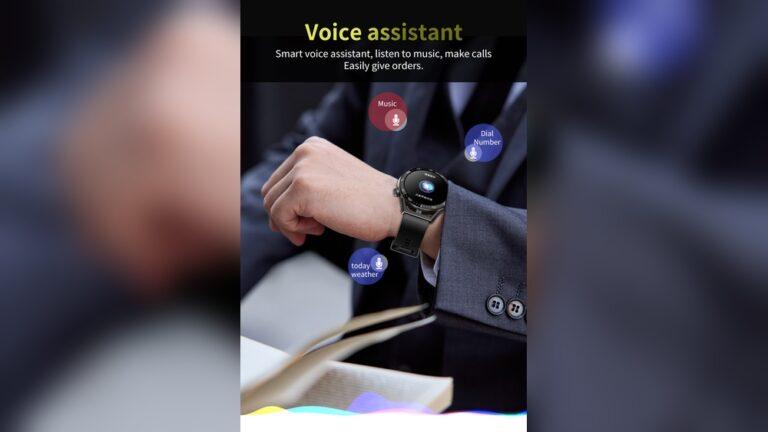
Activating the voice assistant on your smartwatch should feel easy and fast. But sometimes, the steps are not clear, or the buttons are confusing. Maybe you bought a new smartwatch and now you are wondering, “How do I talk to it?
” You are not alone! I have faced this myself, and I know how simple tips can save you time and effort. In this article, I will show you how to activate the voice assistant on different smartwatches quickly, with simple language and real examples.
You will also learn common problems and how to fix them, plus extra tricks to make your experience smoother.
Why Use A Voice Assistant On Your Smartwatch?
Let’s start with a question: why do people want to use a voice assistant on a smartwatch? The answer is simple. It makes life easier. With just your voice, you can:
- Set reminders
- Reply to messages
- Ask for directions
- Play music
- Check the weather
You don’t need to touch the screen or type on a tiny keyboard. For example, when I’m jogging and want to send a text, I just say, “Send a message to Mom. ” It’s fast and keeps my hands free.
You may have seen friends using this feature and wondered how they do it. Now, you will know how.
Types Of Smartwatch Voice Assistants
Different brands use different voice assistants. Here are the main ones you will find:
- Siri (on Apple Watch)
- Google Assistant (on Wear OS watches)
- Bixby (on Samsung Galaxy Watch)
- Alexa (on some Fitbit and Amazfit models)
- Other custom assistants (on Huawei, Xiaomi, etc.)
Each one needs a few special steps to activate. But don’t worry, I will cover all the common types.
Preparing Your Smartwatch For Voice Assistant
Before you start, your watch needs to be ready. Here’s what you should check:
- Battery Level: Make sure your battery is not low. Voice assistants use some power.
- Internet Connection: Most assistants need Wi-Fi or Bluetooth to your phone. No connection, no assistant.
- Software Updates: Update your smartwatch and phone. Old software can cause problems.
- Permissions: Some assistants need microphone and location access. Check your settings.
If you skip these steps, your assistant might not work. I remember when I could not use Google Assistant because my watch’s software was old. After updating, everything worked perfectly.
How To Activate Voice Assistant On Apple Watch
Apple Watch uses Siri. Here are three fast ways to activate Siri:
1. Raise To Speak
On Apple Watch Series 3 or later, you can just raise your wrist and talk.
- Open the Watch app on your iPhone.
- Tap “Siri.”
- Turn on “Raise to Speak.”
- Now, raise your wrist and say, “Hey Siri…”
This is super easy. I often use this when my hands are full.
2. Use The Digital Crown
- Press and hold the Digital Crown (the round button on the side).
- Wait for the Siri animation.
- Start speaking.
This works every time, even if you turn off “Hey Siri. ”
3. Say “hey Siri”
- Simply say, “Hey Siri,” near your watch.
- Siri will pop up, ready to listen.
This method is active by default. If not, check in the Watch app settings.
Apple Watch Voice Assistant Quick Comparison
| Method | Speed | Hands-Free? | Battery Use |
|---|---|---|---|
| Raise to Speak | Very Fast | Yes | Medium |
| Digital Crown | Fast | No | Low |
| Hey Siri | Fast | Yes | Medium |
How To Activate Google Assistant On Wear Os Smartwatches
Many smartwatches use Wear OS (from Google). Here’s how to quickly activate Google Assistant:
1. Voice Command
- Say, “Ok Google,” or “Hey Google.”
- The assistant wakes up.
You must enable “Ok Google” detection in the settings.
2. Home Button Press
- Press and hold the main button on your watch.
- Wait for the assistant screen.
- Speak your request.
This is my favorite way—no need to look for icons.
3. Assistant App
- Swipe up or press the app list.
- Tap the Assistant icon.
- Talk after the beep.
If you don’t see the app, download it from Google Play.
Wear Os Activation Methods Compared
| Method | Ease of Use | Hands-Free? | Works Offline? |
|---|---|---|---|
| Voice Command | Easy | Yes | No |
| Button Press | Very Easy | No | Yes (limited) |
| App Icon | Medium | No | No |
How To Activate Bixby On Samsung Galaxy Watch
If you have a Samsung Galaxy Watch, you get Bixby. Here is how to use it fast:
1. Home Button
- Press and hold the Home (Power) button.
- Wait for the Bixby sound or screen.
- Speak your command.
2. “hi Bixby” Wake Word
- Say, “Hi Bixby.”
- The assistant will listen.
To use this, you must turn on “Voice wake-up” in the Bixby settings.
3. Bixby App
- Open the app list.
- Tap the Bixby icon.
- Give your command.
Samsung keeps things simple. I tried all three, but the home button is the fastest for me.
Credit: everestkitchennc.com
How To Activate Alexa On Fitbit And Amazfit
Some Fitbit and Amazfit watches offer Alexa. The steps are a bit different.
1. Alexa App
- Press the side button or swipe to find the apps.
- Tap the Alexa app.
- Speak after the beep.
You need to connect your watch to the internet and log into your Amazon account.
2. Shortcut Button (on Some Models)
- Set a shortcut (check in Settings > Shortcuts).
- Press and hold the shortcut button.
- Alexa will open.
Some watches do not have a wake word for Alexa, so you must use the app or button.
How To Activate Voice Assistant On Huawei, Xiaomi, And Other Brands
Many other smartwatches have their own assistants, like XiaoAI or Celia. The steps are usually:
- Press and hold a side button.
- Find the assistant app in the menu.
- On some models, say the wake word (if supported).
Always check the user guide or brand website for your exact model.

Credit: www.photonics.ipb.ac.rs
Common Mistakes And How To Fix Them
Many people (including me) make small mistakes when trying to use the smartwatch voice assistant. Let’s look at the most common ones and how to solve them.
1. Internet Is Off
Voice assistants need a connection. If it’s not working, check Wi-Fi or Bluetooth. Once, I spent 10 minutes talking to my watch—only to see “No connection” on the screen!
2. Microphone Blocked
If you cover the microphone with your finger or a case, the assistant can’t hear you. Try speaking clearly and check the watch for any covers.
3. Wrong Language Setting
The assistant listens for a specific language. If your watch is set to a different language, it may not respond. Open settings and choose your preferred language.
4. Permissions Not Allowed
Some assistants need microphone and location permission. If you say, “Hey Siri” and nothing happens, check your permissions in the watch app or phone settings.
5. Outdated Software
Old software can block features. Update your smartwatch and the companion app on your phone.
Speed Tips: Make Activation Even Faster
Want to use your voice assistant as fast as possible? Try these tips:
- Enable Wake Words: Turn on “Hey Siri,” “Ok Google,” or “Hi Bixby” so you never need to press a button.
- Customize Shortcuts: Set a side button to open the assistant with one press.
- Update Regularly: New updates often improve speed and accuracy.
- Clean Your Microphone: Wipe dust or sweat off the microphone for clearer voice pickup.
- Practice Clear Commands: Speak naturally but clearly. Some assistants need simple phrases.
A friend of mine was surprised at how much faster things worked after enabling wake words and updating her watch.
What To Do If Your Voice Assistant Won’t Activate
Sometimes, no matter what you try, the assistant does not listen. Here’s what you can do:
- Restart your smartwatch and phone.
- Check Bluetooth or Wi-Fi.
- Log out and back into your assistant account.
- Remove and re-add the assistant app.
- Reset to factory settings (only as a last step).
I once had to reset my smartwatch after an update. It was annoying, but everything worked perfectly afterward.
Voice Assistant Features You Should Try
Activating the assistant is just the first step. Here are some useful things you can ask it to do:
- “Set a timer for 10 minutes.”
- “What’s the weather today?”
- “Send a message to John.”
- “Remind me to take medicine at 8 PM.”
- “Start a workout.”
- “Play my workout playlist.”
Using these commands can save you time and make your day smoother.
Privacy And Security: What You Should Know
Voice assistants record and process your voice. Here are some safety tips:
- Review permissions: Only allow what you need.
- Delete old recordings: Most assistants let you erase voice history.
- Use strong passwords: For your watch and accounts.
- Update software: To patch any security holes.
For more about privacy, the Apple Support page has good information.
How Voice Assistants Compare Across Brands
Let’s look at how the main assistants compare for speed and ease:
| Assistant | Activation Speed | Wake Word | Best For |
|---|---|---|---|
| Siri | Very Fast | Yes | Apple users |
| Google Assistant | Fast | Yes | Android users |
| Bixby | Fast | Yes | Samsung fans |
| Alexa | Medium | Rarely | Smart home users |

Credit: www.amazon.com
Non-obvious Insights Most People Miss
Here are two things that many users don’t realize:
- Offline Use: Some assistants can do simple things (like set a timer) without the internet. Test your assistant to see what works offline.
- Custom Shortcuts: Many watches let you set custom commands or routines. For example, you can say, “Good night,” and your assistant can turn off your lights and set an alarm.
Personal Experience: My First Week With Voice Assistant
When I first got my smartwatch, I felt lost. The instructions were not clear. I did not know how to activate the assistant. I even thought my watch was broken! After reading online guides and updating my watch, I finally got it working.
Now, I use the voice assistant to check my schedule and send messages, even during busy mornings. It has made my life much easier.
Advanced Settings For Power Users
If you want more control, try these advanced settings:
- Customize Wake Word Sensitivity: Some watches let you adjust how easily the assistant wakes up.
- Change Response Voice: Pick a different voice or language for your assistant.
- Set Up Routines: Link several actions to one command, like “Good morning” to read news, show weather, and start music.
- Control Smart Home Devices: Use your assistant to turn on lights, lock doors, or control your TV.
If you travel often, set your watch to recognize your accent or dialect for better accuracy.
Troubleshooting Table: Fast Solutions
Here is a quick look at common problems and what to do:
| Problem | Solution |
|---|---|
| Assistant not responding | Check internet and microphone |
| Wrong language | Change language in settings |
| Button not working | Check for updates or restart |
| Battery drains fast | Turn off wake word when not needed |
Frequently Asked Questions
How Do I Know If My Smartwatch Supports A Voice Assistant?
Most modern smartwatches support some kind of voice assistant. Check your product box, the manual, or the brand’s website. If you see features like “Hey Siri,” “Ok Google,” or “Alexa,” then your watch has a voice assistant.
Can I Change The Voice Assistant On My Smartwatch?
Usually, no. Most watches use the assistant made for their system. Apple Watch uses Siri, Samsung uses Bixby, and Wear OS uses Google Assistant. Some watches let you install extra assistants, but it’s not common.
Does The Voice Assistant Work Without The Internet?
Some simple actions like setting timers or alarms may work offline. For most things, like sending messages or searching the web, you need an internet connection. Check your assistant’s help page for offline features.
Will The Voice Assistant Record Everything I Say?
No, the assistant listens for the wake word (“Hey Siri,” etc. ). After that, it records your command to process it. You can check and delete your voice history in the assistant’s app or settings.
What Should I Do If My Voice Assistant Keeps Misunderstanding Me?
Try these steps:
- Speak clearly and slowly.
- Remove noise around you.
- Update the language and accent in settings.
- Restart your watch.
If the problem continues, contact the watch support team.
Activating the voice assistant on your smartwatch is not hard when you know what to do. With these easy steps, you can save time, use your watch hands-free, and enjoy all the smart features. If you ever get stuck, remember: check your internet, keep your software updated, and don’t be afraid to ask for help. Soon, you’ll be talking to your watch like a pro!

Rubel Miah is the Senior Editor at MyStyleGrid.com, where he brings a sharp editorial eye and an unshakable love for fashion to everything he does. A true style addict, Rubel lives and breathes trends, from streetwear to high fashion, and has a knack for turning inspiration into impactful stories. With years of experience in fashion journalism and digital media, he curates content that empowers readers to express themselves through style. When he’s not editing features or forecasting the next big thing, you’ll find him hunting down vintage pieces or capturing street style moments around the city.