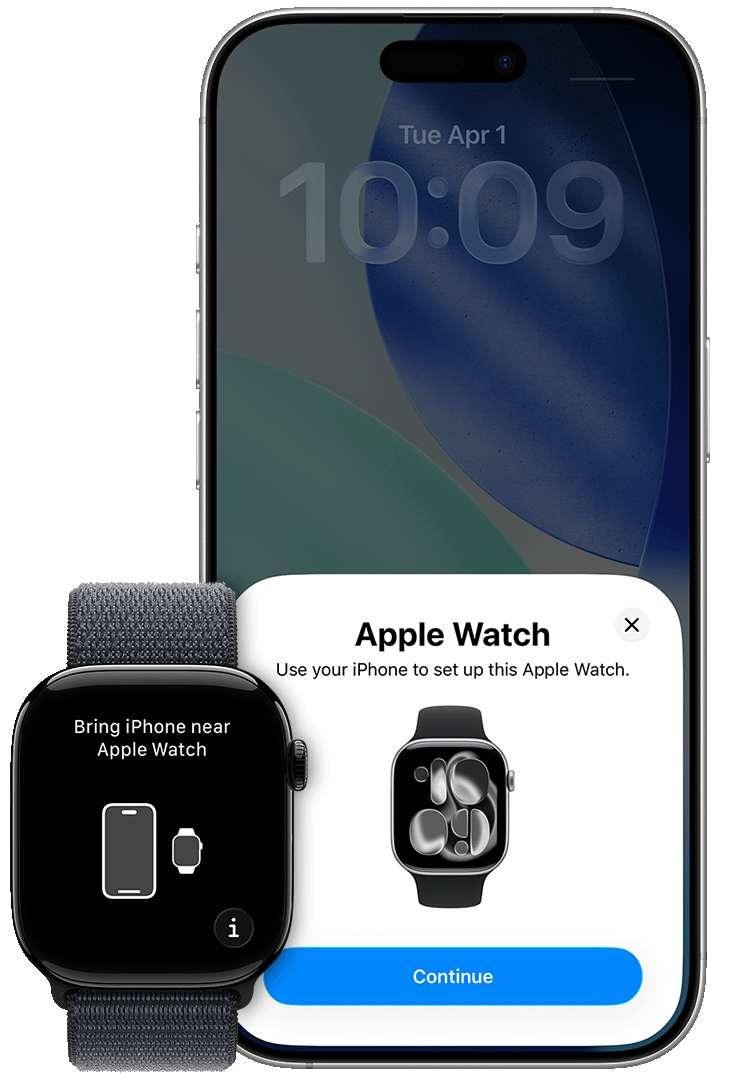
To synch Apple Watch with iPhone, open the Watch app, tap All Watches, and follow the pairing steps.
Learning how to synch Apple Watch with iPhone is simple when both devices are ready. This guide explains the correct pairing process, setup choices, common problems, and practical fixes based on Apple’s current setup flow and real-world troubleshooting.
What “synch Apple Watch with iPhone” means
When you synch Apple Watch with iPhone, you connect the watch to the iPhone so they can share data and settings. This includes notifications, contacts, apps, health data, messages, and some device preferences.
Apple Watch does not work as a fully independent copy of your iPhone. It uses Bluetooth, Wi-Fi, and, on supported models, cellular service to stay connected. During setup, the iPhone acts as the main control center.
The Apple Watch app manages most of the process. It helps activate the watch, install watchOS updates, choose settings, and restore data from a backup when one is available.
A few terms can be confusing:
• Pairing means connecting the Apple Watch to an iPhone for the first time.
• Syncing means sharing data and settings between the paired devices.
• Unpairing means removing the connection and usually creating a backup of the watch.
• Activation Lock helps prevent another person from using a lost or stolen Apple Watch.

Prepare your devices before pairing
Good preparation makes it easier to synch Apple Watch with iPhone without interruptions. A low battery, an outdated system, or a weak connection can stop the setup halfway through.
Before you begin, check these items:
• Charge the Apple Watch to at least 50 percent.
• Charge the iPhone or connect it to power.


• Turn on Bluetooth and Wi-Fi on the iPhone.
• Keep the iPhone and Apple Watch close together.
• Update the iPhone to the latest version of iOS that supports your watch.
• Update the Apple Watch if the setup process requests it.
• Know your Apple Account password.
• Make sure you know the iPhone passcode.
• Confirm that the watch model is compatible with the iPhone.
Apple publishes compatibility details for each watchOS release. Older iPhone models may not support newer Apple Watch models or newer watchOS versions. Checking compatibility before setup can save a great deal of time.
If the watch belonged to someone else, the previous owner must remove it from their Apple Account. Otherwise, Activation Lock may prevent you from completing setup.

How to synch Apple Watch with iPhone step by step
The standard method is the easiest way to synch Apple Watch with iPhone. It usually takes a few minutes, but a software update or backup restore may take longer.
1. Turn on the Apple Watch
Press and hold the side button until the Apple logo appears. Keep the watch near the unlocked iPhone.
If the watch shows a normal clock face, it may already be paired with another iPhone. In that case, you may need to erase it before pairing it with your device.
2. Open the Apple Watch app
On the iPhone, open the Watch app. Tap All Watches near the top of the screen, then tap Add Watch.
You may also see a pairing message appear automatically. If it does, tap Continue.


3. Choose the setup option
Select Set Up for Myself if the watch is yours. If you are setting up a watch for a family member, choose the family setup option when available.
Family Setup has extra requirements. It may require a supported cellular Apple Watch, a compatible iPhone, and a family member in the same Apple Family group.
4. Scan the watch animation
An animated pattern should appear on the Apple Watch. Point the iPhone camera at the pattern shown on the watch screen.
This step securely links the two devices. If the camera cannot read the pattern, tap Pair Apple Watch Manually and follow the on-screen instructions.
5. Restore or set up the watch
The iPhone may offer two choices:
• Restore from Backup uses settings and data from a previous Apple Watch.
• Set Up as New Apple Watch starts with fresh settings.
Choose a backup if you want to recover familiar settings, apps, and watch preferences. Choose a new setup if the old watch had problems or if you want a clean start.
6. Sign in and create a passcode
Enter your Apple Account password if requested. Then create a passcode for the Apple Watch.
The passcode protects personal information and enables features such as Apple Pay. You can unlock the watch by entering the passcode or by enabling Unlock with iPhone.
7. Choose your settings
The setup screen may ask about location services, Siri, diagnostics, Apple Pay, automatic updates, and activity tracking.
Read each option before accepting it. You can change many of these settings later in the Watch app, but choosing carefully now creates a smoother setup.
8. Wait for the sync to finish
Keep the devices close and connected to power if possible. The Apple Watch may display a progress wheel while apps and data transfer.
Do not restart either device during this stage unless the setup has clearly stopped. Once the watch face appears and the Watch app shows the device as connected, you have completed the main process to synch Apple Watch with iPhone.


How to synch Apple Watch with iPhone after setup
After pairing, most syncing happens in the background. You do not need to repeat the full setup each time you want new messages, health data, or app information.
To check the connection:
-
Open the Watch app on the iPhone.
-
Tap All Watches.
-
Select your Apple Watch.
-
Check whether the watch shows as connected.
You can also check the watch face. A red iPhone icon or red disconnected symbol usually means the devices are not communicating normally.
To improve the connection:
• Keep Bluetooth enabled.
• Keep Wi-Fi enabled.
• Keep the devices within Bluetooth range when possible.
• Restart both devices if the connection seems frozen.
• Install available iOS and watchOS updates.
• Open the Watch app after an update to allow settings to refresh.
Apple Watch may continue working when the iPhone is not nearby. However, some features may be limited. For example, calls, messages, streaming, and notifications may depend on Wi-Fi or cellular service.


A useful lesson from helping people set up smartwatches is that patience matters. Many users assume the setup has failed because the progress bar moves slowly. In reality, app installation and watchOS updates can take time, especially on an older watch.

What to do if Apple Watch will not pair
If you cannot synch Apple Watch with iPhone, start with simple checks. Most pairing problems come from distance, software differences, Bluetooth issues, or a watch that remains linked to another phone.
Try these steps in order:
• Place the iPhone and Apple Watch side by side.
• Confirm that Airplane Mode is off on both devices.
• Turn Bluetooth off, wait a few seconds, and turn it back on.
• Restart the iPhone.
• Restart the Apple Watch.
• Update the iPhone if an update is available.
• Make sure the Apple Watch is not already paired with another iPhone.
• Charge both devices before trying again.
If the watch shows a red iPhone icon, bring it closer to the iPhone. If that does not work, restart both devices and try again.
When the pairing animation does not appear
Open the Watch app manually and tap All Watches, then Add Watch. If the camera cannot scan the animation, use the manual pairing option.
Manual pairing is useful when the watch screen is cracked, the camera cannot focus, or lighting makes the animation hard to read.
When the watch asks for an old Apple Account
This usually indicates Activation Lock. The previous owner must erase the watch and remove it from their Apple Account.
If you bought the watch used, contact the seller. Apple generally cannot remove Activation Lock without valid ownership information.
When setup freezes
Keep both devices connected to power and wait several minutes. If there is no progress, restart the devices and begin the process again.
If the watch still will not pair, erase it from the watch settings or use the Watch app when that option appears. Erasing removes content from the watch, so use this step only when basic fixes fail.

How to unpair and pair Apple Watch with a new iPhone
You may need to unpair the watch when you replace your iPhone or move the watch to another person. Unpairing creates a watch backup on the old iPhone when the devices can communicate.
To unpair from the old iPhone:
-
Open the Watch app.
-
Tap All Watches.
-
Tap the information button beside the watch.
-
Tap Unpair Apple Watch.
-
Follow the prompts and enter your Apple Account password if requested.
After unpairing, open the Watch app on the new iPhone and follow the normal pairing steps. Select the latest backup when Apple offers that choice.
If you no longer have the old iPhone, erase the Apple Watch from the watch itself. Then pair it with the new iPhone. You may not be able to restore recent data unless it was backed up or stored through iCloud.
This is one of the most common mistakes: people erase the old iPhone before checking whether the Apple Watch has a recent backup. Before changing phones, make a fresh iPhone backup and confirm that important health and activity data has had time to sync.

Tips for a smoother Apple Watch setup
These habits can make it easier to synch Apple Watch with iPhone and avoid repeated setup attempts.
• Use a stable Wi-Fi network during updates.
• Keep the watch on its charger during a long setup.
• Do not open many demanding apps on the iPhone while pairing.
• Check storage space if an update will not install.
• Keep the iPhone unlocked when the setup screen asks for action.
• Use the same Apple Account that you plan to use with iCloud and Apple services.
• Review notification settings after setup instead of allowing every app to send alerts.
• Test calls, messages, fitness tracking, and Apple Pay before leaving home.
Privacy also deserves attention. Apple Watch can collect sensitive health and fitness information. Review Health permissions, location access, and notification previews so private details do not appear where other people can see them.
The best setup is not always the one with every feature turned on. A watch with fewer unnecessary notifications can feel faster, calmer, and more useful throughout the day.

Frequently asked questions
How long does it take to synch Apple Watch with iPhone?
Basic pairing may take several minutes. The full process can take longer if the watch needs a software update, restores a backup, or installs many apps.
Can I synch Apple Watch with iPhone without Wi-Fi?
You can begin pairing with Bluetooth, but Wi-Fi is strongly recommended. Updates, backups, and app downloads often work better with a stable Wi-Fi connection.
Why will my Apple Watch not connect to my iPhone?
Common causes include Bluetooth problems, outdated software, low battery, too much distance, or Activation Lock. Restart both devices, update them, and confirm that the watch is not linked to another Apple Account.
Can I use Apple Watch with a different iPhone?
Yes. You must usually unpair the watch from the old iPhone and then pair it with the new one. If a backup is available, you can restore many of your previous settings.
Will unpairing Apple Watch delete my health data?
Unpairing erases the watch, but the iPhone normally creates a backup first. Health data may also be stored in iCloud when Health syncing is enabled, so check your backup and iCloud settings before erasing the watch.
Do I need an Apple Account to pair Apple Watch?
An Apple Account is needed for many Apple Watch features, including Activation Lock, iCloud services, and Apple Pay. The iPhone may ask for the account password during setup or restoration.

Conclusion
Learning how to synch Apple Watch with iPhone starts with updated software, charged devices, Bluetooth, and a nearby connection. Open the Watch app, add the watch, scan the pairing animation, choose your setup method, and allow the sync to finish.
If pairing fails, check distance, updates, battery level, Activation Lock, and the connection between both devices. Before switching iPhones, create a backup so your settings and important health data have the best chance of carrying over.
Set up your Apple Watch today, test its key features, and explore the Watch app to personalize notifications, health tools, and privacy settings.

Rubel Miah is the Senior Editor at MyStyleGrid.com, where he brings a sharp editorial eye and an unshakable love for fashion to everything he does. A true style addict, Rubel lives and breathes trends, from streetwear to high fashion, and has a knack for turning inspiration into impactful stories. With years of experience in fashion journalism and digital media, he curates content that empowers readers to express themselves through style. When he’s not editing features or forecasting the next big thing, you’ll find him hunting down vintage pieces or capturing street style moments around the city.