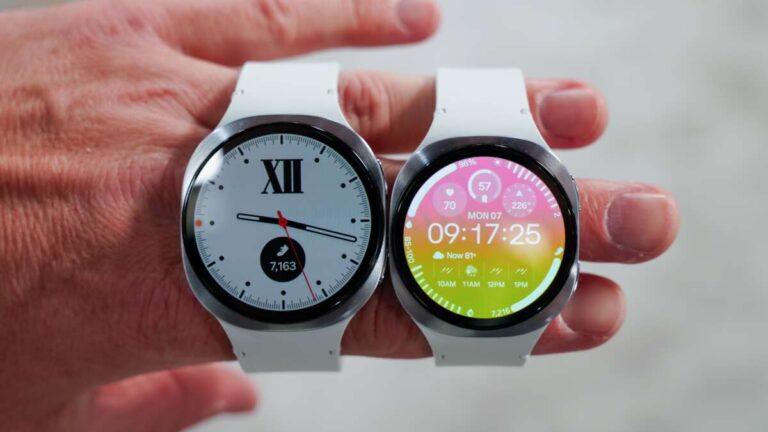
Yes, the Galaxy Watch 7 can take photos by controlling your compatible Samsung phone remotely.
The Galaxy Watch 7 does not have a built-in camera, but its Camera Controller feature works like a remote shutter and viewfinder for your phone. This guide explains how to use it, which phones support it, what features to expect, and how to solve common connection problems.
Can you take pictures with Galaxy Watch 7?
Yes, you can take pictures with Galaxy Watch 7, but the watch uses your phone’s camera rather than taking photos on its own. The watch sends a command to a connected Galaxy phone, which captures and saves the image.
This means the Galaxy Watch 7 is not a stand-alone camera. It has no camera lens or camera sensor. Instead, it acts like a small remote control on your wrist.
Samsung calls this feature Camera Controller. It can help you:
• Start the phone’s camera from your watch
• See a preview of the scene on the watch screen
• Press the shutter button from a distance
• Use a timer before the photo is taken
• Switch between the front and rear camera on supported phones
• Adjust some camera settings, such as zoom, on supported devices
Feature support can vary by phone model, software version, and camera mode. The Galaxy Watch 7 usually works best with a recent Samsung Galaxy phone running compatible software.
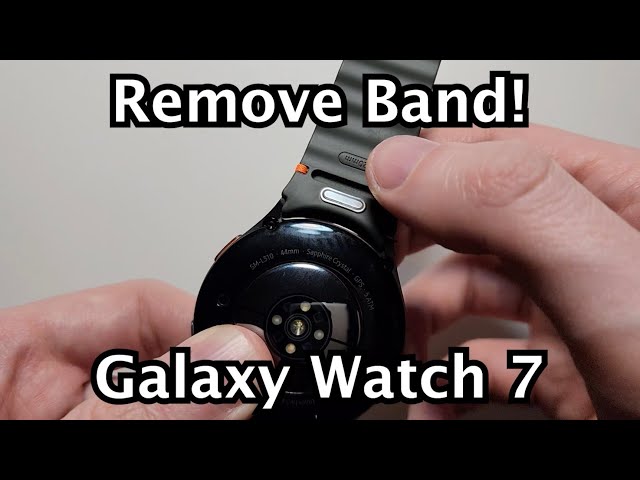
How the Galaxy Watch 7 camera controller works
The Camera Controller feature uses Bluetooth to communicate with your phone. In some cases, the watch and phone may also rely on a Wi-Fi connection when they are apart but still linked through the same Samsung account and network.
When you open Camera Controller on the Galaxy Watch 7, the camera app normally opens on your paired phone. The watch then displays a live preview, although the preview may have a short delay.
The process is simple:
- Pair the Galaxy Watch 7 with a compatible Galaxy phone.
- Keep Bluetooth turned on.
- Open the app screen on the watch.
- Tap Camera Controller.
- Frame your shot using the watch preview or your phone screen.
- Tap the shutter button on the watch.
- Check the photo in your phone’s Gallery app.
Think of the watch as a wireless shutter button with a small screen. It is useful when your phone is placed on a tripod, shelf, table, or other stable surface.
In practical use, the feature works best for group photos, family pictures, travel shots, and hands-free selfies. It is less useful when you want to walk far away from the phone or shoot in a place with a weak connection.

How to take pictures with Galaxy Watch 7
Before you begin, make sure the watch is paired with your phone through the Galaxy Wearable app. Install the latest software updates on both devices because camera features can change with updates.
Follow these steps to take pictures with Galaxy Watch 7:
1. Connect your watch and phone
Keep the Galaxy Watch 7 and Galaxy phone close together. Bluetooth should be active, and the phone should have enough battery for the camera session.
If you recently reset the watch or changed phones, open the Galaxy Wearable app and confirm that the watch shows as connected.
2. Open Camera Controller
On the Galaxy Watch 7, swipe up to open the app screen. Look for Camera Controller and tap it.
You can also use the watch’s app search if you do not see the icon right away. On some software versions, the app may appear under Samsung apps.
3. Position your phone
Place the phone where you want it. A tripod gives the best result because it keeps the phone steady and makes it easier to frame the shot.
The rear camera usually gives better image quality than the front camera. However, the front camera can be more convenient for selfies because you can see yourself more easily.
4. Frame the image
Use the preview on the Galaxy Watch 7 to check the composition. The small watch display is helpful, but it is not as clear as the phone’s larger screen.
Leave extra space around people if you plan to crop the image later. Also check the background for clutter, bright lights, or objects that appear to grow from someone’s head.
5. Press the shutter
Tap the shutter button on the watch. The phone should take the photo and save it to its Gallery app.
Some versions of Camera Controller include a timer. A short delay can help reduce movement and give you time to place your hand naturally.
6. Review the result
Open the Gallery app on your phone to review the image. If the photo is blurry, move the phone to a more stable surface or improve the lighting.
A useful tip is to take three or four photos instead of relying on one. People blink, move, and look away. A remote camera makes it easy to capture several options.

What you can do with Galaxy Watch 7 Camera Controller
The main benefit of Camera Controller is convenience. You do not need to walk back to your phone after setting up every photo.
Here are some useful examples:
• Group photos: Place the phone on a tripod and join the group.
• Travel photos: Capture a wider scene without asking a stranger to take the picture.
• Selfies: Use the rear camera for better image quality while checking the composition on your wrist.
• Product photos: Trigger the camera without touching the phone and causing movement.
• Pet photos: Set up the phone, step away, and take pictures without reaching for the device.
• Long-exposure scenes: Use a remote shutter to reduce the chance of shaking the phone.
• Social videos: On supported phones, some camera control features may help with recording.
The watch can also make solo photography less stressful. You can focus on posing instead of rushing back to the camera before the timer ends.
For the sharpest results, use a stable tripod, clean the phone lens, and choose good light. The Galaxy Watch 7 controls the camera, but it cannot improve the phone’s sensor or lens.
Galaxy Watch 7 camera limitations
Although you can take pictures with Galaxy Watch 7, the feature has several limits. Understanding them prevents frustration.
The watch has no built-in camera
The Galaxy Watch 7 cannot capture a photo by itself. It does not store images like a phone or digital camera.
If your phone is not nearby or connected, Camera Controller may not work. The watch is a remote, not an independent camera.
Compatibility depends on the phone
Camera Controller is designed mainly for Samsung Galaxy phones. A Galaxy Watch 7 paired with an iPhone may not offer the same camera features, and iPhone support for newer Galaxy watches is limited.
Even among Galaxy phones, available options can differ. Samsung may restrict certain functions to newer models or specific versions of One UI.
The preview may have a delay
The watch preview is useful for framing, but it may not update instantly. This delay is normal for a wireless connection.
For fast-moving subjects, rely on the phone screen when possible. The watch works better for still scenes and posed photos.
Some camera modes may not work
Basic photo capture is the most reliable function. Special modes such as Pro, panorama, slow motion, or certain video modes may not support every remote control option.
Zoom and camera switching can also vary. If a control is missing, it may be a software or phone limitation rather than a fault with the watch.
Distance affects reliability
Bluetooth range depends on walls, furniture, interference, and the position of the devices. A phone inside a bag, behind a thick wall, or far across a large room may disconnect.
For dependable results, keep the phone within a reasonable range and test the connection before starting your photo session.
Galaxy Watch 7 versus a standalone camera remote
A dedicated Bluetooth camera remote is often cheaper and can work with many phones. However, it usually has only one or two buttons and no live preview.
The Galaxy Watch 7 offers more control because it has a display and can show camera information. It also combines the remote with health tracking, notifications, calls, fitness tools, and other smartwatch features.
A standalone remote may be better if you only need a simple shutter button. The Galaxy Watch 7 is a better choice if you already own one and want extra control without carrying another accessory.
For professional photography, a phone tripod remote or camera-specific controller may still offer better range and more advanced controls.

Tips for better photos with Galaxy Watch 7
Using the watch is easy, but good photography still depends on light, focus, and stability. These tips can improve your results:
• Use natural light when possible. Face a window or shoot outdoors during soft morning or evening light.
• Clean the phone camera lens before shooting. Fingerprints can make photos look hazy.
• Use a tripod or firm surface. Do not balance the phone on an unstable object.
• Tap the main subject on the phone screen before stepping away. This helps set focus and exposure.
• Avoid digital zoom. Move the phone closer or use the phone’s optical zoom lens when available.
• Take several photos. A remote shutter makes repeat shots quick and easy.
• Keep the watch charged. Camera Controller can use more battery than ordinary watch functions.
• Turn off distracting notifications. Alerts can interrupt the photo session.
• Check the phone’s storage. A full phone cannot save new images.
• Test the setup first. Take one photo before everyone gets into position.
One mistake people often make is framing the photo only from the watch preview. The watch screen is small, so details near the edges can be easy to miss. I recommend checking the phone’s full display first, then using the watch for the final shutter press.
Another common mistake is standing too far from the phone. The feature feels magical when it works, but wireless control still has practical limits. A quick connection test can save an otherwise perfect group photo.
What to do if Camera Controller does not work
If you cannot take pictures with Galaxy Watch 7, start with the simple checks. Confirm that the phone and watch are paired, unlocked, and close to each other.
Try these steps:
- Turn Bluetooth off and on again on the phone.
- Restart both the Galaxy Watch 7 and the phone.
- Open the Camera Controller app again.
- Update the Galaxy Wearable app.
- Install available software updates for the watch and phone.
- Check that the phone’s Camera app opens normally.
- Remove battery restrictions from Camera Controller if your phone blocks it.
- Confirm that the watch has permission to control the camera.
- Reconnect the watch through the Galaxy Wearable app if needed.
If the watch shows a blank preview, close the phone’s Camera app and reopen Camera Controller. If the shutter works but the preview does not appear, the phone may support remote capture but not live viewing on the watch.
When troubleshooting, avoid unpairing the watch as your first step. Re-pairing can take time and may require restoring settings. Restarting the devices and updating the software often solves the issue.

Is Galaxy Watch 7 good for selfies and group photos?
The Galaxy Watch 7 is very useful for selfies and group photos because it lets you stand away from the phone. You can use the phone’s rear camera while checking the general framing from your wrist.
The watch is especially helpful in places where you do not want to hand your phone to someone else. It also reduces the need to run back and forth when using a phone timer.
Still, the watch preview is small. For a carefully composed portrait, check the phone screen first and use the watch mainly to trigger the shot.

Frequently Asked Questions
Can you take pictures with Galaxy Watch 7 without a phone?
No. You cannot take pictures with Galaxy Watch 7 by itself because it has no built-in camera. You need a compatible connected phone to capture and save the image.
Does Galaxy Watch 7 work as a camera shutter?
Yes. The Galaxy Watch 7 can work as a remote camera shutter through Samsung’s Camera Controller app. It sends the capture command to the paired phone.
Can Galaxy Watch 7 control an iPhone camera?
Support is limited and may not provide the same Camera Controller experience available with Samsung Galaxy phones. For the most reliable camera controls, pair the watch with a compatible Samsung Galaxy smartphone.
Can you see the phone camera preview on Galaxy Watch 7?
Yes, a live preview is available on supported phone and software combinations. The preview may have a short delay and may not support every camera mode.
Can Galaxy Watch 7 switch between the front and rear cameras?
It can switch cameras on some compatible Samsung phones and software versions. If the option does not appear, your phone or current camera mode may not support remote camera switching.
Where are photos taken with Galaxy Watch 7 saved?
Photos are saved on the connected phone, usually in the Camera folder in the Gallery app. The watch does not normally store the captured photos as independent camera files.
Does Camera Controller work when the phone is far away?
It works best when the phone and watch remain within a reliable connection range. Walls, distance, Bluetooth interference, and network settings can affect whether the feature continues to work.
Conclusion
You can take pictures with Galaxy Watch 7, but the watch controls your compatible phone instead of using its own camera. Camera Controller is ideal for group photos, selfies, tripod shots, travel images, and hands-free photography.
For the best results, keep both devices updated, place the phone on a stable surface, check the framing on the phone, and use the watch for the final shutter press. Try the feature with your phone today, and share your favorite Galaxy Watch 7 camera tips or photo setup in the comments.

Rubel Miah is the Senior Editor at MyStyleGrid.com, where he brings a sharp editorial eye and an unshakable love for fashion to everything he does. A true style addict, Rubel lives and breathes trends, from streetwear to high fashion, and has a knack for turning inspiration into impactful stories. With years of experience in fashion journalism and digital media, he curates content that empowers readers to express themselves through style. When he’s not editing features or forecasting the next big thing, you’ll find him hunting down vintage pieces or capturing street style moments around the city.