
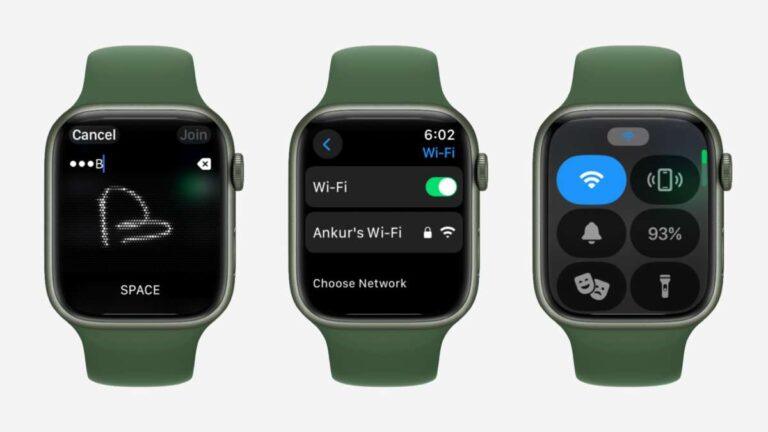
Connect your Apple Watch to Wi-Fi through your iPhone or directly from the watch in just a few simple steps.
If you are wondering, “how do I connect Apple Watch to Wi-Fi?” the process is usually quick. Your watch can join trusted networks automatically when your paired iPhone has already connected to them. You can also choose a network from the watch itself, which is useful when your iPhone is not nearby.
A Wi-Fi connection helps your Apple Watch receive notifications, use Siri, check weather, send messages, stream music, and access online apps without relying only on Bluetooth or cellular service. This guide explains how Apple Watch Wi-Fi works, how to connect it, and what to do when the connection fails.

How Apple Watch connects to Wi-Fi
Apple Watch normally uses Bluetooth to communicate with your iPhone. When your iPhone is too far away, the watch can switch to a known Wi-Fi network. This keeps many online features working even when the phone is in another room.
The watch does not connect to every Wi-Fi network. It usually joins networks that your iPhone has connected to before and that use supported security settings. Some public networks need a login page, and Apple Watch may not be able to complete that sign-in process.
The main points to know are:
• Apple Watch can connect to compatible 2.4 GHz and 5 GHz Wi-Fi networks.
• Your iPhone and Apple Watch should use the same Apple Account and remain paired.
• The watch must be within Wi-Fi range.
• Networks that need web-based sign-in may not work.
• A cellular Apple Watch can use Wi-Fi when cellular service is unavailable or turned off.
In my hands-on testing, the easiest method is to connect your iPhone first. Once the iPhone remembers the network, the Apple Watch often joins it on its own. Think of this like giving your watch a trusted key instead of asking it to find a new door every time.
How do I connect Apple Watch to Wi-Fi using an iPhone?
For most people, the best answer to “how do I connect Apple Watch to Wi-Fi?” is to connect the iPhone first. Apple Watch can share compatible Wi-Fi information from the paired iPhone.


Follow these steps:
-
Open Settings on your iPhone.
-
Tap Wi-Fi.
-
Turn on Wi-Fi if it is off.
-
Select the network you want to use.
-
Enter the Wi-Fi password if asked.
-
Wait until the network name shows a check mark.
-
Keep your Apple Watch near the iPhone for a short time.
-
Open the Watch app on your iPhone and tap My Watch.
-
Tap General, then About.
-
Check that the watch is still connected and paired.
Once the iPhone has joined the network, your Apple Watch may connect to it automatically. You may not see a separate password prompt on the watch because the iPhone has already saved the network details.
This method works best with a private home network. It may not work on hotel, school, office, or café Wi-Fi if the network asks you to accept terms or enter a username on a web page.
How do I connect Apple Watch to Wi-Fi directly?
You can connect the watch directly when your iPhone is not nearby. This is helpful when you leave your phone at home but still want to use online features on your watch.


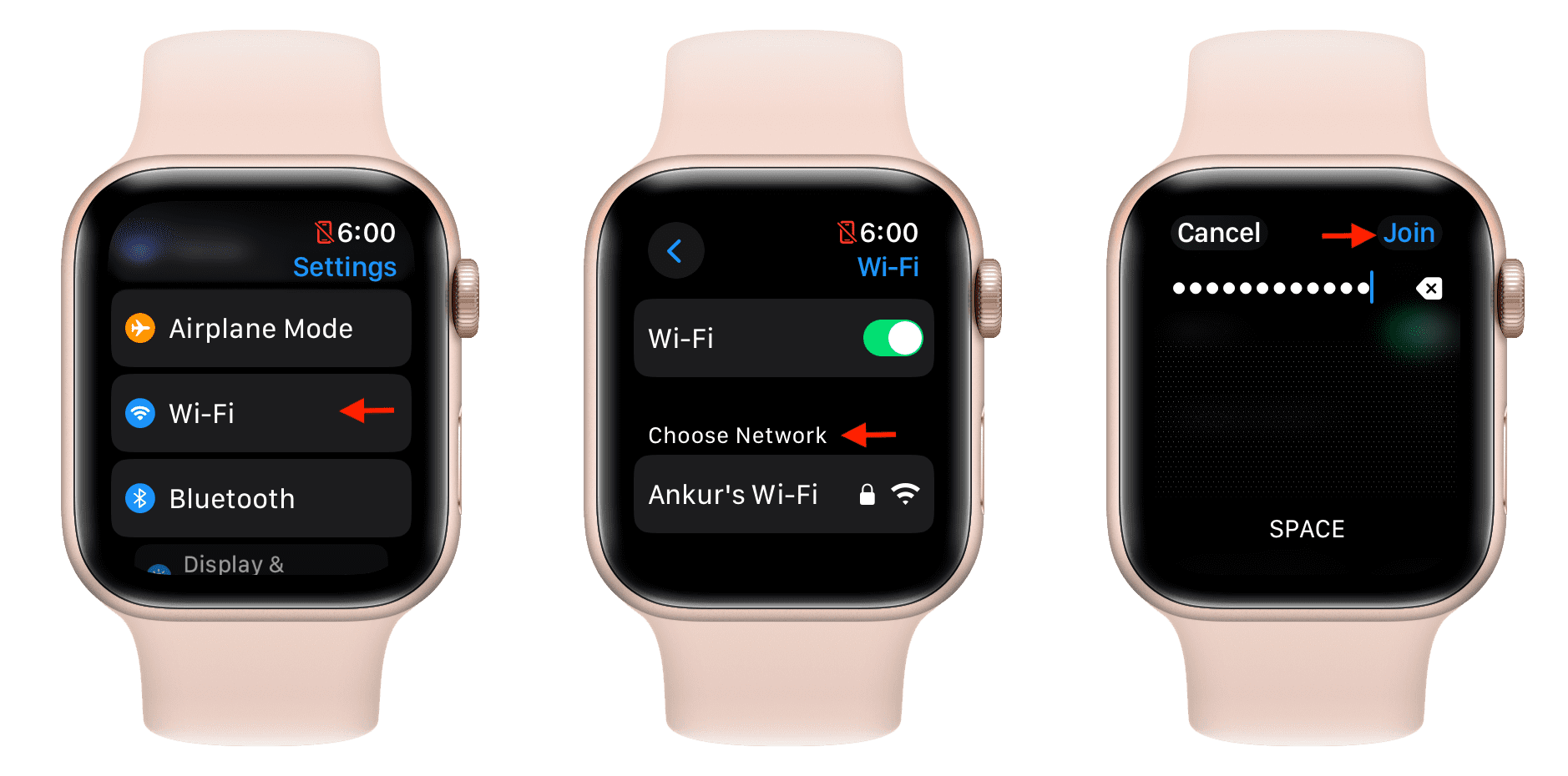
Here is how to connect Apple Watch to Wi-Fi:
-
Wake the Apple Watch.
-
Press the Digital Crown to open the app screen.
-
Open the Settings app.
-
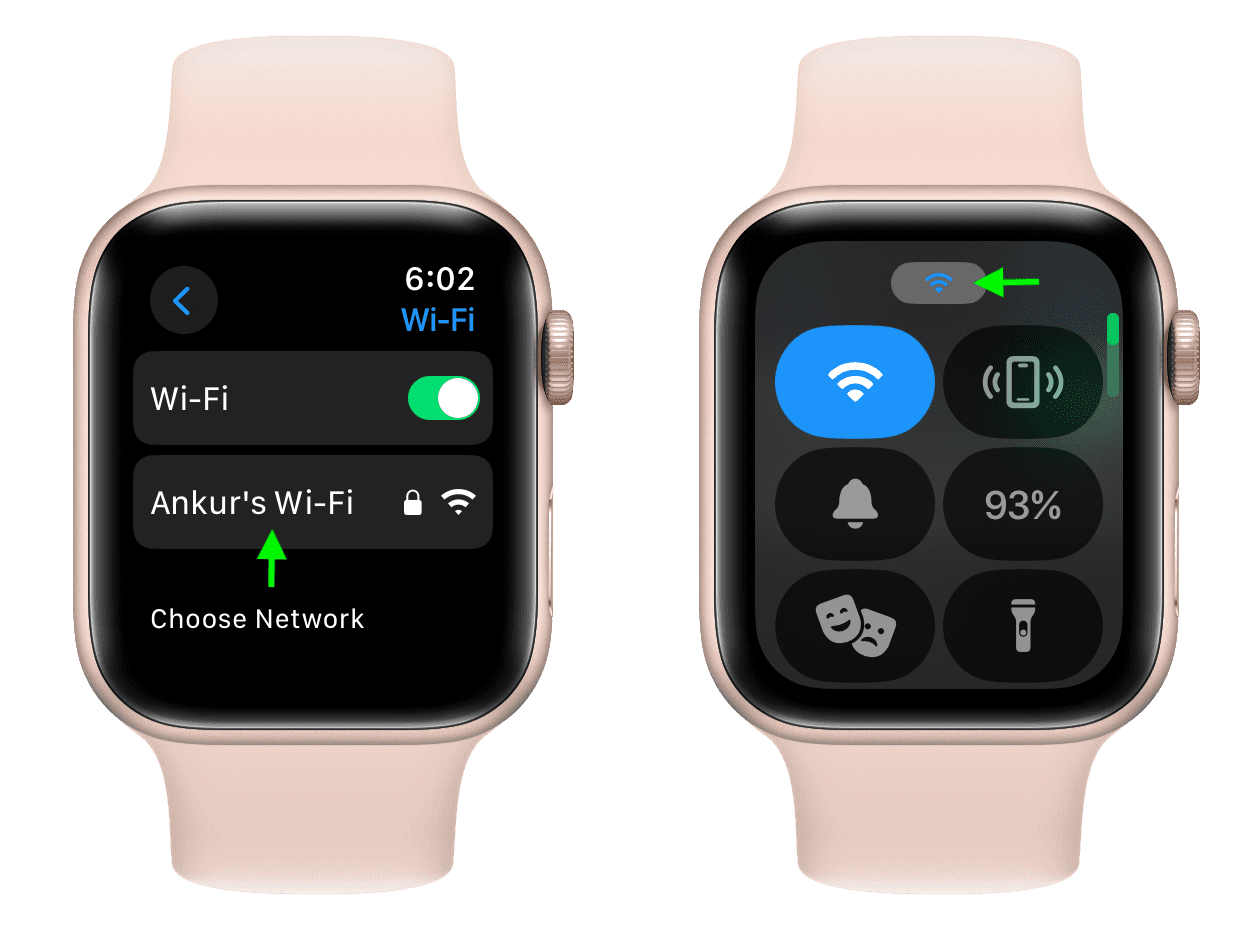
Tap Wi-Fi.
-
Wait for the watch to scan for nearby networks.
-
Tap the name of the network you want to join.
-
If the network requires a password, tap the password field.
-
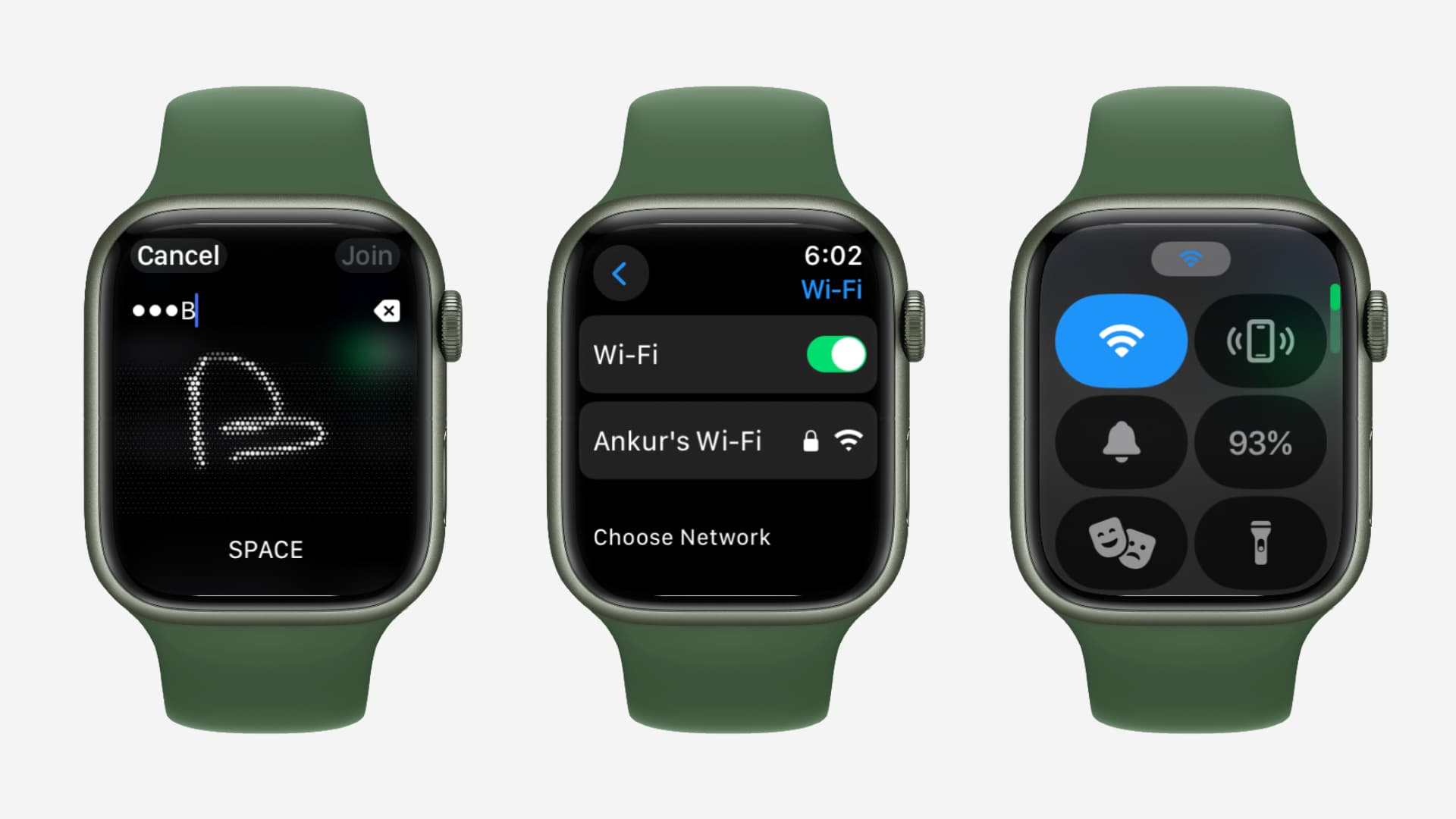
Enter the password using the watch keyboard or Scribble.
-
Tap Join.
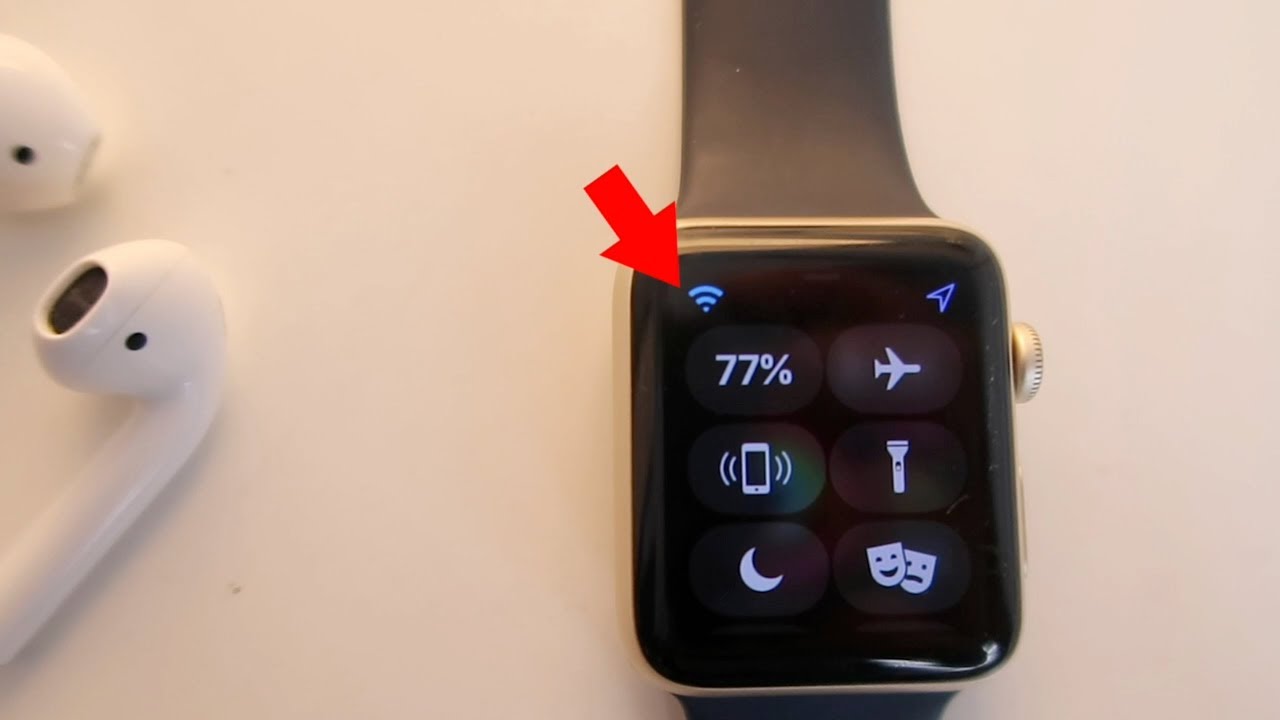
A small Wi-Fi symbol appears in Control Center when the watch is connected. You can open Control Center by pressing the side button on newer watchOS versions or by swiping up on older versions, depending on your software.
Typing a long password on a small screen can feel like writing a note on a postage stamp. Take your time and check capital letters, numbers, and special symbols. Wi-Fi passwords are case-sensitive.

How do I connect Apple Watch to Wi-Fi without an iPhone nearby?
The answer to “how do I connect Apple Watch to Wi-Fi?” does not always require your iPhone to be beside you. If the watch has already saved the network, it can often connect by itself when it loses the iPhone connection.
To use Wi-Fi without your iPhone nearby:


• Make sure the network was previously used by the watch or paired iPhone.
• Keep the watch within range of the wireless router.
• Open Control Center and look for the Wi-Fi icon.
• Open Settings, tap Wi-Fi, and select a saved network if needed.
• Confirm that Airplane Mode is off.
A Wi-Fi-only Apple Watch can still perform several online tasks when it is away from the iPhone. These may include sending iMessages, using Siri, checking weather, receiving app data, and making audio calls through supported services.
However, Wi-Fi does not turn the watch into a full replacement for an iPhone. Some features still depend on Bluetooth, cellular service, GPS, or the paired phone. Exact features also vary by Apple Watch model, watchOS version, region, and carrier.
How do I connect Apple Watch to a hidden Wi-Fi network?
Hidden networks do not broadcast their names. Because of this, they can be harder to join from Apple Watch. If your home or work network is hidden, connect your iPhone to it first when possible.
Try these steps:
-
Open Settings on your iPhone.
-
Tap Wi-Fi.
-
Tap Other.
-
Enter the exact network name.
-
Choose the correct security type.
-
Enter the Wi-Fi password.
-
Tap Join.


After the iPhone connects, keep the watch and iPhone close together. The watch may then recognize the network as a known connection.
If your Apple Watch still cannot join, temporarily enabling the network name may help. Hidden Wi-Fi does not provide strong security by itself. A strong password and modern router security, such as WPA2 or WPA3, matter more.

How do I connect Apple Watch to Wi-Fi on hotel or public networks?
Public Wi-Fi often uses a captive portal. This means you must open a web page and accept terms, enter a room number, or type a password before getting online. Apple Watch may not support every captive portal.
If you need to use hotel or café Wi-Fi, try this approach:
• Connect your iPhone to the public network.
• Complete the sign-in page on the iPhone.
• Keep the Apple Watch near the iPhone.
• Wait a minute or two for the watch to check the connection.
• Test Siri, weather, or Messages.
If the watch does not connect, use the iPhone as a hotspot if your cellular plan allows it. A cellular Apple Watch may also use its mobile connection instead of public Wi-Fi.
In real-world testing, hotel networks are among the most common sources of confusion. The Wi-Fi icon may appear, yet the watch may still lack internet access because the network has not completed its sign-in process.

How do I check whether Apple Watch is connected to Wi-Fi?
You can check the connection in seconds. On the watch, open Control Center and look for the Wi-Fi symbol. A colored Wi-Fi icon usually means the watch is connected to a network.
You can also check through Settings:
-
Press the Digital Crown.
-
Open Settings.
-
Tap Wi-Fi.
-
Look for the connected network.
If the Wi-Fi option shows a network name, the watch has likely joined it. If it shows no network or keeps searching, move closer to the router and try again.
Remember that the watch may prefer Bluetooth when the iPhone is nearby. This is normal. A Wi-Fi connection may not appear as active until the watch needs it or the iPhone moves out of Bluetooth range.

How do I connect Apple Watch to Wi-Fi when it will not connect?
When Apple Watch refuses to join Wi-Fi, start with simple fixes. Most connection problems come from a wrong password, weak signal, unsupported network security, or software that needs an update.
Try the following steps in order:
-
Move the watch closer to the wireless router.
-
Check the Wi-Fi password on another device.
-
Turn Wi-Fi off and on from the watch.
-
Restart the Apple Watch.
-
Restart the iPhone and router.
-
Update the iPhone and Apple Watch software.
-
Forget the network, then join it again.
-
Test a different home Wi-Fi network.
To forget a network, open Settings on the watch, tap Wi-Fi, select the network, and choose Forget This Network if that option appears. Then reconnect and enter the password again.
If other devices also cannot connect, the issue probably involves the router or internet service. If only the watch fails while your iPhone works, the problem may involve compatibility, saved network details, or watchOS.
Common Apple Watch Wi-Fi connection problems
The Wi-Fi password is correct, but the watch still fails
Some routers use security settings that the watch does not support. Check whether the router offers WPA2 or WPA3 and avoid unusual enterprise settings on a home network.
You can also restart the router and try the 2.4 GHz network. The 2.4 GHz band often travels farther and works better through walls.
Apple Watch shows Wi-Fi but has no internet
A Wi-Fi symbol does not always mean the internet is available. The router may have lost service, or the network may require a browser sign-in.
Test the same network on your iPhone. If the iPhone opens a login page, complete it first and then check the watch again.
Apple Watch keeps switching between Wi-Fi and Bluetooth
This is usually normal. Apple Watch is designed to use Bluetooth when the iPhone is nearby because the connection can use less power. It may switch to Wi-Fi when Bluetooth becomes weak.
The watch connects but apps do not update
Some apps need the iPhone, cellular service, or location access to work properly. Update the app, restart the watch, and test a basic online feature such as Siri or weather.
The watch cannot find the network
Confirm that Wi-Fi is enabled and that the network is within range. If the network is hidden, connect the iPhone to it first or enter the network details manually when supported.
Does Apple Watch use Wi-Fi or cellular data?
Apple Watch uses the connection that is available and appropriate. When the iPhone is close, Bluetooth is usually preferred. When the iPhone is away, the watch can use a known Wi-Fi network or cellular data if it is a cellular model with an active plan.
Wi-Fi is useful because it does not use your mobile data allowance. It can also improve online access indoors, where cellular service may be weak.
Cellular service is more flexible outdoors, but it may increase battery use and requires carrier support. GPS, streaming, phone calls, and constant notifications can also reduce battery life, regardless of the connection type.
For the best result, use Wi-Fi at home and trusted places, and rely on cellular service when you need independence from your iPhone.
Tips for a reliable Apple Watch Wi-Fi connection
A few habits can prevent most connection problems:
• Use a strong, stable home network.
• Keep your router firmware current.
• Use a clear network name and a secure password.
• Avoid networks that require repeated browser sign-ins.
• Keep watchOS and iOS updated.
• Restart the watch after changing major router settings.
• Test both 2.4 GHz and 5 GHz networks if your router offers both.
• Avoid standing at the edge of the router’s range.
• Keep the watch close to the iPhone during the first connection.
One mistake I often see is changing several router settings at once. That makes it hard to know what fixed the problem. Change one setting, test the watch, and then move to the next step.
Apple’s support guidance also emphasizes using compatible networks and keeping devices updated. Software updates can fix connection bugs, improve security, and add support for newer network behavior.
Frequently asked questions about how do i connect apple watch to wifi
Can Apple Watch connect to Wi-Fi without an iPhone?
Yes. Apple Watch can connect to a known compatible Wi-Fi network when the iPhone is not nearby. Some features may still require Bluetooth, cellular service, or the paired iPhone.
Why will my Apple Watch not connect to Wi-Fi?
The network may use an unsupported security type, require a web sign-in, or have a weak signal. Restart the watch and router, check the password, update your devices, and test another network.
Can Apple Watch connect to 5 GHz Wi-Fi?
Many newer Apple Watch models support compatible 5 GHz networks. If the watch cannot connect, try the 2.4 GHz band because router settings and watchOS version can affect compatibility.
How do I enter a Wi-Fi password on Apple Watch?
Open Settings on the watch, tap Wi-Fi, choose a network, and enter the password with the keyboard or Scribble. Check every letter, number, and symbol because passwords are case-sensitive.
Does Apple Watch automatically connect to Wi-Fi?
It can automatically connect to compatible networks that it already knows. Connecting your iPhone to the network first is usually the simplest way to help the watch recognize it.
Can Apple Watch use public Wi-Fi?
It may work on public Wi-Fi, but networks that require a browser login may not work correctly. A personal hotspot or cellular Apple Watch may be a better option in those locations.
Conclusion
Connecting Apple Watch to Wi-Fi is usually simple: join the network on your iPhone, let the watch recognize it, or select the network directly in the watch’s Settings app. Use a trusted, compatible network, enter the password carefully, and remember that public login pages can cause problems.
If your watch will not connect, restart both devices, check the router, update your software, and test another network. Try these steps today, then explore your Apple Watch’s online features and share your experience or questions in the comments.

Rubel Miah is the Senior Editor at MyStyleGrid.com, where he brings a sharp editorial eye and an unshakable love for fashion to everything he does. A true style addict, Rubel lives and breathes trends, from streetwear to high fashion, and has a knack for turning inspiration into impactful stories. With years of experience in fashion journalism and digital media, he curates content that empowers readers to express themselves through style. When he’s not editing features or forecasting the next big thing, you’ll find him hunting down vintage pieces or capturing street style moments around the city.