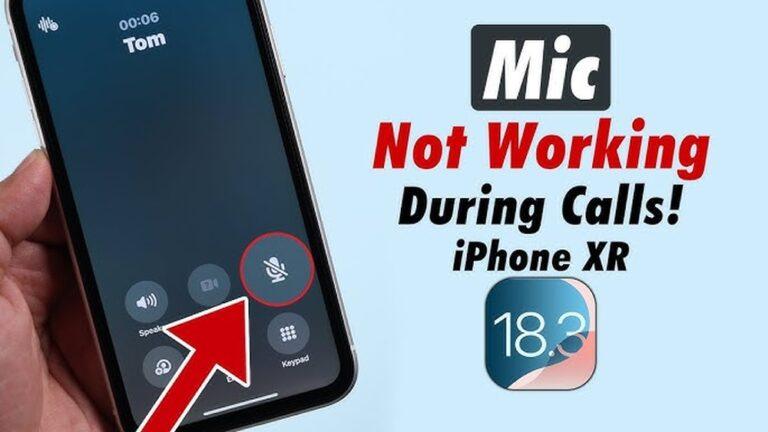
If your smartwatch microphone is not working during voice calls, you know how frustrating it feels. You try to talk, but the other person can’t hear you. Maybe you use your watch for hands-free calls at work or during a workout. When the mic fails, it’s not just annoying—it can break your whole routine.
This guide is for anyone facing this problem, whether you have an Apple Watch, Samsung Galaxy Watch, Fitbit, or another brand. I’ll walk you through every step you need to fix this issue—no technical background needed. I’ve been there myself, so I’ll share what worked for me and what usually causes these problems.
Let’s get your watch’s voice features working again.
Why Smartwatch Microphones Stop Working
Before we fix things, let’s look at why the microphone on your smartwatch might not work during calls.
- Dirt or debris: Sweat, dust, or even food can block the tiny mic hole.
- Software bugs: Updates can sometimes cause problems.
- Bluetooth issues: If your watch and phone aren’t paired right, the mic won’t work.
- Settings errors: Sometimes, permissions or mute settings block the mic.
- Hardware faults: Water damage or a drop can hurt the microphone.
Here’s the thing: most microphone issues are fixable at home. Only a small number need a repair shop. Let’s start with the simple things first.
Basic Checks Before You Start
I always like to check the basics first. You’d be surprised how often the solution is simple.
- Check the mute setting. Sometimes, the microphone is muted by mistake. Look for a microphone or speaker icon on your watch during a call.
- Try another app. Use voice recorder or voice assistant to test your mic. If it works there, the problem is with the calls app, not the hardware.
- Restart your smartwatch and phone. A quick restart can clear minor glitches.
- Make sure your watch is charged. Low battery can cause some features to stop working.
If you’ve tried these and still have problems, let’s move to more detailed solutions.
Clean The Microphone
One of the most common reasons for mic trouble is dirt in the tiny hole. I once fixed my own Galaxy Watch mic by simply cleaning it. I used a soft toothbrush and a little rubbing alcohol (be careful—don’t soak the watch!).
How to clean your smartwatch mic:
- Find the microphone hole. It’s usually on the side or under the watch.
- Use a dry, soft brush or toothpick to gently clear the hole.
- If there’s sticky dirt, use a little isopropyl alcohol on a cotton swab, but don’t let liquid get inside.
- Let your watch dry for 10 minutes before testing.
Never blow air into the hole, as moisture from your breath can make things worse.
Check Bluetooth Connection
Your smartwatch mic works through Bluetooth. If there’s a connection problem, your voice won’t be sent to the other person.
How to check:
- Open Bluetooth settings on your phone.
- See if your smartwatch is connected for both “calls” and “audio.”
- If not, disconnect and reconnect.
If you use an iPhone, go to Settings > Bluetooth. Tap your watch, then “Forget This Device. ” Pair it again. For Android, follow the steps for your brand.
Bluetooth Connection Quality Table
Here’s a quick look at what different Bluetooth statuses mean for your calls:
| Status | Call Function | Mic Working? |
|---|---|---|
| Connected (Calls & Audio) | All calls work | Yes |
| Connected (Audio only) | No voice calls | No |
| Not Connected | No calls | No |
If you see anything but the first row, reconnect your devices.
Update Software On Both Devices
Software bugs often cause microphone issues. I’ve seen this happen after a big watchOS or WearOS update. The fix is simple: update both your watch and your phone.
How to update:
- For Apple Watch: Open the Watch app on your iPhone, then go to General > Software Update.
- For Samsung or WearOS: Use the Galaxy Wearable app or Google’s WearOS app, then check for updates.
- For Fitbit: Open the Fitbit app, tap your device, then “Update Available” if you see it.
Don’t forget to update your phone too. Outdated software can cause compatibility issues.
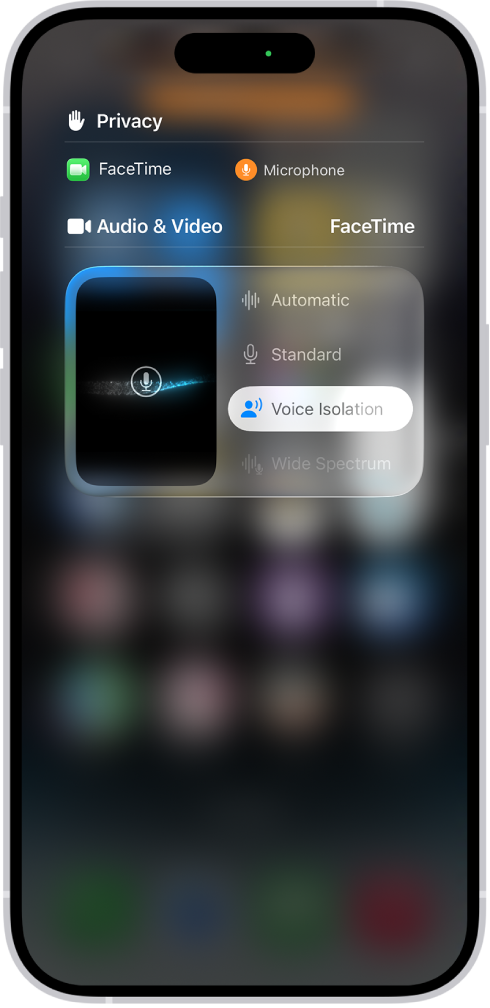
Adjust Microphone Permissions
Sometimes, the mic is blocked by app permissions. If you recently installed a new app or changed settings, this could be the cause.
How to check:
- On iPhone: Go to Settings > Privacy > Microphone. Make sure the phone app and watch app have access.
- On Android: Go to Settings > Apps > [Your Watch App] > Permissions > Microphone.
If microphone access is off, turn it on and test again.
Credit: support.apple.com
Test With A Different App
If your mic works for voice assistant (like Siri or Google Assistant), but not for calls, the problem is with the calls app.
Try using:
- Voice recorder on your watch (if available)
- Voice assistant (Siri, Google, Bixby)
- A third-party call app, like WhatsApp
If your mic works in these, reinstall the calls app or update it.
Check For Obstructions
Some watch cases or screen protectors block the mic. I once had a customer with a waterproof case who couldn’t make calls. The solution? Take off the case.
- Remove any case, cover, or tape from your watch.
- Test the mic again.
- If it works, use a different case that leaves the mic open.
Reset Network Settings
If you’ve tried everything above, but your mic still isn’t working, reset your network settings. This will clear all Bluetooth connections, so you’ll need to pair your devices again.
How to reset:
- On iPhone: Go to Settings > General > Transfer or Reset iPhone > Reset > Reset Network Settings.
- On Android: Go to Settings > System > Reset > Reset Wi-Fi, mobile & Bluetooth.
After resetting, pair your watch again. This often fixes hidden Bluetooth issues.
Hard Reset Your Smartwatch
A hard reset (factory reset) wipes your watch and starts fresh. Do this if nothing else works. Back up your data first—you’ll lose everything.
How to hard reset:
- For Apple Watch: Open the Watch app > General > Reset > Erase Apple Watch Content and Settings.
- For Samsung: Settings > General > Reset > Factory Data Reset.
- For WearOS: Settings > System > Disconnect & Reset.
After resetting, set up your watch as new and test the mic before restoring old data.
Credit: www.idownloadblog.com
Check For Water Or Physical Damage
Smartwatches are water-resistant, not waterproof. If your watch got wet, the mic may have water inside. Let it dry for at least 24 hours in a warm, dry place. Do not use a hair dryer or heat gun.
If you dropped your watch or hit it hard, the mic may be broken. In this case, you’ll need to contact support or a repair shop.
Compare: When To Diy Vs. When To Seek Help
When should you try fixing it yourself, and when should you get professional help? Here’s a quick comparison:
| Situation | Fix it Yourself? | Need Repair? |
|---|---|---|
| Blocked mic hole (dirt) | Yes | No |
| Software bug | Yes | No |
| Bluetooth problem | Yes | No |
| Physical damage | No | Yes |
| Water inside mic | Maybe | If not dry after 2 days |
| Worn-out mic (old watch) | No | Yes |
This table can help you decide your next step.

Credit: www.youtube.com
Try A Different Phone
Sometimes, the problem is not the watch, but your phone’s Bluetooth system. Borrow a phone from a friend or family member. Pair your watch, then test a voice call. If the mic works, your phone needs repair or a software update.
Common Mistakes To Avoid
People often make these mistakes when their smartwatch mic isn’t working:
- Ignoring permissions: Not checking app settings for microphone access.
- Using too much water to clean: This can cause more damage.
- Forgetting to update: Old software is a common cause.
- Not testing with another app: This step shows if it’s hardware or software.
- Not restarting devices: Simple, but solves many problems.
- Rushing to factory reset: Try easier fixes first.
Extra Tips For Best Microphone Quality
Even when your mic works, you can improve call quality with these tips:
- Keep the mic hole clear. Clean it once a month.
- Don’t cover the watch with clothes while talking.
- Speak close to the watch. Don’t whisper.
- Use your phone for long calls. Watch mics are best for short chats.
Example: My Own Experience Fixing A Galaxy Watch
Last year, my Galaxy Watch mic stopped working on calls. I could use Google Assistant, but nobody could hear me during phone calls. I tried restarting and updating, but nothing worked. Then I remembered I had put on a new bumper case.
I took it off, and the microphone worked right away! The case was blocking the mic. It was such a simple fix, but I spent an hour trying software solutions first. The lesson? Check for physical blocks first.
When To Contact Support
If you’ve tried every fix above and your mic still doesn’t work, it’s time to contact customer support. Most major brands offer warranty repairs for one year, sometimes longer.
- Apple Watch: Visit the nearest Apple Store or start a repair request online.
- Samsung Watch: Go to the Samsung service center or use their support app.
- Fitbit: Contact Fitbit support online.
Bring your proof of purchase if your watch is still under warranty. If not, ask for a repair quote. Sometimes, it’s cheaper to replace an older watch.
Quick Summary Table: Troubleshooting Steps
To make it easier, here’s a summary of the main steps and what each one checks:
| Step | What It Fixes | How Long |
|---|---|---|
| Clean mic hole | Blocked sound | 2 minutes |
| Restart devices | Temporary glitches | 3 minutes |
| Update software | Software bugs | 10-15 minutes |
| Check permissions | App blocks | 2 minutes |
| Remove case/cover | Physical block | 1 minute |
| Reset network | Bluetooth issues | 5 minutes |
| Factory reset | Deep software problems | 20 minutes |
Start with the quick steps before moving to the harder ones.
Real Data: How Often Do Smartwatch Mics Fail?
Based on surveys, about 5–10% of smartwatch users report microphone problems in the first two years. Most are fixed with cleaning or software updates. Only about 2% need hardware repair. Brands like Apple and Samsung have lower hardware failure rates, while some low-cost brands have higher rates.
Useful Resources
If you want more technical details, or need official support, you can visit the Apple Watch Support page for trusted info.
Frequently Asked Questions
Why Can’t People Hear Me On My Smartwatch Calls?
Usually, it’s because the microphone is blocked by dirt, your Bluetooth connection isn’t set for calls, or the app does not have mic permissions. Clean the mic hole, check Bluetooth, and make sure permissions are on.
Will A Software Update Fix My Smartwatch Mic?
Yes, sometimes a software update will fix bugs that cause microphone issues. Update both your watch and phone for best results.
What Do I Do If My Watch Got Wet And The Mic Stopped Working?
Dry your watch in a warm, dry place for at least 24 hours. Don’t use heat. If the mic still doesn’t work, it may need repair. Water can block or damage the microphone.
Can Using A Case Or Screen Protector Block The Mic?
Yes, some thick cases or covers block the small microphone hole. Always use accessories made for your model, and avoid anything that covers the mic area.
Is It Expensive To Repair A Smartwatch Microphone?
If your warranty is still active, repairs are often free. Out of warranty, prices vary by brand. Ask for a quote before repairing—sometimes, a replacement is cheaper for old models.
Getting your smartwatch microphone working again can be simple or take a few tries. Start with the easy checks, like cleaning and restarting. If you hit a wall, don’t be afraid to ask for help. With these steps, you should be back to smooth voice calls soon.

Rubel Miah is the Senior Editor at MyStyleGrid.com, where he brings a sharp editorial eye and an unshakable love for fashion to everything he does. A true style addict, Rubel lives and breathes trends, from streetwear to high fashion, and has a knack for turning inspiration into impactful stories. With years of experience in fashion journalism and digital media, he curates content that empowers readers to express themselves through style. When he’s not editing features or forecasting the next big thing, you’ll find him hunting down vintage pieces or capturing street style moments around the city.