To set up Galaxy Watch 8, install Galaxy Wearable, pair the watch, update it, and follow the on-screen steps.
Learning how to set up Galaxy Watch 8 is simple when you use the right order. This guide covers pairing, Samsung account access, LTE activation, health features, battery tips, and common setup problems so your watch is ready for daily use.
What You Need Before Setting Up Galaxy Watch 8
Before you set up Galaxy Watch 8, gather the items below:
- A compatible Android phone
- The Galaxy Watch 8
- The watch band and charging cradle
- A stable Wi-Fi or mobile data connection
- Your Samsung account details
- Your Google account details, if requested
- Your carrier information if you have an LTE model
Galaxy Watch 8 is designed for Android phones. The exact features can vary by phone model, Android version, region, and software version. iPhone users should check compatibility before buying because Galaxy Watch models do not offer the same full experience with iOS.
Charge the watch before you begin. A battery level of at least 30 percent is helpful. The first setup can include software downloads, account syncing, and app installation, so a low battery may interrupt the process.
You should also update your phone before you set up Galaxy Watch 8. Install the latest Android updates and leave enough storage for the Galaxy Wearable app and related services.

How to Set Up Galaxy Watch 8 Step by Step
The main setup process takes about 10 to 20 minutes. It may take longer if the watch needs a large software update or if you are restoring data from another Galaxy Watch.
1. Turn on Galaxy Watch 8
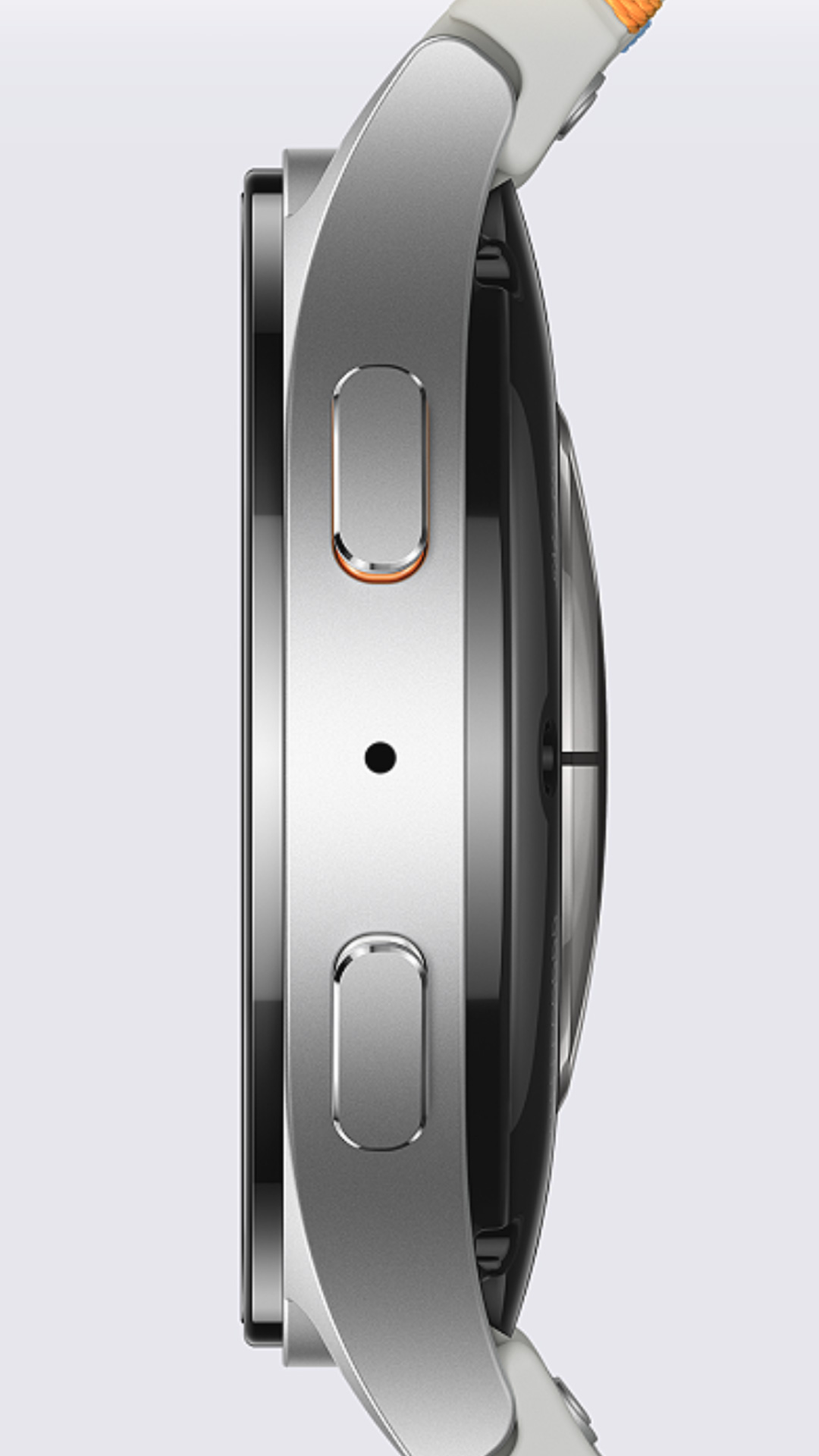
Press and hold the Home key on the side of the watch. Release it when the Samsung logo appears.
Choose your language and region when prompted. If the screen does not turn on, place the watch on its charger for a few minutes and try again.
2. Install the Galaxy Wearable app
On your Android phone, open the Google Play Store. Search for the official Galaxy Wearable app and install it.
Open the app after installation. Allow the permissions it needs for Bluetooth, nearby devices, notifications, contacts, and location. Some permissions support watch pairing, call features, and device discovery.
3. Start device pairing
In Galaxy Wearable, tap Add device. Select Galaxy Watch 8 from the list.
A pairing code should appear on both the phone and watch. Confirm that the codes match, then tap Pair on your phone.
Keep the phone and watch close together. Avoid starting setup near many Bluetooth devices, routers, or other electronics if pairing keeps failing.
4. Accept the required permissions
The app will show several permissions and terms. Read them, then accept the items you need.
Some permissions are optional. For example, you can deny access to contacts if you do not want to use watch-based calling. However, denying certain permissions may limit notifications, health tracking, or voice features.
5. Sign in to your Samsung account
Sign in to your Samsung account when asked. This account supports services such as Samsung Health, backups, Find My Mobile features, and some watch apps.
If you do not have an account, create one with an email address you can access. Use a strong password and enable two-step verification when available.
6. Sign in to your Google account
Galaxy Watch 8 may ask for a Google account during setup. This helps you download apps, use Google services, and restore some settings.
Use the same Google account you plan to use for the Play Store. This avoids confusion when you install watch apps later.
7. Choose your wrist and watch settings
Select whether you wear the watch on your left or right wrist. Then choose your preferred time format, notification settings, and display options.
You can change most of these settings later. Do not worry about making every choice perfect during the first setup.
8. Install available updates
Allow Galaxy Watch 8 to download and install firmware updates. Keep the watch on its charger if the update takes a long time.
Do not restart the watch or close the phone app during an update. A stable Wi-Fi connection can make this step faster and more reliable.

How to Set Up Galaxy Watch 8 With an LTE Plan
If you own the LTE version, you can use cellular service without keeping your phone nearby. You still need to complete phone pairing first.
To set up Galaxy Watch 8 with LTE, follow these steps:
- Open Galaxy Wearable on your paired phone.
- Tap Watch settings.
- Select Mobile plans or Mobile networks.
- Follow the carrier activation instructions.
- Confirm your billing and plan details.
- Wait for the eSIM profile to download.
- Test a call with the phone turned off or outside Bluetooth range.
LTE activation depends on your carrier. The watch and phone may also need to use compatible carrier services. Some carriers require a separate wearable line, while others offer number sharing.
If activation fails, restart both devices and check your carrier account. Do not repeatedly delete the mobile plan unless the carrier tells you to do so. Removing an eSIM profile can make activation harder.

How to Set Up Galaxy Watch 8 Health Features
Health tools are a major reason people set up Galaxy Watch 8. These tools can track activity, heart rate, sleep, workouts, and other wellness data.
Open Samsung Health on your phone and complete the profile questions. Add your age, height, weight, sex, and activity goals as accurately as possible. These details help the app estimate calories and fitness targets.
Set up the following features based on your needs:
- Daily activity goals
- Step tracking
- Heart rate monitoring
- Sleep tracking
- Workout shortcuts
- Water and food tracking
- Stress monitoring
- Blood oxygen tracking during supported measurements
Some health features may require a compatible Samsung phone. Certain measurements may also depend on local approval, software version, or regional availability.
Health readings are useful for trends, but they are not a medical diagnosis. If a reading concerns you, repeat the measurement while resting and speak with a health professional when needed.
A common setup mistake is selecting unrealistic activity goals. Start with a goal you can meet most days. A small, steady target works better than a difficult goal that quickly becomes discouraging.

How to Customize Galaxy Watch 8
After you set up Galaxy Watch 8, make it fit your routine. Customization can improve battery life and make important information easier to see.