To set up Apple Watch SE, pair it with your iPhone, follow the on-screen steps, and customize your settings.
Learning how to set up Apple Watch SE is simple when you prepare the right devices first. This guide explains each step, from charging and pairing to cellular service, safety settings, apps, and common fixes. It also includes practical tips that help avoid the small setup mistakes many new Apple Watch owners face.
What You Need Before Setting Up Apple Watch SE
Before you learn how to set up Apple Watch SE, check that your iPhone and watch are ready. Setup works best when both devices have enough battery and the latest compatible software.
You will need:
• An Apple Watch SE with some battery power
• An iPhone with Bluetooth turned on
• Your Apple Account password
• A Wi-Fi or cellular connection
• Your iPhone passcode
• The latest version of iOS supported by your iPhone and Apple Watch SE
• A valid payment method if you want to use Apple Pay
Charge the Apple Watch SE if the battery is low. You do not need a full charge, but keeping the watch connected to its charger during setup can prevent interruptions.
Your iPhone should be nearby, unlocked, and connected to Wi-Fi or cellular data. Bluetooth is also important because the iPhone uses it to discover and pair with the watch.
If the Apple Watch SE belonged to someone else, make sure it was erased correctly. If Activation Lock is still enabled, the previous owner must remove the watch from their Apple Account before you can use it.

How to Set Up Apple Watch SE Step by Step
The main setup process takes only a few minutes. Keep the Apple Watch SE and iPhone close together until pairing is complete.
1. Turn on your Apple Watch SE
Press and hold the side button on the Apple Watch SE. Release it when the Apple logo appears.
The first startup can take a little time. If the watch does not turn on, place it on its charger and wait several minutes before trying again.
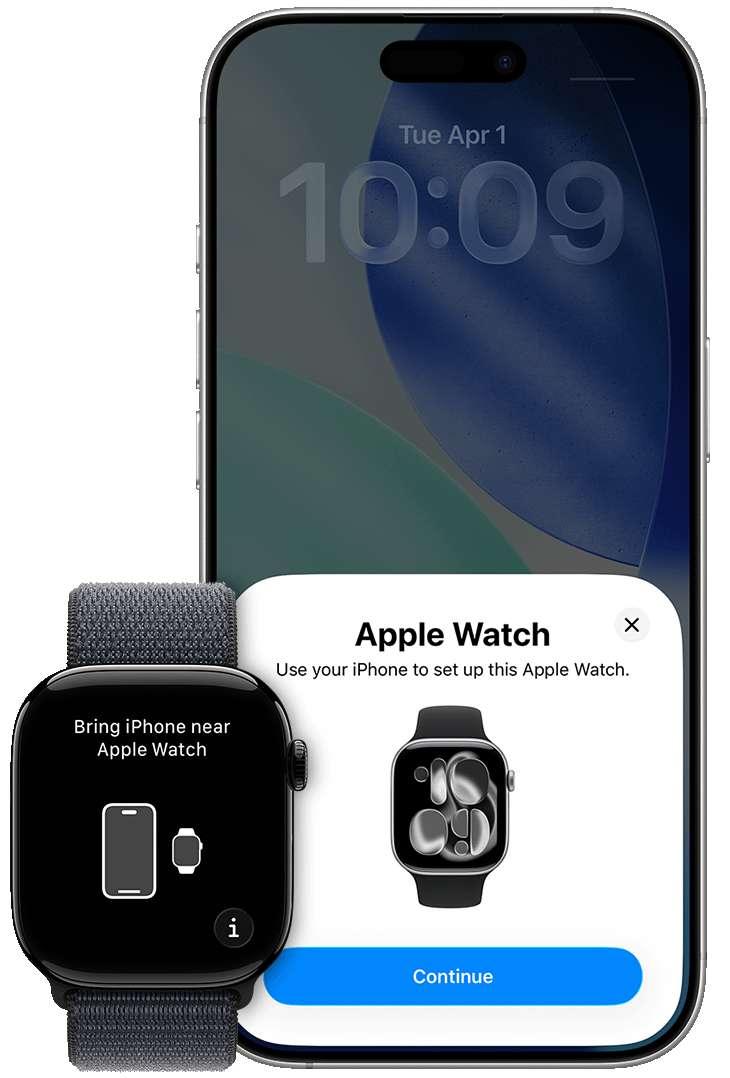
2. Bring the watch near your iPhone
Unlock your iPhone and place it beside the Apple Watch SE. A message should appear on the iPhone asking whether you want to use it to set up the watch.
Tap Continue.
If the message does not appear, open the Watch app on your iPhone. Tap All Watches, then tap Add Watch. Choose Set Up for Myself unless you are setting up the watch for another person.
3. Scan the pairing animation
The iPhone will show a moving pattern on its screen. Point the Apple Watch SE camera view toward that pattern.
The devices should pair within a few seconds. If scanning does not work, tap Pair Apple Watch Manually and follow the instructions on the screen.
4. Choose a setup option
You may see two choices:
• Set Up as New Apple Watch: Choose this for a new watch or when you want a clean setup.
• Restore from Backup: Choose this if you used an Apple Watch before and want to bring back settings, apps, and data.
Restoring a backup can save time, but setting up as new may solve problems caused by old settings or unused apps. When I help people set up Apple Watch SE, I often recommend starting fresh if their previous watch felt cluttered or slow.
5. Sign in with your Apple Account
Enter your Apple Account email and password when asked. This connects services such as Find My, iCloud, Apple Pay, and app downloads.
You may need to enter your iPhone passcode or verify your identity with two-factor authentication. Keep your trusted phone number or another Apple device nearby in case Apple requests a verification code.
6. Create a passcode
The Apple Watch SE will ask whether you want to create a passcode. A passcode protects personal data and enables features such as Apple Pay.
Choose Turn Passcode On and enter a code on the watch. You can also select a longer passcode for better security.
If you plan to use Apple Pay, a passcode is required. The watch can lock itself when you remove it from your wrist.
7. Set up health and safety features
During setup, you can review features such as:
• Fall Detection
• Emergency SOS
• Medical ID
• Heart health notifications
• Activity and workout tracking
Enter accurate information, including your age, height, weight, and sex, if you want more precise activity results. Health features can be useful, but they are not a replacement for professional medical advice.
8. Choose wrist and orientation settings
Select whether you wear the Apple Watch SE on your left or right wrist. Then choose which side holds the Digital Crown.
The correct choice improves comfort and makes gestures feel natural. You can change these settings later in the Watch app under General and Watch Orientation.
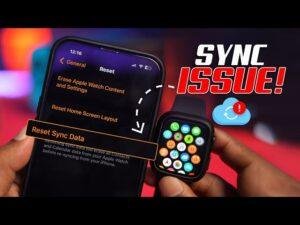
9. Wait for syncing to finish
The iPhone may now sync apps, contacts, messages, settings, and other data to the watch. Keep both devices near each other and connected to power if possible.
The first sync may take several minutes. Avoid restarting either device unless the process appears frozen for a long time.

How to Set Up Apple Watch SE With Cellular Service
Not every Apple Watch SE model supports cellular service. Check the model details before trying to activate a mobile plan.
If you have a cellular model, you can add service during the setup process or later in the Watch app. Tap the My Watch tab, choose Cellular, and then select Set Up Cellular.
Your iPhone and Apple Watch usually need to use the same wireless carrier. The carrier may ask you to sign in, confirm your plan, or accept an added monthly charge.
Cellular service lets the Apple Watch SE make calls, send messages, stream music, and use some online features without the iPhone nearby. It does not replace every iPhone function, and coverage depends on your carrier and location.
To set up Apple Watch SE without cellular service, choose the option to skip mobile service during setup. You can continue using Wi-Fi and your iPhone connection.

Important Settings to Review After Setup
Once you know how to set up Apple Watch SE, take a few minutes to review the settings. The default choices work for many people, but small changes can make the watch more useful.
Notifications
Open the Watch app on your iPhone and tap Notifications. Decide which apps may send alerts to your wrist.
Allow important alerts, such as calls, messages, calendar events, and reminders. Turn off noisy alerts from shopping, games, or social apps. Fewer alerts can make the watch feel helpful instead of distracting.
Do Not Disturb and Focus
Focus settings can reduce interruptions during work, sleep, driving, or exercise. You can mirror Focus settings from your iPhone or create different schedules.
This is one of the best ways to protect your attention. A watch that vibrates all day can feel like a tiny tap on the shoulder every few minutes.
Health permissions
Open the Health app on your iPhone and review the information shared by the Apple Watch SE. Allow access only when it makes sense for you.
You can manage permissions for activity, heart rate, sleep, and other health data. Review these settings from time to time, especially after installing new apps.
Emergency contacts
Open the Health app, tap your profile picture, and choose Medical ID. Add emergency contacts and important medical details if you are comfortable doing so.
These details can help responders in an emergency. Make sure the information stays current.
Apple Pay
Open the Watch app, tap Wallet & Apple Pay, and choose Add Card. Follow the verification steps from your bank or card provider.
Apple Pay on Apple Watch uses device security and requires a passcode. Never share your watch passcode with another person.
App layout
You can choose automatic app installation or manage apps manually. Automatic installation is convenient, but it can fill the watch with apps you rarely use.
For a cleaner setup, install only the apps you use on your wrist. You can add more later from the App Store.

Tips for a Smooth Apple Watch SE Setup
A few simple habits can make how to set up Apple Watch SE faster and more reliable.
• Update the iPhone first: An outdated iPhone may not pair correctly with the watch.
• Keep the devices close: Bluetooth pairing can fail if the iPhone and watch are in different rooms.
• Use a stable connection: Wi-Fi helps the watch download settings and apps without delays.
• Keep your passwords ready: Your Apple Account password and iPhone passcode may both be required.
• Do not rush the sync: The watch may appear ready while apps and data continue downloading.
• Set up a passcode: This protects your information and supports Apple Pay.
• Start with fewer apps: You can add apps later when you know what you need.
• Check the band fit: The sensor needs steady skin contact for accurate activity and heart rate readings.
• Clean the sensor area: Sweat, lotion, and dirt can affect comfort and readings.
One common mistake is selecting every notification during setup. It feels harmless at first, but the constant alerts quickly become tiring. Start with the essentials, then add alerts as needed.
Another mistake is ignoring the Apple Account password. If you cannot sign in, services such as Find My and Apple Pay may not work correctly.

Troubleshooting Apple Watch SE Setup Problems
If the Apple Watch SE will not pair, first confirm that the iPhone has Bluetooth enabled and is connected to Wi-Fi or cellular data. Keep the devices close and restart both if needed.
If the pairing animation does not scan, choose the manual pairing option in the Watch app. Manual pairing is slower but often works when the camera view has trouble recognizing the animation.
If the watch shows an Activation Lock screen, the previous owner must remove it from their Apple Account. Erasing the watch alone does not remove Activation Lock.
If setup stops during an update, keep the watch on its charger and leave the iPhone nearby. A weak connection or low battery can slow the process.
If the watch is frozen, press and hold the side button until the power menu appears. If that does not work, force restart it only as a last resort by holding the side button and Digital Crown together until the Apple logo appears.
When setup continues to fail, erase the Apple Watch and try again. On the watch, open Settings, tap General, choose Transfer or Reset, and select Erase All Content and Settings. This removes data from the watch, so use it only when necessary.
Apple’s official support guidance is the best place to check current compatibility, software, and carrier details because these requirements can change over time.

What the Apple Watch SE Can and Cannot Do
The Apple Watch SE offers core smartwatch features at a lower price than Apple’s premium watch models. It can track activity, show notifications, support workouts, handle calls and messages, use Apple Pay, and provide safety tools.
Its exact features depend on the model, software version, connected iPhone, and region. Cellular features also depend on carrier support.
Some advanced health features found on other Apple Watch models may not be available on the Apple Watch SE. This can include certain sensors or health measurements. Check the technical specifications for your exact generation before relying on a feature.
The Apple Watch SE is also not a fully independent iPhone replacement. It works best as a companion device, especially during the first setup and when you want to manage apps, settings, and data.

How to Set Up Apple Watch SE for a Family Member
Family Setup may let you configure an Apple Watch for someone who does not have their own iPhone. The organizer needs a compatible iPhone, an Apple Account, and a supported cellular Apple Watch model.
Open the Watch app, tap All Watches, choose Add Watch, and select Set Up for a Family Member. Follow the instructions to add the user, choose restrictions, and configure contacts.
This option can be useful for children or older family members. However, some features may work differently, and cellular service may be required. Availability also depends on your region and carrier.
Before using Family Setup, review location sharing, communication limits, Screen Time, and emergency contacts. Clear settings help everyone understand what the watch can do.

Frequently Asked Questions About How to Set Up Apple Watch SE
Do I need an iPhone to set up Apple Watch SE?
Yes, most Apple Watch SE models require a compatible iPhone for initial setup. The iPhone manages pairing, software updates, apps, and many watch settings.
How long does it take to set up Apple Watch SE?
Basic pairing may take a few minutes, but a full setup can take longer if the watch needs an update or many apps. Keeping both devices charged and close together usually helps.
Can I set up Apple Watch SE without Wi-Fi?
You can often use cellular data on the iPhone, but Wi-Fi may make setup and syncing faster. Some updates and downloads may work better over a stable Wi-Fi connection.
Why will my Apple Watch SE not pair with my iPhone?
Check that Bluetooth is on, the iPhone is unlocked, and both devices are close together. Restarting both devices and updating the iPhone often resolves pairing problems.
Can I set up Apple Watch SE for someone else?
Yes, Family Setup may allow you to configure a watch for a family member. The feature has device, iPhone, Apple Account, region, and carrier requirements.
Do I need cellular service on Apple Watch SE?
No, cellular service is optional. Without it, the watch can still use Wi-Fi and connect to the iPhone for calls, messages, notifications, apps, and other features.
How do I reset Apple Watch SE before setting it up again?
On the watch, open Settings, tap General, choose Transfer or Reset, and then select Erase All Content and Settings. Make sure you understand that this removes personal data from the watch.
Conclusion
Learning how to set up Apple Watch SE starts with preparing your iPhone, charging the watch, and using the Watch app to pair the devices. From there, sign in to your Apple Account, create a passcode, review health and safety tools, and choose the notifications and apps you really need.
Take your time with the first sync, especially if you restore a backup or install many apps. A clean setup, sensible alerts, and accurate personal details will help your Apple Watch SE feel useful from day one.
Set up your watch now, explore one feature at a time, and check Apple’s latest support resources when you need help with updates or compatibility.

Rubel Miah is the Senior Editor at MyStyleGrid.com, where he brings a sharp editorial eye and an unshakable love for fashion to everything he does. A true style addict, Rubel lives and breathes trends, from streetwear to high fashion, and has a knack for turning inspiration into impactful stories. With years of experience in fashion journalism and digital media, he curates content that empowers readers to express themselves through style. When he’s not editing features or forecasting the next big thing, you’ll find him hunting down vintage pieces or capturing street style moments around the city.