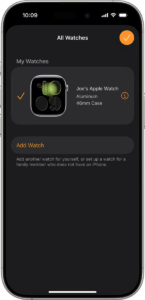
Most smartwatches download apps through a companion phone app or a built-in watch app store.
Learning how to download apps in smartwatch models is simple once you know which operating system your watch uses. Wear OS, Apple Watch, Galaxy Watch, Fitbit, and Garmin devices each follow a slightly different path, so this guide explains the steps, common problems, safety tips, and useful examples in clear terms.
What You Need Before Downloading a Smartwatch App
Before learning how to download apps in smartwatch devices, check that your watch and phone are ready. Most app installs need a stable internet connection, enough battery power, and an active connection between the watch and phone.
You should also know your watch brand and model. An Apple Watch uses watchOS, while many Android watches use Wear OS. Galaxy Watch models may use Wear OS or a Samsung-specific setup, depending on the generation.
Check these basics first:
• Charge the watch to at least 30 percent.
• Connect the watch to Wi-Fi or keep it near your phone with Bluetooth enabled.
• Update the watch and phone software.
• Sign in to the correct Apple, Google, Samsung, Garmin, or Fitbit account.
• Make sure the app supports your watch model and operating system.
Some apps install only a watch version after you install the phone version. Others work as independent smartwatch apps. This difference explains why an app may appear on your phone but not on your watch.

How to Download Apps in Smartwatch Using Wear OS
Wear OS watches, such as many Google Pixel Watch and newer Android smartwatch models, usually use the Google Play Store. You can install apps from the watch itself or from the Play Store on your Android phone.
Install an app directly on the watch
1. Press the crown or power button to open the app list.
-
Find and open the Google Play Store.
-
Tap the search icon.
-
Speak or type the app name.
-
Select the app from the search results.
-
Tap Install.
-
Wait for the download and installation to finish.
The app may take a few moments to appear. Open the app list again, then scroll until you find it. You can often move it higher in the list by changing your app layout or adding it to your favorites.
Install an app from an Android phone
-
Open the Google Play Store on your phone.
-
Search for the app you want.
-
Check whether the listing supports Wear OS.
-
Tap the device selector, if available.
-
Choose your smartwatch.
-
Tap Install.
You may see two install options: one for your phone and one for your watch. Select the watch option when you only want the smartwatch app. Some services, such as music, maps, fitness, and messaging apps, may need both versions to work well.
When testing Wear OS apps, I have found that installing over Wi-Fi is usually faster and more reliable than installing through a weak Bluetooth connection. If the app does not appear at once, give the watch a minute, then restart the app list.

How to Download Apps in Smartwatch With an Apple Watch
Apple Watch apps are managed through the App Store on the watch or the Watch app on a paired iPhone. Your Apple Watch must be paired with an iPhone because Apple Watch does not support setup through Android phones.
Install an app from the Apple Watch
-
Press the Digital Crown.
-
Open the App Store.
-
Tap Search.
-
Enter the app name or use dictation.
-
Tap the app.
-
Tap Get or the price button.
-
Confirm the download with your Apple ID, passcode, or side button.
The app will install on the watch if it supports watchOS. You may need to scroll through the app grid or list to find it.
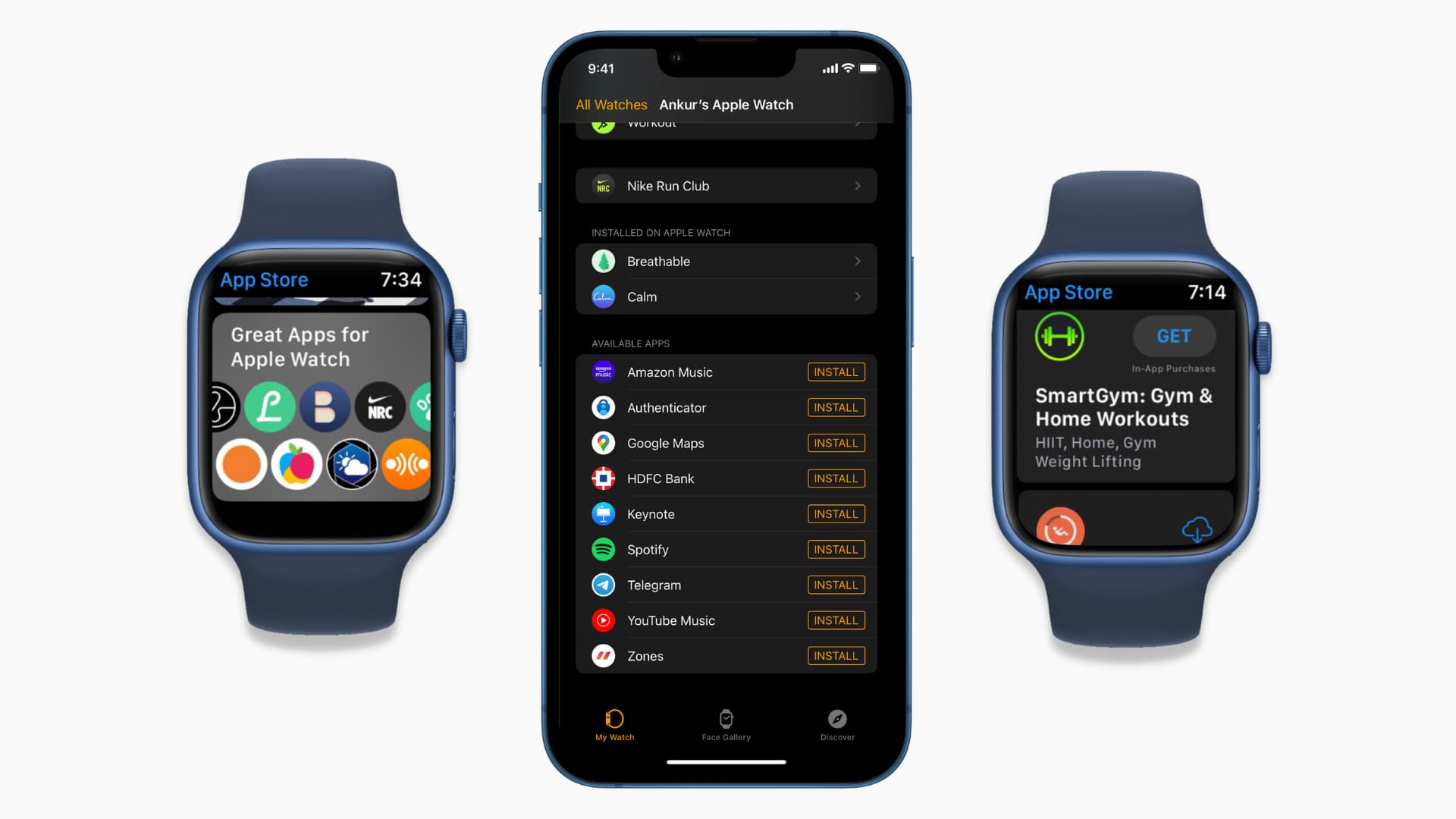
Install an app from the iPhone
-
Open the Watch app on your iPhone.
-
Tap the My Watch tab.
-
Scroll to Available Apps.
-
Tap Install beside the app you want.
You can also use the App Store on your iPhone. Look for the phrase “Apple Watch App Available” in the app description. If automatic app installation is enabled, compatible watch apps may install when you install the phone app.
Apple Watch users should also check storage. Large podcasts, offline music, and navigation apps can use more space than simple weather or timer apps.
How to Download Apps in Samsung Galaxy Watch
Newer Galaxy Watch models use Wear OS with Samsung’s One UI Watch interface. Older models may use Tizen, and their app support is different. The setup process also depends on whether you pair the watch with a Samsung Galaxy phone or another Android phone.
Install from the watch
-
Open the app screen.
-
Tap the Play Store.
-
Tap Search.
-
Type or speak the app name.
-
Choose the app.
-
Tap Install.
The watch must be connected to the internet. It may use a Wi-Fi network or the phone’s connection, depending on your settings.
Install from the phone
-
Open the Google Play Store on your Android phone.
-
Search for the app.
-
Select the watch-compatible version.
-
Tap the arrow beside the Install button, if shown.
-
Choose your Galaxy Watch.
-
Tap Install.
Samsung Health features may work best with Samsung phones, although many Galaxy Watch models can pair with other Android devices. Some functions, such as advanced health readings, can also vary by country, phone model, and regulatory approval.
A common mistake is searching only the phone app store without checking watch compatibility. Before installing, read the app description and look for Wear OS or Galaxy Watch support.
How to Download Apps in Garmin and Fitbit Smartwatches
Garmin and Fitbit use different app systems from Apple Watch and Wear OS. Garmin watches commonly use the Connect IQ Store, while Fitbit apps and clock faces are managed through the Fitbit app.
Garmin Connect IQ
-
Install and open the Garmin Connect IQ app on your phone.
-
Sign in to your Garmin account.
-
Choose your watch.
-
Search for an app, widget, data field, or watch face.
-
Tap the item you want.
-
Select Download or Install.
-
Sync the watch with the Garmin Connect app.
Garmin apps are often called Connect IQ apps. They may include running tools, weather widgets, navigation features, and custom watch faces. Not every app works with every Garmin model, so compatibility is important.
Fitbit apps and clock faces
-
Open the Fitbit app on your phone.
-
Tap your profile picture.
-
Select your Fitbit device.