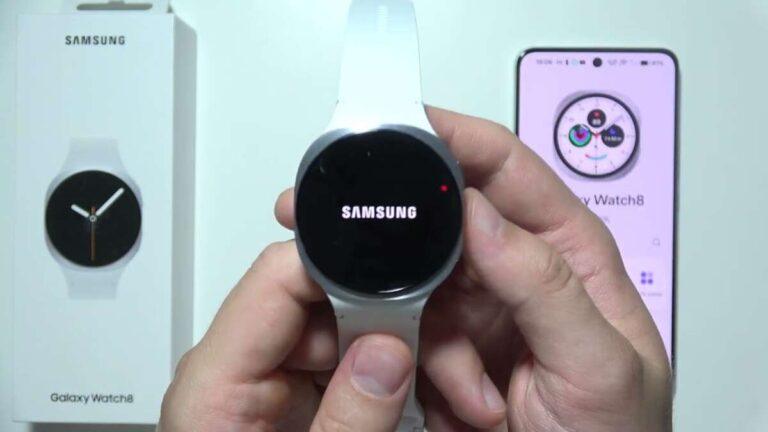
Press and hold the Galaxy Watch 8 Home button until the Samsung logo appears.
Learning how to turn on Galaxy Watch 8 is simple, but the watch may need extra steps if its battery is empty, it is frozen, or it is starting for the first time. This guide explains the correct button, charging checks, restart methods, setup tips, and common fixes so you can get your smartwatch running without guesswork.
How to turn on Galaxy Watch 8
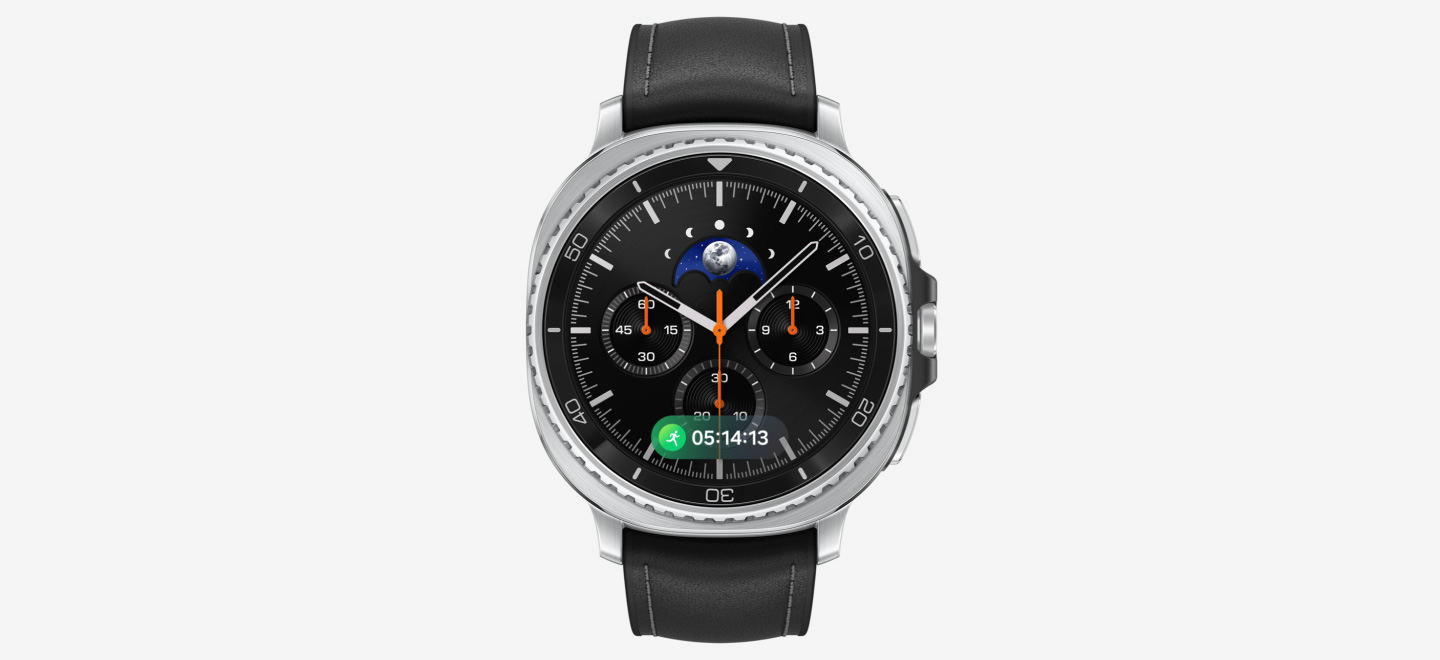
To turn on Galaxy Watch 8, use the Home button on the right side of the watch. It is usually the upper button when the display faces you.
Follow these steps:
- Place the watch on your wrist or hold it securely.
- Find the Home button on the right side.
- Press and hold the Home button for a few seconds.
- Release the button when the Samsung logo appears.
- Wait for the watch to finish starting.
The first startup may take longer than a normal wake-up. This is normal, especially after a software update, a factory reset, or a long period without use.
The Galaxy Watch 8 uses the Home button as its power key. A quick press normally wakes the screen, but turning on a fully powered-off watch requires a press and hold.
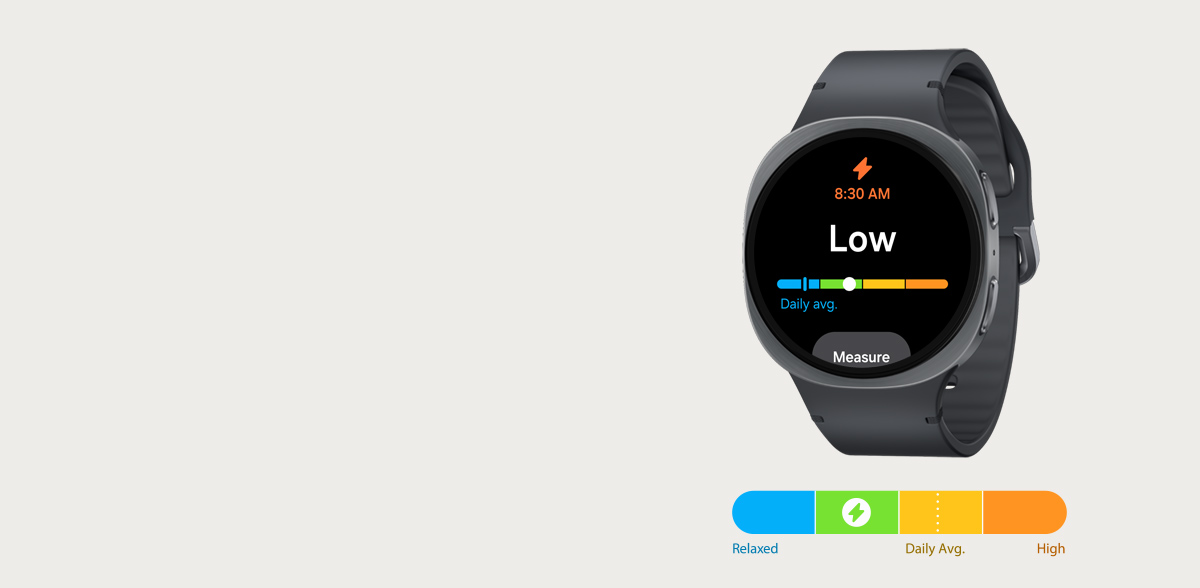
Which button turns on the Galaxy Watch 8?
The upper button on the right side of the Galaxy Watch 8 is the Home button. It also works as the power button when the watch is off.
The lower button is the Back button. It returns you to the previous screen during normal use, but it does not usually turn on the watch by itself.
If you are unsure which button to press, look at the watch face:
• The upper right button is the Home or Power button.
• The lower right button is the Back button.
• The touch screen cannot turn on a fully powered-off watch.
When explaining how to turn on Galaxy Watch 8 to a new user, I recommend starting with the button layout. Many people tap the screen or press the lower button first. Those actions may do nothing if the watch has no active power.

How long should you hold the power button?
Hold the Home button for about three to five seconds. Keep holding it until the Samsung logo appears.
A short press may only wake the screen. If the display stays black, press and hold the button again rather than tapping it repeatedly.
Use these timing tips:
• Hold the button for three to five seconds for a normal startup.
• Keep holding it for up to 10 seconds if the logo takes a moment to appear.
• If nothing happens after 10 to 15 seconds, place the watch on its charger.
• If the watch remains frozen, use the forced restart method explained below.
The startup screen may appear after a short delay. Avoid pressing several buttons at once during normal startup because this can make it harder to know whether the watch received your command.

What to do if the Galaxy Watch 8 will not turn on
If your Galaxy Watch 8 does not respond, the battery is the most likely cause. A completely drained battery may show no logo, vibration, or charging symbol right away.
Try this process:
- Connect the official or compatible Galaxy Watch charging puck to power.
- Place the center of the watch on the center of the charger.
- Check that the charger is connected to a working wall adapter.
- Leave the watch charging for at least 15 to 30 minutes.
- Press and hold the Home button again.
Make sure the back of the watch and the charging surface are clean and dry. Thick cases, metal objects, moisture, or poor alignment can prevent proper charging.
If the watch becomes warm but shows no response, remove it from the charger and let it cool. Samsung devices include safety controls that may pause charging when the temperature is too high.
When troubleshooting how to turn on Galaxy Watch 8, do not assume the watch is broken after a few seconds. A deeply discharged battery often needs time before the screen can display anything.

How to charge the Galaxy Watch 8 before startup
The Galaxy Watch 8 charges through a compatible wireless charging system. It does not use a standard USB-C port on the watch body.
For the best result:
• Use the charging puck made for the watch or a compatible Samsung-approved charger.
• Connect the charger to a reliable power source.
• Put the watch face up and center its rear sensor area on the puck.
• Remove dirt, sweat, and moisture from both surfaces.
• Wait until a charging icon or battery level appears.
Wireless charging works best when the watch sits flat. If the charger moves or the watch is slightly off-center, charging may stop. This is one of the most common reasons users think the watch will not turn on.
You should not try to charge the watch while it is wet. Dry the watch carefully first, even if the model has water resistance. Water resistance does not mean the charging contacts and charging process are safe when wet.
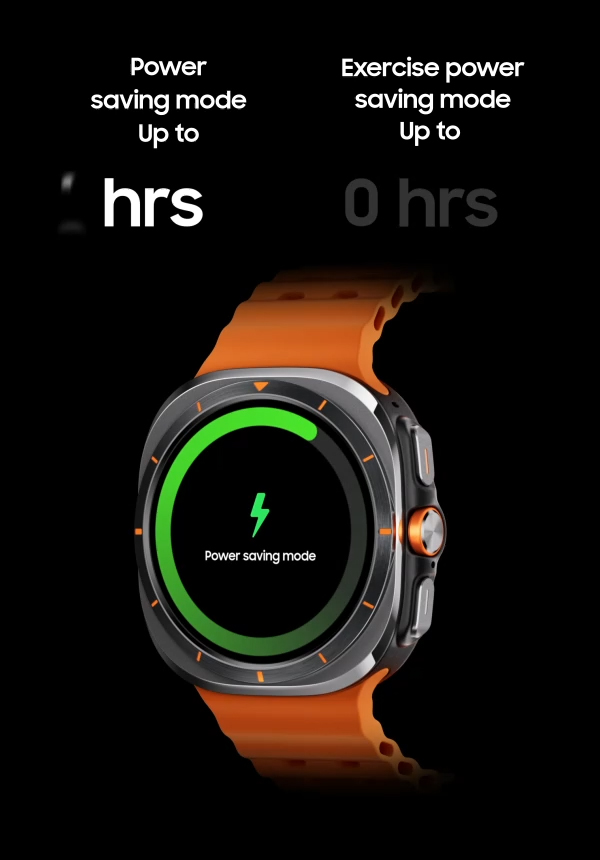
How to force restart a frozen Galaxy Watch 8
A forced restart can help if the screen is frozen or the watch ignores normal button presses. It does not normally erase your data.
To force restart Galaxy Watch 8:
- Press and hold the Home button and Back button at the same time.
- Continue holding both buttons for at least seven seconds.
- Release the buttons when the watch restarts or the Samsung logo appears.
- Allow the watch to complete its startup.
Do not use a forced restart during a firmware update unless the watch is clearly stuck for an unusually long time. Interrupting an update can create software problems.
A forced restart is different from a factory reset. It simply cuts through a frozen state and reloads the operating system. Your apps, settings, and health data should remain in place.
If the watch still does not respond, charge it for 30 minutes and try the button combination again. If there is still no response, contact Samsung Support or an authorized service center.

How to turn on Galaxy Watch 8 for the first time
The first startup begins the setup process. After the Samsung logo appears, the watch may ask you to choose a language, accept terms, and connect to a phone.
You will usually need:
• A compatible Android phone.
• The Galaxy Wearable app.
• Bluetooth enabled on the phone.
• A Samsung account for some features.
• A stable internet connection for updates and app downloads.
Open the Galaxy Wearable app on your phone and select the option to add a new device. Choose Galaxy Watch 8 from the list, then confirm that the code shown on the watch matches the code on your phone.
Keep the watch and phone close together during setup. Pairing can fail when the devices are far apart, Bluetooth is disabled, or the phone has an old wearable connection saved.
The setup process may also ask about notifications, location, health permissions, and backup options. Review these choices carefully. Health features can depend on the model, region, software version, and local rules.
How to turn on Galaxy Watch 8 after it shuts down
If the watch shuts down because the battery reaches zero, connect it to the charger first. Wait for the charging symbol, then press and hold the Home button.
If you turned the watch off yourself, the startup process is faster:
- Press and hold the Home button.
- Wait for the Samsung logo.
- Release the button.
- Let the watch load the home screen.
A quick press is enough to wake the display when the watch is already running. You do not need to hold the button every time the screen goes dark.
This difference saves time:
• Screen off means the watch is usually still running.
• Samsung logo means the watch is starting up.
• No response often means the battery is empty or the system is frozen.
Understanding these signs makes how to turn on Galaxy Watch 8 much easier in daily use.

Common mistakes to avoid when turning on Galaxy Watch 8
Small mistakes can make a working watch seem dead. Avoid these common problems:
• Pressing the Back button instead of the Home button.
• Tapping the screen when the watch is fully powered off.
• Removing the watch from the charger too soon.
• Using an incompatible charging puck.
• Placing the watch off-center on the charger.
• Trying to charge a wet watch.
• Holding only one button when the system is frozen.
• Assuming a black screen always means hardware failure.
Another mistake is repeatedly pressing the Home button. One firm, steady press is better than many quick taps. Think of it like starting a car: turn the key with purpose, then give the system time to respond.
If the watch turns on but immediately shuts down, charge it longer. A weak battery may have enough power to show the logo but not enough power to complete startup.
Galaxy Watch 8 startup problems and solutions
The table below covers the most common startup symptoms.
| Problem | Likely cause | What to try |
|---|---|---|
| No screen or vibration | Empty battery | Charge for 30 minutes, then hold Home |
| Charging icon does not appear | Poor alignment or charger issue | Reposition the watch and test another power source |
| Samsung logo stays on screen | Software freeze | Try a forced restart |
| Screen turns on but shuts off | Very low battery | Continue charging before startup |
| Buttons do not respond | System freeze | Hold Home and Back together for seven seconds |
| Watch will not pair | Bluetooth or app issue | Restart both devices and update Galaxy Wearable |
| Watch feels very hot | Temperature protection | Remove it from power and let it cool |
These steps follow standard smartwatch troubleshooting practices. Exact menus and behavior can change after software updates, so the instructions on your watch may look slightly different.
If physical buttons are damaged, the display has visible damage, or the watch has suffered liquid exposure, home troubleshooting may not solve the problem. Professional service is the safer option.
Tips for a smooth Galaxy Watch 8 setup
Once you know how to turn on Galaxy Watch 8, a few habits can make future use easier.
Keep the watch updated through the Galaxy Wearable app. Software updates can improve stability, fix bugs, and add features. Before installing a major update, keep the watch charged and close to the phone.
Use a strong screen lock if you store payment cards or personal health information on the watch. Also, review app permissions instead of accepting every request without checking it.
For better battery life:
• Lower screen brightness when practical.
• Use a shorter screen timeout.
• Turn off features you do not need.
• Charge the watch before the battery reaches zero when possible.
In hands-on setup checks, the most useful lesson is simple: test the charger before blaming the watch. A loose cable or poorly centered charging puck causes many false “watch will not turn on” reports.
Frequently Asked Questions About How to Turn On Galaxy Watch 8
How do I turn on Galaxy Watch 8?
Press and hold the Home button on the upper right side for about three to five seconds. Release it when the Samsung logo appears.
Why is my Galaxy Watch 8 not turning on?
The battery may be fully drained, or the system may be frozen. Charge the watch for 15 to 30 minutes, then hold the Home button; if it remains unresponsive, hold the Home and Back buttons together for at least seven seconds.
Can I turn on Galaxy Watch 8 by tapping the screen?
No. Tapping the screen can wake a watch that is already running, but it cannot start a fully powered-off Galaxy Watch 8. Use the Home button instead.
How do I restart a frozen Galaxy Watch 8?
Press and hold the Home and Back buttons at the same time for at least seven seconds. Release them when the Samsung logo appears or the watch begins to restart.
Does Galaxy Watch 8 turn on while charging?
It may start automatically when it has enough battery power, but you can also press and hold the Home button while it is on the charger. Make sure the watch is centered and the charger is connected to power.
How long does Galaxy Watch 8 take to turn on?
A normal startup often takes less than a minute. The first startup, a restart after an update, or recovery from a fully drained battery can take longer.
What should I do if the Samsung logo stays on the screen?
First, give the watch a few minutes if it recently installed an update. If it remains stuck, try the forced restart using the Home and Back buttons, then contact Samsung Support if the issue continues.
Conclusion
Knowing how to turn on Galaxy Watch 8 usually requires only one step: press and hold the upper Home button until the Samsung logo appears. If the watch stays dark, charge it on a compatible wireless puck, check its alignment, and use the Home and Back buttons together for a forced restart when needed.
Start with the simple checks before assuming the watch has a serious fault. Keep the device dry while charging, allow time for a deeply drained battery, and use the Galaxy Wearable app for setup and updates. If these steps do not work, explore Samsung’s official support options or leave a comment with your symptoms and setup details.

Rubel Miah is the Senior Editor at MyStyleGrid.com, where he brings a sharp editorial eye and an unshakable love for fashion to everything he does. A true style addict, Rubel lives and breathes trends, from streetwear to high fashion, and has a knack for turning inspiration into impactful stories. With years of experience in fashion journalism and digital media, he curates content that empowers readers to express themselves through style. When he’s not editing features or forecasting the next big thing, you’ll find him hunting down vintage pieces or capturing street style moments around the city.