Apple Watch Series 3 may not pair directly with iPhone 16 because its software is too old for Apple’s current compatibility system.
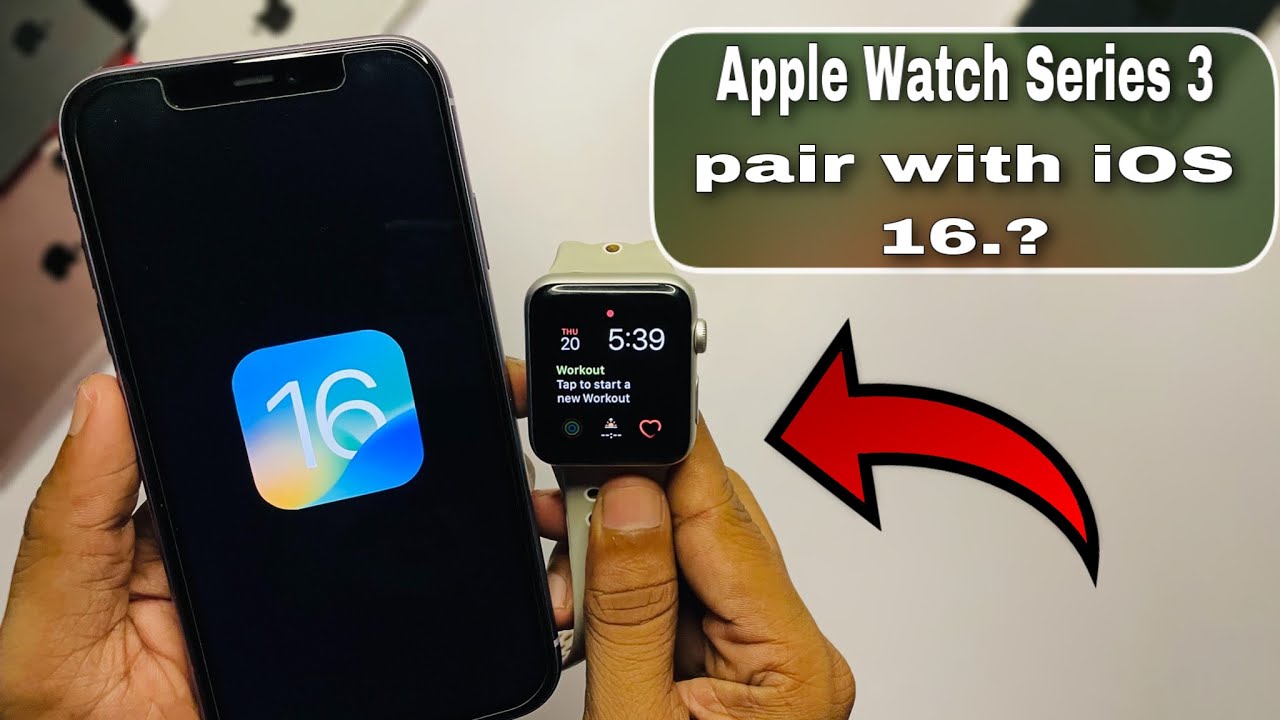
Learning how to connect Apple Watch 3 to iPhone 16 starts with one key check: compatibility. Apple Watch Series 3 can run only up to watchOS 8.8.1, while iPhone 16 uses iOS 18 or later. This guide explains what to try, why pairing may fail, and which options can get your watch working again.
Can Apple Watch Series 3 connect to iPhone 16?
In most cases, Apple Watch Series 3 cannot pair directly with an iPhone 16. The main issue is not Bluetooth. It is the large gap between watchOS 8 and the newer iPhone software required by the iPhone 16.
Apple Watch Series 3 supports watchOS 8.8.1 at most. The iPhone 16 was designed for newer Apple Watch models that support current watchOS versions. During setup, the Apple Watch app may ask you to update the watch, show a compatibility message, or stop before pairing finishes.
Apple’s listed requirements can change as new iOS versions arrive. For this reason, the most reliable answer to “how to connect Apple Watch 3 to iPhone 16” is that direct pairing is generally not supported. You should still try the steps below if your watch has already been updated and the iPhone recognizes it.
Check compatibility before you start
Before trying to connect Apple Watch Series 3 to iPhone 16, check the software and hardware details. This can save you from repeating the same setup process many times.
You will need:
• An iPhone 16 with the latest available iOS update
• Apple Watch Series 3 with the latest supported watchOS version
• At least 50 percent battery on both devices
• Wi-Fi and Bluetooth turned on
• The Apple Watch charger nearby
• Your Apple Account password, if Activation Lock is enabled
To check the watch software, open the Watch app on the iPhone that is currently paired with the watch. Tap My Watch, then General, then Software Update. If you do not have the old iPhone, open Settings on the watch and tap General, then About.
Apple Watch Series 3 cannot install watchOS 9, watchOS 10, or watchOS 11. That limit is important because an iPhone 16 may require a newer watchOS version during setup.

How to connect Apple Watch 3 to iPhone 16
If you want to test the connection, follow these steps in order. These steps may work only if your specific iPhone software still accepts the watch’s maximum supported version.
1. Update the iPhone
Open Settings on the iPhone 16. Tap General, then Software Update. Install any available update and restart the phone.
A current iOS version improves Bluetooth performance and fixes setup errors. However, updating the iPhone does not make Apple Watch Series 3 compatible with newer watchOS versions.
2. Update the Apple Watch
If possible, update the Apple Watch Series 3 before moving it to the iPhone 16. Place the watch on its charger and keep it connected to Wi-Fi.
On the old iPhone, open the Watch app and select:
- My Watch
- General
- Software Update
- Download and Install
Let the update finish without removing the watch from its charger. Series 3 updates can take a long time because the watch has limited storage and older hardware.
3. Back up the watch
Apple Watch data is backed up automatically to the paired iPhone. A backup may include app data, settings, watch faces, and some health information.
Back up the old iPhone to iCloud or a computer before you erase or unpair the watch. This gives you a safer way to restore your information if the transfer fails.
4. Erase and unpair the watch from the old iPhone
If the watch is still paired with another iPhone, open the Watch app on that phone. Tap My Watch, tap All Watches, tap the information button next to the watch, and select Unpair Apple Watch.
Enter your Apple Account password when asked. This turns off Activation Lock and creates a final backup.
Do not erase the watch from its Settings menu unless the old iPhone is unavailable. Erasing it directly may leave Activation Lock enabled, which can block setup on the iPhone 16.
5. Start pairing on the iPhone 16
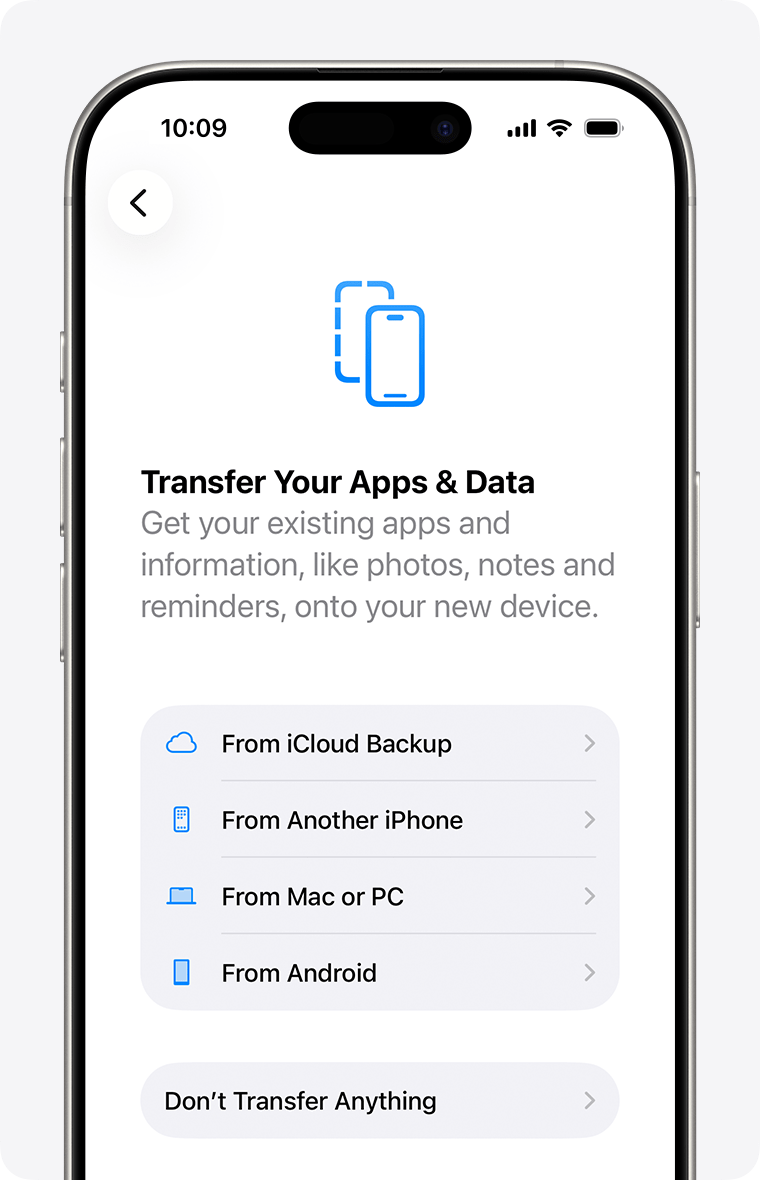
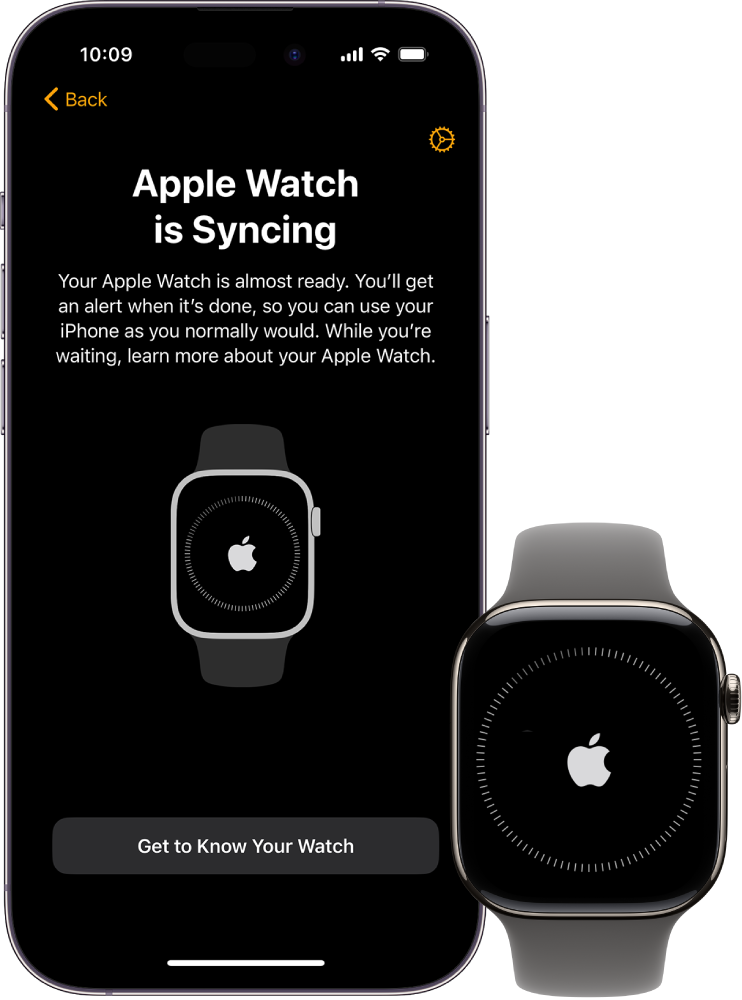
Turn on the Apple Watch and place it close to the iPhone 16. Open the Watch app and tap All Watches, then Add Watch.
Tap Set Up for Myself. When the animation appears on the watch, use the iPhone camera to scan it. You can also tap Pair Apple Watch Manually if the camera cannot read the animation.
6. Watch for a compatibility message
If the iPhone 16 says the Apple Watch needs an update that cannot be installed, the setup has reached the compatibility limit. There is no safe setting that can force an old Apple Watch to run an unsupported watchOS version.
This is the point where many people search again for how to connect Apple Watch 3 to iPhone 16. In practice, repeating the pairing process will not fix a software mismatch.
Why Apple Watch Series 3 may fail to pair
Several problems can stop the setup. The most common one is an unsupported software combination.
Unsupported watchOS
Apple Watch Series 3 supports only older watchOS releases. Newer iPhones may require a newer version during setup. The watch cannot meet that requirement because Apple ended major software support for Series 3 after watchOS 8.
Limited internal storage
Series 3 models have very limited storage. Even when an update is technically supported, the watch may display a message that it cannot verify or install the update.
A useful step is to remove unused apps and music from the old iPhone’s Watch app. Then restart both devices and try the update again.
Activation Lock
Activation Lock protects a lost or stolen Apple Watch. If the watch belongs to another person, that person must remove it from their Apple Account before you can use it.
Ask the previous owner to open Find My, select Devices, choose the Apple Watch, and remove it from their account. Do not buy a used watch until this step is complete.
Damaged or weak battery
An old Series 3 battery may drain during setup. Keep the watch on its charger during pairing and updates. If it shuts down repeatedly, the battery may need service.
Bluetooth or network errors
Bluetooth must be on, and the iPhone should have a stable Wi-Fi connection. Turn off Airplane Mode, restart both devices, and keep them within a few inches of each other.

Troubleshooting Apple Watch 3 and iPhone 16 pairing
If you still want to test how to connect Apple Watch 3 to iPhone 16, use these fixes before giving up.
• Restart both devices. Turn off the iPhone and Apple Watch, wait 30 seconds, and turn them on again.
• Keep the iPhone connected to a 2.4 GHz or 5 GHz Wi-Fi network with internet access.
• Turn Bluetooth off and on from Settings, not only from Control Center.
• Charge the watch for at least 30 minutes before pairing.
• Remove the Watch app from the iPhone only as a last resort, then reinstall it from the App Store.
• Check that the iPhone has enough free storage for the Watch app and software files.
• Reset network settings by opening Settings, tapping General, then Transfer or Reset iPhone, then Reset, and choosing Reset Network Settings.
• Erase the Apple Watch only after confirming that you know the Apple Account password.
Resetting network settings removes saved Wi-Fi passwords, VPN settings, and some cellular settings. Use it only when basic steps do not help.
From a practical support perspective, the most common mistake is erasing the watch before checking compatibility. Always confirm the maximum watchOS version first. An erase cannot upgrade Series 3 hardware.

What to do if Apple Watch Series 3 is not compatible
If the iPhone 16 rejects the watch, you have a few realistic choices.
Use an older compatible iPhone
An iPhone that supports the watch’s software may pair with Apple Watch Series 3. However, an older iPhone may not receive current security updates, apps, or cellular support.
This option can work as a temporary solution. It is not ideal as a long-term setup for banking, health, or other sensitive tasks.
Keep using the watch with its current iPhone
If the watch still works with the old iPhone, you can continue using it there. Keep both devices updated as far as Apple allows and back up the iPhone regularly.
Upgrade to a newer Apple Watch
This is the simplest long-term answer to how to connect Apple Watch 3 to iPhone 16. A newer Apple Watch model is more likely to support the iPhone 16 and current watchOS requirements.
Check the exact model before buying. Compatibility depends on the watch generation, watchOS version, and iPhone software version.
Buy a used Apple Watch carefully
A used watch can be a good value, but check these details first:
• The exact model and year
• The supported watchOS version
• Battery health, if available
• Whether Activation Lock is removed
• Whether the seller provides proof of purchase
• Whether the watch is GPS or cellular
Avoid a watch that remains linked to someone else’s Apple Account. Apple cannot normally remove Activation Lock without valid ownership information.

Data and feature limits with Apple Watch Series 3
Even if you manage to pair Apple Watch Series 3 to iPhone 16, some features may not work as expected. Older hardware may have limits with newer apps, notifications, health tools, and Apple services.
Apple Watch Series 3 also lacks newer features found on later models, such as improved sensors, larger displays, crash detection, and newer safety functions. It may still handle basic tasks like timekeeping, activity tracking, notifications, and workouts.
Health data deserves special care. Apple Watch records information such as heart rate, workouts, and activity trends, but it is not a medical device. If the watch stops syncing, do not treat missing data as proof that your health has changed.
The best setup is one that receives security updates and syncs reliably. A watch that pairs only through workarounds may not be worth the time or risk.

Common mistakes to avoid
Many failed pairing attempts come from a few simple errors.