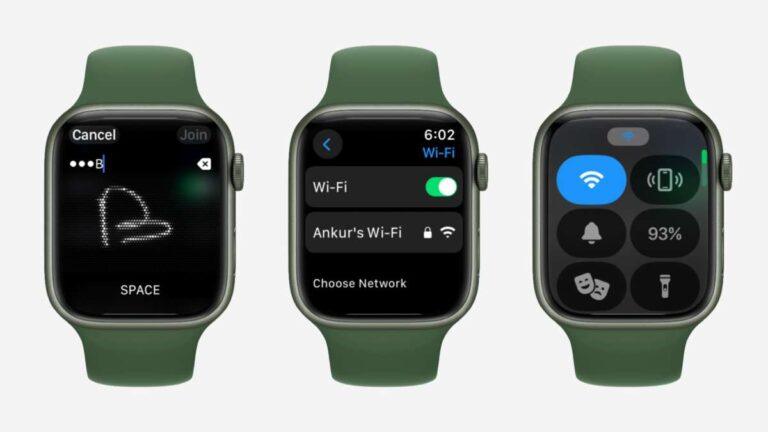
To connect an Apple Watch to Wi-Fi, open Settings, choose Wi-Fi, select your network, and enter its password.
Learning how to connect Wi-Fi Apple Watch devices can keep your watch useful when your iPhone is out of range. With the right network, your Apple Watch can send messages, use Siri, receive notifications, and access online apps without relying on Bluetooth or cellular service. This guide explains the setup, network limits, common errors, and practical fixes in simple steps.

How an Apple Watch connects to Wi-Fi
Your Apple Watch usually connects to your iPhone through Bluetooth. When the watch moves too far away, it can switch to a known Wi-Fi network. This helps it stay connected to the internet without keeping your iPhone nearby.
The watch does not connect to every network automatically. It normally joins Wi-Fi networks that your iPhone has used before, or networks you add directly from the watch.
Wi-Fi can support several Apple Watch features, including:
• Sending and receiving iMessages
• Using Siri for online requests
• Checking weather and stocks
• Downloading apps from the App Store
• Receiving notifications from supported apps
• Making FaceTime audio calls on compatible models
• Streaming music or podcasts in supported situations
A Wi-Fi connection does not give the watch every feature available through an iPhone. Some apps still need the iPhone for full data access. Also, SMS text messages and regular phone calls may require an active cellular plan or a connection to the paired iPhone.
Before you connect your Apple Watch to Wi-Fi
Before learning how to connect Wi-Fi Apple Watch devices, check a few basic details. These checks prevent most setup problems.
You need:
• An Apple Watch that is turned on
• A working Wi-Fi router
• The correct Wi-Fi password
• A watchOS version that supports your desired features
• An iPhone for some setup and account functions
Keep the watch near the router during the first connection. A strong signal makes it easier to enter the password and complete the connection.
Your Apple Watch may not support every Wi-Fi network. Apple Watch models generally work with common 2.4 GHz networks. Some newer models and watchOS versions also support 5 GHz networks. Compatibility can vary by model and software version, so a 2.4 GHz network is often the safest choice when troubleshooting.
Public Wi-Fi can also cause problems. Networks in hotels, airports, schools, and coffee shops often ask you to accept terms on a web page. Apple Watch does not handle every captive portal well. A private home network is usually the easiest option.

How to connect Wi-Fi Apple Watch from the watch
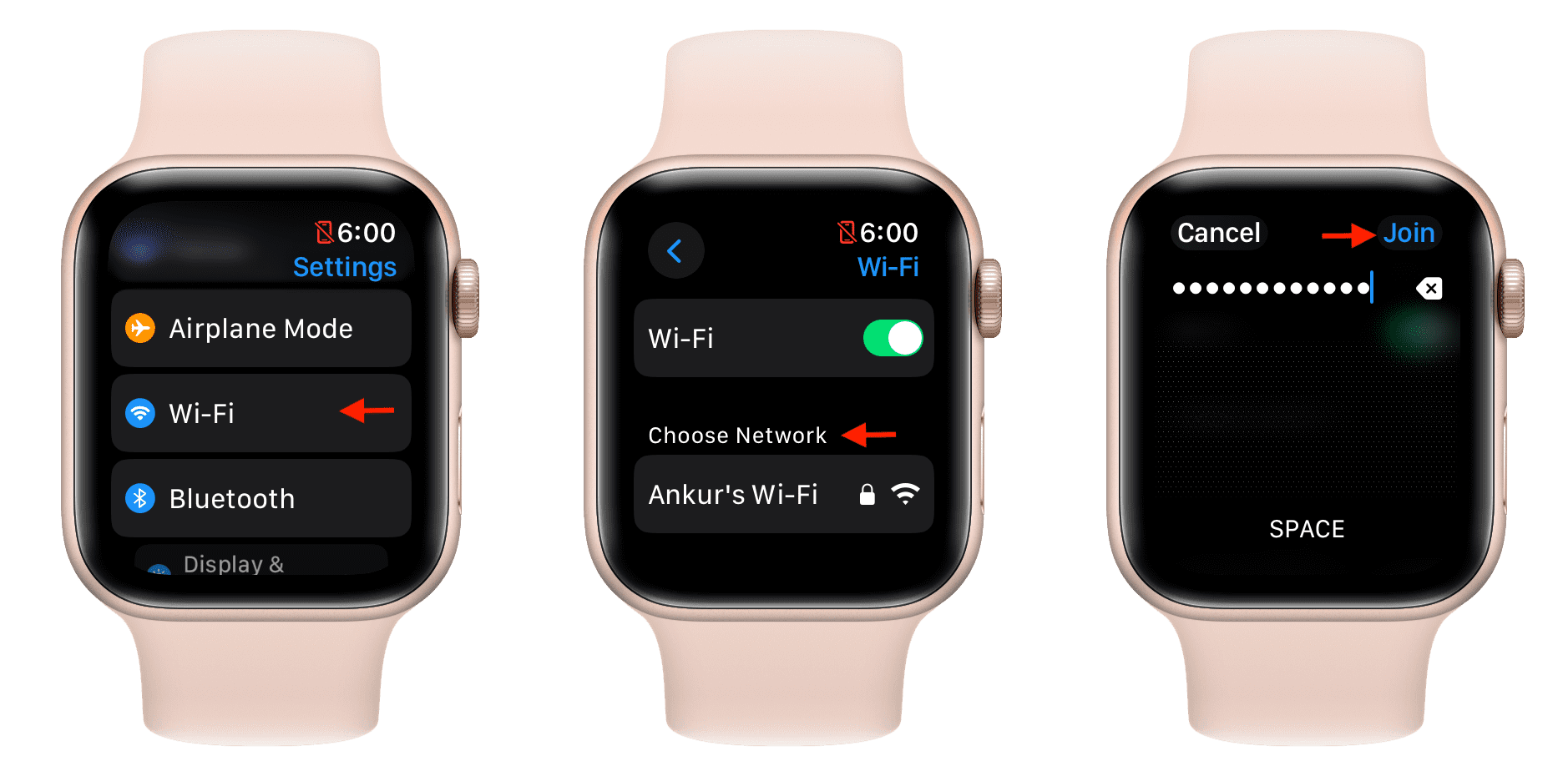
The simplest way to connect your watch is through its Settings app. Follow these steps carefully.
-
Press the Digital Crown to open the app list or app grid.
-
Open Settings.
-
Tap Wi-Fi.
-
Wait for nearby networks to appear.
-
Tap the name of your Wi-Fi network.
-
Enter the network password if the watch asks for one.
-
Tap Join or Connect.
The Apple Watch uses a small on-screen keyboard or character input method. Enter the password slowly. Wi-Fi passwords are case-sensitive, so a single wrong capital letter can stop the connection.
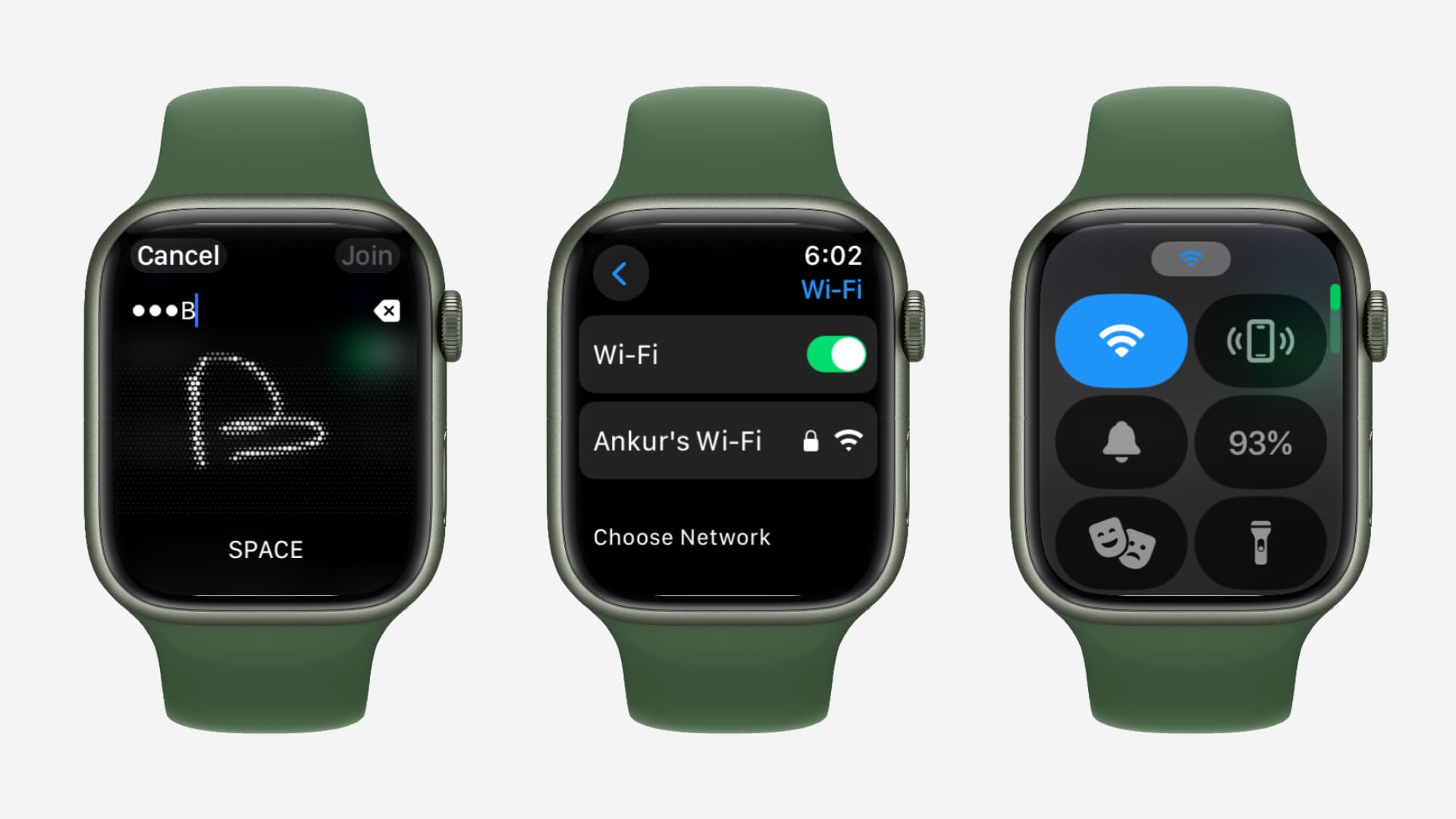
After the watch joins the network, you should see a checkmark or connection indicator beside the network name. You can also look for the Wi-Fi symbol in Control Center.
To open Control Center, press the side button on newer watchOS versions. On some older versions, swipe up from the bottom of the watch face. The Wi-Fi icon helps confirm whether the watch is connected.
A practical lesson from Apple Watch troubleshooting is that password errors are often the real problem. Many users assume the router is broken, but the issue is usually an extra space, a wrong symbol, or a recently changed password.
How to connect Wi-Fi Apple Watch using a known network
Your Apple Watch can often join a Wi-Fi network that your iPhone already knows. This makes setup easier because the watch can use network details shared through the paired iPhone.
To improve the chance of automatic connection:
• Connect your iPhone to the Wi-Fi network first.
• Keep the iPhone and Apple Watch close together.
• Make sure Bluetooth is turned on.
• Keep Wi-Fi enabled on the iPhone.
• Open the Apple Watch app on your iPhone and allow syncing to finish.
• Restart both devices if the network does not appear.
The watch may not show every network saved on your iPhone. It can also forget a network if you reset network settings, change the router name, or update security settings.
If you change your home Wi-Fi password, reconnect your iPhone first. Then try connecting the Apple Watch again. In many cases, the new network information will transfer after the devices sync.

How to check whether your Apple Watch is connected
After you learn how to connect Wi-Fi Apple Watch devices, you should confirm the connection before testing online features.
Use these checks:
• Press the side button to open Control Center.
• Look for the Wi-Fi icon.
• Open Settings, then tap Wi-Fi.
• Check for a checkmark beside the active network.
• Move the iPhone farther away and wait a moment.
If the iPhone remains nearby, the watch may still use Bluetooth. To test Wi-Fi alone, place the iPhone in another room or turn off Bluetooth temporarily on the iPhone. Do not use Control Center to turn off Bluetooth unless you understand the effect. The iPhone may only disconnect accessories rather than fully disable Bluetooth.
Another easy test is to ask Siri for the current weather. You can also open a supported online app or send an iMessage. A successful response suggests that the watch has internet access.
Remember that an app failure does not always mean Wi-Fi failed. The app may be down, the watch may need an update, or the feature may require a cellular connection.

What to do when Apple Watch will not connect to Wi-Fi
If how to connect Wi-Fi Apple Watch steps do not work, use the fixes below in order. Start with simple checks before changing router settings.
Check the Wi-Fi password
Type the password again. Watch for uppercase letters, numbers, and special symbols. If possible, test the same password on another device.
Restart the Apple Watch
Press and hold the side button until the power menu appears. Tap the power icon, turn off the watch, wait a few seconds, and turn it on again.
Restart the router
Unplug the router for about 30 seconds. Plug it back in and wait until the Wi-Fi signal returns. This can clear a temporary network error.
Update the devices
Install available updates for the iPhone and Apple Watch. Software updates often fix connection bugs and improve compatibility with newer routers.
To update the watch, open the Watch app on the iPhone and go to General, then Software Update. The watch should have enough battery power and remain on its charger during the update.
Forget and rejoin the network
On the Apple Watch, open Settings and tap Wi-Fi. Tap the network name, then look for an option to forget or remove the network if available. Rejoin it and enter the password again.
Reset network settings on the iPhone
This is a stronger step. On the iPhone, open Settings, tap General, then Transfer or Reset iPhone, Reset, and Reset Network Settings.
This removes saved Wi-Fi networks, passwords, VPN settings, and some cellular network settings. Use it only when simpler fixes fail. Write down important Wi-Fi passwords first.
Check router security
Older Apple Watch models may have trouble with unusual router settings. Try these options:
• Use WPA2 or WPA2/WPA3 transitional security.
• Enable a 2.4 GHz network.
• Avoid hidden network names during setup.
• Turn off MAC address filtering for testing.