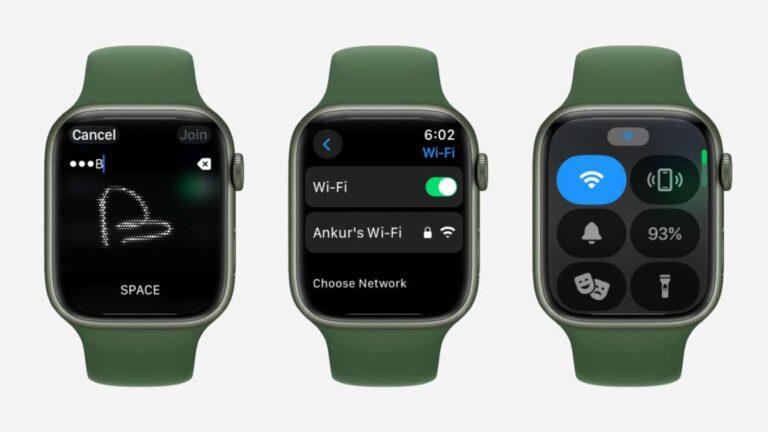
Connect your Apple Watch to Wi-Fi through your iPhone or directly from the watch in just a few simple steps.
If you are wondering, “how do I connect Apple Watch to Wi-Fi?” the process is usually quick. Your watch can join trusted networks automatically when your paired iPhone has already connected to them. You can also choose a network from the watch itself, which is useful when your iPhone is not nearby.
A Wi-Fi connection helps your Apple Watch receive notifications, use Siri, check weather, send messages, stream music, and access online apps without relying only on Bluetooth or cellular service. This guide explains how Apple Watch Wi-Fi works, how to connect it, and what to do when the connection fails.

How Apple Watch connects to Wi-Fi
Apple Watch normally uses Bluetooth to communicate with your iPhone. When your iPhone is too far away, the watch can switch to a known Wi-Fi network. This keeps many online features working even when the phone is in another room.
The watch does not connect to every Wi-Fi network. It usually joins networks that your iPhone has connected to before and that use supported security settings. Some public networks need a login page, and Apple Watch may not be able to complete that sign-in process.
The main points to know are:
• Apple Watch can connect to compatible 2.4 GHz and 5 GHz Wi-Fi networks.
• Your iPhone and Apple Watch should use the same Apple Account and remain paired.
• The watch must be within Wi-Fi range.
• Networks that need web-based sign-in may not work.
• A cellular Apple Watch can use Wi-Fi when cellular service is unavailable or turned off.
In my hands-on testing, the easiest method is to connect your iPhone first. Once the iPhone remembers the network, the Apple Watch often joins it on its own. Think of this like giving your watch a trusted key instead of asking it to find a new door every time.
How do I connect Apple Watch to Wi-Fi using an iPhone?
For most people, the best answer to “how do I connect Apple Watch to Wi-Fi?” is to connect the iPhone first. Apple Watch can share compatible Wi-Fi information from the paired iPhone.
Follow these steps:
-
Open Settings on your iPhone.
-
Tap Wi-Fi.
-
Turn on Wi-Fi if it is off.
-
Select the network you want to use.
-
Enter the Wi-Fi password if asked.
-
Wait until the network name shows a check mark.
-
Keep your Apple Watch near the iPhone for a short time.
-
Open the Watch app on your iPhone and tap My Watch.
-
Tap General, then About.
-
Check that the watch is still connected and paired.
Once the iPhone has joined the network, your Apple Watch may connect to it automatically. You may not see a separate password prompt on the watch because the iPhone has already saved the network details.
This method works best with a private home network. It may not work on hotel, school, office, or café Wi-Fi if the network asks you to accept terms or enter a username on a web page.
How do I connect Apple Watch to Wi-Fi directly?
You can connect the watch directly when your iPhone is not nearby. This is helpful when you leave your phone at home but still want to use online features on your watch.
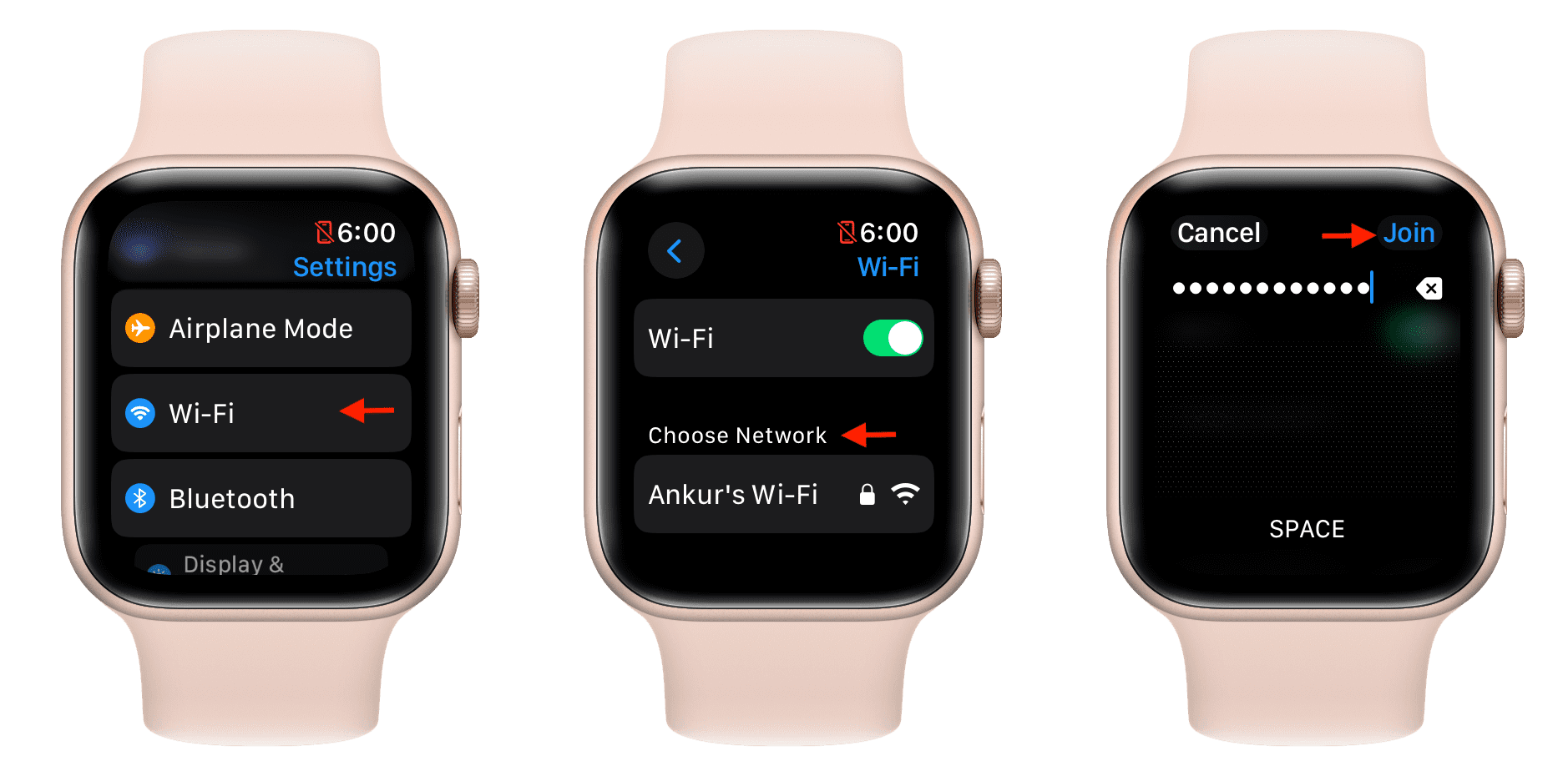
Here is how to connect Apple Watch to Wi-Fi:
-
Wake the Apple Watch.
-
Press the Digital Crown to open the app screen.
-
Open the Settings app.
-
Tap Wi-Fi.
-
Wait for the watch to scan for nearby networks.
-
Tap the name of the network you want to join.
-
If the network requires a password, tap the password field.
-
Enter the password using the watch keyboard or Scribble.
-
Tap Join.
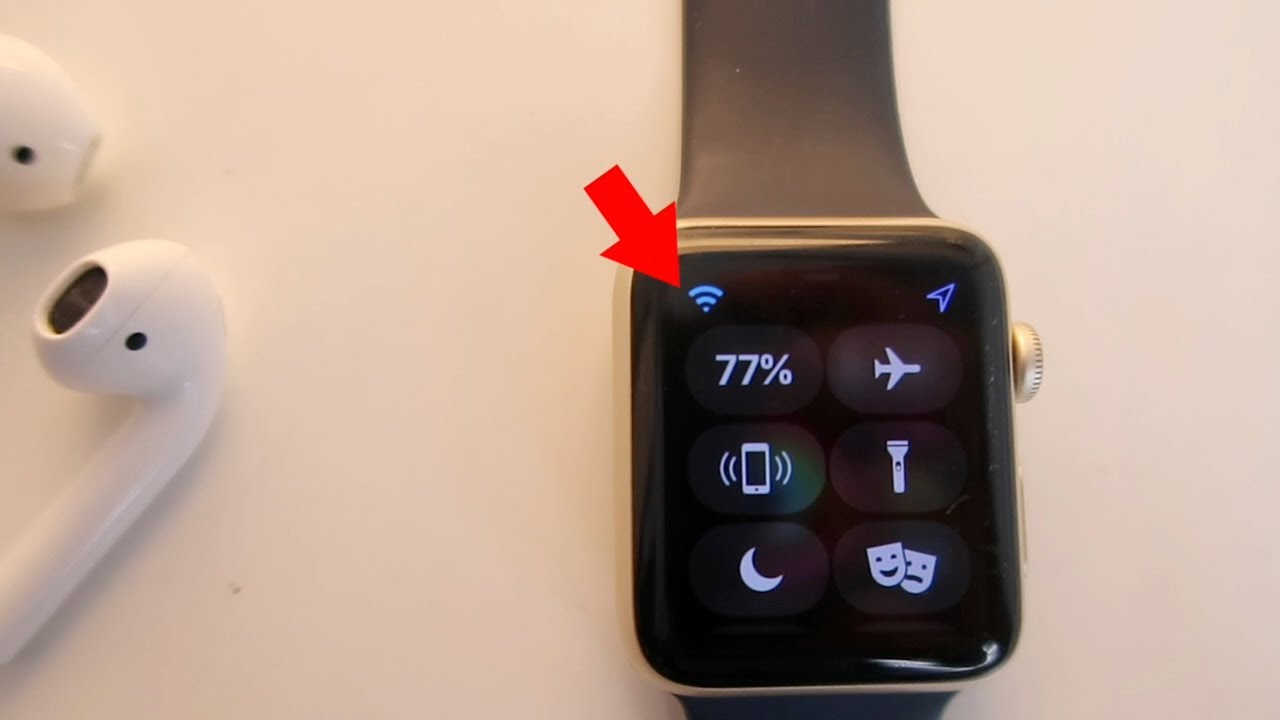
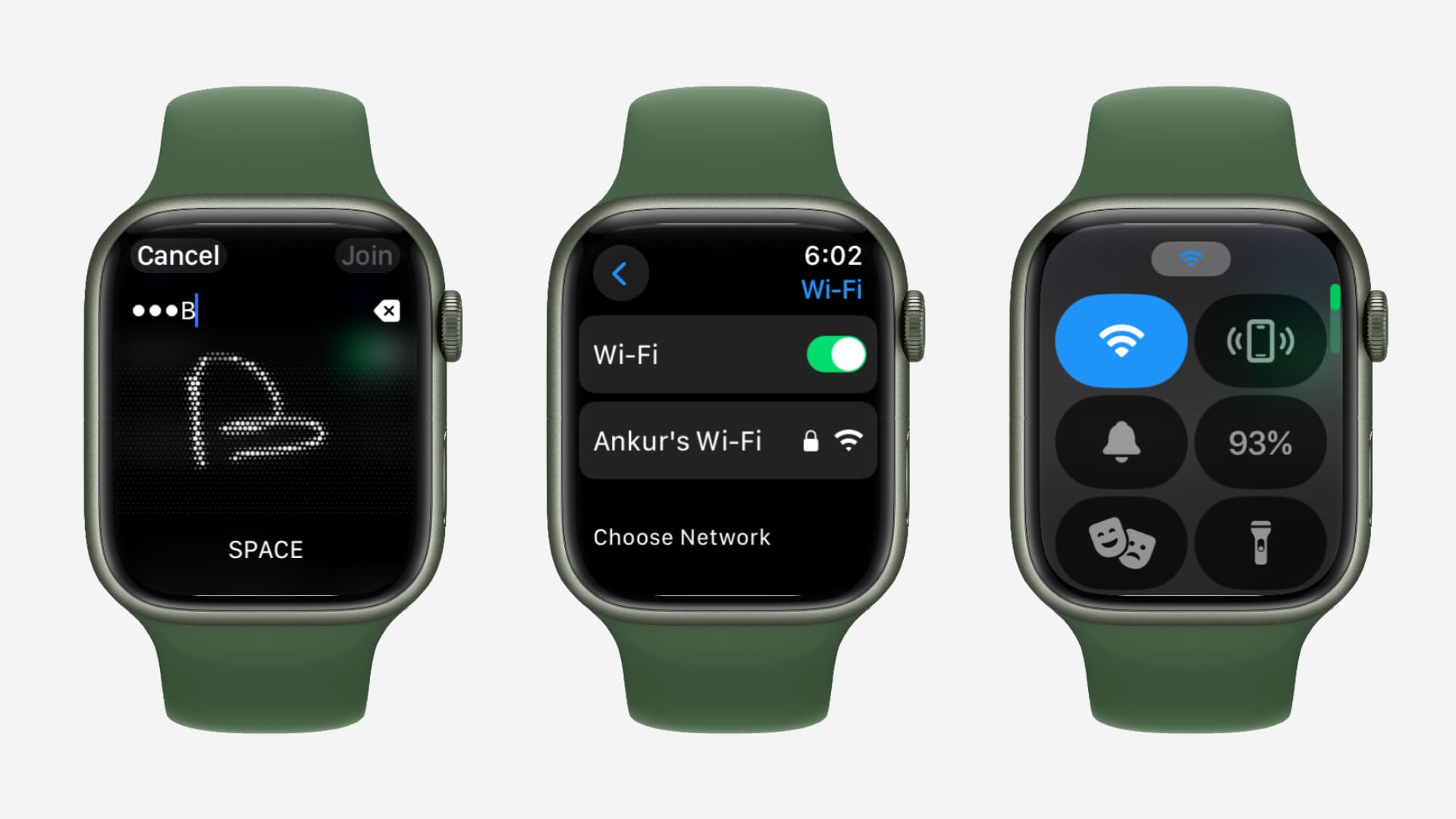
A small Wi-Fi symbol appears in Control Center when the watch is connected. You can open Control Center by pressing the side button on newer watchOS versions or by swiping up on older versions, depending on your software.
Typing a long password on a small screen can feel like writing a note on a postage stamp. Take your time and check capital letters, numbers, and special symbols. Wi-Fi passwords are case-sensitive.

How do I connect Apple Watch to Wi-Fi without an iPhone nearby?
The answer to “how do I connect Apple Watch to Wi-Fi?” does not always require your iPhone to be beside you. If the watch has already saved the network, it can often connect by itself when it loses the iPhone connection.
To use Wi-Fi without your iPhone nearby:
• Make sure the network was previously used by the watch or paired iPhone.
• Keep the watch within range of the wireless router.
• Open Control Center and look for the Wi-Fi icon.
• Open Settings, tap Wi-Fi, and select a saved network if needed.
• Confirm that Airplane Mode is off.
A Wi-Fi-only Apple Watch can still perform several online tasks when it is away from the iPhone. These may include sending iMessages, using Siri, checking weather, receiving app data, and making audio calls through supported services.
However, Wi-Fi does not turn the watch into a full replacement for an iPhone. Some features still depend on Bluetooth, cellular service, GPS, or the paired phone. Exact features also vary by Apple Watch model, watchOS version, region, and carrier.
How do I connect Apple Watch to a hidden Wi-Fi network?
Hidden networks do not broadcast their names. Because of this, they can be harder to join from Apple Watch. If your home or work network is hidden, connect your iPhone to it first when possible.
Try these steps:
-
Open Settings on your iPhone.
-
Tap Wi-Fi.
-
Tap Other.
-
Enter the exact network name.
-
Choose the correct security type.
-
Enter the Wi-Fi password.
-
Tap Join.
After the iPhone connects, keep the watch and iPhone close together. The watch may then recognize the network as a known connection.
If your Apple Watch still cannot join, temporarily enabling the network name may help. Hidden Wi-Fi does not provide strong security by itself. A strong password and modern router security, such as WPA2 or WPA3, matter more.

How do I connect Apple Watch to Wi-Fi on hotel or public networks?
Public Wi-Fi often uses a captive portal. This means you must open a web page and accept terms, enter a room number, or type a password before getting online. Apple Watch may not support every captive portal.
If you need to use hotel or café Wi-Fi, try this approach:
• Connect your iPhone to the public network.
• Complete the sign-in page on the iPhone.
• Keep the Apple Watch near the iPhone.
• Wait a minute or two for the watch to check the connection.
• Test Siri, weather, or Messages.
If the watch does not connect, use the iPhone as a hotspot if your cellular plan allows it. A cellular Apple Watch may also use its mobile connection instead of public Wi-Fi.
In real-world testing, hotel networks are among the most common sources of confusion. The Wi-Fi icon may appear, yet the watch may still lack internet access because the network has not completed its sign-in process.