Connect your Apple Watch to Wi-Fi through Settings or let it copy a trusted network from your iPhone.
Knowing how to connect the Apple Watch to Wi-Fi helps your watch stay useful when your iPhone is not nearby. With the right network, you can receive notifications, use Siri, stream music, check weather, and access apps without relying only on Bluetooth or cellular service. This guide explains the process, common errors, network limits, and practical fixes in simple steps.
How to connect the Apple Watch to Wi-Fi
Your Apple Watch usually connects to Wi-Fi automatically when your paired iPhone has already joined the network. If the watch does not connect on its own, you can choose a network directly from the watch.
Follow these steps:
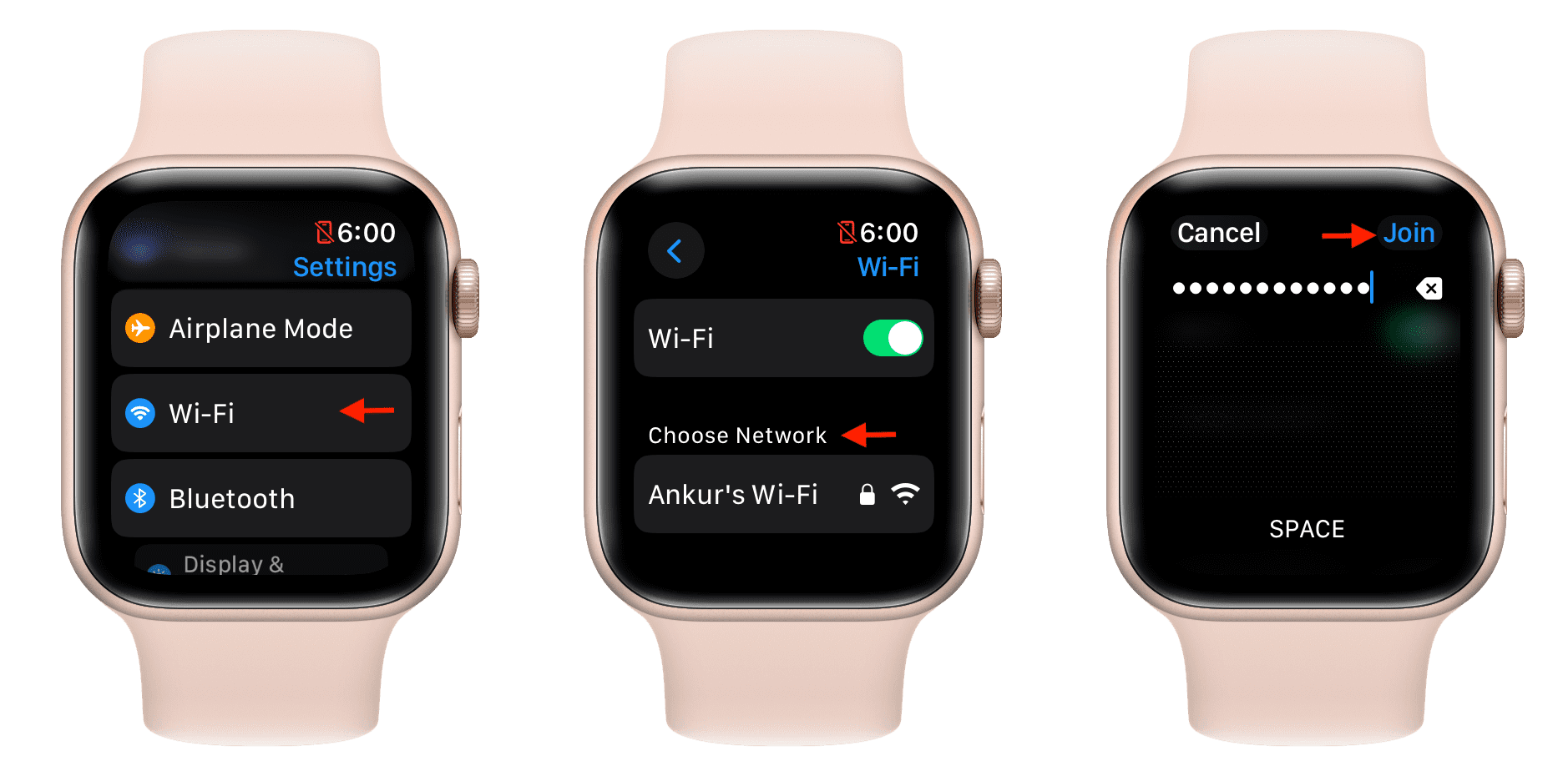
- Wake your Apple Watch and open the Settings app.
- Tap Wi-Fi.
- Wait while the watch scans for nearby networks.
- Tap the network you want to use.
- Enter the Wi-Fi password if asked.
- Tap Join or Done on the watch keyboard.
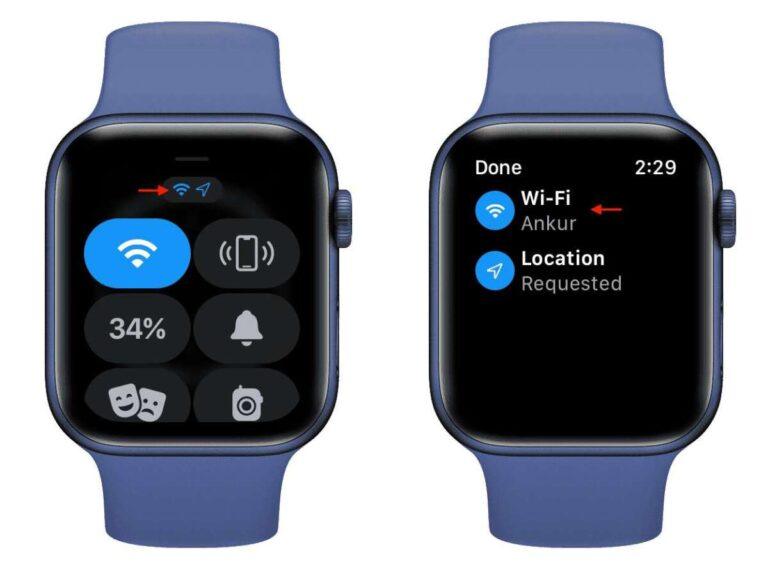
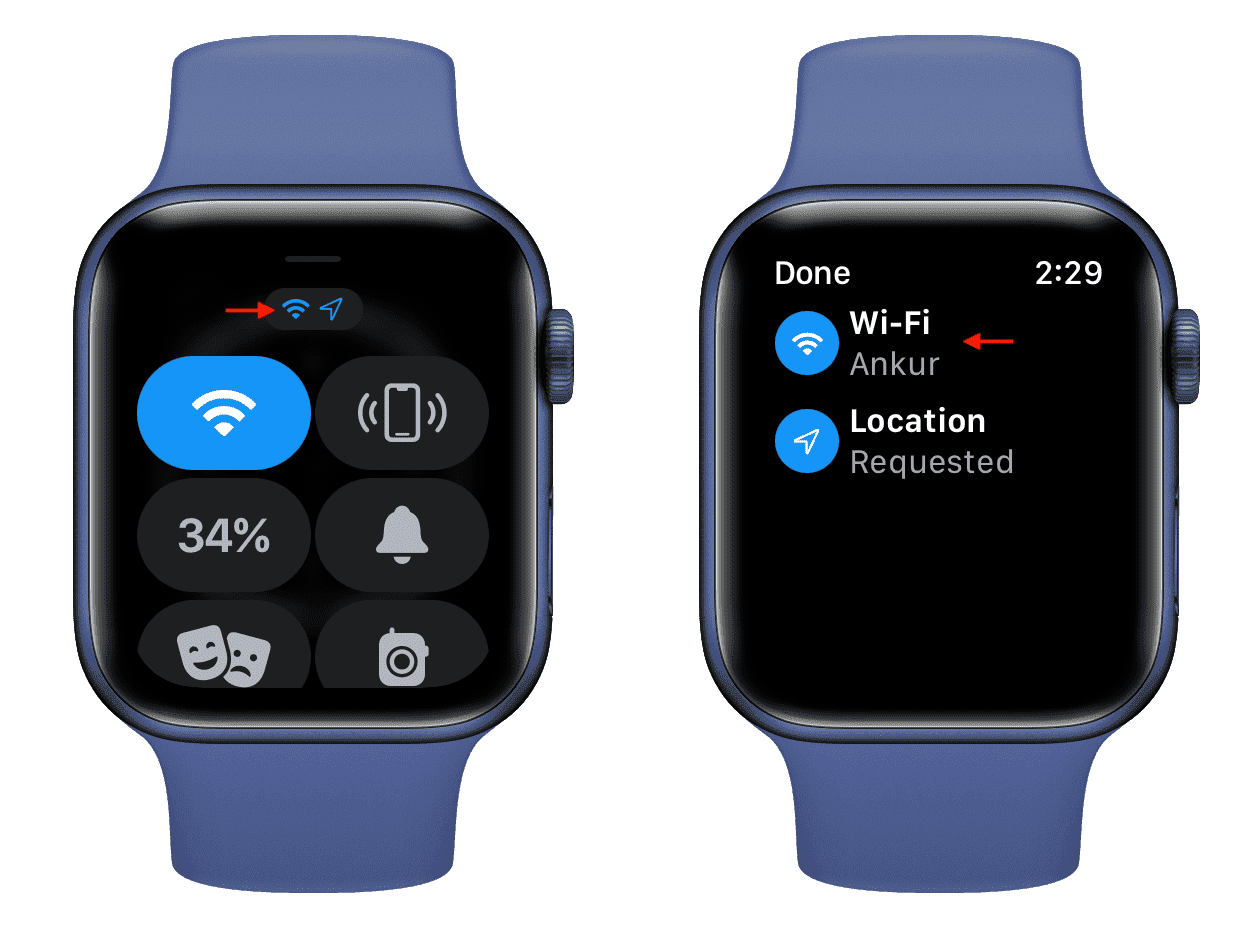
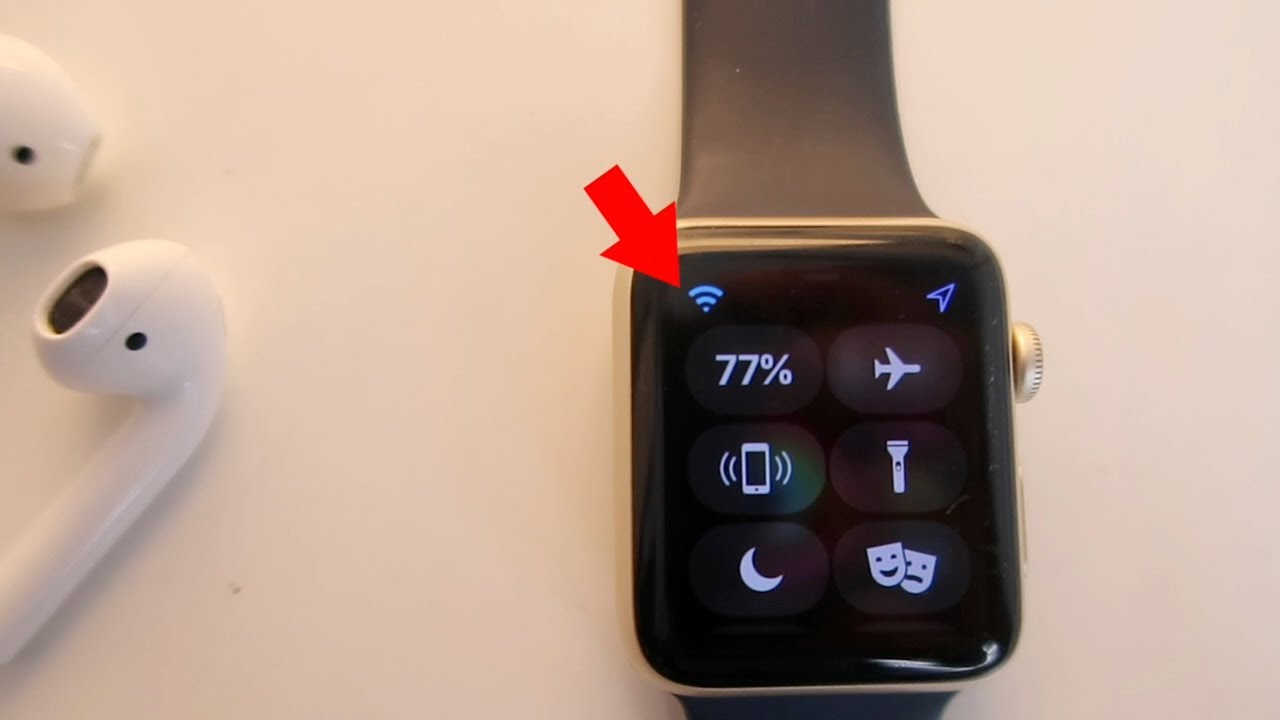
A checkmark appears beside the network after the connection works. You may also see the Wi-Fi icon in Control Center when the watch is connected.
When learning how to connect the Apple Watch to Wi-Fi, remember that the watch may first try to use Bluetooth through your iPhone. If your iPhone is close, this is normal. The watch switches to Wi-Fi when Bluetooth is unavailable or when you move out of range.
Connect Apple Watch to Wi-Fi through your iPhone
The easiest way to connect an Apple Watch to Wi-Fi is to use a network that your iPhone already knows. Apple Watch can copy trusted Wi-Fi details from the iPhone during normal use.
Use this method:
- Connect your iPhone to the desired Wi-Fi network.
- Keep the iPhone and Apple Watch close together.
- Make sure Bluetooth is turned on for the iPhone.
- Keep Wi-Fi enabled on both devices.
- Open the Watch app on your iPhone if the connection does not happen.
- Restart both devices if the watch still shows no connection.
Your watch does not need to remain next to the iPhone forever. Once it knows a compatible network, it can connect to that network when the iPhone is away.
This method is useful at home, work, or school. It is also the reason many people never need to enter a Wi-Fi password on the Apple Watch itself.
How to connect the Apple Watch to Wi-Fi manually
Manual setup is helpful when your iPhone is not nearby or when the watch has not saved the network. The steps are short, but typing on the small display can be slow.
Enter a Wi-Fi password on Apple Watch
Open Settings, tap Wi-Fi, and select the network name. The watch then shows a password field.
You can enter the password with:
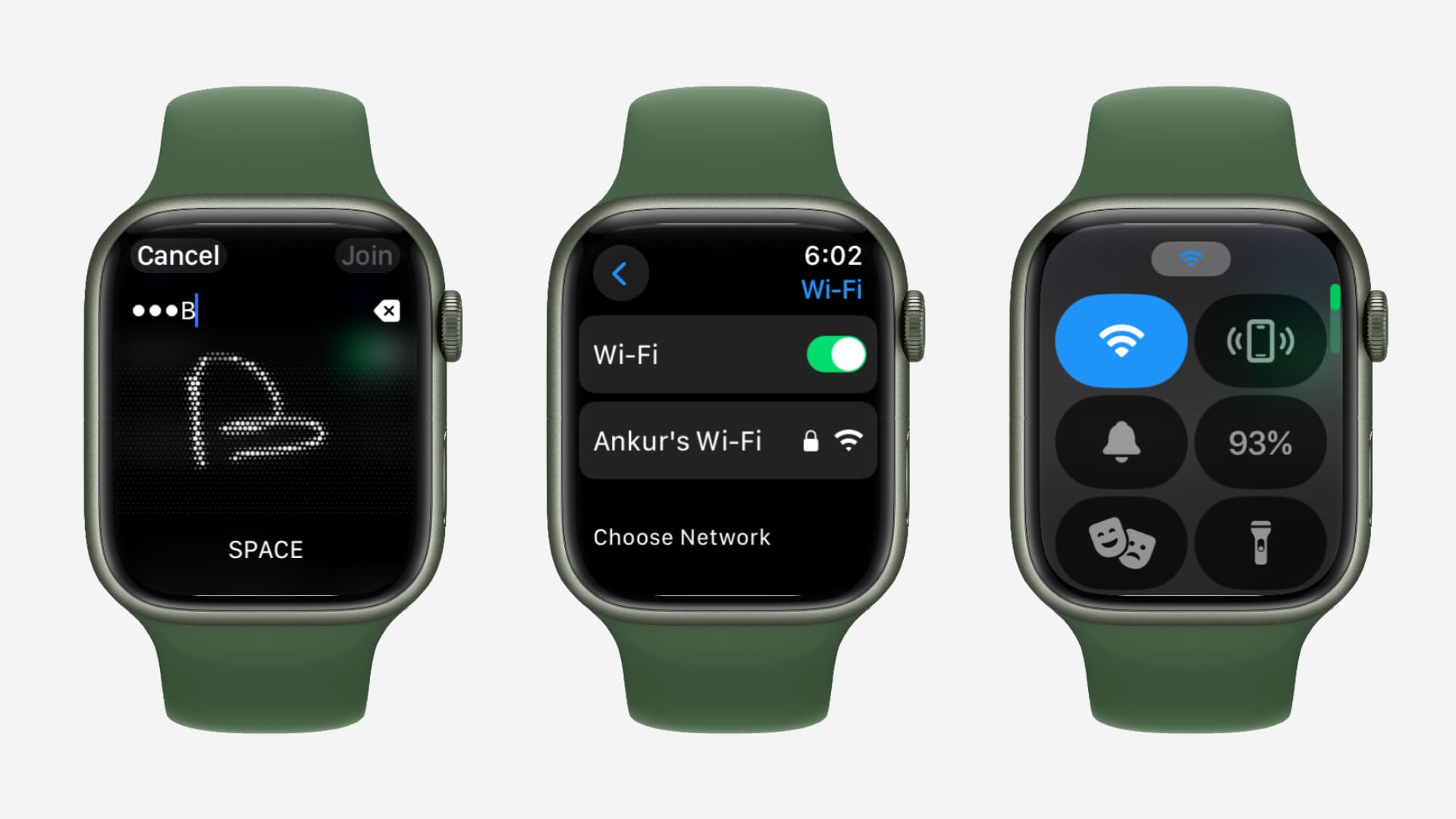
• Scribble, by writing each letter on the screen
• Dictation, by tapping the microphone and speaking clearly
• The on-screen keyboard on supported Apple Watch models
• Suggested characters, when the watch offers them
Passwords are case sensitive. A single wrong capital letter or extra space can stop the connection.
If you use a long password, check each character before tapping Join. In my experience helping people troubleshoot watch connections, typing errors are more common than router failures. A password manager on the iPhone can help you view the correct password before you type it.
What Apple Watch can do over Wi-Fi
A Wi-Fi connection gives your Apple Watch more freedom, but it does not make every feature independent from the iPhone. The available features depend on your Apple Watch model, watchOS version, nearby network, and the app you use.
With Wi-Fi, your watch may be able to:
• Send and receive messages
• Use Siri for online requests
• Make FaceTime audio calls on supported models and regions
• Check weather, stocks, and maps
• Receive app notifications
• Stream music or podcasts
• Download apps and software updates
• Use internet-based apps
Some features still need your iPhone. For example, certain apps rely on iPhone data, and some actions may not work if the watch is not paired correctly.
A cellular Apple Watch can also use its cellular plan when Wi-Fi and the iPhone are unavailable. Wi-Fi is often the simplest option because it does not require a mobile data plan.

Apple Watch Wi-Fi requirements and limits
Understanding network limits makes it easier to see why a connection fails. Apple Watch is not designed to join every network that an iPhone can use.
Keep these points in mind:
• Apple Watch works with compatible 802.11 Wi-Fi networks.
• Many models support 2.4 GHz Wi-Fi.
• Newer models may support 5 GHz Wi-Fi, depending on the model and watchOS version.
• The watch may not support networks that require a web sign-in page.
• Hotel, airport, and coffee shop Wi-Fi can be difficult to use.
• Enterprise networks with special security settings may not work.
• Hidden networks may require extra setup or may not appear in the list.
• The watch cannot use a Wi-Fi network that is out of range.
A captive portal is the page that opens when you join public Wi-Fi and must accept terms or enter an email address. Apple Watch has limited support for these login pages, so a network may work on your iPhone but fail on the watch.
If you are deciding how to connect the Apple Watch to Wi-Fi at a hotel, use the hotel’s regular password-based network when possible. A personal hotspot from your iPhone may be more reliable, although hotspot behavior can vary by carrier and device.
How to connect the Apple Watch to Wi-Fi after changing routers
A new router often creates a new network name or password. Your iPhone may reconnect quickly, while the Apple Watch continues looking for the old network.
Try this process:
- Connect your iPhone to the new Wi-Fi network.
- Keep the iPhone and Apple Watch close together.
- Open the Watch app on your iPhone.
- Wait a few minutes for the watch to update its saved network information.
- Check Settings > Wi-Fi on the Apple Watch.
- Select the new network manually if it does not appear.
If the old network remains saved, tap it and choose Forget This Network when that option is available. Then select the new network and enter the password.
This is one of the most useful answers to how to connect the Apple Watch to Wi-Fi after an internet service change. The watch needs the new network details, not just a working internet connection on the iPhone.

Fix Apple Watch Wi-Fi connection problems
When Apple Watch will not connect to Wi-Fi, use simple checks before resetting anything. Most problems come from distance, a wrong password, router settings, or outdated software.
Check the distance
Move the watch near the router or near the iPhone. Thick walls, metal objects, and a long distance can weaken the signal.
Check Airplane Mode
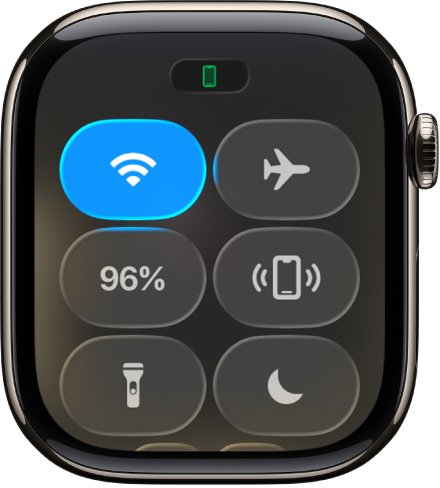
Open Control Center and make sure Airplane Mode is off. If it is on, Wi-Fi may be disabled until you turn it back on.
Restart both devices
Turn off the Apple Watch and iPhone. Turn them back on, then try the network again. A restart clears small network errors without removing your data.
Restart the router
Unplug the router for about 30 seconds. Plug it back in and wait for the Wi-Fi signal to return. This can fix a stuck connection or address problem.
Update watchOS and iOS
Install available software updates on both devices. Updates often improve compatibility, security, and network performance.
Forget and rejoin the network
On the Apple Watch, open Settings > Wi-Fi. Select the network and forget it if that option appears. Join again and carefully enter the password.
Reset network settings as a last resort
On the iPhone, you can reset network settings through Settings > General > Transfer or Reset iPhone > Reset > Reset Network Settings. This removes saved Wi-Fi passwords, VPN settings, and other network details, so use it only after easier fixes fail.
If you use this step, reconnect the iPhone to Wi-Fi first. Then repeat how to connect the Apple Watch to Wi-Fi through the iPhone.
Why Apple Watch says it is connected but has no internet
Sometimes the watch shows a Wi-Fi connection but apps still cannot load. This usually means the watch is connected to the router, but the router has no internet access.
Test the same network on your iPhone. If the iPhone also cannot browse the web, restart the modem or contact your internet provider.
Other causes include:
• A public network waiting for a login
• A weak or unstable signal
• A router blocking Apple devices
• Incorrect date and time settings
• A temporary Apple service outage
• An app that needs the iPhone rather than Wi-Fi
A Wi-Fi symbol does not always guarantee full internet access. Think of the router as a door: the watch may have reached the door, but the internet service may still be locked behind it.

How to improve Apple Watch Wi-Fi performance
A stable network matters more than a fast network for most watch tasks. Messages and weather need very little data, while music streaming and software updates need more.
Try these practical tips:
• Keep the watch within a reasonable range of the router.
• Use a strong home network instead of busy public Wi-Fi.
• Avoid placing the router behind furniture or inside a cabinet.
• Keep watchOS updated.
• Use the 2.4 GHz network if your model does not support 5 GHz.
• Use the 5 GHz network when your newer model supports it and you are close to the router.
• Charge the watch before large updates or long downloads.
• Turn off Wi-Fi only when you want to save battery or troubleshoot.
In real-world testing, a watch may appear connected in one room and drop the connection in another. That does not always mean the watch is faulty. Small devices have smaller antennas, so distance and walls can affect them more than users expect.

Wi-Fi, Bluetooth, and cellular on Apple Watch
Apple Watch uses different connection types in a smart order. When your iPhone is nearby, Bluetooth is usually the main link because it uses little power. When Bluetooth is not available, the watch can use a known Wi-Fi network.
A cellular Apple Watch adds another option. It can connect to a mobile network when the iPhone is away and Wi-Fi is unavailable. However, cellular service requires a supported model, carrier plan, and adequate signal.
Here is a simple comparison:
• Bluetooth: Best for short-range use with your iPhone.
• Wi-Fi: Useful when the iPhone is away but a known network is available.
• Cellular: Useful when the iPhone and Wi-Fi are both unavailable.
Knowing these differences prevents confusion. A watch that is not connected to Wi-Fi may still work perfectly through Bluetooth.
Common mistakes to avoid
Many connection problems come from small setup mistakes. Avoid these errors when learning how to connect the Apple Watch to Wi-Fi:
• Entering the wrong Wi-Fi password
• Choosing a guest network with a browser login
• Trying to join a hidden or restricted network
• Keeping Airplane Mode on
• Forgetting to update the iPhone or Apple Watch
• Resetting network settings too early
• Assuming every Apple Watch model supports the same Wi-Fi bands
• Standing too far from the router during setup
Do not erase your Apple Watch just because Wi-Fi fails. Erasing the watch removes personal settings and takes much longer than restarting the router or rejoining the network.
How to connect the Apple Watch to Wi-Fi: a quick checklist
Use this checklist when you need a fast solution:
- Put the Apple Watch near the iPhone or router.
- Turn off Airplane Mode.
- Check that Wi-Fi is enabled.
- Open Settings > Wi-Fi on the watch.
- Select the correct network.
- Enter the password carefully.
- Restart the watch if the connection fails.
- Restart the router if other devices also have trouble.
- Update iOS and watchOS.
- Forget and rejoin the network if needed.
This process solves most everyday Wi-Fi issues without advanced settings or technical tools.
Frequently Asked Questions
Can Apple Watch connect to Wi-Fi without an iPhone nearby?
Yes. Apple Watch can connect to a compatible, saved Wi-Fi network when the iPhone is not nearby. The watch must have already received or manually entered the network details.
Why will my Apple Watch not connect to Wi-Fi?
The most common causes are an incorrect password, weak signal, unsupported network, Airplane Mode, or outdated software. Restarting the watch, iPhone, and router often fixes the issue.
Can Apple Watch connect to hotel or airport Wi-Fi?
It may connect if the network uses a normal password. Networks that require a web page, email address, or terms-of-service login may not work properly on Apple Watch.
Does Apple Watch use Wi-Fi when the iPhone is nearby?
Usually, the watch prefers Bluetooth when the iPhone is nearby because Bluetooth uses less power. It can use Wi-Fi when Bluetooth is unavailable or when the iPhone is out of range.
Does every Apple Watch support 5 GHz Wi-Fi?
No. Wi-Fi support varies by Apple Watch model and software version. If a 5 GHz network does not appear, try a compatible 2.4 GHz network.